
 Home
 User Guide
 Developers
 Payment Gateways
 Integrations & Tools
 Site Usage
 Troubleshooting
Prepare common header and description
global On the tab Manage as a single SEO Select your preference. Common information is used when open. If you are going to prepare special information to pages, close this preference and proceed to the Private Page tab; the free spaces can be completed from common information.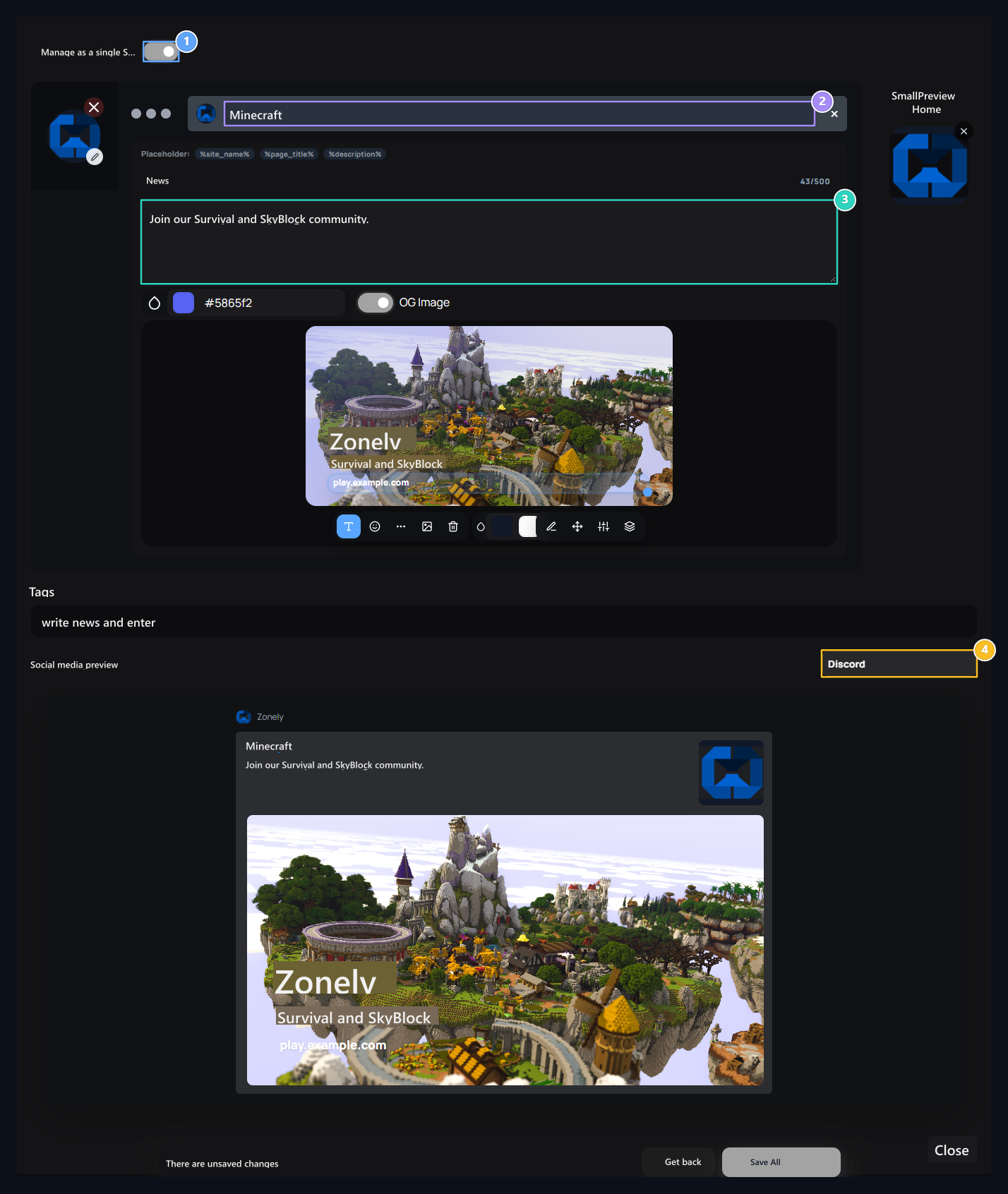
1. Manage as a single SEO
Open this option to use the common header and description on the entire site.
2. Title
Type the site name and the header to be used in sharing.
3. Description
Prepare a text that is short to recognize the link.
4. Platform preview
Check Discord, X, Facebook, WhatsApp and LinkedIn cards.
%site_name% | %page_title% You can show the site and page name together in the format.
Description more 500 characters takes. This area, Content 155 character in the section is separate from short description. Tags add keywords related to the topic.
embed coloris the color highlight on the sharing card. Social media preview Check the text and images from the list to Discord, X, Facebook, WhatsApp and LinkedIn views.
Prepare custom SEO on a page
- Special Page Open the tab.
- Find the page from the search area and select from the list.
- Check the name and route of the selected page.
- Edit header, description and share domains for this page.
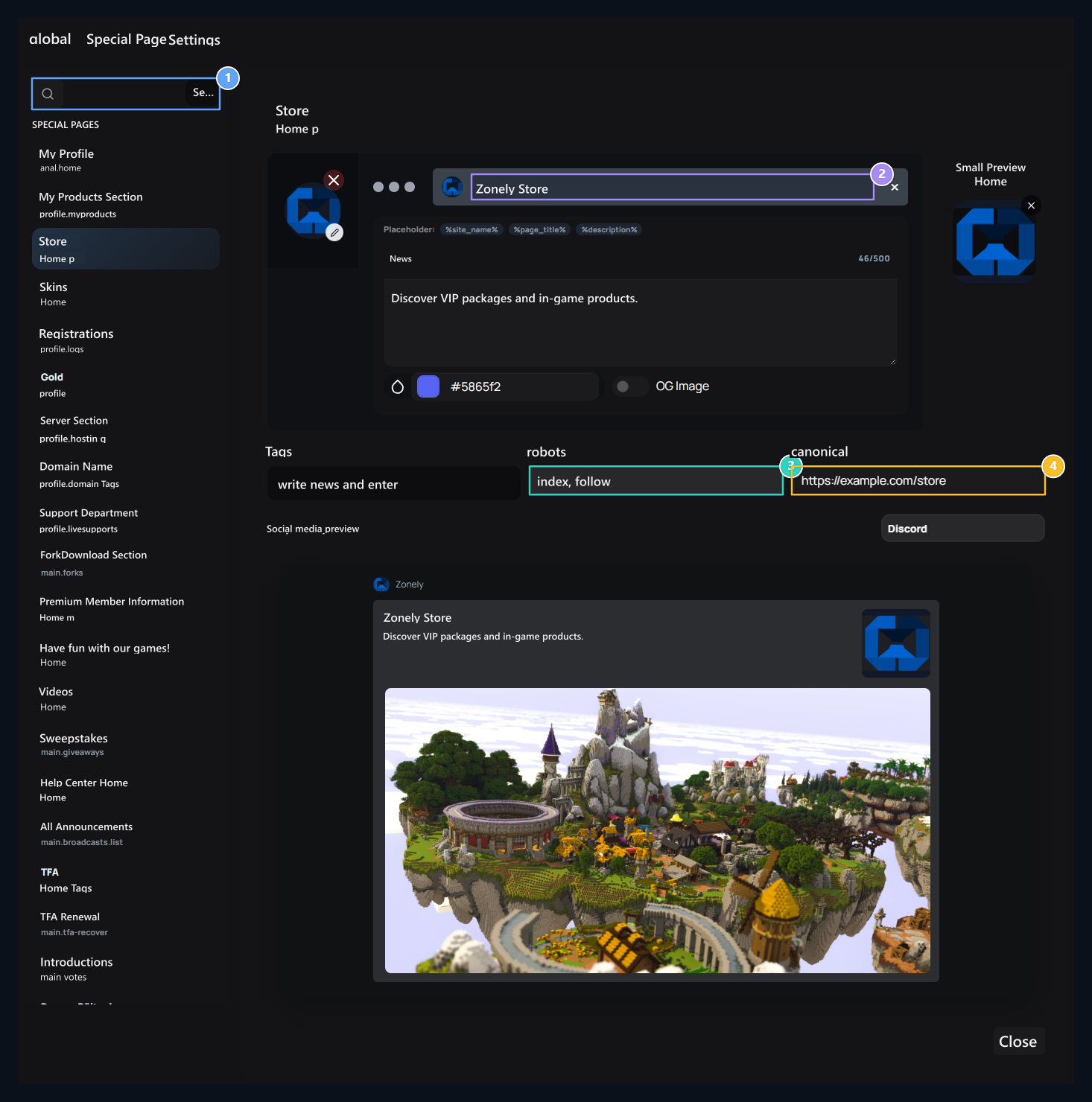
1. Search Page
Find the page name or route you will edit.
2. Title of selected page
Title and description are arranged for selected page.
3. Robots choice
Choose suitable for indexing and connection tracking.
4. Canonical address
Type the preferred original URL of this content.
index,follow, noindex,follow, index,nofollow or noindex,nofollow Select what is suitable for options.
canonical type the domain content as a full URL of the preferred actual page address. Note that the registration you have been held on another page changes.
Select Favicon and share images
FaviconThe small icon on the browser tab. Change with visual selection tool; removes the current selection of cleaning tool.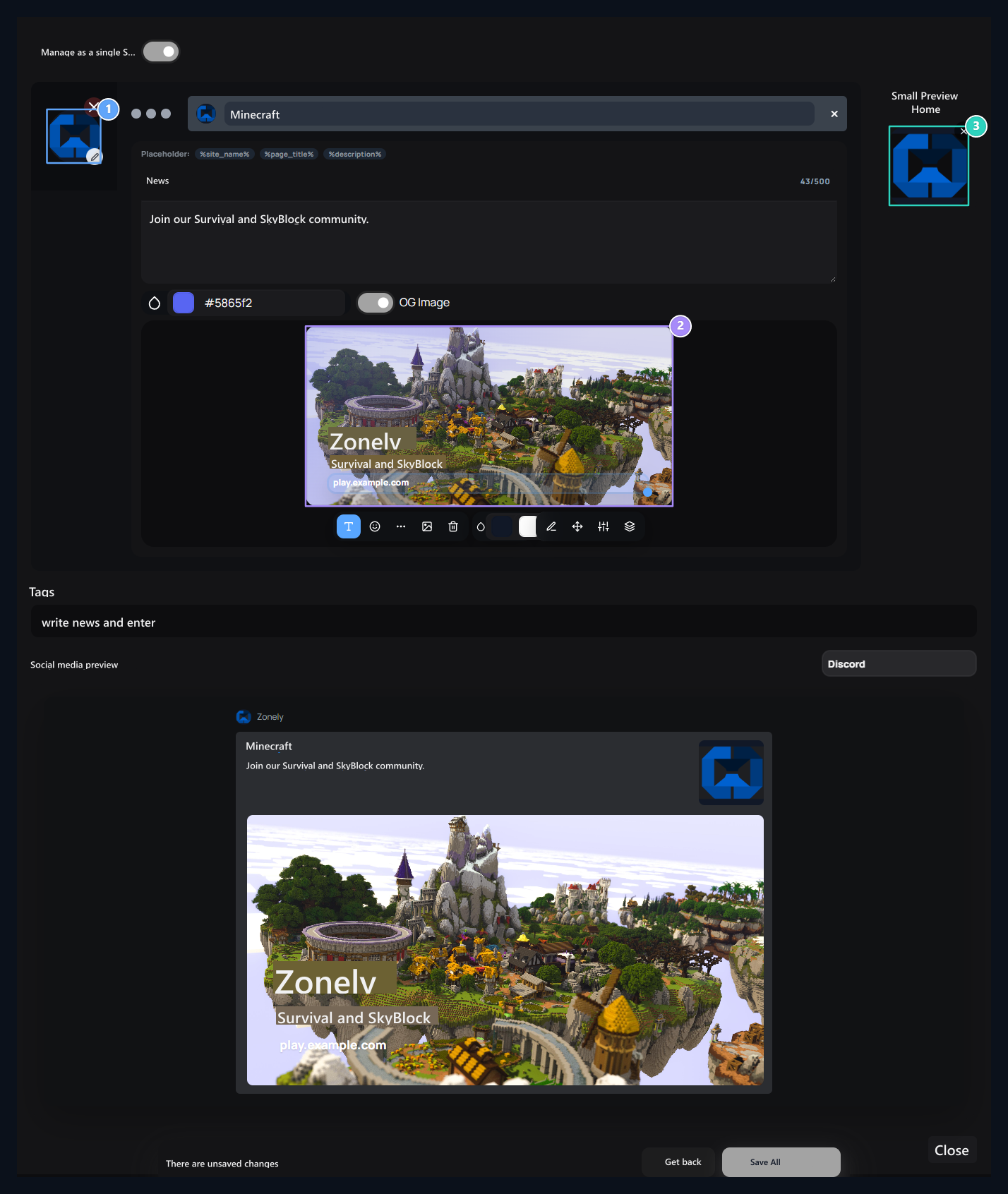
1. Favicon
Select the icon to be used on the browser tab.
2. Open Graph design
Add text layers such as header and server address on Minecraft image.
3. Small preview
Select the small visual independent in the sharing card.
Prepare Open Graph visual
- OG Image Open the option.
- Select background image. You can use an in-game image of your server.
- Add Text type server name with the tool. Add game modes to a second layer, link address to another layer.
- Select layer and move it on canvas; change the size with corner handle. Measure in location and location areas X, Y, Width and height Set values.
- Make text readable with font, size, thickness and color tools. You can add other items with visual and emoji tools.
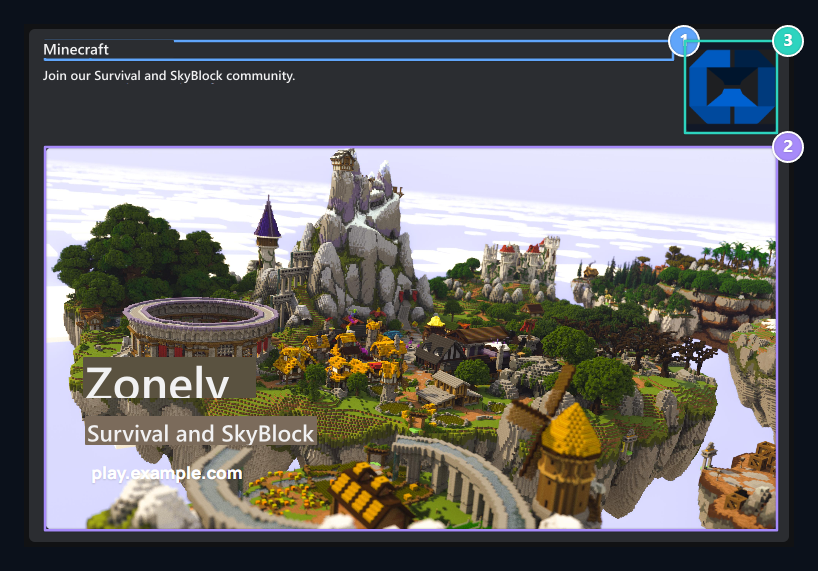
1. Connection header
Title and description fills text fields of share card.
2. Large sharing visual
Background and text layers combine in a single Open Graph visual.
3. Small visual
Small preview is shown separately from large visual.
Edit RSS and tab settings
Settings Open the tab. RSS → ActiveIt allows content to be published via RSS stream.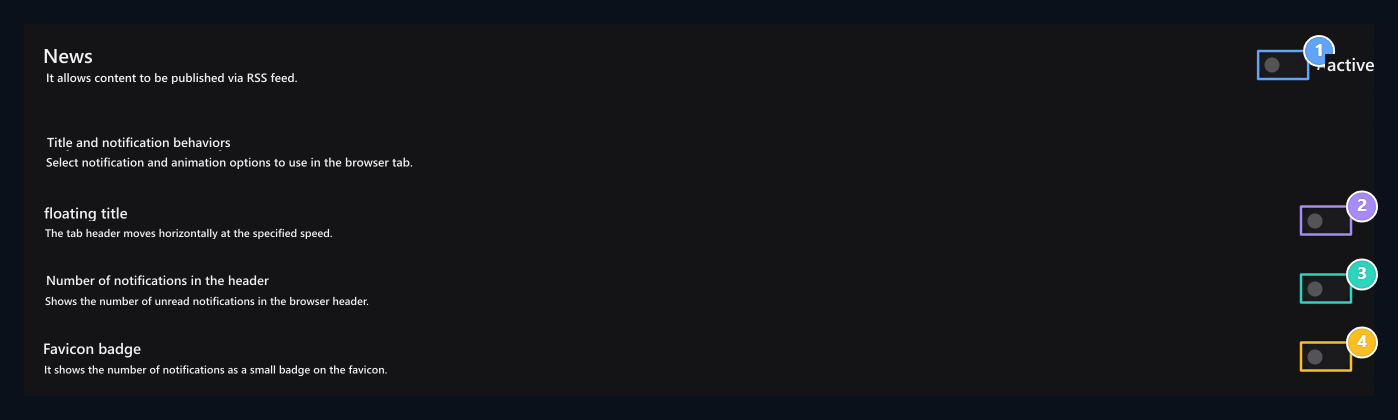
1. RSS flow
Enable content to be released via RSS.
2. Rockhead Title
Open and close the movement of the tab header.
3. Number of Notifications
Show unreaded notifications on tab header.
4. Favicon badge
Add the number of notifications to the small tab icon.
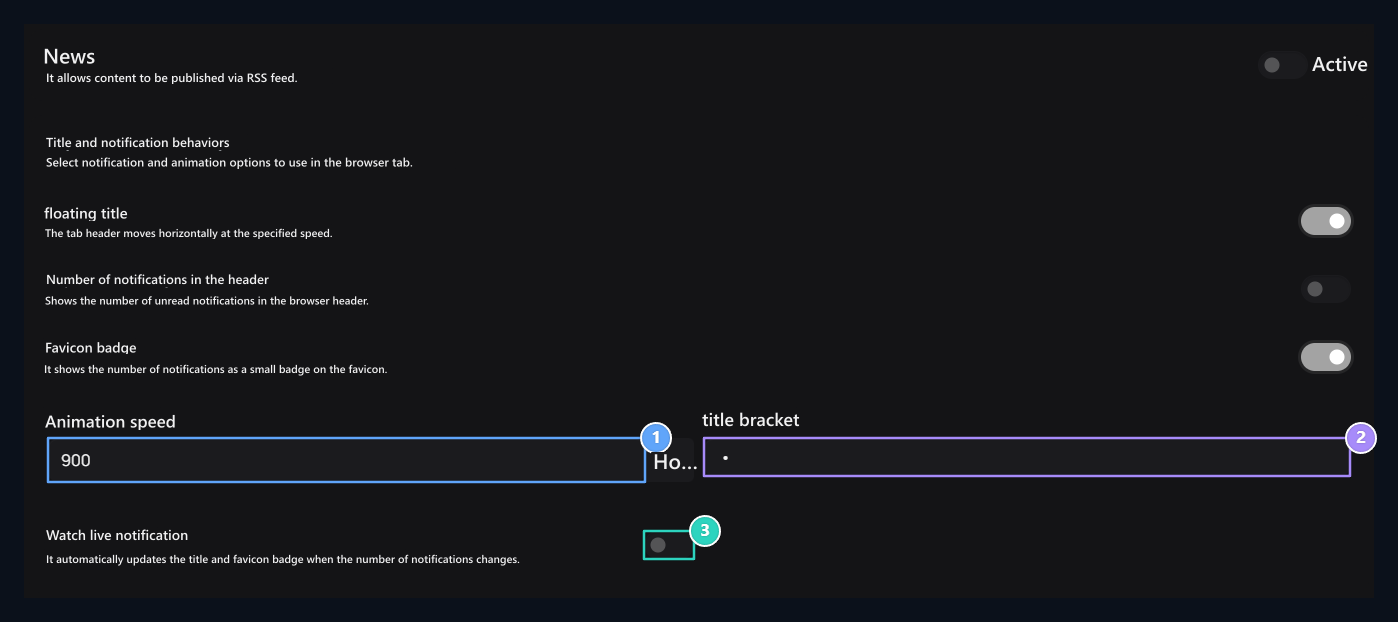
1. Rock header speed
Set the standby time of movement in the range of 200–3000 ms.
2. Title separator
Set the text between the repeating header parts.
3. Notification control
Manage the notification query preferences of the Favicon badge.