
 Home
 User Guide
 Developers
 Payment Gateways
 Integrations & Tools
 Site Usage
 Troubleshooting
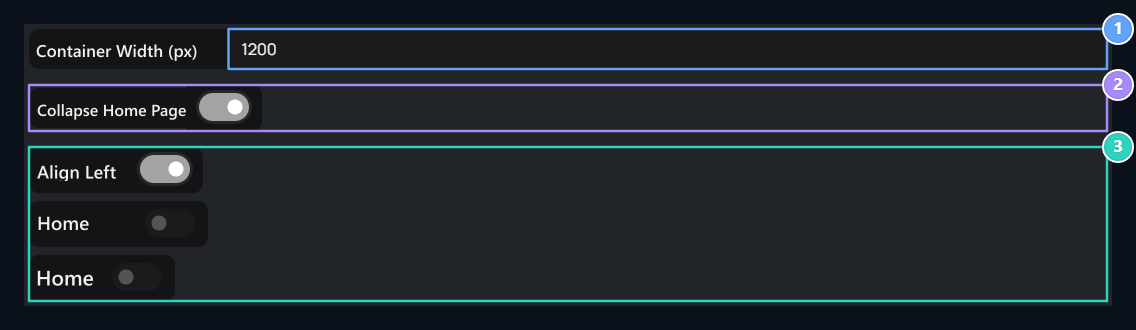
1. Content width
Use a value between 960–2200 pixels; 1200 in the sample.
2. narrow down the home page
Dar layout and opens its connected alignment options.
3. Alignment
Set the left, right or emergence of widgets such as news and final orders.
Select content width
Container Width (px) type width in pixels. Area 960–2200 range, 10 pixels steps are arranged. For Start 1200 You can select a value and view the cards and texts in the preview. A wider area gives more space to content placed by side. Check the readability of a long announcement line and the sequence of store cards together.Narrow down the home page
Collapse Home Page Open the option. This option is open Align Left, Justify Right and Center areas appear. Align Left and Justify Rightdetermines which widgets on the homepage will be placed on the side. For example Announcements and Latest Orders Use these options to place areas to the desired side; if you want to look in the middle Center Select. The only alignment is used at the same time; the previous choice is close when you choose another. If you close to the narrow, these areas are hidden and alignment choices are cleaned. Try the width value separately with the Daraltma option. The area, which can be used in the width area, aligns the layout of the widgets in this area.View desktop and phone
See your favorite page and store to go with your menu; then Save All Press the button. Check out the content and menus on the phone screen. The desktop width you enter is not the physical width of the phone screen.Outdoor, dark and mobile appearance
Check the view on the user side on different screens.