Installation is launched by creating a license in Zonely account. Then the domain name is connected and the first settings of the site are completed. Prepare the email address and domain name you will use before processing. Type your own address to the domain name asked locations.

Create your account

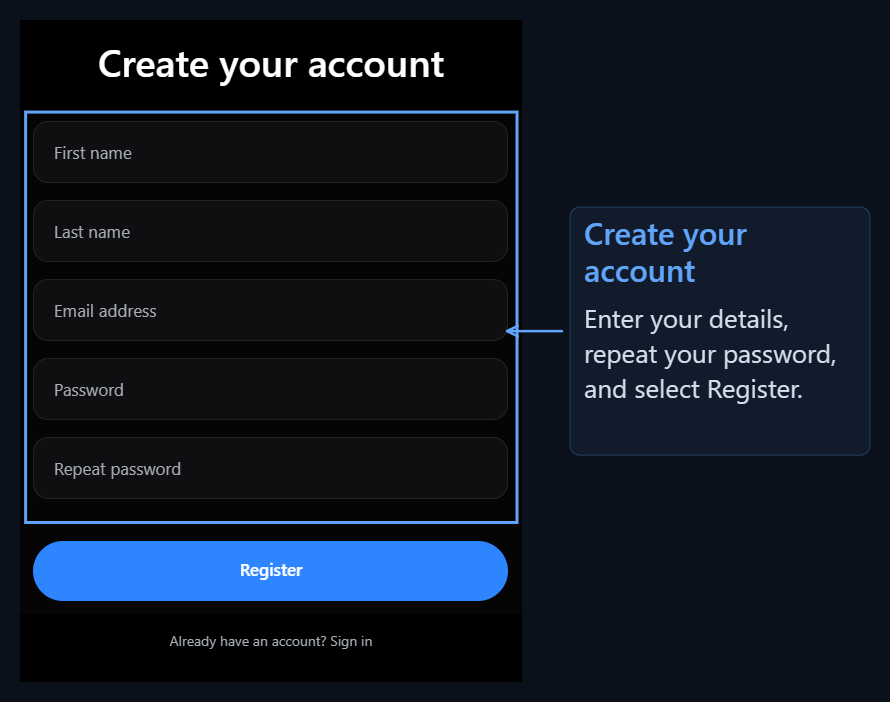
Create an account Enter your name, surname and email address on the page. Text your password in the same way as two domains Register Press the button. You will use this email and password in your next entries. Create an account screen; arrows that are directed to email and Register button If you already have an account Login. After registration Overviewis the profile screen of your account.
Add to the trial version account

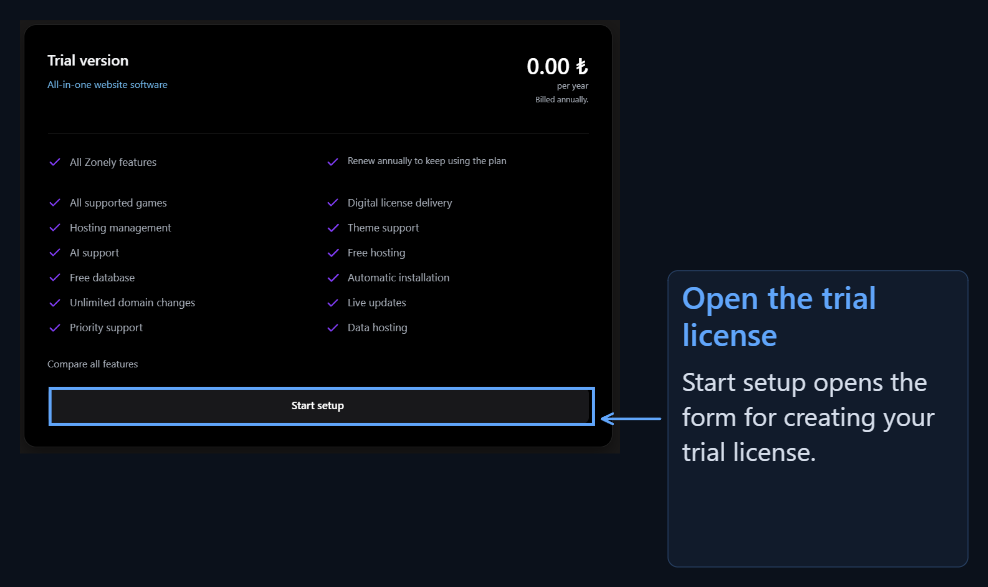
Profile Trial Version Find the card. Under the card Start Installation The button opens the window to create the trial license. Trial Version card and Start button on the profile
1

Type domain name

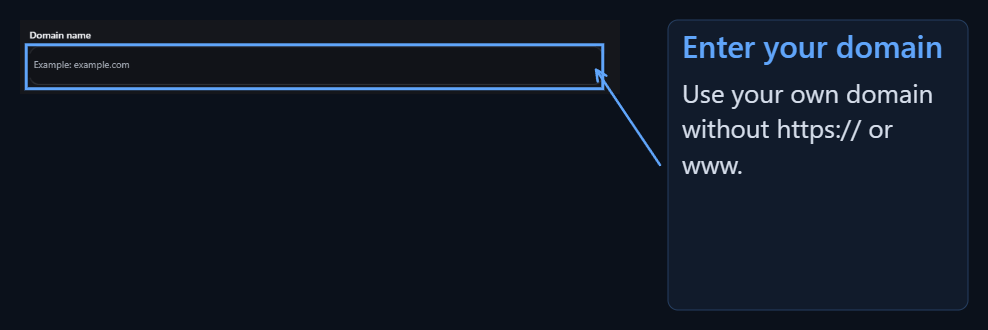
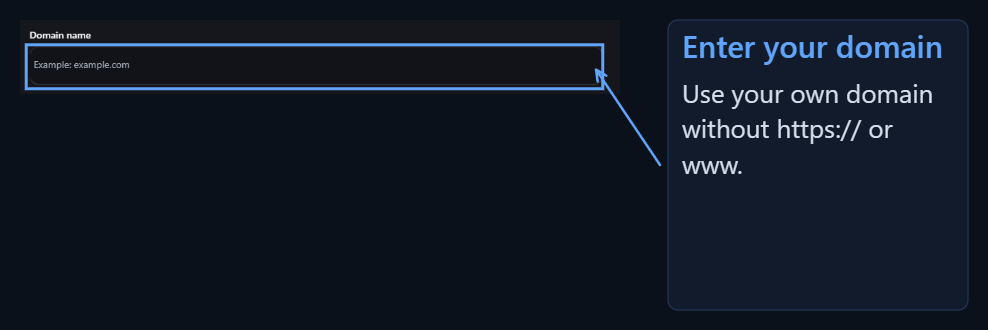
Domain Name Enter your site address in the section. For example markan.com. Per Per Per Per https://, http:// or www Do not add.Sample address is entered into the Domain Name field in the trial licenseAfter domain name Change Domain Name You can move from the section.
2

Create trial license

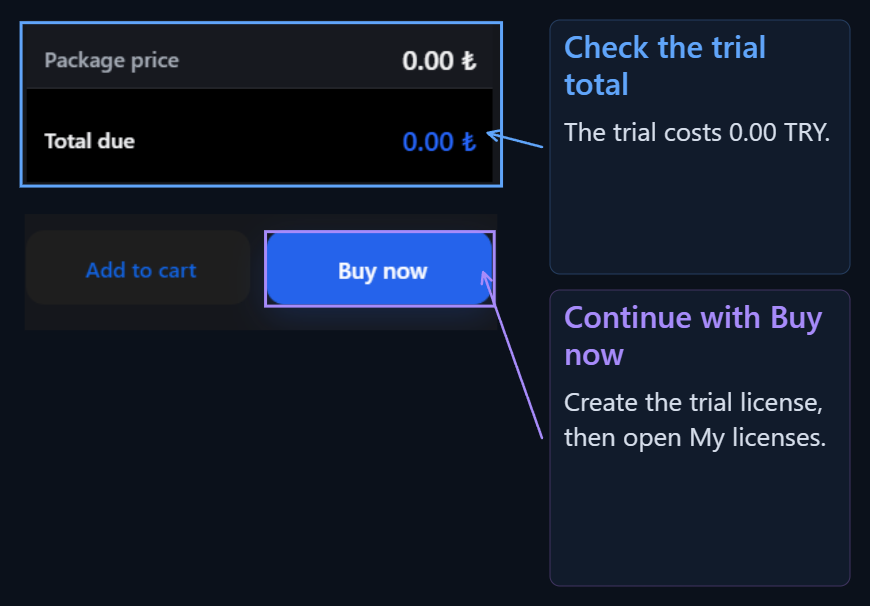
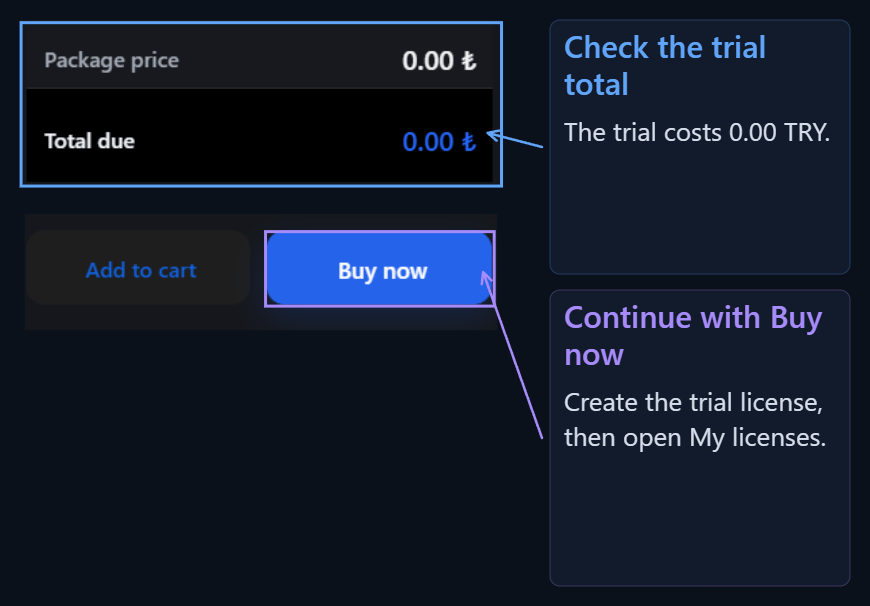
Amount to be Paid Check the line. This amount in the trial package 0,00 ₺ visible.To continue directly Buy Press the button.0 TL trial license amount, qty area and Buy buttonThe process is opened when completed Successful window Ok Press the button. My Licenses You can continue installation from the section.
Run the installation from the license

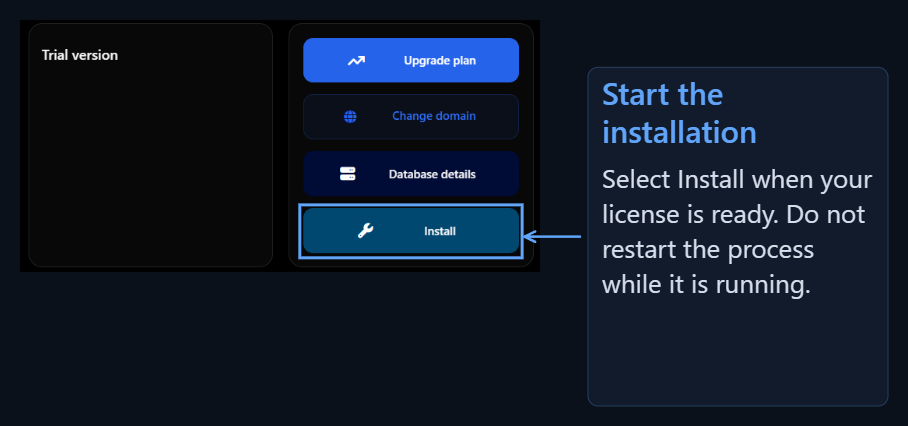
My Licenses Open the trial license on the screen. This time on the card Setup Press the button. Place of Setup button on the license card The process works in the background. You will see the percentage of progress and the process done at that time, first the installation request is prepared. Wait for a few seconds; you don’t need to restart the installation again while trading. Installation is completed Setup on the button Reset Setup and Download Database options appear. The meaning of these buttons license operations You can find it on the page.
Connect the domain name and open the site

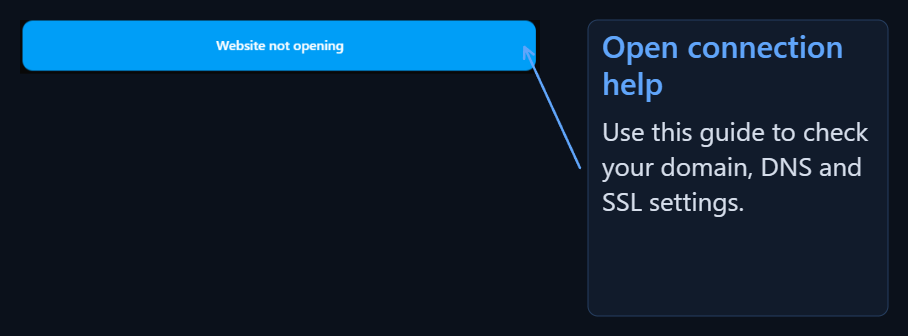
Undergraduate Card My Site Not Angled Press the button. The drop-down help runs in order from domain name preparation to Cloudflare, DNS and SSL settings. My Site in the license card Unfolded button and description of the help it opens The installation process does not change the DNS settings of the domain name itself. Domain name, DNS and SSL guide After completing your site, open your site from your own address.
I will connect the domain step

Nameserver, CNAME records, orange cloud and SSL settings.

What does the buttons on my license work?

Domain name handling, database, backup and reset operations.

I will know the management panel

After opening your site, start here for the first regulations.

I will edit the view

Logo, page partitions, colors and menus.
After connecting the domain name Initial site setup Complete language, sector and admin account steps in the guide.