
 Home
 User Guide
 Developers
 Payment Gateways
 Integrations & Tools
 Site Usage
 Troubleshooting
Login and announcements with the site account
Users Log in to Zonely Launcher with account what they have created on your site. Thus, you can use site accounts via launcher, connect to the server and start the game. Published on your site announcements can also be viewed via launcher. Server updates, maintenance and event news Announcements You can get to your players by preparing the section.Prepare server profile
Minecraft Server Address type the link information of your own server in the field. Match the format of your server with the information if the port is used.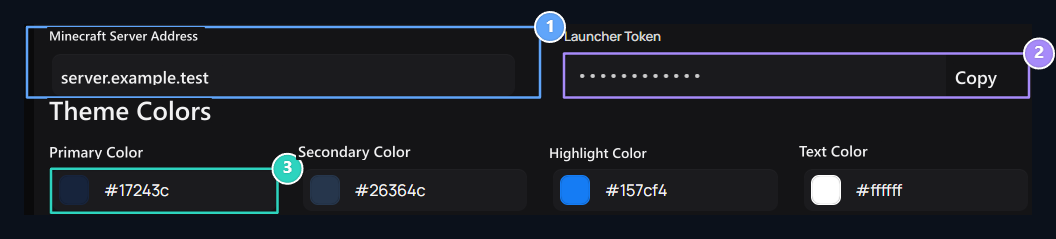
1. Minecraft Server Address
Enter your own gaming server address that the launcher will use.
2. Launcher Token
Copy the value that matches the server profile with the launcher.
3. Theme colors
Edit the colors of the starter here.
Select colors and background
Theme Colors Edit launcher’s primary, secondary, highlight and text colors in accordance with your brand. The colors you choose are used in the appearance of the launcher. Check the text can read on the selected floor. Background Image can choose visual from the field, Remove With the choice available. For settings related to logo and site ID System Settings See the part.Select game versions
Server Versions Select the versions you have supported in the section. Find the version listed with the search field; Selected Version Check the information. If the Vanilla, Forge, Fabric or OptiFine options are available on your installation, match the options supported by the game server. The module should be suitable for the client version and mod installer on the server used. Save Apply changes with the button. Check the version and launcher distribution in your list idle installation.Download the starter and check the look
Download Launcher Open the download step by your own site profile with the button. Check server information, user profile and version selection in the launcher.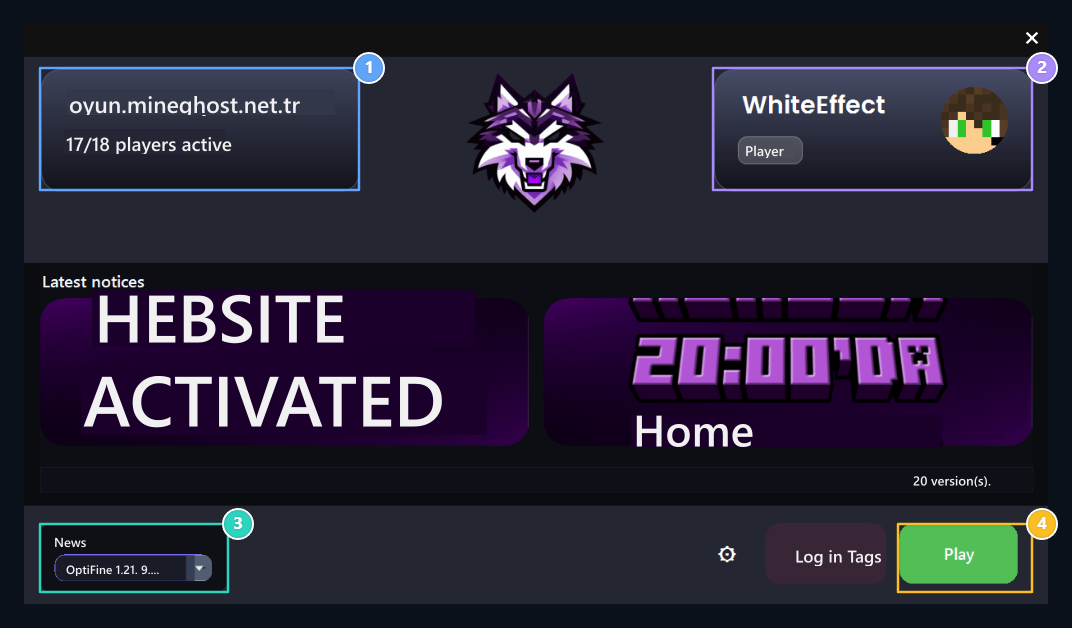
1. Server and Online Status
Check server address and online user information.
2. User profile
Check user name and profile information here.
3. OptiFine and Version Support
Select the client version you will use from the list.
4. Start Game
Minecraft client starts with connecting it directly to the server.
Activate launcher login with ZonelyCore
Game on your server ZonelyCore Dry the plugin and complete the connection with your site. By enabling the settings of the plugin on the launcher login, you can use the launcher log with the game server. Only login via launcher If you want to configure the corresponding input restriction on ZonelyCore side.
ZonelyCore installation guide
Install the plugin on your gaming server and prepare the site link; complete the launcher login settings on the server side.
Game servers
Prepare server connection and delivery methods.