
 Home
 User Guide
 Developers
 Payment Gateways
 Integrations & Tools
 Site Usage
 Troubleshooting
Add Botu to your server
Add Bot Open the invitation step with the button. Select and complete the inserting process to choose the Discord server you will use Botu. Link Token when code is ready Copy Press the button. This code is for matching your website with Discord server.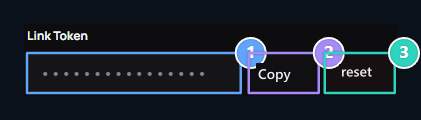
1. Link Token
Use the server in the step of mapping when the code is ready.
2. Copy
Copy the link code.
3. Reset
Create new code when needed for rematching.
Edit the settings of the connected server
Server Selection Select the right Discord server from the section. Prepare front additional, language, log channels, roles and ticket options in Bot settings.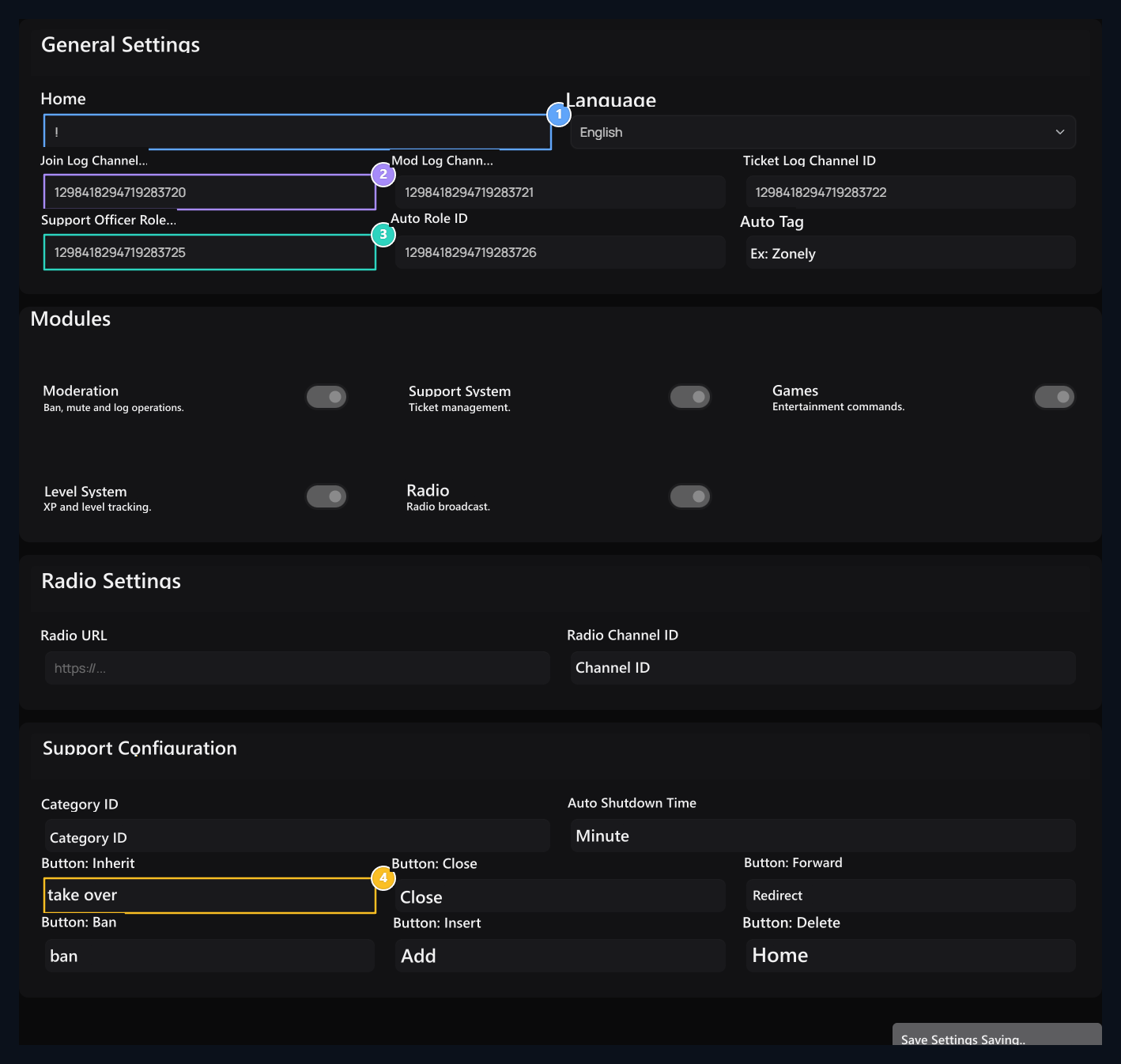
1. Bot Prefix & Language
In the chat, the front additional (!) and the bot language will trigger commands.
2. Log Channels
Channel IDs to be transmitted from input-out, moderation and support ticket logs.
3. Authorized & Auto Roller
Auto role to manage support requests and assigned to new members.
4. Interactive Ticket Buttons
Devral, Close, Banla and Direction actions on the user ticket.
Apply settings with the registration button. If you change the connected server, check the channel and role selections accordingly on that server.
Connect the role of the site to the role of Discord
For example, if you want to use VIP role on the site with the VIP role in Discord Member Settings → Roller open the screen. Edit or Add Role Press the button; then Discord Go to the tab.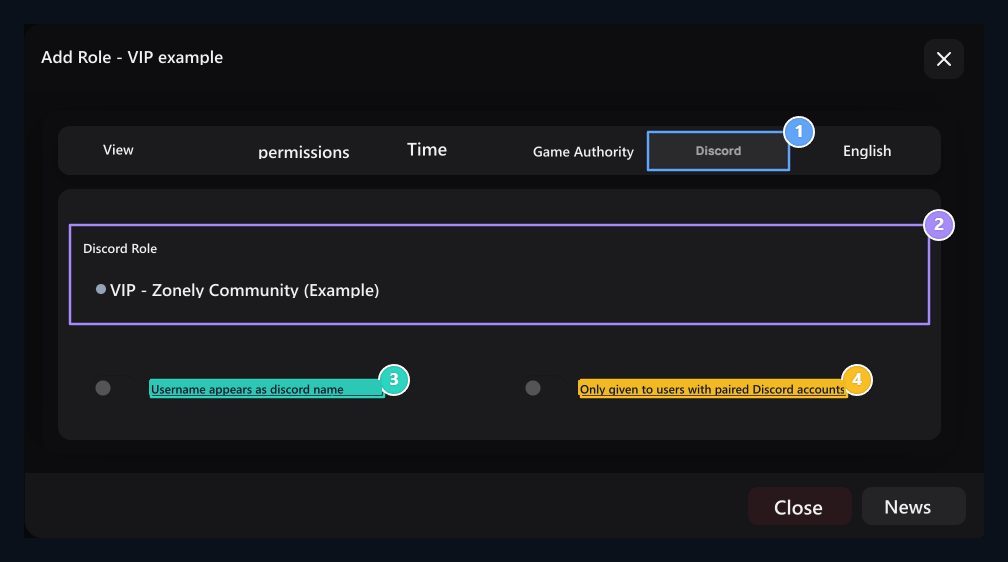
1. Role → Discord
Open Discord tab in role insert form.
2. Select the role of Discord
Select the role of Discord to this site role and save role record.
3. Sync user name
The username on the site is used as Discord name.
4. Matched account condition
Open this site role to give users who are only matched the Discord account.
Match user account
Login and log in to the user’s own account Match Discord Account opens the option. It completes authorization with the correct Discord account and is available on the corresponding Discord server.Discord does not appear or does not data
Discord does not appear or does not data
Check the connected server, the chosen role and user’s account pairing. The role of the bot must be directed to the permission and the role ranking. Make sure you organize the Discord area of the site role related to the automatic member role.
Account Match
Check the user’s Discord account binding steps.
Roles
Prepare role matching and user authorizations.