
 Home
 User Guide
 Developers
 Payment Gateways
 Integrations & Tools
 Site Usage
 Troubleshooting
Bonus credit and cashback
Bonus Credit
The user provides additional bonus to the credit it has been uploaded. Under open the option Bonus Credit Percentage (%) the area is out; type the bonus rate in this area. For example 1010 percent bonus means: you can consider 100 credit bonuses as a bonus sample.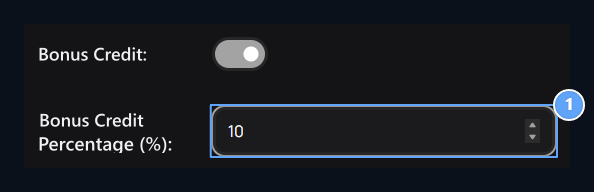
1. Bonus Credit
Once Bonus Credit Percentage (%) appears on the field. Write the bonus rate to be added to the user.
What is a Cashback?
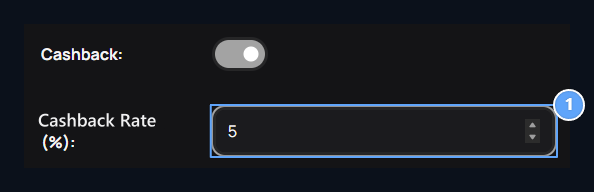
Cashback, a part of the amount spent on product shopping The site balance is the addition of the back. For example, if the rate is 5 percent, 5 credit recovery is calculated for 100 credit purchases.- Cashback Open the option.
- Under-Appeared Cashback Rate (%) Type the rate in the field. For 5 percent 5 enter.
- Save Press the button.
1. Cashback
Cashback Rate (%) appears. 5 writes, 5 percent feedback.
Connection and view of the store
Store Redirection
Activate this option to determine the store link’s opener page. Page Type Select a page from the list on your site. To open a store outside Special Page and select URL Address type full address to the field. Fill out the desired additional information Save Press the button. When you select the page from the list Route Filters The address is used in your setting.Popular products
Part of the most purchased products under the store opens. Users can see frequently preferred products here and pass to product pages. The list is sorted according to the sales of the existing month.
1. Popular Products
Under the store, this month shows the most purchased products section.
Convert Price to Integer
You can open and close the full number of conversion preferences for product prices here. After change, check the price impression of a product in the store.
1. Convert Price to Full Issue
The price closes and closes the full number conversion option.
What information is requested when you upload credit?
These options, information screen that the user fills during the credit loading edits. Activate the information you want and save settings; then check the screen on the credit upload screen on the user side.
A separate percentage or URL space is not opened for the admin filling under this four key. The information area you open comes against the user when installing credit.
Request Phone Number
Open the credit uploader to request the phone number on the screen.
1. Request phone number
Open if you want to receive phone number while uploading credit.
Request TR ID
Credit loading screen T.C. identification number allows you to be asked.
1. Request ID number T.C.
T.C when installing credit. Open if you want to receive ID number.
Request Address
Allows the user to fill the address information during the credit loading.
1. Request Address
They want to address information from the user when uploading credit.
Request Date of Birth
Adds the space to the credit upload screen to the user’s birth date.
1. Request Date of Birth
It asks the date of birth from the user when installing credit.
Credit, payment limits and tax
Credit product nameThe name of the balance used on the site. Minimum Payment Amount and Maximum Payment Amount the lower and upper limit of the credit loading amount. Direct Salesmanages the use of direct purchase flow for the product.Tax
Tax Open option Tax Rate (%) the area appears. Save the rate you apply and save.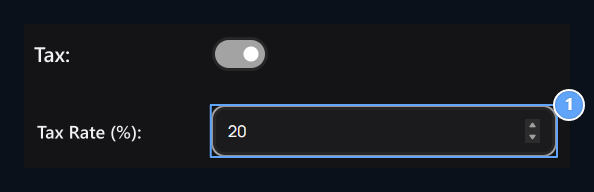
1. Tax
The Angle Tax Rate (%) appears. The rate of the application is determined in this area.
Purchase email
Send Email When PurchasedIt closes and closes the sending of information email for the purchase process.
1. Send Mail to Purchase
It opens the sending of information email for the purchase process.
How many users show on widgets?
This three domains determine the number of users to show in the corresponding lists. Enter and save the number you want in the field.Credit uploaders
Credit uploaders determine the list length of the widget.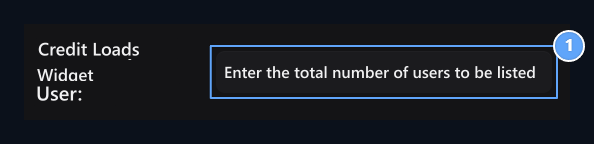
1. Credit Installers Widget Maximum User
The number of users to show on the list of credit uploaders determines the number of users.
Orders
Orders determine the number of users to show on the widget.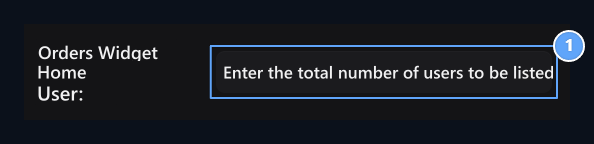
1. Orders Widget Maximum User
It determines the number of users to show in the order list.
Most credit-loaders in total
The total credit determines how many users will show in the loading ranking.
1. Most Credit Installers Widget Maximum User
The most credit-loaders in total determine how many users will be shown in the list.