
 Home
 User Guide
 Developers
 Payment Gateways
 Integrations & Tools
 Site Usage
 Troubleshooting
Add a banner
Add Slider Press the button. Slider Name main header in field, Slider Explained type short introduction to the field. Add the link to the text if you will keep the detailed description on the other page.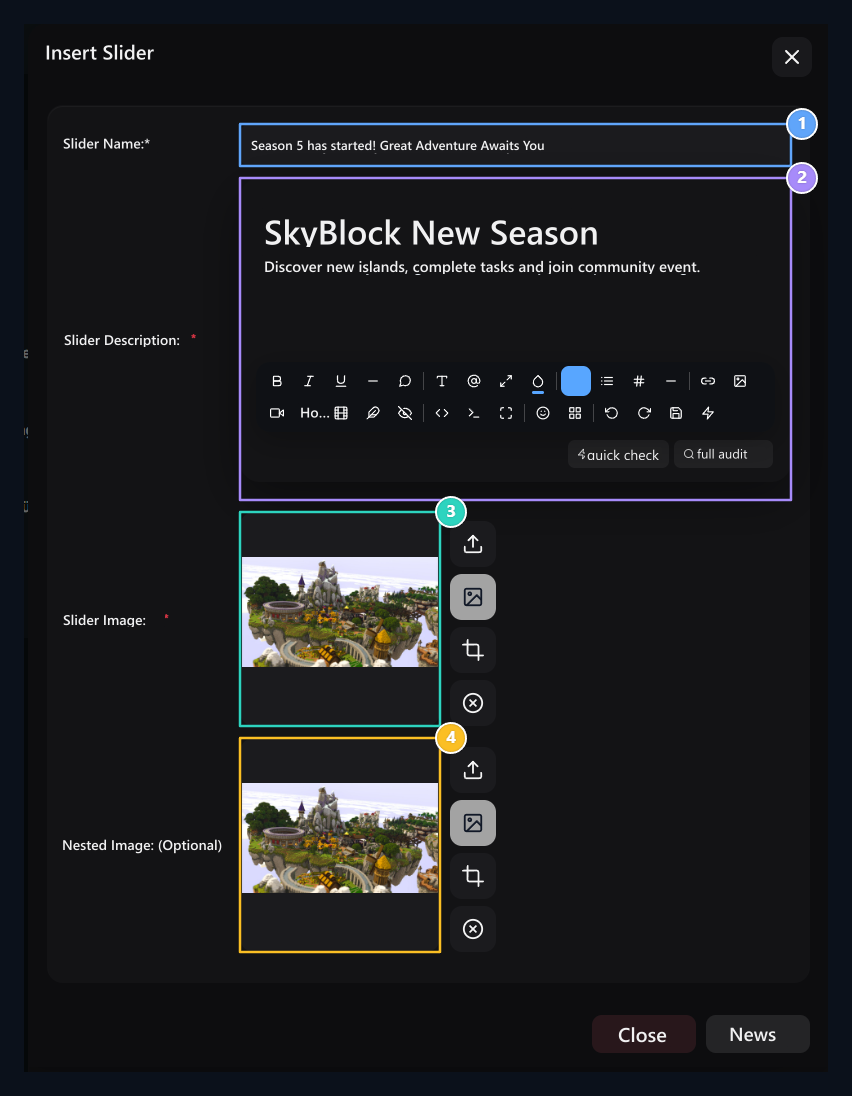
1. Slider Name
The main header that will appear on the slider.
2. Slider Description
Short description text that activates the user.
3. Cover Visual
High resolution banners to be used in the background of the slider.
4.Innerable picture
Select the second visual to be used on the main visual.
Change the existing banner
Find and search area Transactions → Edit open the way. Update header, description or two images Update Save with.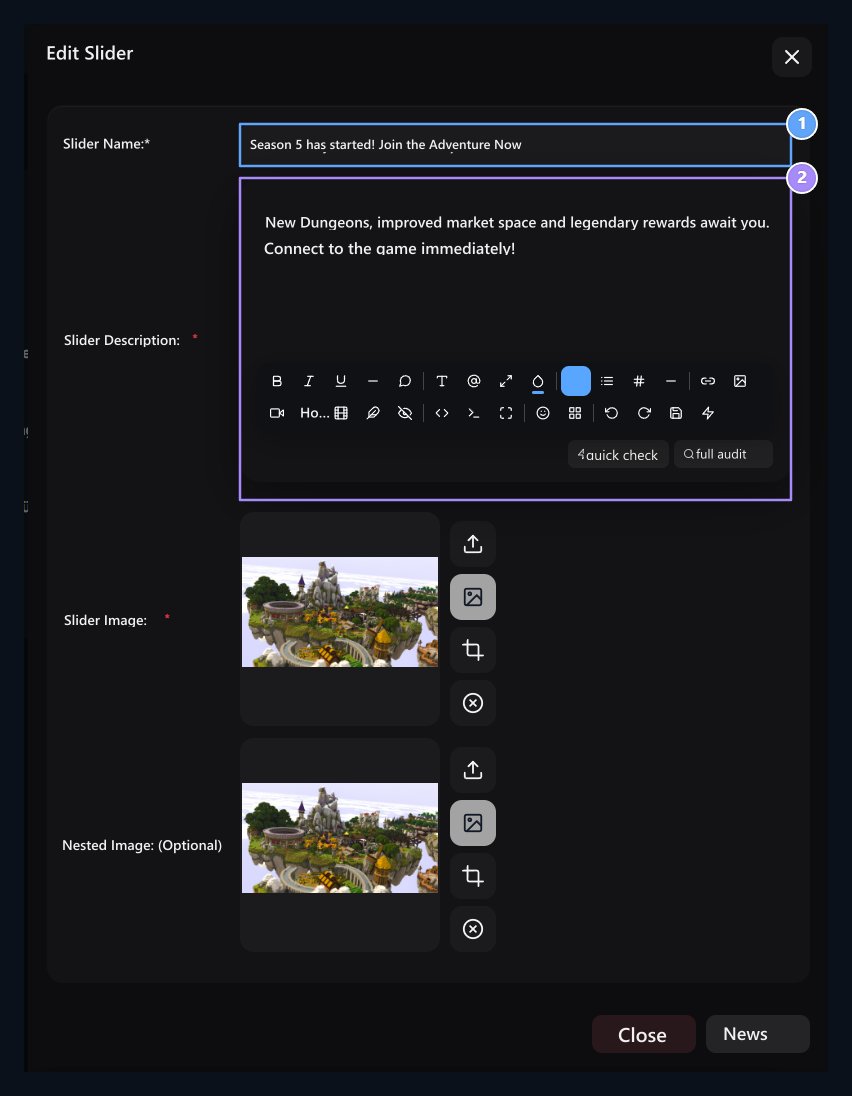
1. Update Slider header
Change the campaign or announcement header.
2. Update the description
Revised the slider text.
Select the display queue
Drag the banner from the transport handle in the list to the desired order. Use the registration button that appears after the sequence has been changed, this process is separate from Broadcast/Updated in the content form.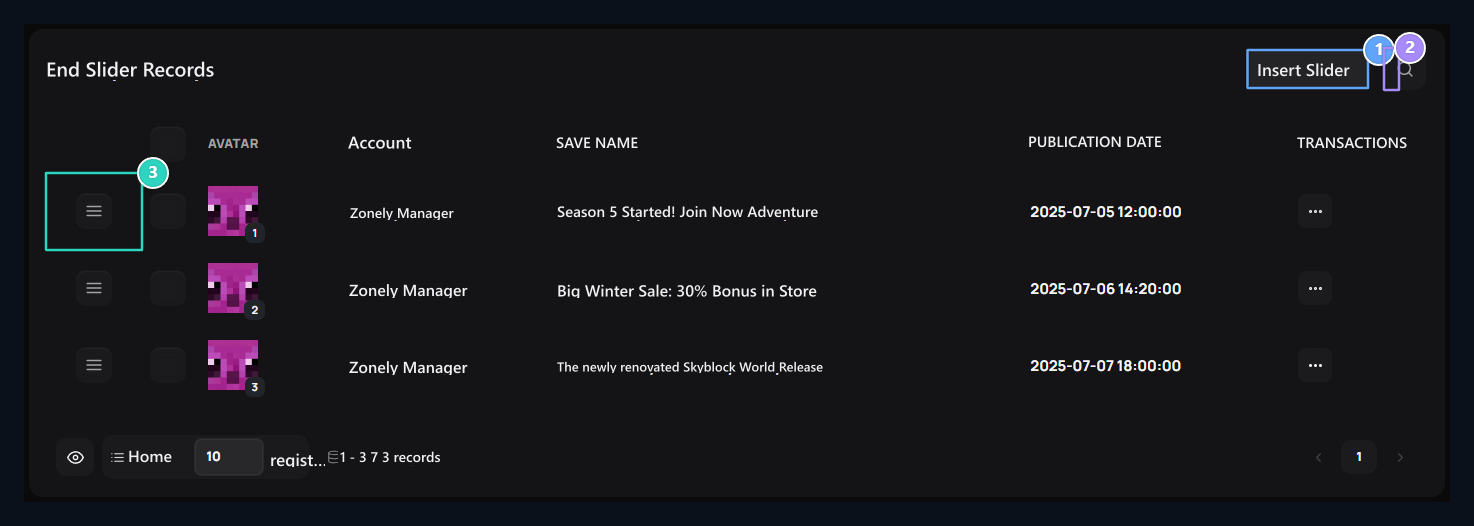
1. Add Slider
Add a new visual and announcement to the home slider.
2. Quick search
Remove the added slider images.
3. Ranking arrester
Set the slider cards by dragging the display sequence.