
 Home
 User Guide
 Developers
 Payment Gateways
 Integrations & Tools
 Site Usage
 Troubleshooting
Where does the user reach the individual?
After logging in to the user account Profile → My Contractors You can reach the forms of contraception from the section and follow the corresponding rules.View the list of forms without login
**/list/appeals**The open page is open to anyone who lists open forms of conquest. Visitors can view this list without logging in to their accounts.
List of hotels not included in the default menu. If you want menu settings Applications Add a link to the address /list/appeals You can specify it.
See forms and incoming preparations
Default Each form in the view opens in its group. The user who applied in lines under the form is the status and date of the conquest. You can narrow down sub-registrations by pressing the group header. Open the search area with the search icon on the top.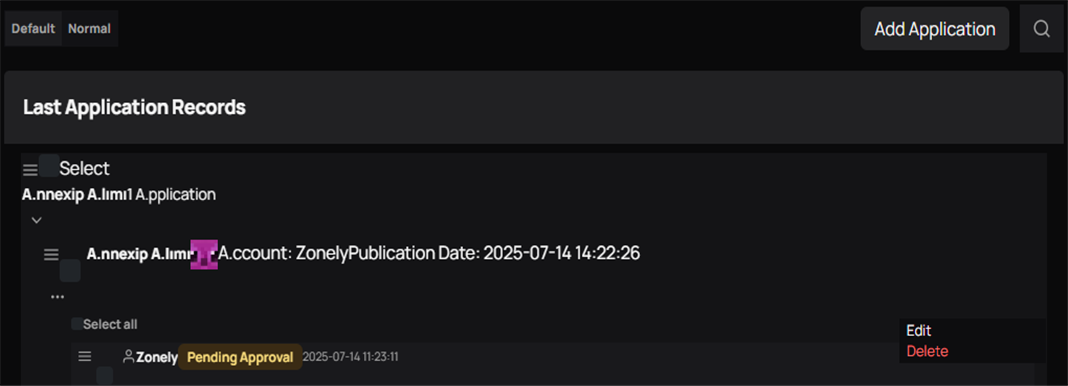
1. Appearance selection
See the form and applicants in the default view together; proceed to tables in the normal look.
2. Posted auction
Check the user, status and date and open the auction.
Use tables in normal appearance
Home Press the button. Records Lists the form templates you prepared on the tab. Applications You can review the prepared auctions by selecting the relevant form on the tab.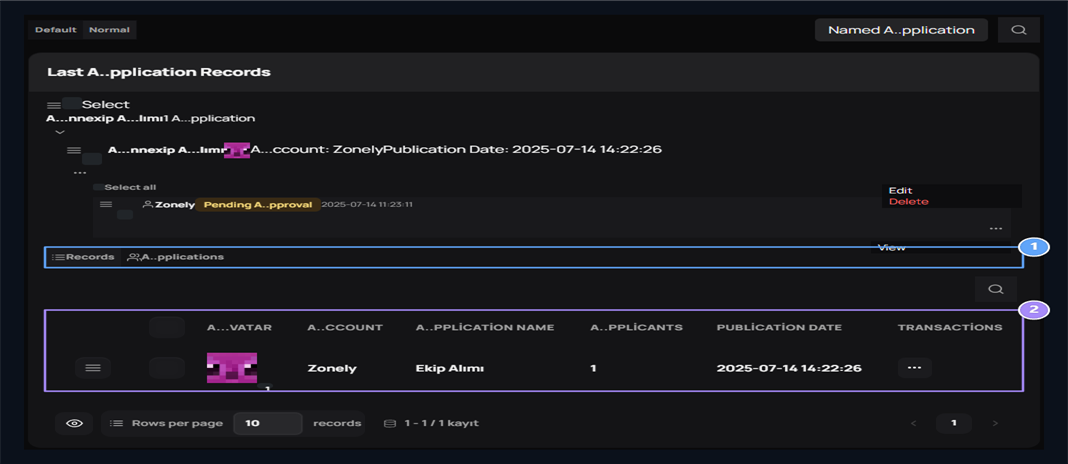
1. Records and Contractors
Open the bundles sent to these templates from the corresponding tab.
2. Form list
Find the bill of the bill and manage it from the process menu.
Create a form of aggression
Add Application Press the button. Complete the general information of the form first.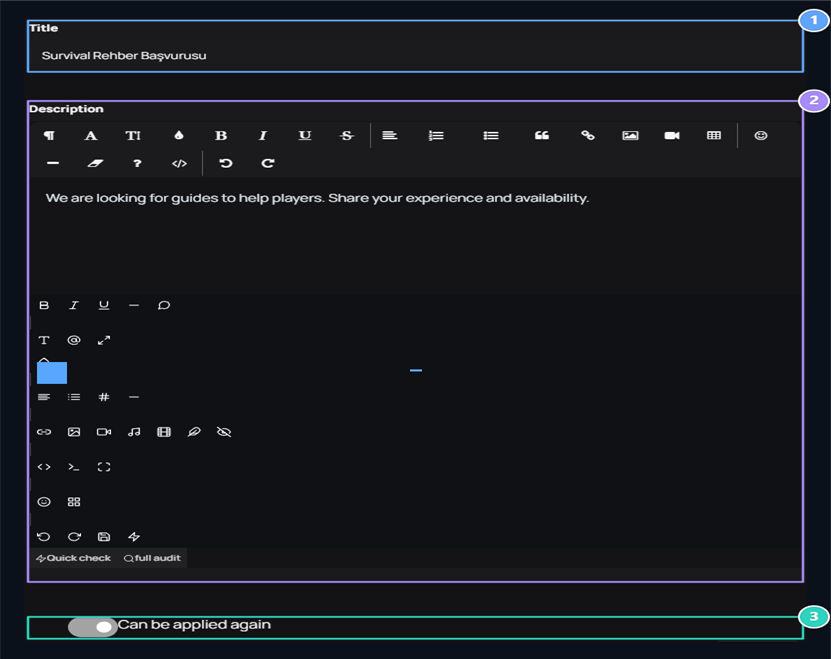
1. Title
Type what purchase of the auction is opened.
2. Description
Tell the task and the conditions of the conquest.
3. Repeated reconciliation
Determine whether the same user can not be able to re-apply.
Add questions for
Questions → + Add The button adds a new question card on each press. Question type the question that the candidate will respond to. Genre Select how to get from the domain to the answer.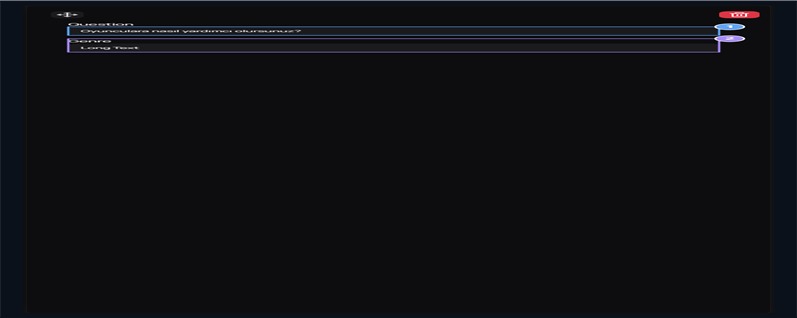
1. Question
Type the question that the user will respond.
2. Answer type
Get written response with Short Text or Long Text.
Prepare a single option question
Type → Single Selection Select. Close Variables (disconnect with) Type options in the field. For example Survival,Skyblock,FactionsThe user offers three options and one of them is selected.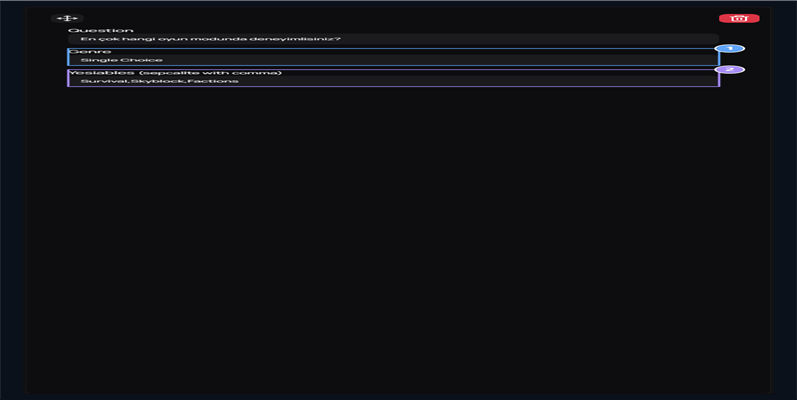
1. Single Choice
Signs one of the user options alone.
2. Variables
Recalls comma: Survival,Skyblock,Factions.
Prepare multiple options
Type → Multiple Choice Select and recommand variables again. The user can mark multiple game modes in this question.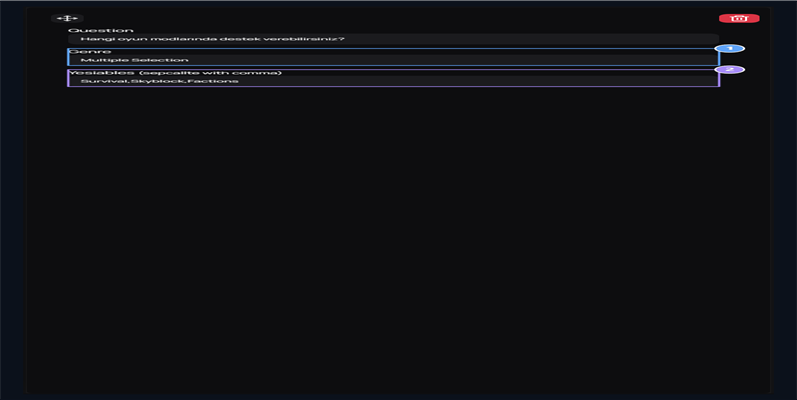
1. Multiple Choice
User can mark multiple options.
2. Variables
Take the options that can be marked with comma.
Sort questions and save the form
Change the question sequence by dragging the handle on the left top of the question card. The trash box button removes the question from the form. After completing the questions, below the screen Publish Create the form with the button. When you organize the existing form Update Save changes with.Evaluate the sent auction
Press the applied line or press the line three points → View open the process. Top User Name, Form, Status and Date Check the information. Gold Questions Read the answer to each question and candidate in the section.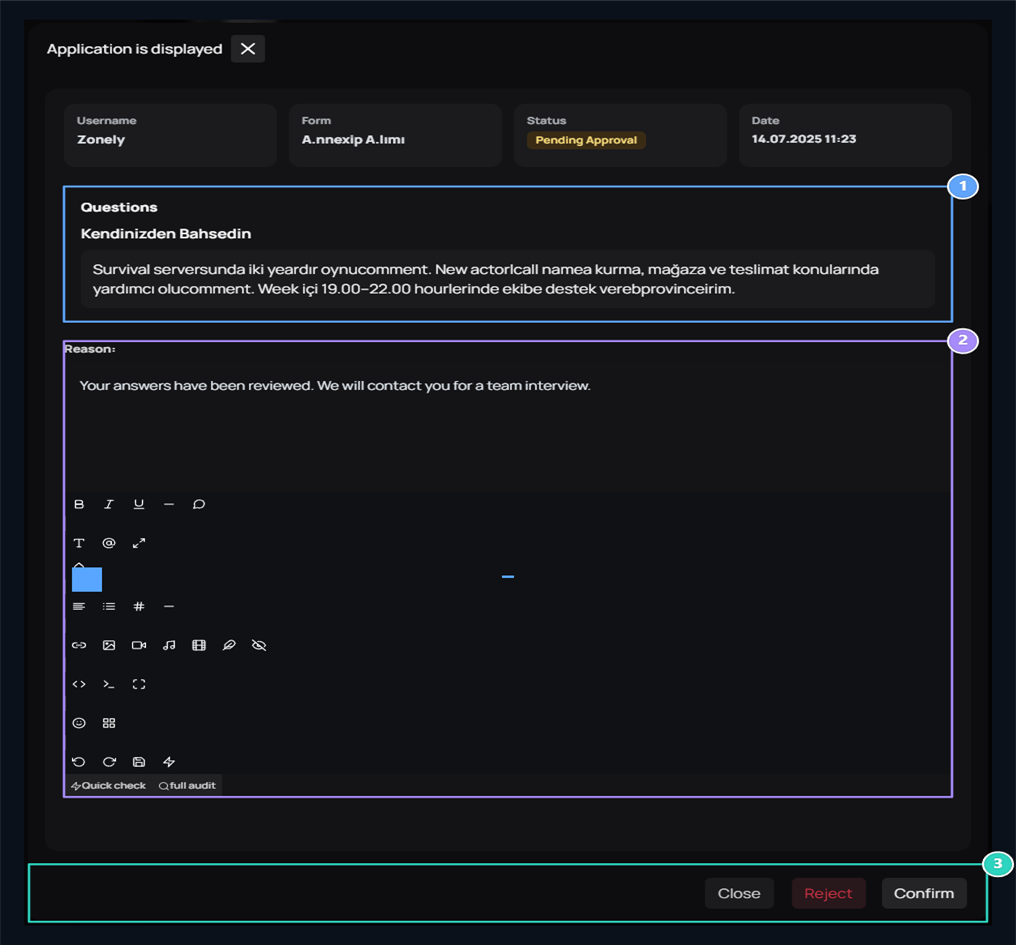
1. Questions and responses
Check the response to each question of the applicant.
2. Reason
Type the description of your decision.
3. Decision
Evaluate the convergence with the approval or Reddet.