
 Home
 User Guide
 Developers
 Payment Gateways
 Integrations & Tools
 Site Usage
 Troubleshooting
Find categories and announcements
Default announcements on categories and bottoms are shown in the tree. Open sub-registers by pressing the category header. Home view, records are displayed.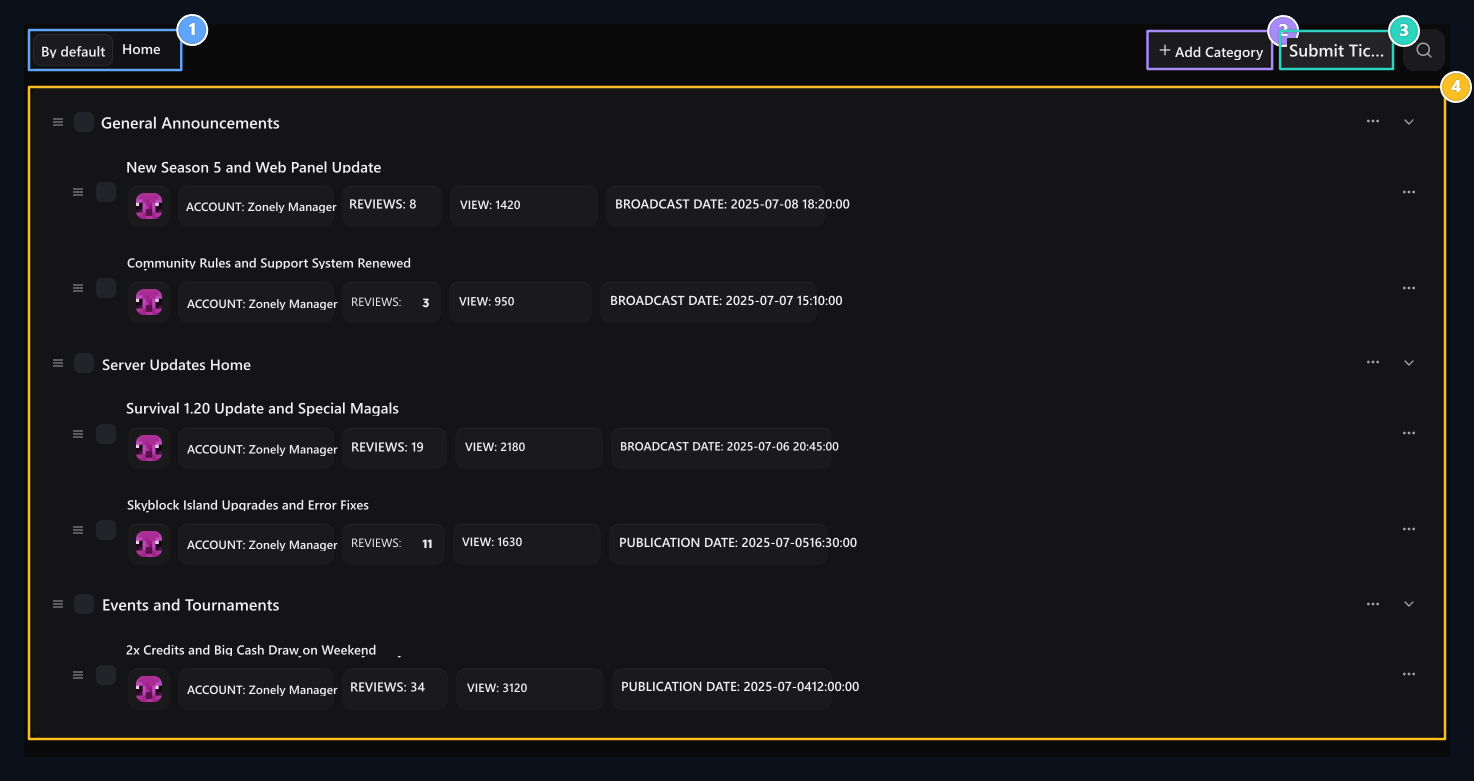
1. Tree and Normal appearance
The default tree view announcements are collected under categories; the normal appearance passes to the classic table.
2. Add Category
A new announcement category opens the form of creation.
3. Add Announcement
A new announcement that is connected to a specific category.
4. Category and announcement structure
Announcements and announcements are listed under titles such as Server Updates. You can open and close by pressing the head.
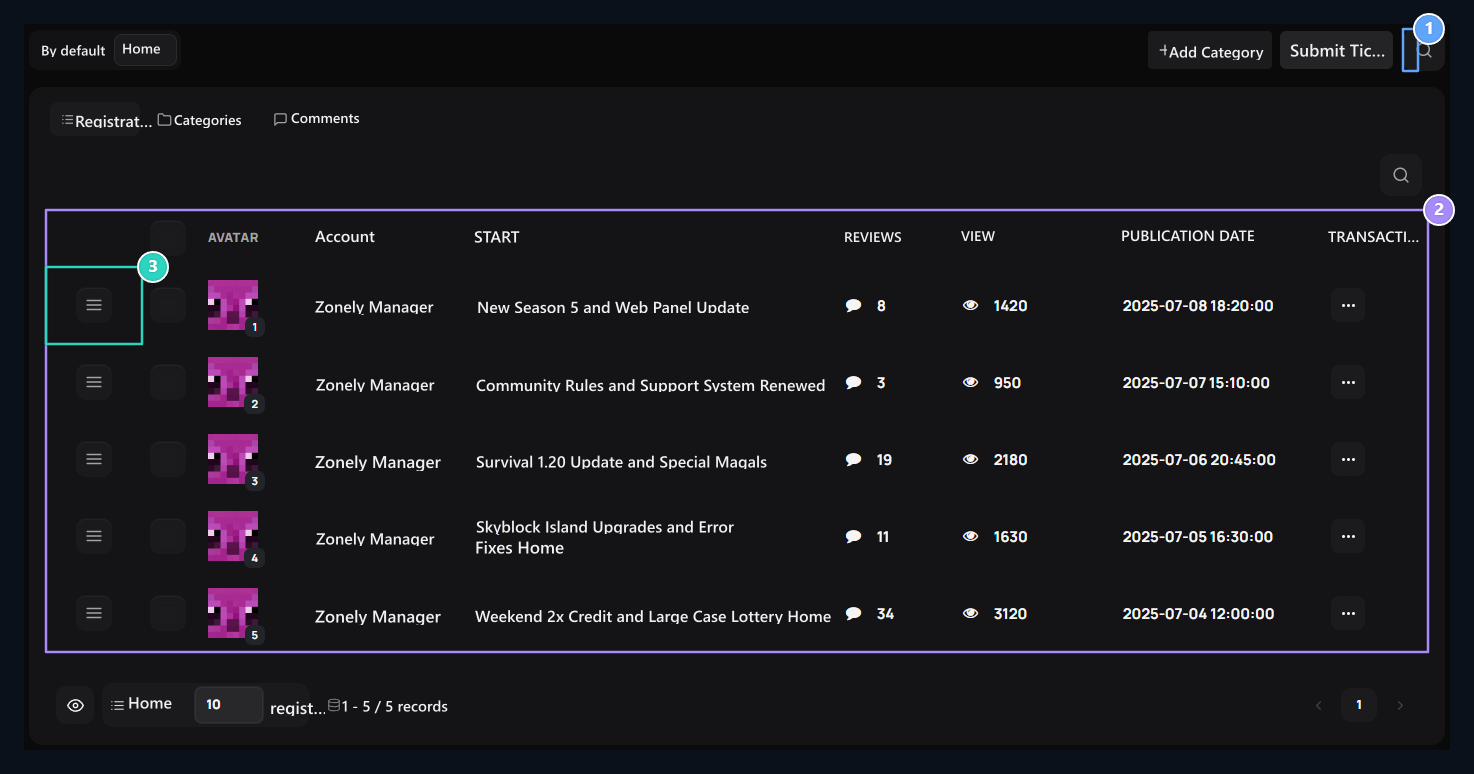
1. Quick search
Instant filtering between the abstracts and contents.
2. Announcement table
The author, title, number of comments, views and publication date are shown in detailed columns.
3. Ranking arrester
Change the news by dragging the display queue on the site.
Prepare a category
Open category management Add Category Press the button. Category name type Server News for example; Color Select the highlight color of the category. After registering the category, you can choose from the announcement form.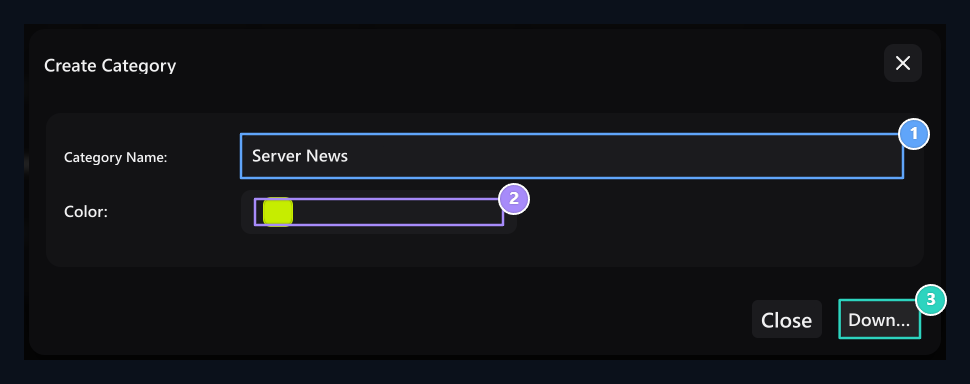
1. Category name
Type the header to collect the news.
2. Category color
Select the color of the category label.
3. Save
Create category with the registration button.
Write a news
Add Announcement Open the button and fill the fields in order:- Title: Write the topic short and understandable; for example, SkyBlock new season.
- Content: Prepare details of the event or change. Add date, engagement path and necessary connections to text.
- Category: Select the group to be notified.
- Tags: Add words that define content.
- Comments: Specify the choice of readers to write comments to this announcement.
- Date: Check the date of publication in the form.
- Visual: Select the cover with the upload or library tool and view the preview.
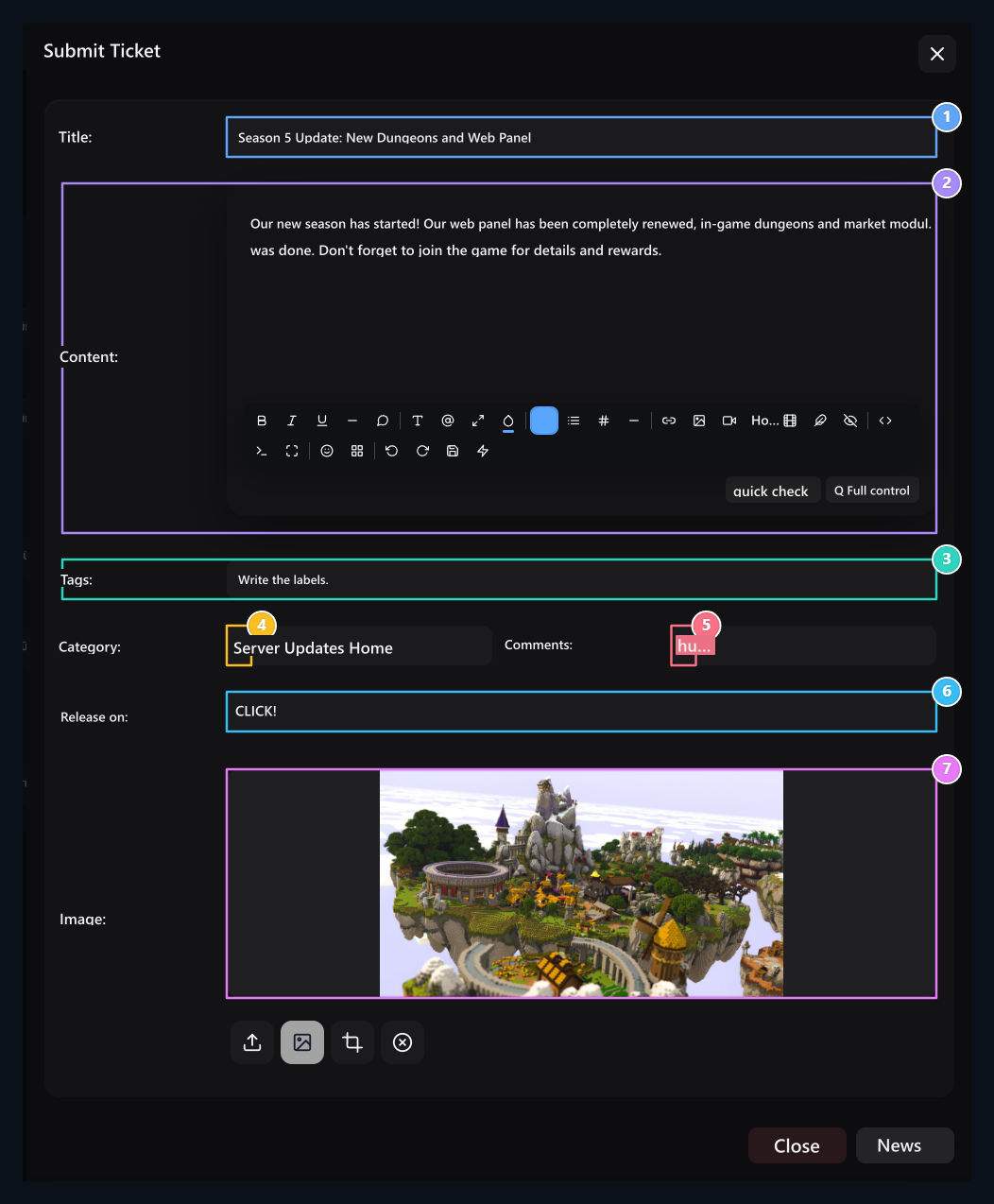
1. Announcement header
Enter the net header that will attract the user’s attention.
2. Rich announcement editor
Prepare formatted text, lists and announcement contents.
3. Tags
Enter the search engines and tags for in-site calls by comma.
4. Category selection
Specify which title of the announcement will be collected under the title.
5. Comments
Open or close comments to this announcement.
6. Publication date
Check the date information of the announcement.
7. Cover visual
Select the announcement cover and check the preview.
Update the current announcement
Related registration Edit open the process. Change header, content, category, labels, comment preferences, date or cover and Update Press the button.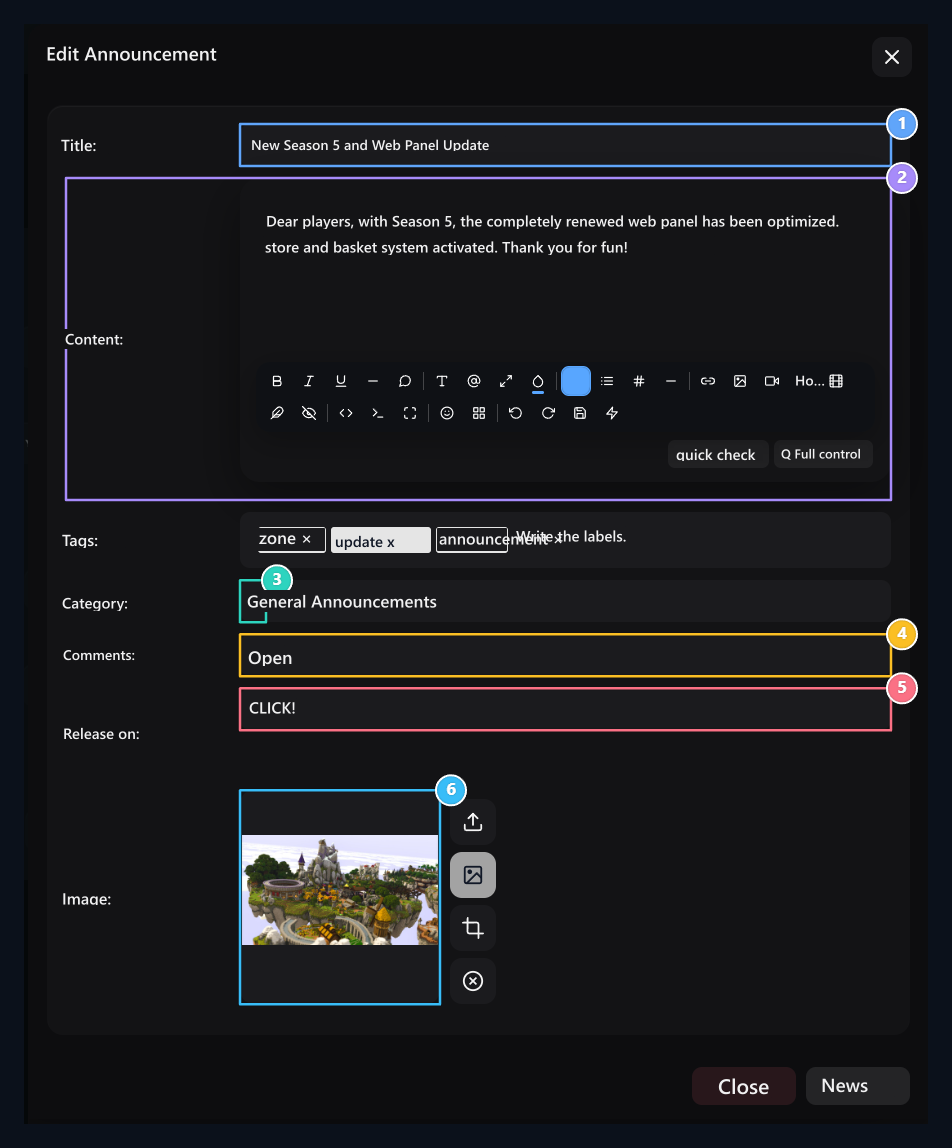
1. Update current header
Revised the title of the announcement according to the need.
2. Content editing
Update the published announcement text and formatting.
3. Category
Change the group shown in the announcement.
4. Comment choice
Change the choice of readers to write comments.
5. Date
Edit the date of the announcement.
6. Cover
Change the current cover or select from the library.