
 Home
 User Guide
 Developers
 Payment Gateways
 Integrations & Tools
 Site Usage
 Troubleshooting
See surveys and engagement status
Open the search icon and type the survey question. List Question, Home, Status and EndÅ The information is included. Home indicates the number of accounts participating in the column; Statusindicates that voting use is open or closed.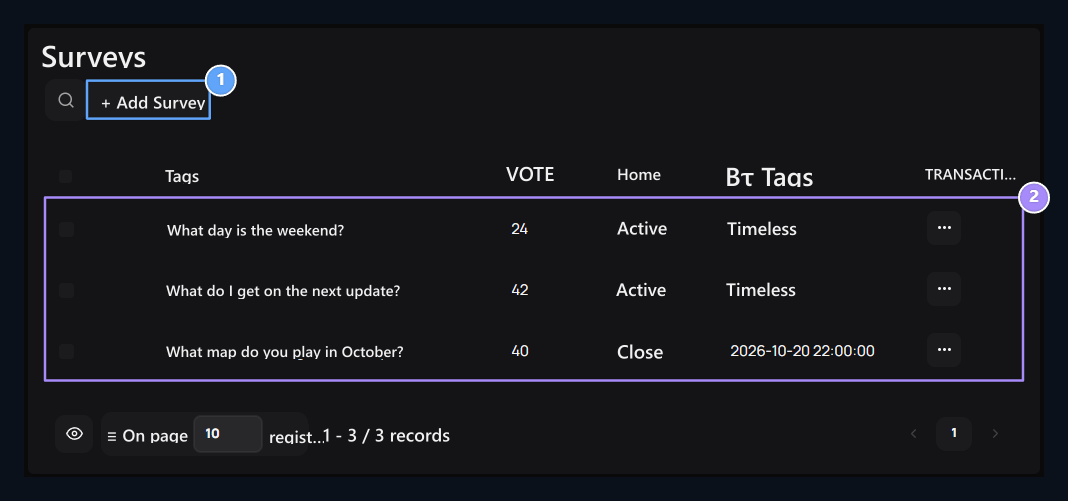
1. Add Poll
Open this button to prepare a new question and response options.
2. Survey status
Check the question together with the number of participants, vote usage status and finish.
Prepare the questions and answers options
Add surveys Press the button. Question type the question you will be redirected to the community. For example What day does weekend event get? You can use the question.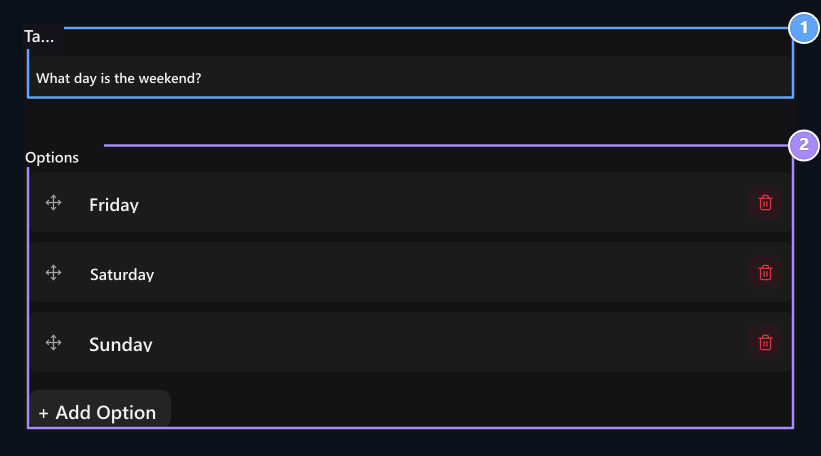
1. Question
Write the question you will ask for the community.
2. Options
Add at least two options; you can add new options and sort responses.
Select Start and finish date
HomeThe date and time to open vote usage. EndÅThe date and time the vote will end up its use. Select the finish time after the start.
1. Starting
Select date and time to start using the vote.
2. Finish
Select date and time to end the voting use.
Select engagement and result settings
Three options under the survey adjust according to your purpose of use.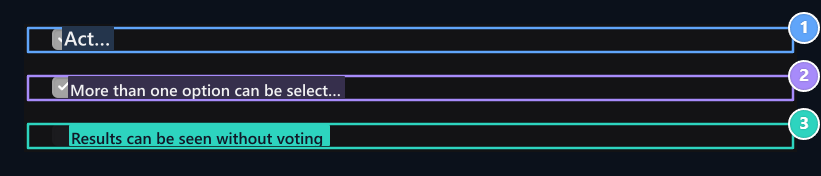
1. Active
Select the survey to publish and open voting use if date conditions are appropriate.
2. Multiple answers
Determine the user can mark multiple options.
3. Conclusion visibility
Select whether the results are shown before voting.
How do users vote?
Login to the user account and log in to your site /anketler opens the page. Selects the response in the open survey and Vote print the button.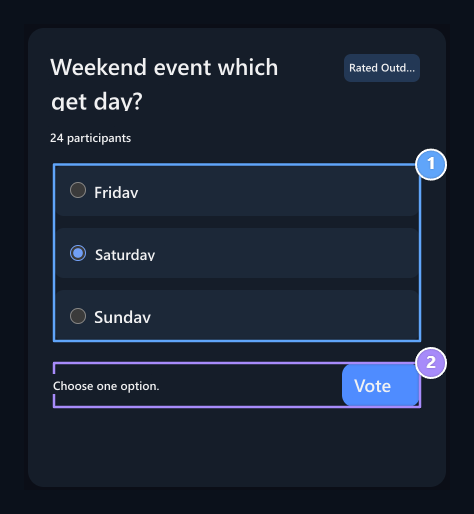
1. Select your response
Check a response in one-choice survey.
2. Rate
Send your selection with Oy Ver after you log in to your account.
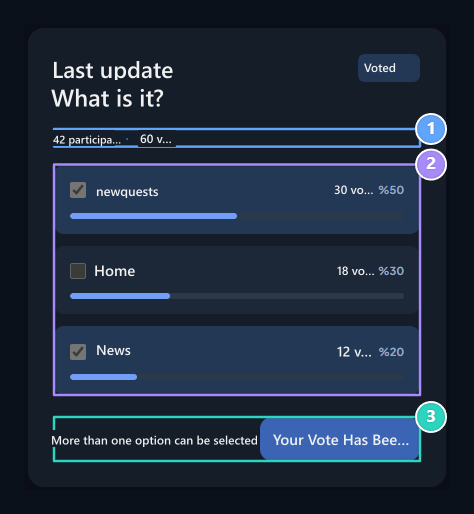
1. Participation summary
See participants and total votes numbers.
2. Results
Compare votes and percentages; your own choice remains marked.
3. Your Game Recorded
Each account is joined once in the same survey.
Read the number and percentages of the votes
Survey on the management list three points → Edit open the process. From the form Results Check the number of participants in the section, the total os and the distribution of responses.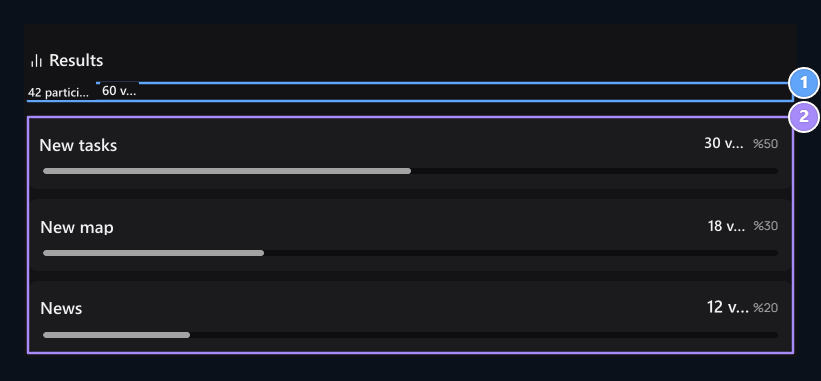
1. Participant and vote
42 participants marked a total of 60 options; in multiple selection these numbers may be different.
2. Response distribution
Check the number of votes of each option and percentage in total votes.
What can be changed in a rated survey?
After the vote is given, the option is locked in the single or multiple selection adjustment with text, add option and remove. You can change the order of existing responses; the given votes are protected with corresponding responses.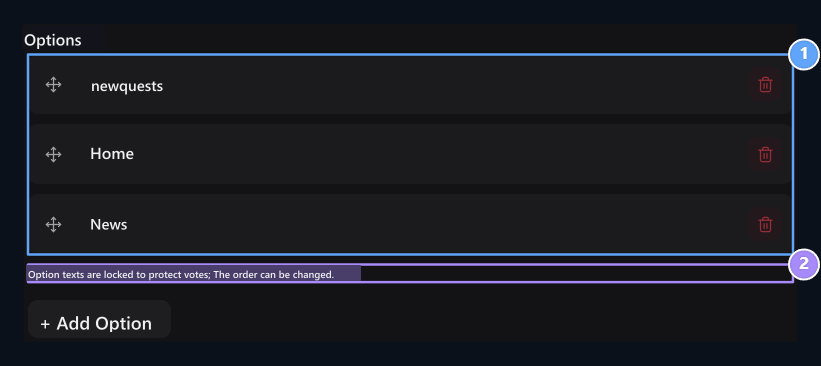
1. Rated options
The option texts are protected in the rated field survey; the ranking can be changed.
2. Protecting the votes
Prepare a new survey if the option will change text or type of choice.