
 Home
 User Guide
 Developers
 Payment Gateways
 Integrations & Tools
 Site Usage
 Troubleshooting

MoR (Merchant of Record) Model and Assurance
Creem is a world-class Registered Seller (Merchant of Record - MoR) Works as:- The Legal Seller is Creem: When you receive credit or package from your user site, the sales bill directly holds Creem; global tax and VAT processes are undertaken according to the country of the buyer.
- Individual Sales Convenience: Not required to cut or store separate e-billing company for each player of server owners.
- Creem: Availability and payouts depend on supported countries and account approval by the provider. Before going live, check the verification requirements and the terms for your account.
Registration areas
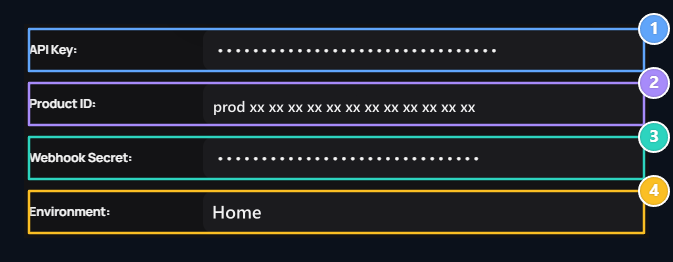
1. API Key
Enter the live API key from the Creem panel.
2. Product ID
Enter the ID starting with the prod_ of the one-time product you prepared.
3. Webhook Secret
Enter the signature key of the notification link you created in Creem.
4. Environment
Select Live for real collection.
1. Creating API Key
Produce your live API key on Creem panel:- Login to Creem management panel and at the bottom of the left menu Settings to the page.
- Top tabs API Keys Click on the tab.
- + New API Key Click on the button.
- Give a key name to the window that opens (e.g…
Server Adresi), at the authorization Full access Activate and activate the option Create a key Click on the button.
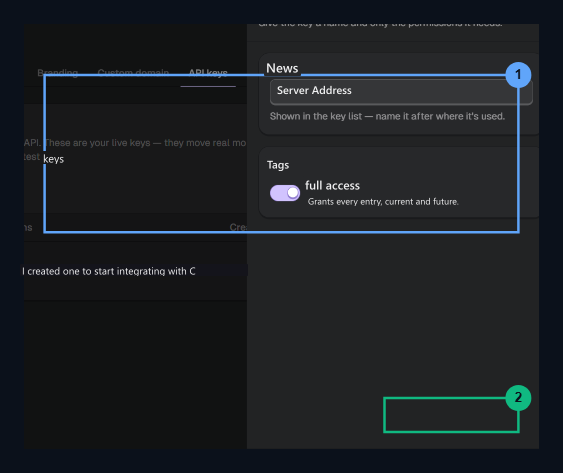
1. Key Information
Set the key name and Full access permission.
2. Create key
Click to produce live API key.
- From screen API Key created Copy the key in the notification and copy the key in your Zonely management panel API Key Paste it in the field.
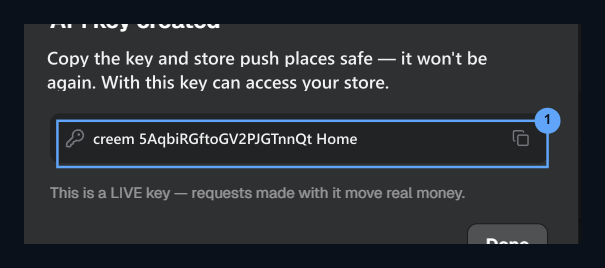
1. Copy API Switch
Home
creem_... copy the key.2. Webhook Notification Address Definition
Directly switch to the Webhooks section without leaving the Settings page:- Settings menu Webhooks Click on the tab.
- Close New webhook in the form:
- Endpoint URL: Enter your site’s notice address:
- Event types: Notification events (in the beginning
checkout.completedCheck it.
- Endpoint URL: Enter your site’s notice address:
- Create webhook Save the link by pressing the button.
- Signing hidden key of the created webhook (Webhook Secret) by copying Zonely in your management panel Webhook Secret Paste it in the field.
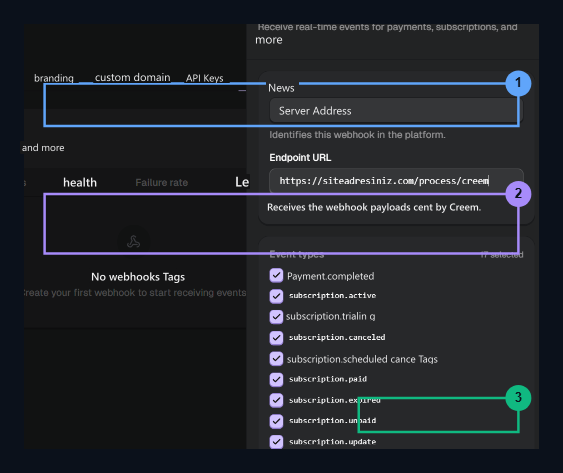
1. Endpoint URL
https://siteniz.com/process/creem Enter the route.2. Event Selection
checkout.completed Select the event.3. Create webhook
Click to create a webhook record.
3. Product Creation and Product ID Value Acquisition
A product should be created to start payment in the Creem infrastructure and the ID of this product (Product ID) should be taken:- Left menu COMMERCE Under the header Home Click on the tab.
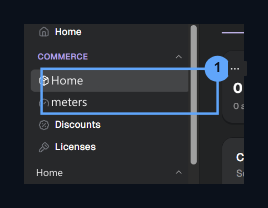
1. Products Menu
Go to the Products page under COMMERCE in the left menu.
- Placed at the upper right corner + New product Click on the button.
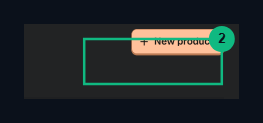
2. + New product
Open the new product creation window.
- In the form of product creation:
- Name: Enter the product name (e.g.
Server Kredi). - Pricing: Payment type One-time, currency USD Select.
- Tax included in price: Activate the option that indicates that the price is included in the tax.
- Name: Enter the product name (e.g.
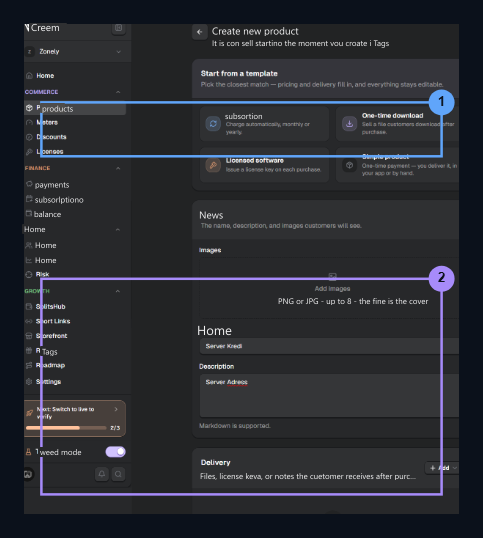
1. Product Name
Product name (e.g. Enter credit.
2. Pricing
Set the options included in One-time, USD and Tax.
- Located in the abstract card on the right side Create product Save the product by pressing the button.
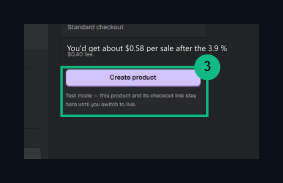
3. Create product
Save the product and complete the summary form.
- After the product has been created, click on your product listed. The product detail window opened on the right side Product ID value (
prod_Get started with the unique ID button by pressing and in Zonely management panel Product ID Paste it in the field.
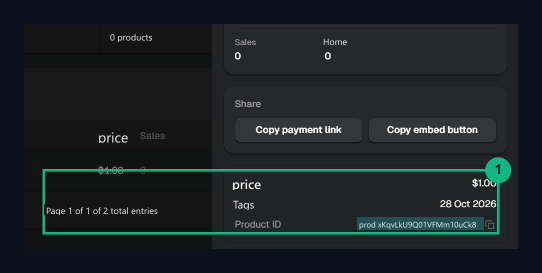
1. Product ID Copy
Copy the Product ID value starting with prod_.
4. Live Store and Authentication (Identity Verification)
To get your Creem account and store live (live) and to be able to accept real payments, you need to complete the authentication step:- Creem is located on the home page of the management panel Path to your first payment Open the list of controls.
- First step Add your business details (for example and operating details) and third-step Create your product After completing (product creation), in the control list to open the store live collection Your identity Find your step.
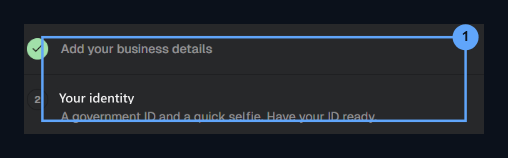
1. Verify your identity
Find the authentication step in the control list.
- My identity Click on the button. Complete the approval process by uploading your official ID document (TC ID Card, Ehlity or Passport) and an instant selfie shot on the drop-down. After confirmation, your store starts to pay in live environment.
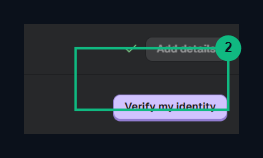
2. Verify my identity
Live your store by uploading your identity document and selfie.
5. Withdrawal (Payout) and Unfair Settings
The withdrawal process of income you get is highly practical because Creem works as an internationally registered Seller (MoR):- Define Bank Account: Creem in management panel Settings → Payouts (or Billing) Describe IBAN, SWIFT and recipient name information from your bank account to be transferred from your income.
- Automatic Unfair Transfer: We accumulate the payments made by players directly in your Creem balance. Creem transfers your net rights directly to your bank account when you are one of the designated calendar (with a week or monthly period).
- Tax and Billing Assurance: Since the sales bill is cut by Creem and the tax processes are undertaken by Creem legal entity, server owners do not need to cut single e-bill for each player; incomes are transferred to your bank account with legal assurance.