
 Home
 User Guide
 Developers
 Payment Gateways
 Integrations & Tools
 Site Usage
 Troubleshooting

Get Provider information
PayTR store panel Support & Installation → Integration Information open the part. Get three credentials to your store.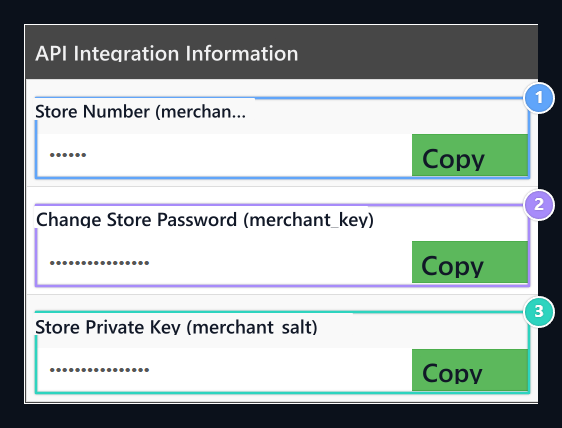
1. Store No
Merchant_id → PayTR Store No.
2. Store Password
Merchant_key → PayTR Password.
3. Store Hidden Key
Merchant_salt → PayTR Special Key.
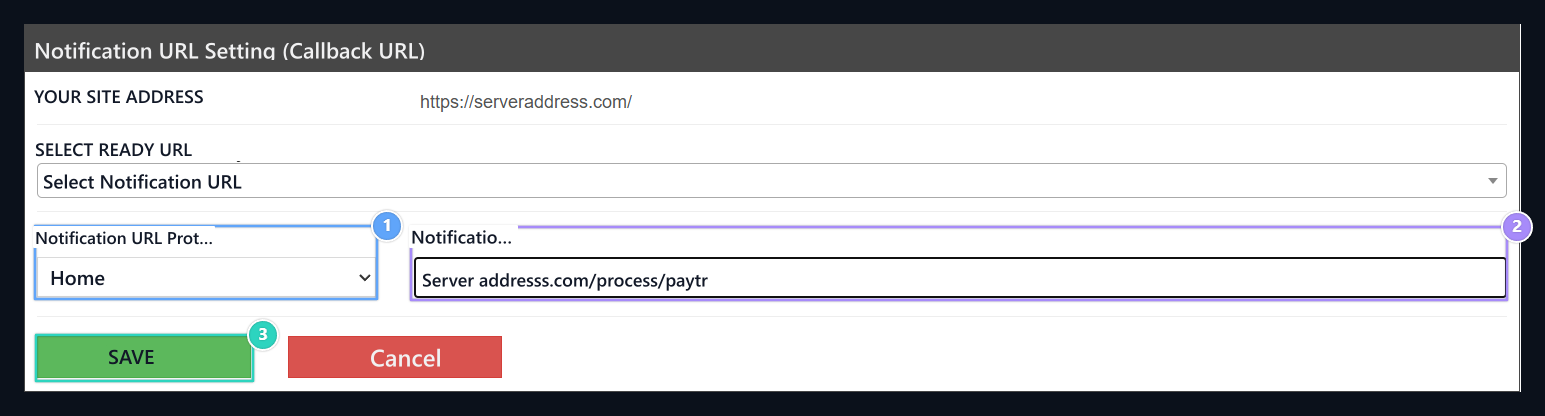
1. Notification URL Protocol
Select https:// for your HTTPS address.
2. Notification URL
Enter Zonely Callback URL address without rewrite the protocol.
3. SAVE
Use this button to save the notification address.
Prepare Zonely record
Management panel Store → Payment Methods open the part. Add Payment Method prepare new registration with; Title type the name to show the user to the field. From the infrastructure list PayTR Select.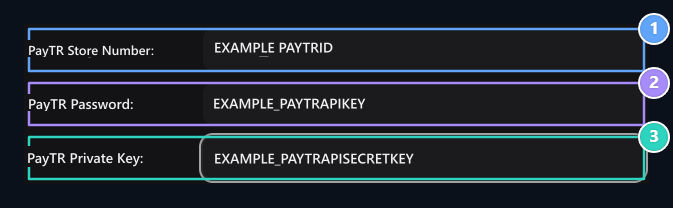
1. PayTR Store No
Enter the PayTR Store No information on the same provider account.
2. PayTR Password
Enter the PayTR Password information on the same provider account.
3. PayTR Special Key
Enter the PayTR Private Key information on the same provider account.