
 Home
 User Guide
 Developers
 Payment Gateways
 Integrations & Tools
 Site Usage
 Troubleshooting

transaction_checkout_not_enabled The error indicates that the Checkout feature in your Paddle account has not been opened yet. Check the account verification status from the Paddle panel and complete live onboarding steps.MoR (Merchant of Record) Model and Assurance
Paddle Billing, the world’s leading enterprise Registered Seller (Merchant of Record - MoR) one of the infrastructures:- The Official Seller is Paddle.com: When your player receives credit or product, you can directly sell the invoice Paddle.com Market Ltd. edits. VAT (VAT) and Sales Tax interruptions according to the country of the buyer are in the financial of the country related to its legal entity.
- Ease for Individual Developers: The server owner does not need to cut one e-bill or set up a company for each sale.
- Paddle: Availability and payouts depend on supported countries and account approval by the provider. Before going live, check the verification requirements and the terms for your account.
Registration areas
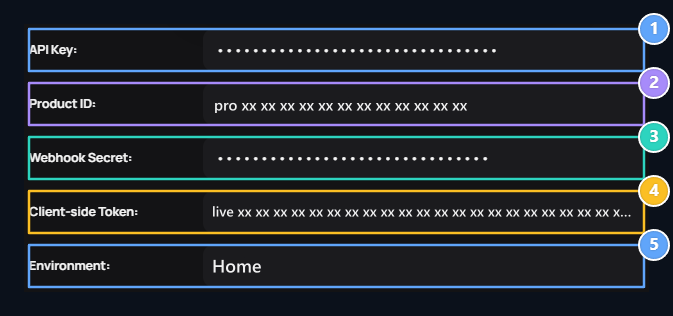
1. API Key
Enter the pdl_live_apikey_ key from your live account.
2. Product ID
Enter the ID starting with the pro_ of the product.
3. Webhook Secret
Enter the pdl_ntfset_ Secret key value of the paddle notification link.
4. Client-side Token
Enter Client-side Token, starting with live_ of your live account.
5. Environment
Select Live for real collection.
The products, notice addresses and API switches of live (live) and test environments on the paddle are completely independent from each other. Since all steps are completed in the live Paddle management panel to make real collection and are in Zonely panel live make sure the environment is selected.
1. Define Default Payment Link (Default Payment Link)
Identify the default domain name to match the Paddle payment window with your site:- From the left menu of the paddle Checkout open the header Checkout configuration to the page.
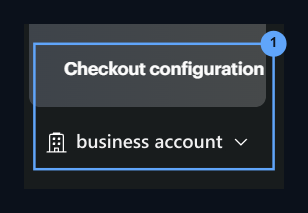
1. Checkout configuration
Open Checkout configuration page from left menu.
- Settings Located on the tab Default payment link enter your site’s notice address Save Save with:
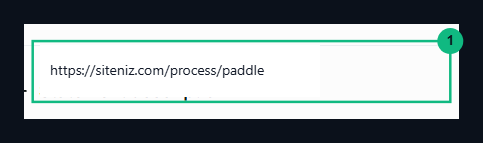
1. Default payment link
https://siteniz.com/process/paddle Save the address.2. Live API Key and Client-side Token Receiving
Prepare your key and token values to communicate with your site’s Paddle API and open the payment window:- Below the left menu of the paddle Settings open and open part DEVELOPER TOOLS From Imprint Click on the tab.
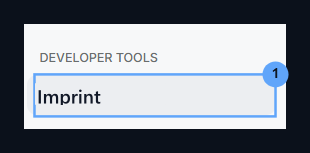
1. Authentication
Switch to Developer Tools → Authentication page under Settings.
- Rows per page New API Key Click on the button.
- Give your key in the pop-up form (e.g..
Zonely). - Expires at to keep the key active in the field Never Expense Select option.
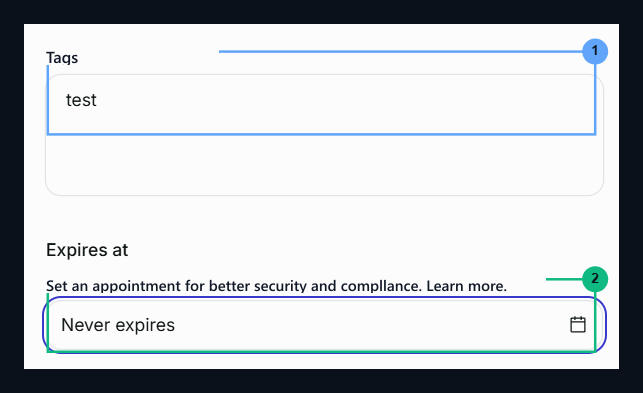
1. Key Name
Give your key name Zonely.
2. Never Expenses
Select Never expires for your time-less validity.
- Tags in section All Find the group. To make your site to start payment and verify orders Read More and AaUppercase Check both of the permissions and save the switch.
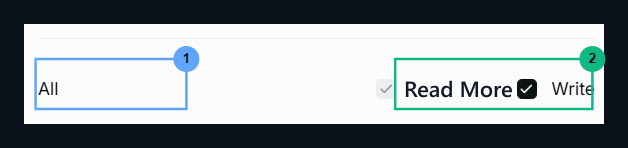
1. Authorization Group: All
Select all the authorization line.
2. Read & Write
Read and save two of the Write boxlets by marking.
- Live API key from window to display (
pdl_live_apikey_...) Copy and copy it in your Zonely management panel API Key Paste it in the field.

1. API Key Copy
pdl_live_apikey_ Paste the panel by copying the key starting with.- Imprint page from top tabs Client-side tokens Click on the tab.
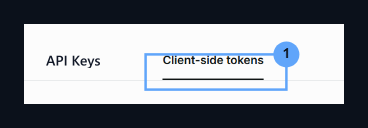
1. Client-side tokens
From the upper tabs to the Client-side tokens area.
- Three points on the right of the active token in the list (
...) open and open menu Copy token Click on the button. Copylive_Starting browser key with Zonely in your management panel Client-side Token Paste it in the field.
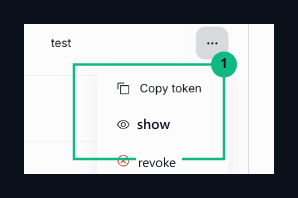
1. Copy token
Copy the live token with the Copy token option from three point menu.
3. Product Creation and Product ID Value Acquisition
A product should be created to start payment in the Paddle infrastructure and the ID of this product (Product ID) should be taken:- Left menu Catalog Under the header Home Click on the tab.
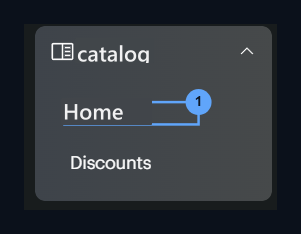
1. Products Menu
Go to Catalog → Products page from left menu.
- Right in the upper corner + New product Click on the button.
- Fill out product information in the pop-up form:
- Product Name: Enter the product name (e.g.
Kredi). - Tax category: For Digital Products
Standard digital goodsSelect category.
- Product Name: Enter the product name (e.g.
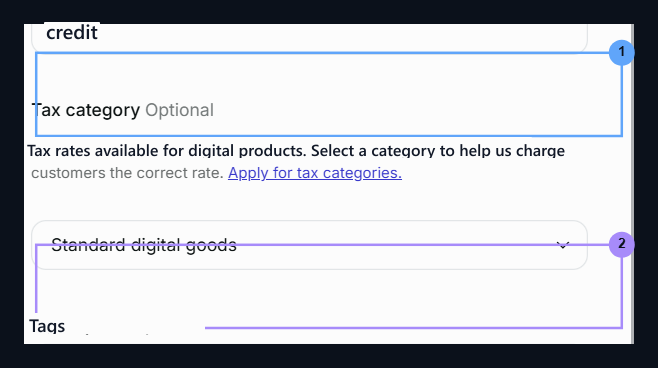
1. Product name
Product name
Kredi Enter it as2. Tax category
Standard digital goods Select category.- Save Save the product by pressing the button.
1. Save
Click Save button to save the product.
- Located in the detail page of the product created
pro_Start with Product ID copy value and copy the value in Zonely management panel Product ID Paste in the box.
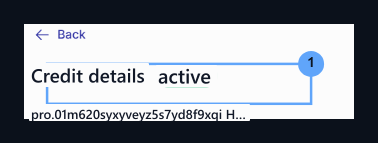
1. Product ID Copy
pro_ Copy the product ID starting with.4. Configure Webhook Notifications
Open webhook registration on the Paddle panel to instantly transfer payments to your site:- Located in the left menu of the paddle News Under the header News Click on the tab.
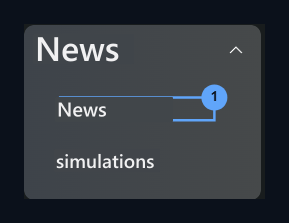
1. Notifications
Open Notifications tab from the Events menu.
- On the page that opens New destination Click on the button.
- Fill in the notification settings:
- Notification Type: webhook Check the option.
- URL: Enter your site’s notice address:
- Description: Write a description for this goal (e.g…
Server).
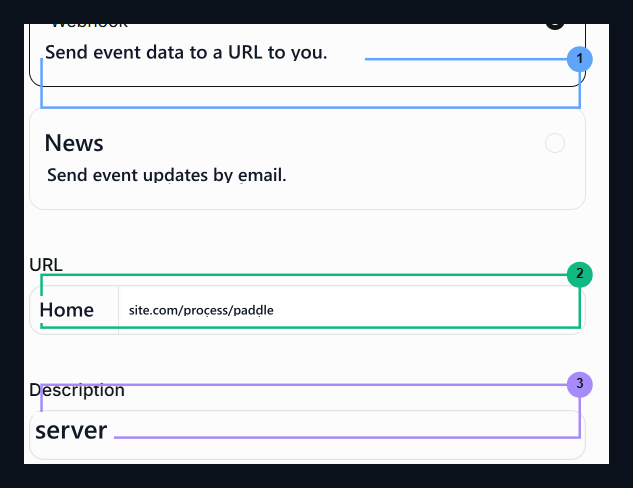
1. Notification Type
Check Webhook option.
2. Endpoint URL
https://siteniz.com/process/paddle type the address.3. Description
Enter a description for your server.
- Usage type menu platform Select.
- News In order to ensure that your site is completed and fully capture account movements All Check the box and save the goal.
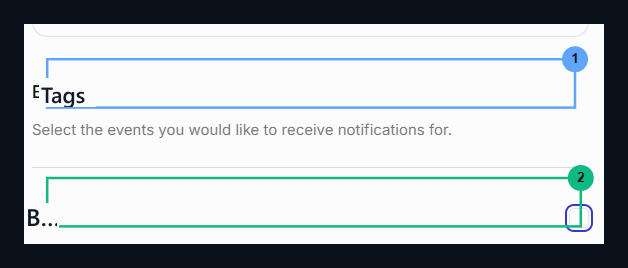
1. Usage type
Select Platform option.
2. All
Check All the box to get all notification events.
- Click on the created webhook target News Enter the option.
- In the window that opens
pdl_ntfset_Start with Secret Key copy value and copy the value in Zonely management panel Webhook Secret Paste in the box.

1. Secret key
pdl_ntfset_ Paste the Webhook Secret field by copying the key starting with.