
 Home
 User Guide
 Developers
 Payment Gateways
 Integrations & Tools
 Site Usage
 Troubleshooting

Registration areas
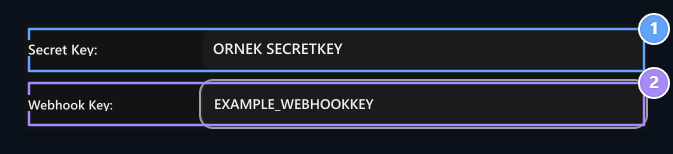
1. Hidden Key
Enter the API key you created on the Coinbase Commerce panel.
2. Webhook Key
Enter the Shared Secret key you receive for Coinbase notifications.
1. Creating API Key (Gizli Key)
Login to Coinbase Commerce panel and create your API key:- From left menu or upper Settings to the page.
- Top tabs News Click on the tab.
- API Keys located in the right of the card New API Key Click on the button.
- Copy the generated API key to a safe location and copy it to your Zonely management panel Secret Key Paste in the box.
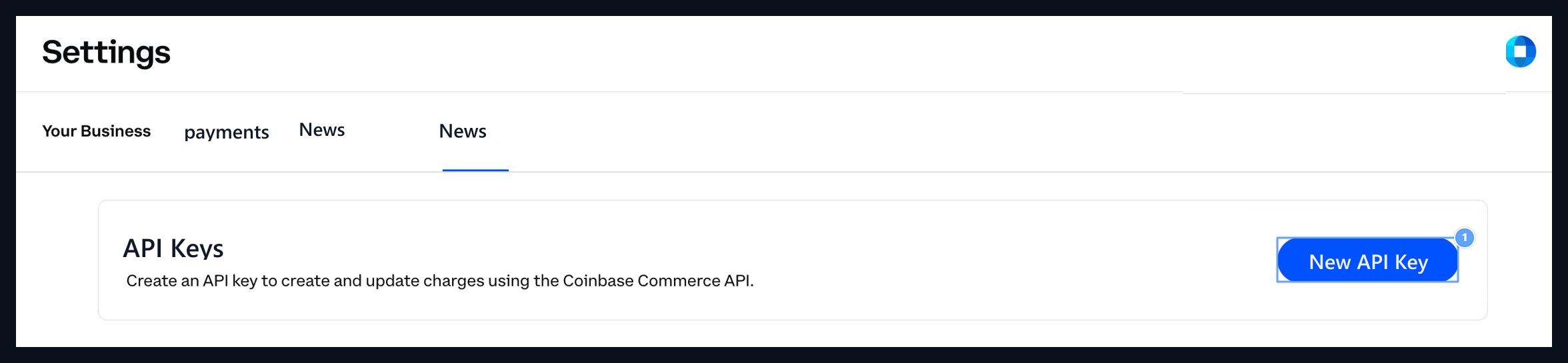
1. New API key
Click the button to produce a new Commerce API key.
2. Add Webhook Endpoint
A webhook endpoint should be defined to get instant access to your website:- Settings Under menu News Click on the tab.
- Bottom of the page Webhook subscriptions located in the section Add an endpoint Click on the button.
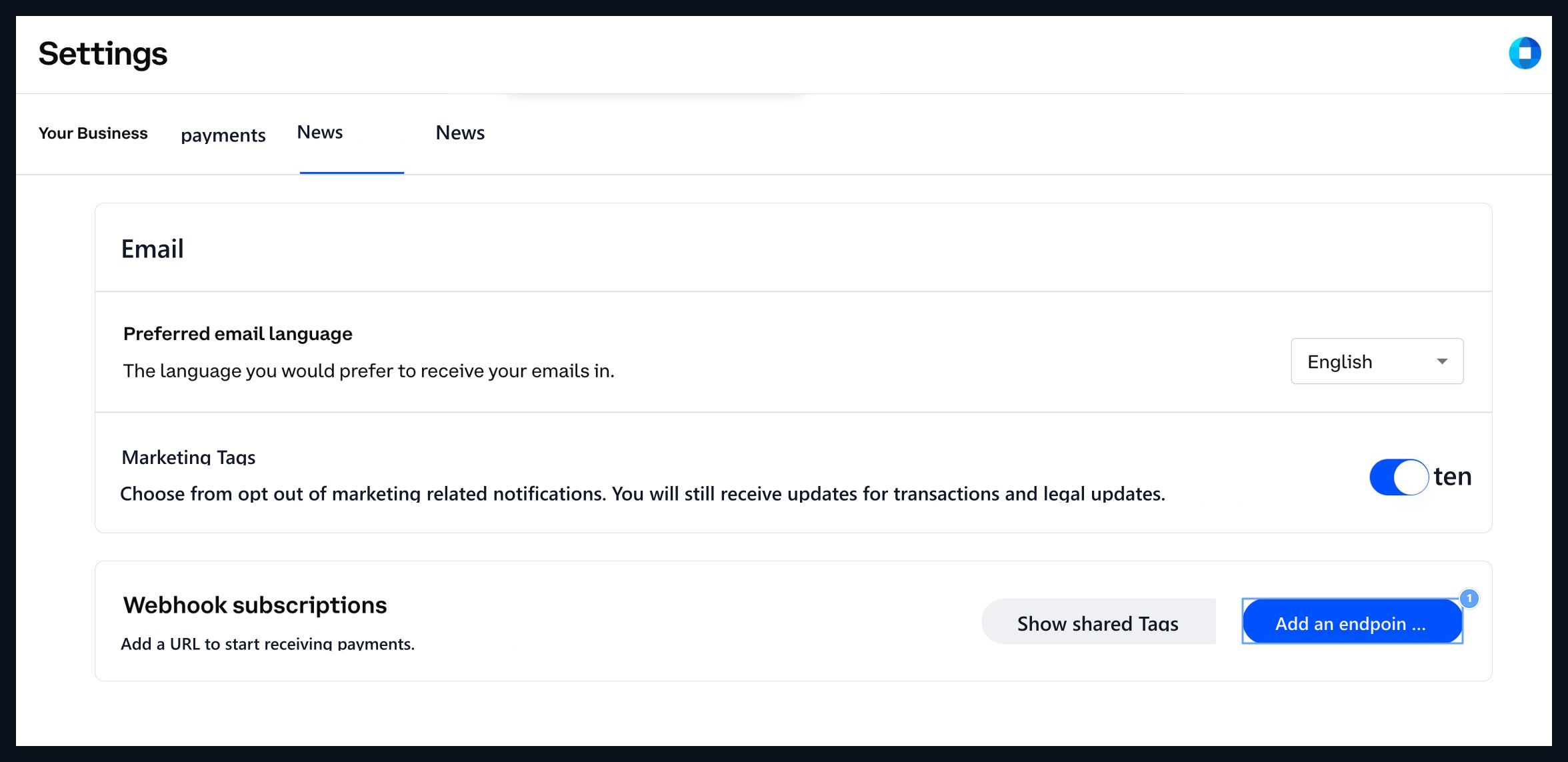
1. Add an endpoint
Click to open the new notification address insert window.
3. Webhook Notification Address Definition
Close New Webhook Subscription modal window:- Enter your site Coinbase payment route in the notification URL field:
- Save Confirm the address by pressing the button.
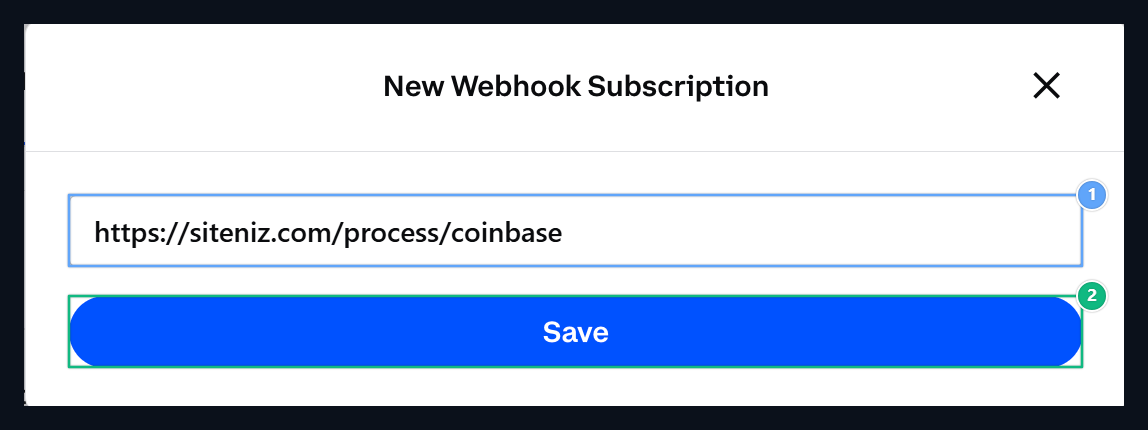
1. Notification Address
https://siteniz.com/process/coinbase Type the route.2. Save
Click to complete the Webhook registration.
4. Receiving Webhook Hidden Key (Shared Secret)
- Webhook endpoint appears in the list after successfully added.
- Top right of the Webhook subscriptions card Show shared secret Click on the button.

1. Show shared secret
Click to view the hidden webhook signature key.
- Close Webhook Shared Secret Click the copy button next to the hidden key in the window.
- The value you copied in your Zonely management panel Webhook Key Paste it in the field and save the payment method.
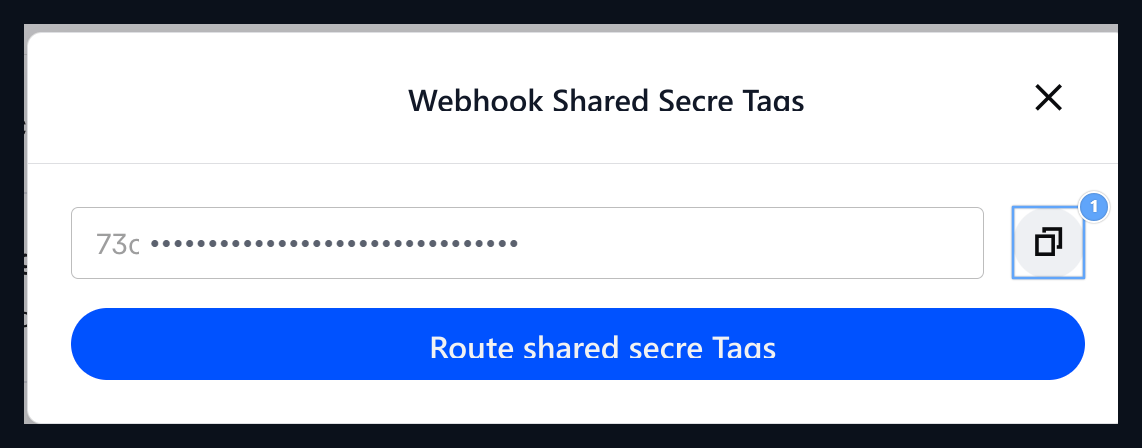
1. Copy
Click to copy the shared secret key to the clipboard.