
 Home
 User Guide
 Developers
 Payment Gateways
 Integrations & Tools
 Site Usage
 Troubleshooting
Manage methods
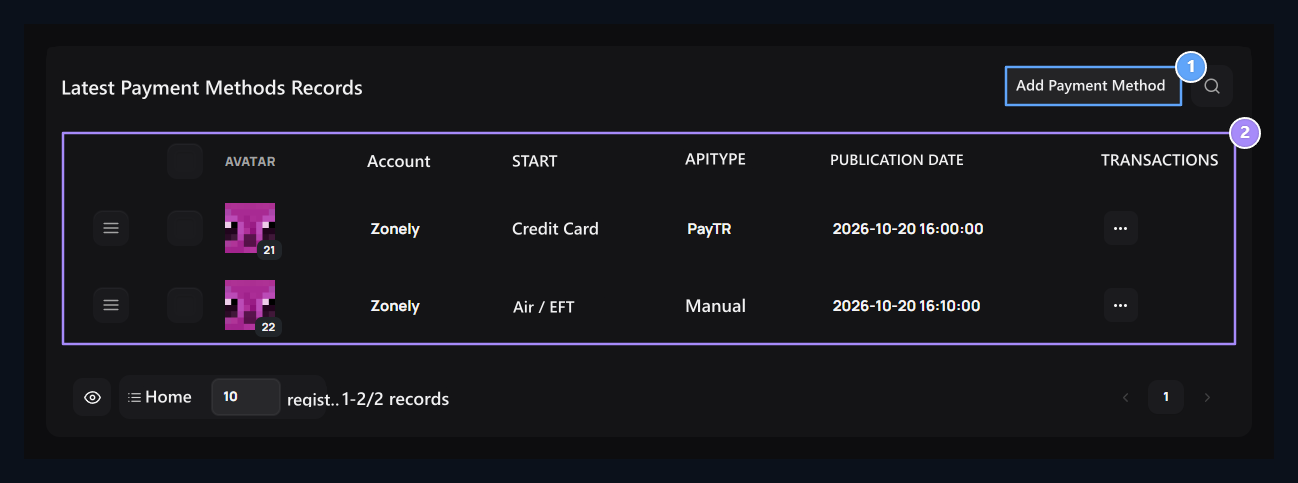
1. New payment method
Only relevant links are opened when choosing the infrastructure.
2. Method list
Monitor the header and connected infrastructure shown to the user.
Select infrastructure
Global MoR (Merchant of Record - Registered Seller) providers in the infrastructure list Creem and Paddle stand out; then Manual and other providers come. MoR model organizes sales bill and global tax compliance directly to the global company, so individual server owners can safely collect without exposure to other domestic MoR providers, compass and local finance audit risks. For the installation of two providers account, products and webhook Creem or Paddle Use the guide.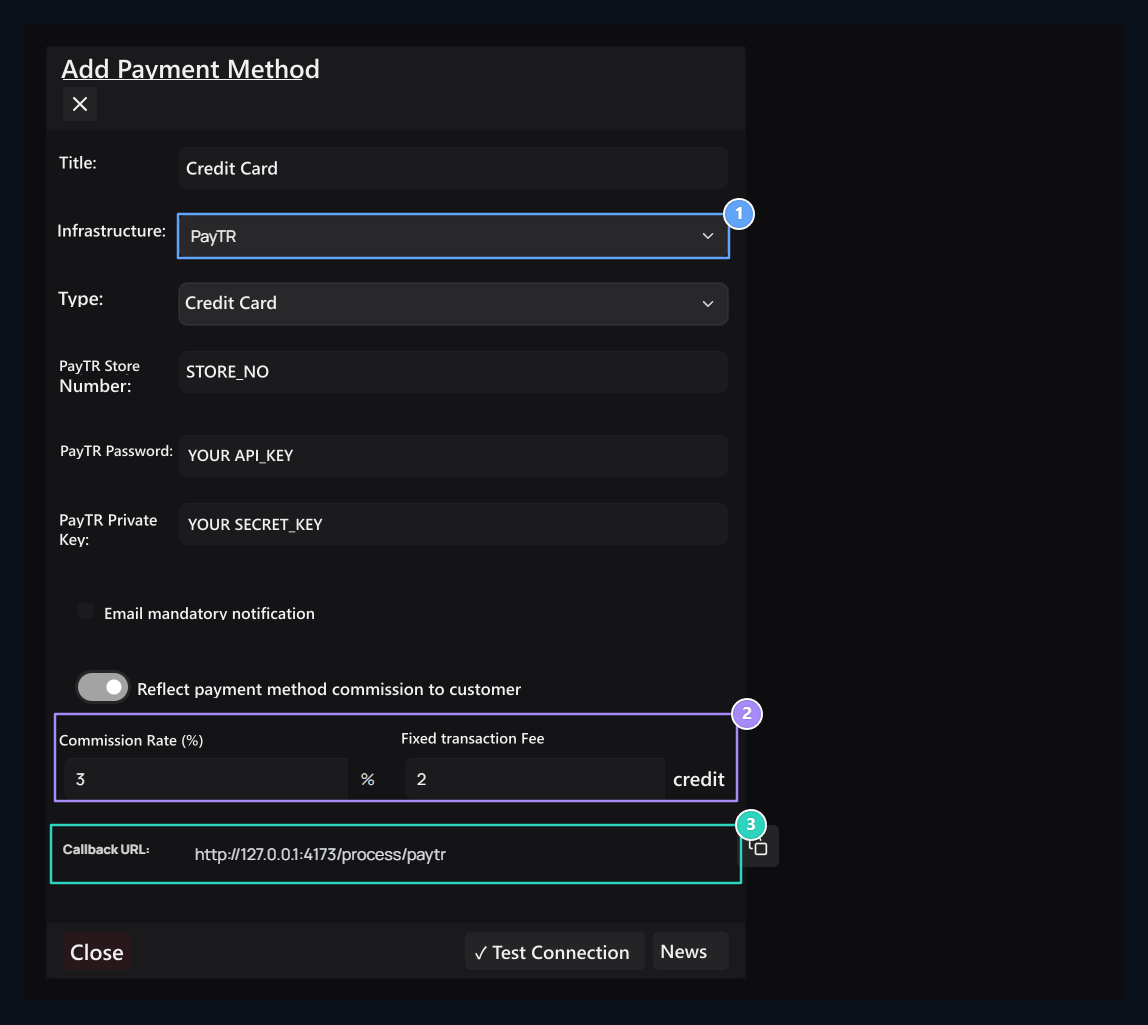
1. Infrastructure and type
PayTR is asked for store and key information for example.
2. Commission choice
Edit percentage and fixed amount while opening to customer.
3. Notification address
Transfer this method to callback address to the respective field of the provider.
Select commission preference
Email mandatory notification Select option according to your payment flow. Reflect payment method commission to customer Fill the percentage and fixed amount areas separately when open. Check the total commission information and type of method.Get and save the notification address
Subsection Callback URLThe address that the provider will notify the payment result. After you have created the registration Edit Get full value with copy button on the screen. Assumption?method=... protect the part. Transfer this value to the relevant area if the provider wants to separate notification adjustment; details are in the provider guide.
Test Connectionsends connection request with entered information. View the result message. Publish saves the method; does not log in to close the form.
Shopier PAT example
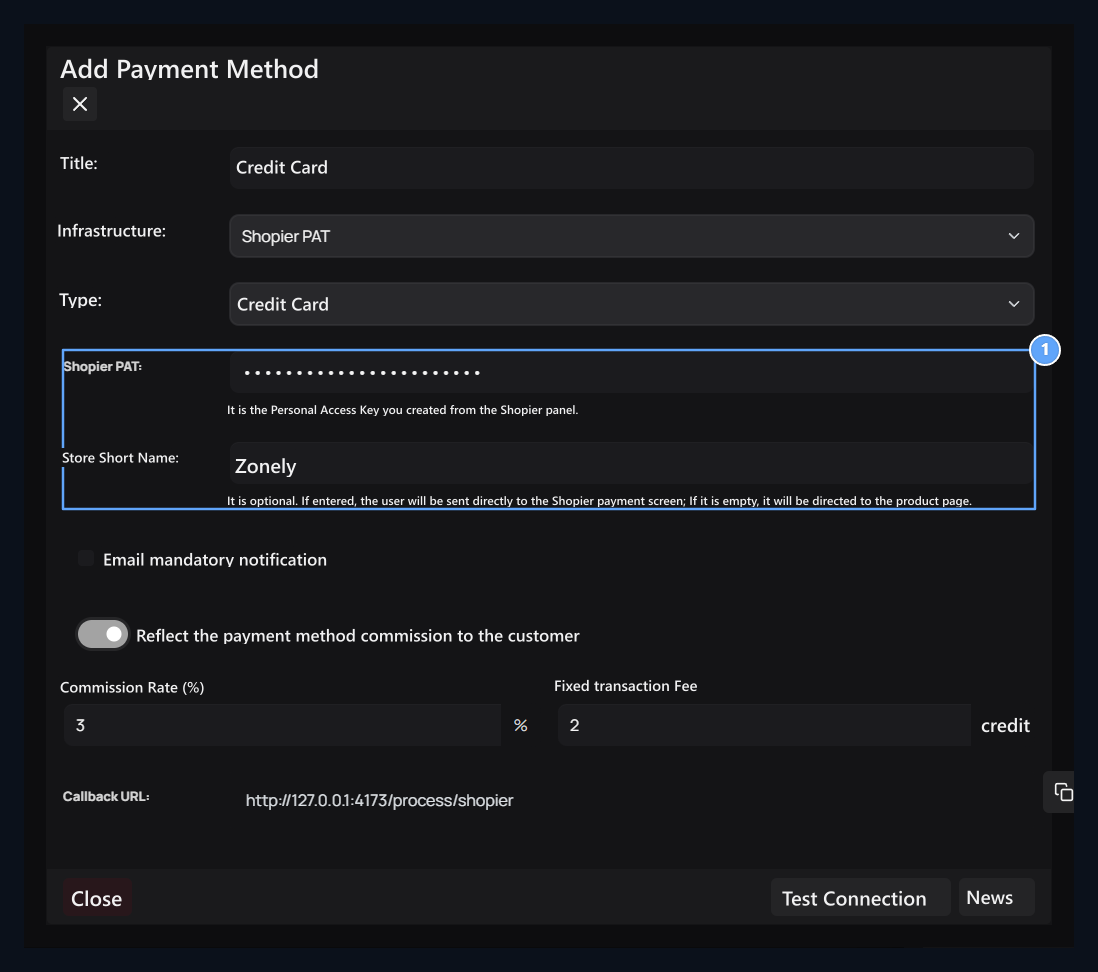
1. Shopier PAT connection
Enter PAT key and Shopier shop short name.
Create Manual Air / EFT
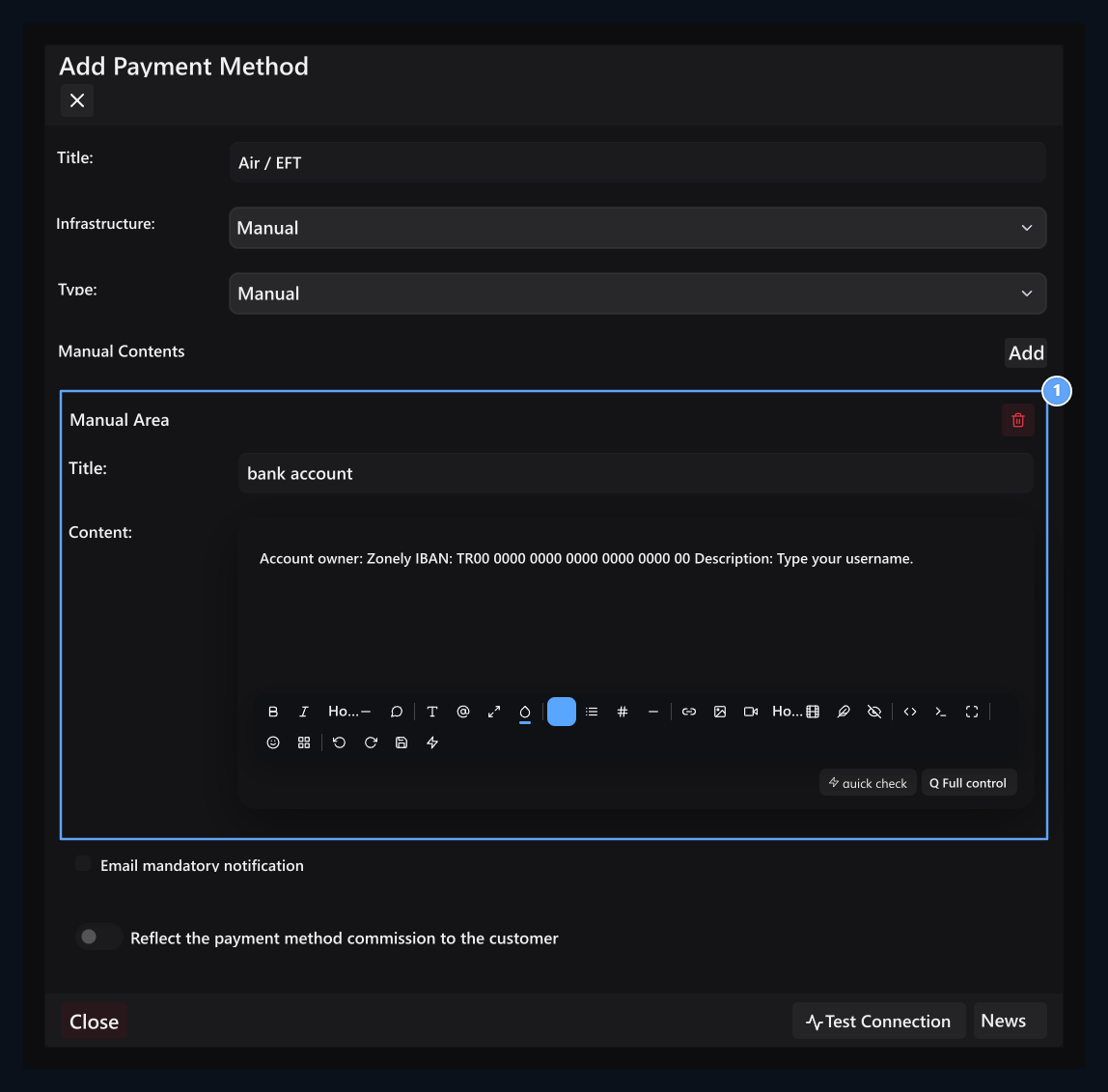
1. Manual payment areas
Add information to the user to show like bank and payment description.