
 Home
 User Guide
 Developers
 Payment Gateways
 Integrations & Tools
 Site Usage
 Troubleshooting
Find Criminal Records
From the top list Recent Bans, Final Silences or Latest Warnings Select. Search for the search icon and search for the corresponding account. Check the user on the line with the authorized, reason, time and date of publication.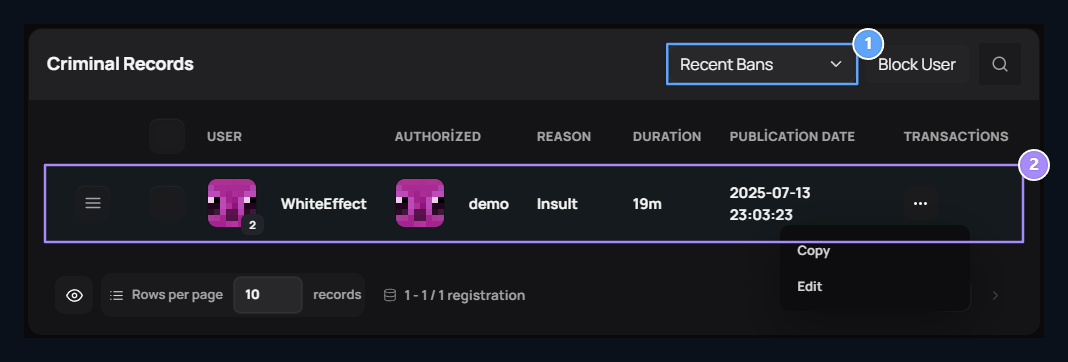
1. Penalty type
Switch between baning, susting and warning records.
2. Criminal record
Check the user, the author, the reason and the time together.
Select the user and the punishment ground
Block User Press the button. User Select the correct account by assigning the name of the account in the field. Obstacle Content type the ground of the process in the field. You can format the text editor to explain with the tools.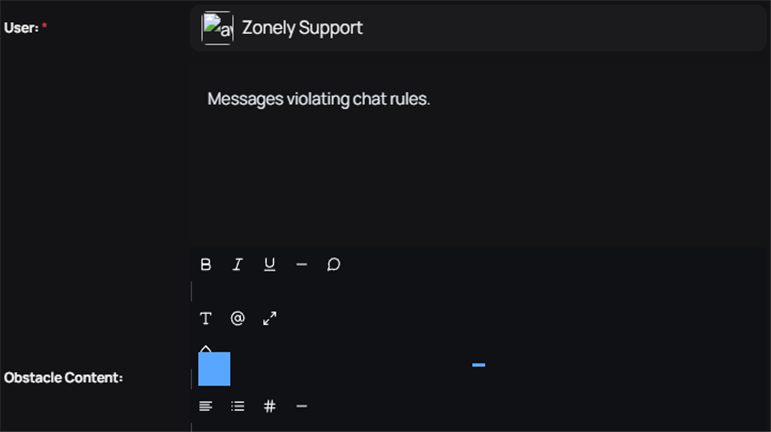
1. User
Search and select the account to apply a penny.
2. Block content
Explain the ground of the punishment.
Select the type of punishment and scope
Home Select the process you want to do in the field. For example, in violation of the chat rule Normal Squelch You can use it.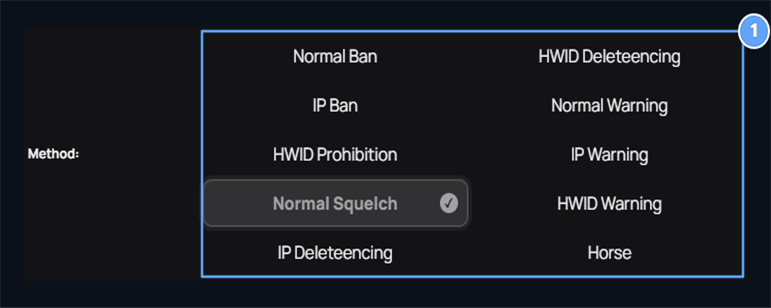
1. Method and scope
Select banning, susting, alert or Horse; Distinctive, IP and HWID coverage.
For banning, susting and warning Home, IP and HWID options are available. Home account, IP link address, HWID is the scope that aims to improve hardware identity. You must also be supported on the connected game or launcher side of the scope you will use.
Identify the duration and apply the punishment
Time → Unlimited When selected, the value is not desired. Limited opened when selected End date type the expression for the field. For example 10mmeans 10 minutes.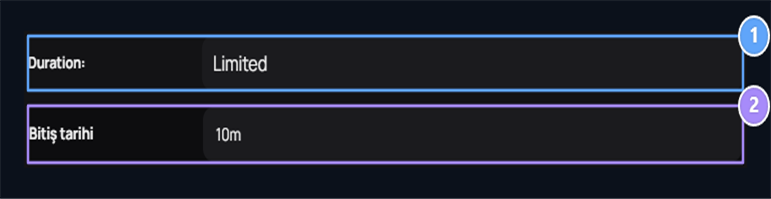
1. Time type
Select Unlimited or Limited.
2. Time value
10m means 10 minutes.
What does the user see on the site?
Prohibited user blocked on the site and the ban screen will pop up when it tries to access the site. The reason and time information of the obstacle on this screen is shown. In the IP ban, it continues to see the obstacle screen when it enters the site at the same IP even if it is out of the user account. Do not remove IP obstacles; access is reopened when the penalty ends or removed by the author.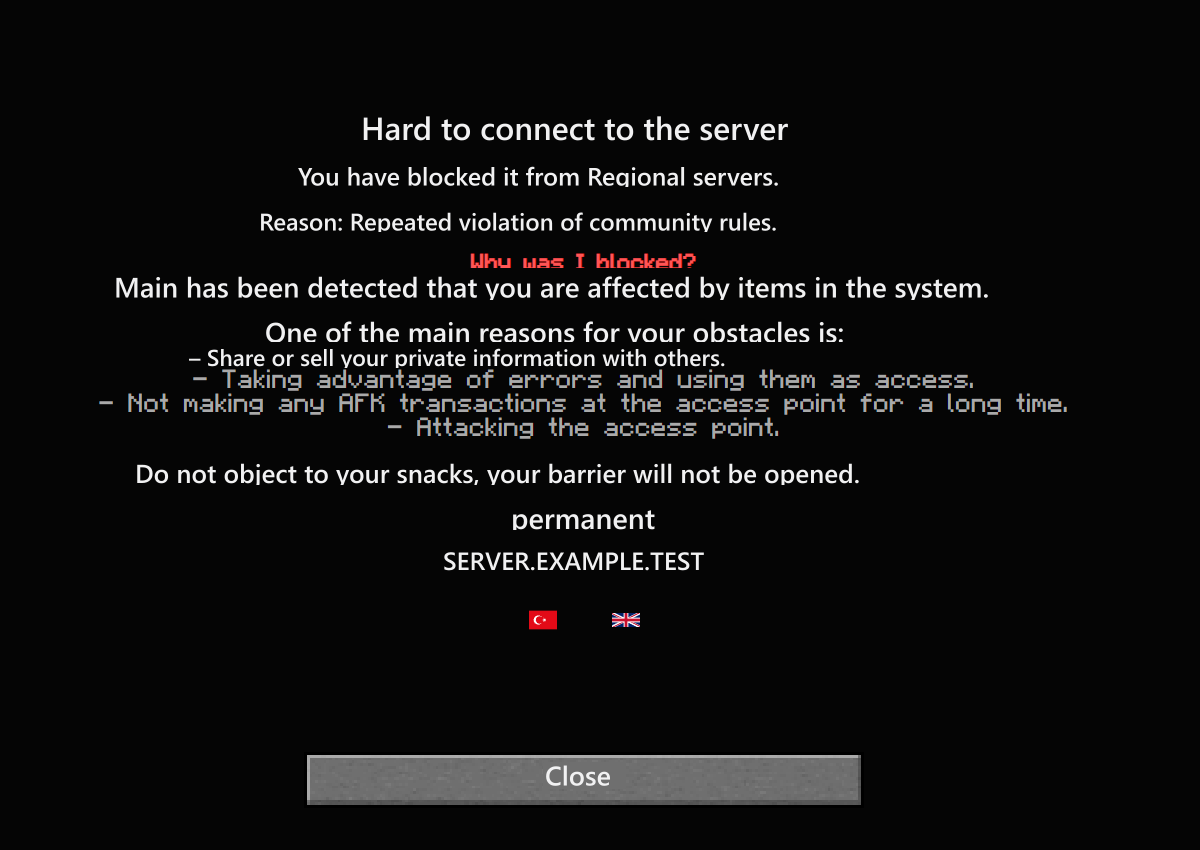
Select the right provider for game penalties
To work with the punishment system on the game server Add-ons → Uploaded → Penal Configuration → Options → Edit open the way. Select the source you will use here.
ZonelyCore uses Zonely’s default System punishment configuration. Also prepare the database link of the corresponding plugin if you are using LiteBans or AdvancedBan. Provider selection and steps Criminal Configuration guide Find out.
Check the correct list and search filter before the penalty you expect in the registration list. Then verify that the selected provider matches with the plugin on your server and accesss the same penalty records of the database connection.
View user account, roles and history →