
 Home
 User Guide
 Developers
 Payment Gateways
 Integrations & Tools
 Site Usage
 Troubleshooting
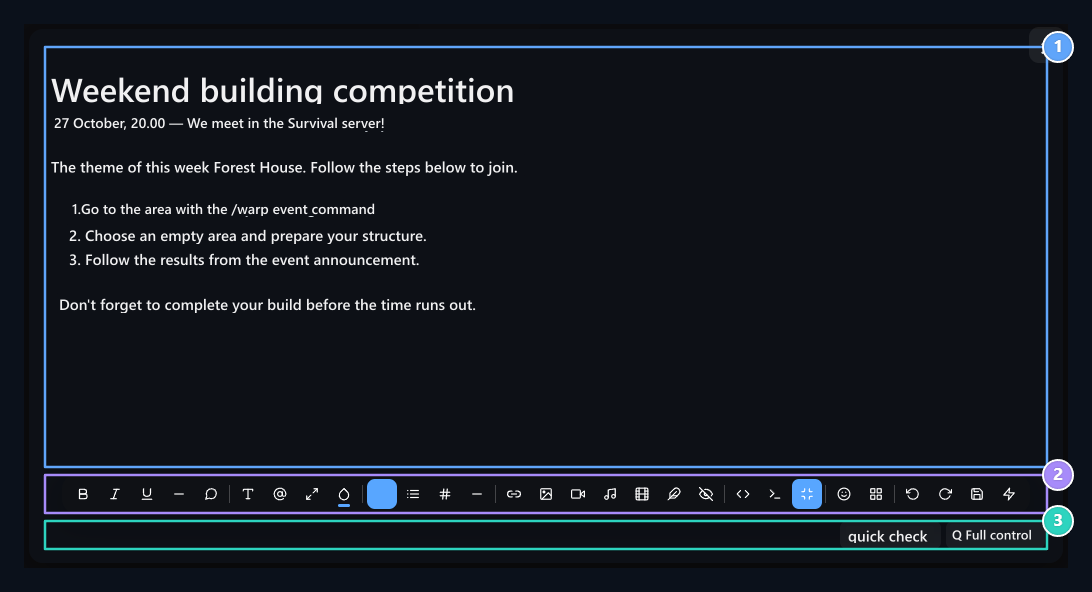
1. Content area
Prepare the text of the announcement with header, lists and highlights.
2. Vehicle bar
Open text, media, GIF, resource and draft tools.
3. Text check
Quickly check out or review the article with Full denetle.
Start writing and select text
Click on the content field and type it. Enter a new paragraph, Shift+Enter forms the bottom line within the same paragraph. To add the text you copied from another place from format to the Ctrl+Shift+V You can use it. If you change the color or thickness of a word, choose that word first. Make a paragraph into the corresponding paragraph of cursor to make or align header. Text format you open without selection can also be applied to the part you continue to write. Wait on the mouse icons to see the meaning of the tools. Long articles Full screen The button enlarges the working area. When you don’t have a same button or an open window Tags return to normal appearance.Change header and text formats
Title There are normal paragraphs, header levels and code block options in the menu. Use headers for the main section, smaller for sub-existing. To return to normal article paragraph Select.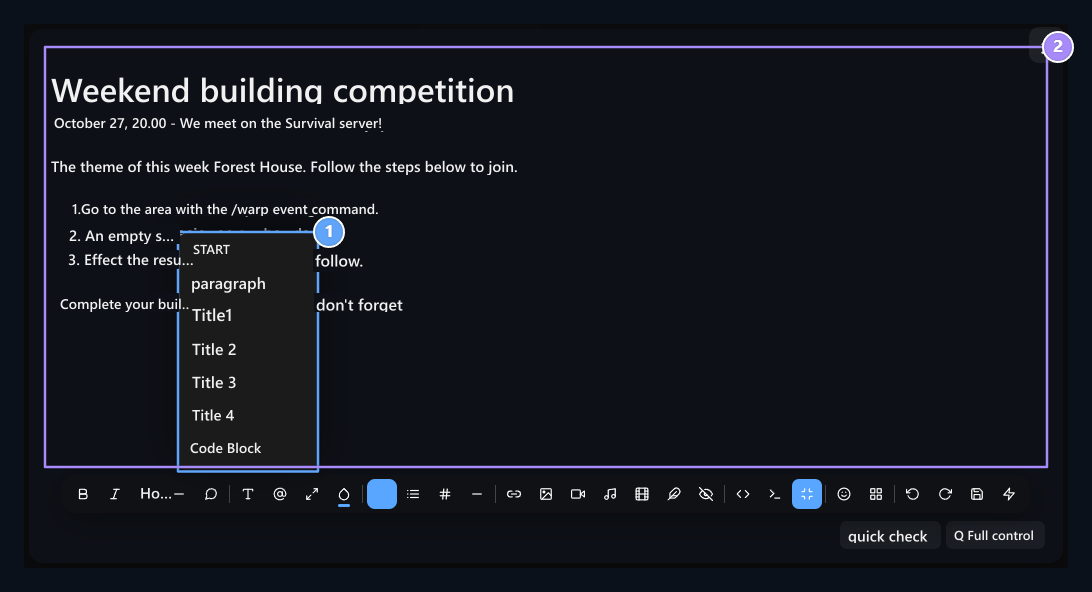
1. Title selection
Select normal text and header levels.
2. Sample text
Date is thick, theme push, steps are the number list.
Font, size and color
Font Set a option from the menu like Arial, Verdana, Tahoma, Georgia, Times New Roman or Courier New. Font size menu text shows different size such as 12, 14, 16, 18, 22, 28 or 36 pixels. Changes the text of the font size. Use the corner handle of the picture to enlarge an image; the steps of this are below. Color Before the tool Text or background Select tab. Then set a color from the palette. For a special color Private open color selector from option. Text color letters change background color back of selected section.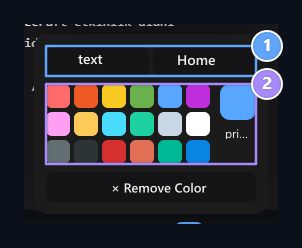
1. Text or background
Select the color of the article or the background of the selected text.
2. Color selection
Select a color from the pallet or use the color code.
Paragraph alignment and separator line
Keep and edit cursor in the paragraph you want to edit alignment menu Align Left, Center, Justify Right or Justify Select. Select the corresponding texts to align multiple paragraphs together. Horizontal lineAdds a separator to where you are located. For example, you can separate the terms of participation with this line.Prepare items and lists
Independent information such as awards Item list, to be done in order Number list type with. You can choose multiple paragraphs and convert them to list using list tool. Enter opens a new substance. Renew the list in the empty item to finish and return to the normal paragraph Enter Press the key. You can change the format of signs or numbering with options in the list menu; for example, you can choose lettered or Roman figure ranking.Add and modify the link
Click where the link will be found or select the text you want to link. Link open the tool URL goal in the field, Title type the text that the reader will see in the field. Open in new tab Select and select option Add Press the button.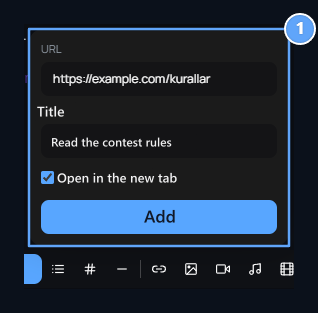
1. Connection information
Enter the target address and the text that appears; set the new tab option.
https:// type the part.
You can edit the text text texting article that appears in the link. The target address is the corresponding link to change from the source view href Find the value:
<a ...> and </a> remove labels and protect text in the meantime.
Add images
Bring the cursor to the location where the picture will be found. If you want to stand on a separate line of the visual, open a blank paragraph first. Picture Use the tool and select one of the following methods:- Upload File: Select a picture from your computer or drag the file into the installation area. You can also choose multiple pictures. Wait for the installation indicator to complete.
- Add with URL: Write direct link of the visual file Add Press the button. Use the official address instead of the homepage of a site.
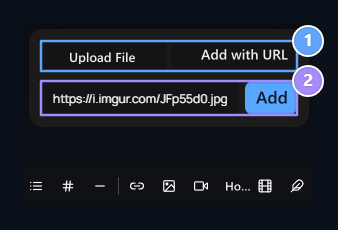
1. Upload or URL
Select file from computer or use the picture address directly.
2. Image address
Get text directly with the image and insert.
How to enlarge the picture added?
- Image inside the article once click. Blue squares appear in the corners of the selected picture.
- Official the mouse square in the lower right corner bring.
- Left key to hold the printed and keep the corner drag out right. The picture grows.
- Leave the mouse when it comes to the size you want. Click on another location in the text to close the selection.
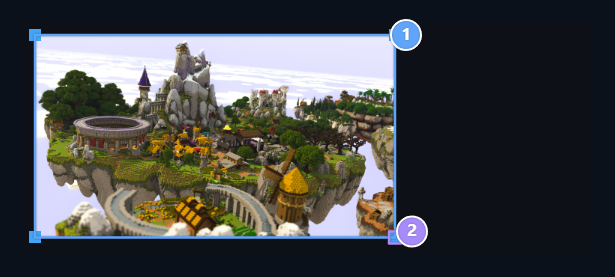
1. Selected picture
Once click on the picture; blue handles appear on the corners.
2. Size handler
Grow the lower right corner by dragging out, shrink it by dragging inside.
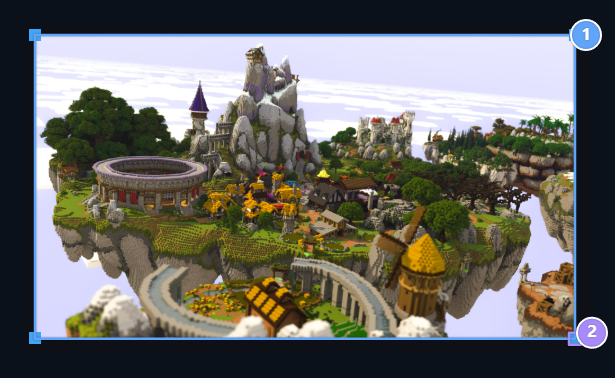
1. Magnified picture
The width in the sample was removed from 360 pixels to 540 pixels; the proportion is maintained.
2. Drop drag
Leave the mouse and save the article when you reach the width you want.
How do you reduce the picture?
The same corner handle this time drag the picture to the center. Thus, the picture is shrink. You don’t need to use font size menu that changes the size of the text. Select the picture you will change before you have multiple pictures; make sure the blue handle is in the correct visual. A small visual can be blurred when you grow too; use a file in sufficient resolution for greater appearance.Set the width with number and midst the picture
If you need a full width, you need a full width in the toolbar HTML/Code view open the button. Related picture<img> Find the tag. When changing the label with the following structure src Type the current address of your own picture in the field:
height:auto protects the highest-boy ratio. width: 100 % prevents the picture from spreading outside the area. display:block;margin:0 auto midsts in a separate line. Only if you change width in the current label width Simply update the value. Use the label structure in the sample to apply the average and protect your own visual address.
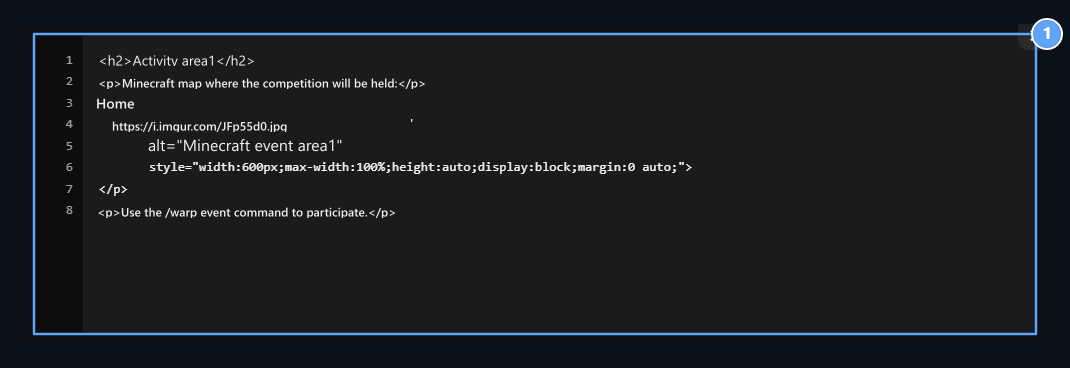
1. Precise size and average
width:600px width determines; height:auto rate protects; margin:0 auto picture mides.
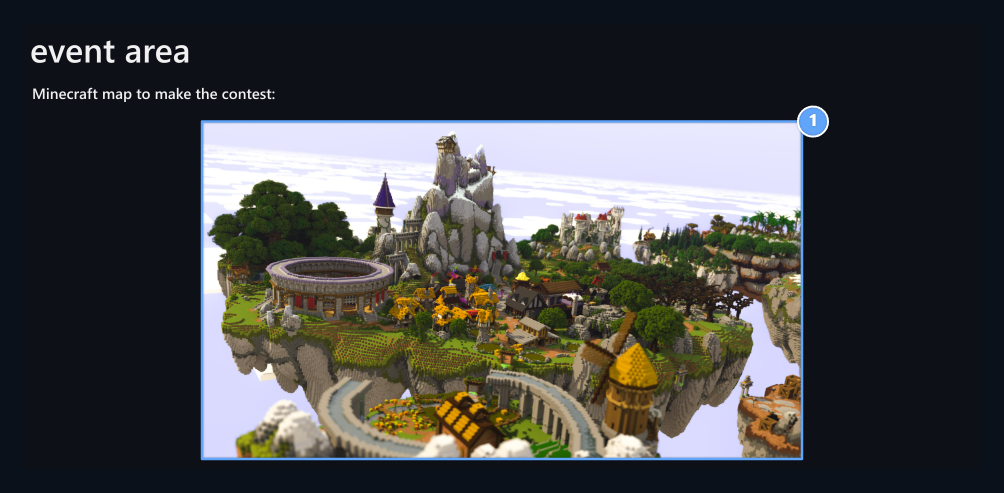
1. 600 pixels and middle
The picture is in the middle of the text field; it does not stone outside the area on narrow screens.
alt You can write a brief description that tells the visual to the field. If you want to explain anyone under the picture, then type this text to the paragraph under the picture.
Remove the picture or replace it with another picture
Click on the picture and make blue handles appear; Home Remove from selected official content by pressing the key. If you have removed the wrong picture Get back Use the button. Remove the old to change the picture, in the same place Picture open the tool and add new file or address. This process changes the visual in the article; save the last article.Search for GIFs, get to favorites and size
GIF open the tool. Discover For example in the search field on the tab Home Tags Search Press the button. Add it to the article by clicking on the GIF card you like.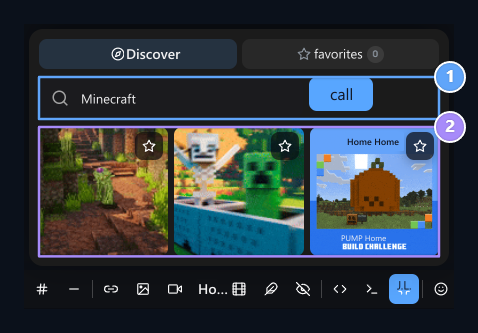
1. GIF search
Write a word like minecraft and press Search button.
2. Sample GIF results
Add content by pressing GIF card; get your favorites with the stars.
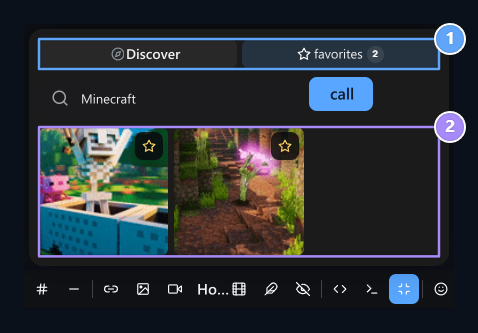
1. Favorites
Re-enter GIFs you stared from the same browser.
2. Favorite GIFs
To add inside, press the star to remove the card from your favorite.
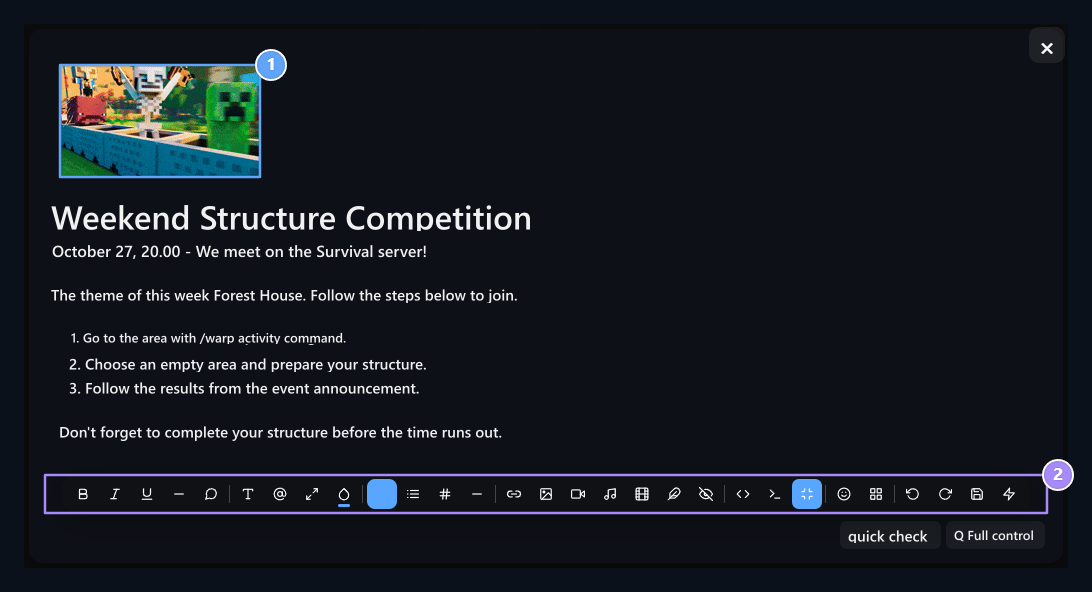
1. GIF added to the inside
Selected mobile visual image is added to the location where there is an image.
2. Continue editing
After completing the text, use the registration button of the open page.
Add videos
video There are three methods in the vehicle:- URL: Write a video link supported by YouTube or Vimeo Add Press the button.
- Embedded Code: Paste and add the embedding code from video sharing options.
- Upload: Select video file on your computer; wait for installation to settle on the content as complete.
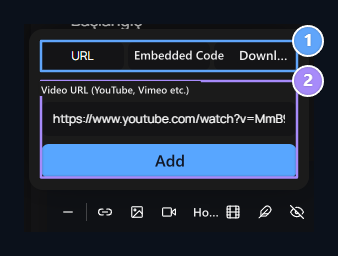
1. Video method
Select the connection, the embedding code or the loading tab.
2. Video connection
Enter the video address and text with the Add button.
Add audio player
Music open the tool. Voice file address and optional Title Tags Add Press the button. The title in the example is “Event promotion”.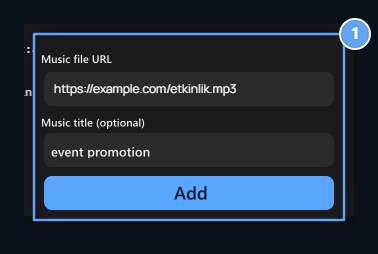
1. Audio file and header
Directly press MP3 address and the header of the player and the Insert button.
<audio> Your item src The value is file address; you can update this address to change the file.
Create tables and fill the cells
Table open the tool. By visiting the mouse in the grill, you can determine the number of lines and columns and click on the size you want. Type text by clicking on the cells of the attached table; Taboo You can move to the next cell with the key.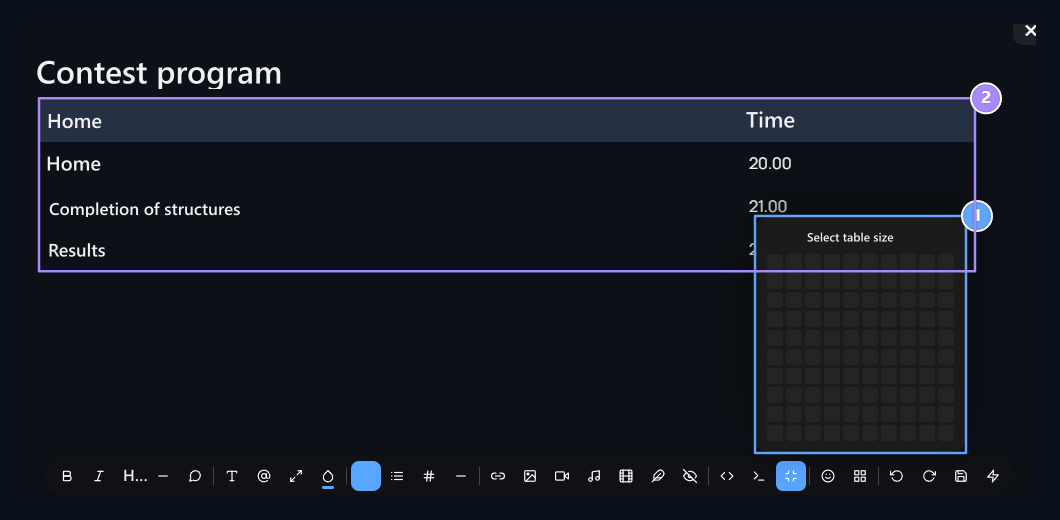
1. Row and column
Set the table size in the grid; add it by clicking.
2. Full table sample
Type the stage and watches of the contest into cells.
<tr> a line, <td> a data cell, <th> represents a header cell. Related to insert or remove the line <tr>...</tr> Edit the part. Find the same number of cells with other lines in the new line. To remove the table completely <table>...</table> Remove the partition and turn to visual appearance.
Add Emoji and icon
emoji Select one of the top categories in the tool; then click on the express you want. Emoji is added into the article. You can select and delete or write text to the environment like a normal character.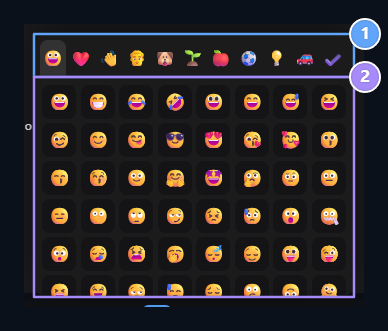
1. Emoji Categories
Switch between groups such as faces, animals or objects.
2. Emoji selection
Add to text by pressing the desired expression.
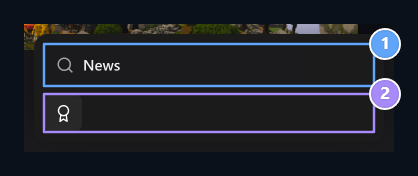
1. Icon search
The award is assigned for the prize icon in the sample.
2. Add icon
Click on the icon all; it is added to the location where the text is located.
Convert discord formats
Paste the text prepared for Discord into the editor. Discord formatting → Convert Discord text to HTML Open the option. If the text is selected, then the partition is converted into the entire article if there is no choice.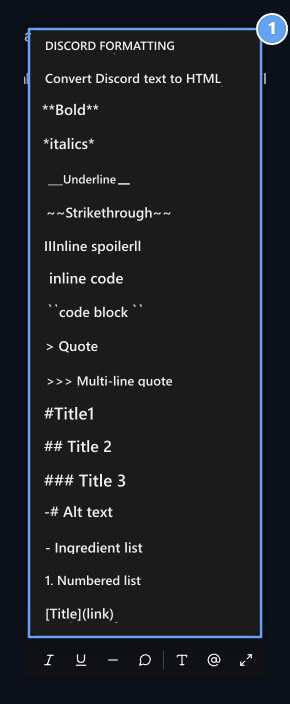
1. Discord formats
Convert Markdown text or apply format to selected text.
Add a drop-down detail section
Spoiler open the tool. Spoiler button title the header to the field the reader will click, Spoiler content Write detail in the field. Add Press the button.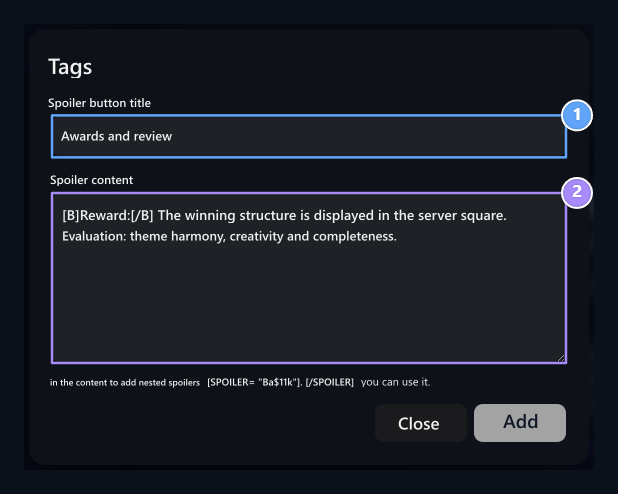
1. Open section header
Type the header that the reader will click.
2. Detail text
Add descriptions and supported BBCode formats into the partition.
[B]Ödül:[/B] You can use vBETCode formats like. In the example, the award description and evaluation criteria are included under the title “Deposites and evaluation”.
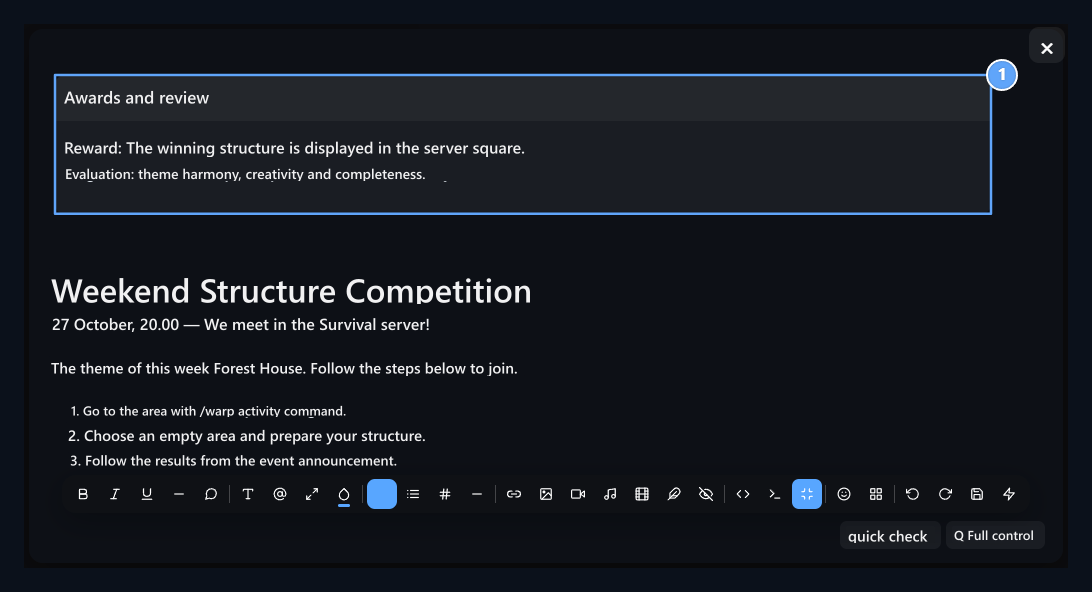
1. Drop-down detail
The prize and evaluation text are opened and closed under the same title.
<details> drop-down section, <summary> Includes clicked header. About the department to completely remove <details>...</details> Remove the element.
Edit in BBCode view
BBCode view Press the button. The article opens with editable labels. When you re-press the same button, you will turn to visual editing.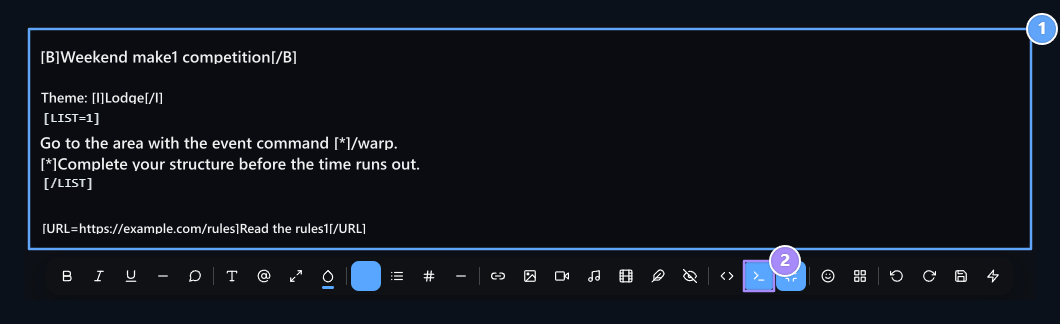
1. BBCode view
Edit labels with opening and closing.
2. Turn on visual appearance
Back to formatted content with the same button.
[B], [I], [U], [S] It is the text that is thick, push, six-core and over-scratched. [LIST] Item List, [LIST=1] number list; each item [*] starts with. [QUOTE]...[/QUOTE] quote, [ICODE]...[/ICODE] short code, [CODE]...[/CODE] used for multi-line code. A visual [IMG]https://example.com/resim.gif[/IMG] you can add in the format.
Type the opening tag closing. Recheck the last view when converting a text containing complex table or embedded media.
Edit HTML in welding view
HTML/Code view button opens the source code of the article. Here you can edit the width, link address, media source or lines of the table. When your work is finished, press the same button and turn to visual appearance. BBCode field[B]Kalın[/B], HTML field <strong>Kalın</strong> written. Do not mix the labels of two looks together. You can save draft before editing, restore existing text in a wrong change.
Save and restore the draft
drafts open the menu. Save draft now stores the local copy of the existing editor content. Bring saved draft upload this copy to editor. delete draft removes the copy on the browser.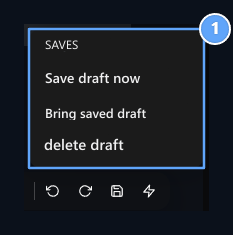
1. Local draft
Save the draft, restore or clean.
Check and save the final view
Check the blanks, link targets, picture widths, GIFs, players and pop-up sections in the text. Return to normal appearance if you are on the full screen. Open page Publish, Publish, Save or Update Complete the registration by pressing the button. Loading or storing the draft of a picture does not save the end of the article on the site. Complete the article or if there are other areas of the publication or the product.Create content with artificial intelligence
On the carbar Create content The button allows you to prepare an article to artificial intelligence. Notice, describe what to write for product description or help text; use the text formed in the editor.- Click on the where the article will be added and Create content open the tool.
- Type the subject, the required information, the length and the format of the narration you want.
- Send Press the button and wait for the response. In the text content field is added.
- Check text read and date, server names, commands and conditions. Change the required places with other editing tools.
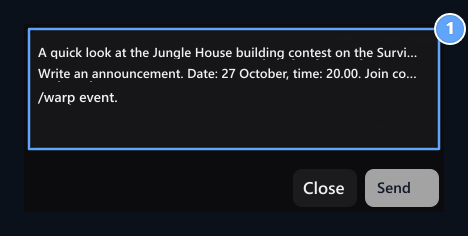
1. Content request
Specify the process that the topic, date and player will do; check the incoming text before publishing.
Writing and language information audit (Spell Checker)
Spell CheckerHelps you control typos and language information issues in the text you write. Under the editor Quick check and full audit Use buttons.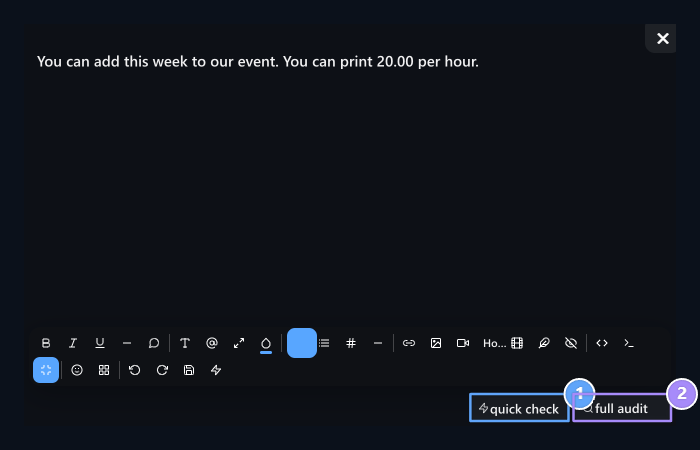
1. Fast checker
Use for my writing control.
2. Full control
Use language information control for control including.
- Quick checker: It makes text writing control.
- Full checker: Add language information control to my writing control.

Announcement
Prepare the category, visual and publication settings of the announcement.

Product description
Edit Details area with product information.

Help articles
Prepare questions, responses and help categories.