
 Home
 User Guide
 Developers
 Payment Gateways
 Integrations & Tools
 Site Usage
 Troubleshooting
Add cursor
Add Cursor Press the button. Cursor Name type the name you will be notified to the field. Cursor Type Select which mouse will be used from the list.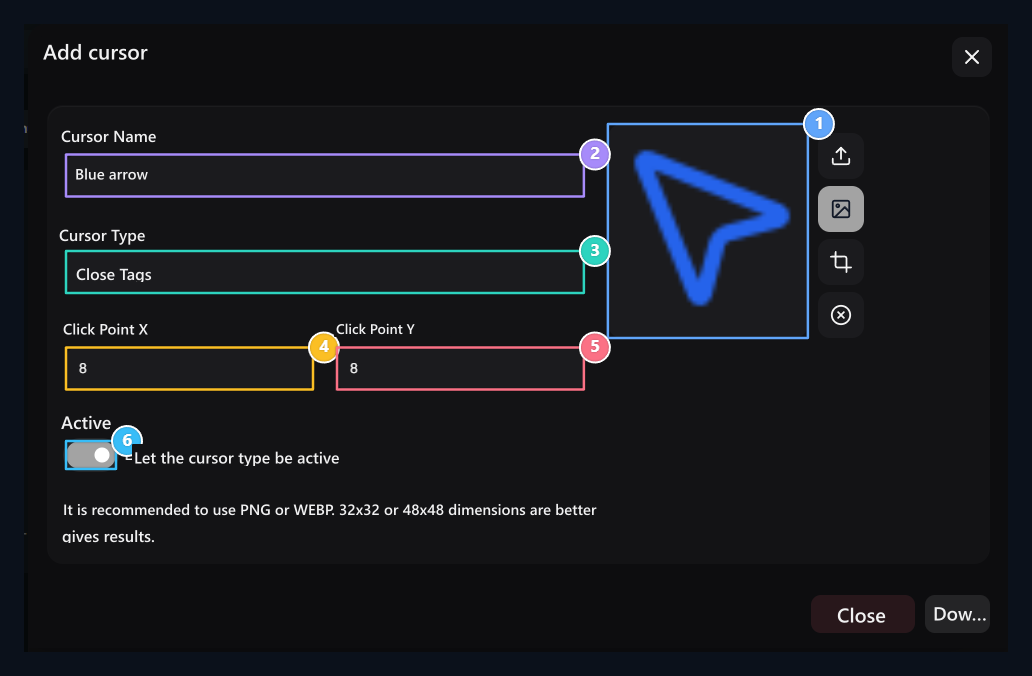
1. Impulse file
Select the file with up arrow; set and upload the click point.
2. Name
Write the name you will recognize in the image registration list.
3. Usage type
Select standard, clickable or other cursor status.
4. Hotspot X
The horizontal location of the click point in the visual.
5. Hotspot Y
Vertical position of the click point; X and Y is set together.
6. Active
Open the use of registration for this type of cursor.
Select the correct mouse status
Standardis the general mouse marker. clickableused in connection and clickable items. Textis for text field and font selection. For items that can be transported Transport, retention and being held; for processing conditions Banned, standby and in process options are available. Help, reticle, Zoom in and Zoom out and this corresponds to areas that use their cursor status. Selectable for a record, the mouse behavior of the entire site does not change. Determines the visual in the case; prepare separate registration for other circumstances.Set the click point
Click Point Xfrom left to right; Click Point YThe pixels position below. Two domains 0–128 value is received in the range. If the arrow tip of the image is at which point, enter the coordinate. For example 48×48 visually arrow tip left 8, if the top is 8 pixels X: 8 / Y: 8 Use. Select a point within the limits of the visual. Check the actual click location with the tip that appears on a small link on the site.Manage current registration
The list contains names, types, status and update information. Transactions → Edit change and record visual, type, coordinates or activeness with it.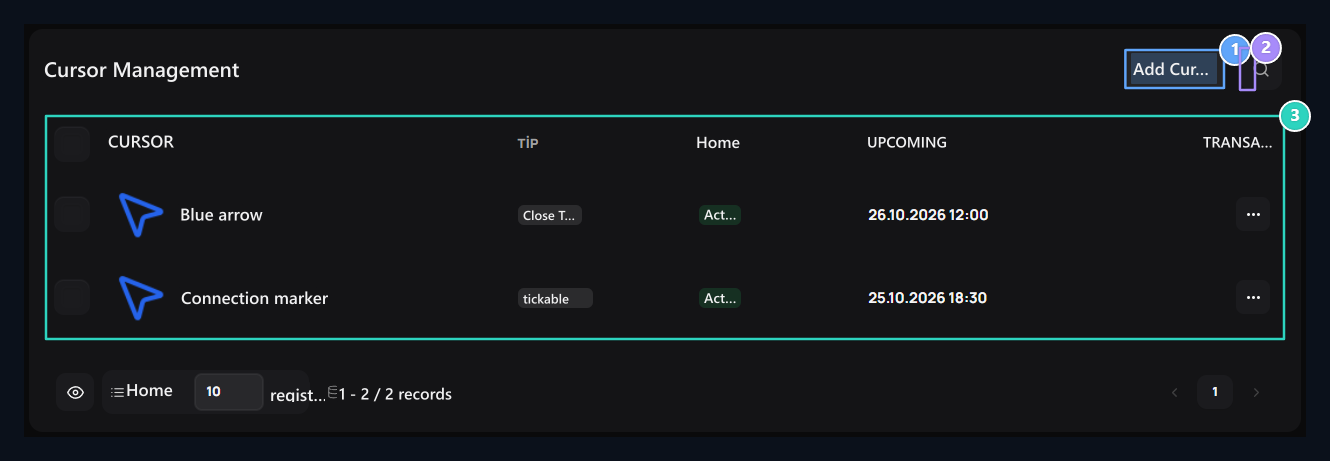
1. Add cursor
Open the new cursor form of the plugin.
2. Search image
Unless existing cursor records according to the name.
3. Type and status
The type of use of each registration, its activeness and operations appear in this list.