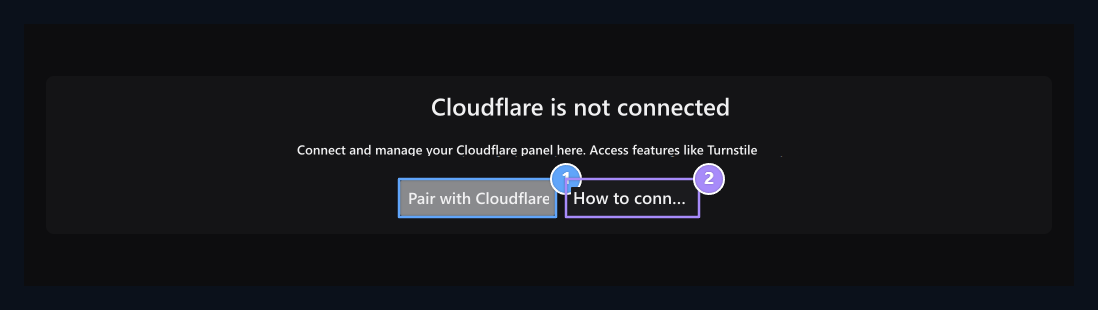
Settings → Cloudflare open the screen. Once you have backed up your account, you can use the traffic summary and management tools from tabs on the same screen.

Match Account

With Cloudflare, connect steps

1. Match with Cloudflare

Cloudflare opens the authorization code creation window.

2. Connection steps

How to create and enter the panel.
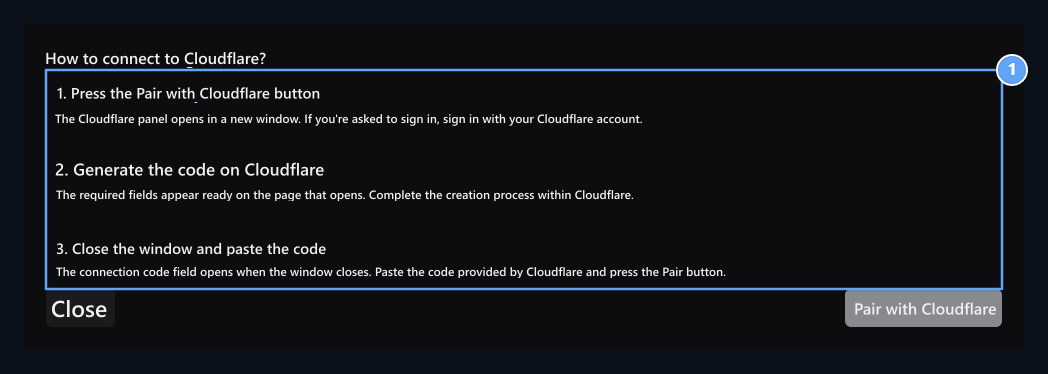
Pair with Cloudflare Press the button. In the pop-up Cloudflare window, log in to your account and complete the steps of creating tokens. How to connect? button opens short installation expression on panel. Complete permissions

1. Complete permissions

Create code on Cloudflare, then enter the link code Zonely.
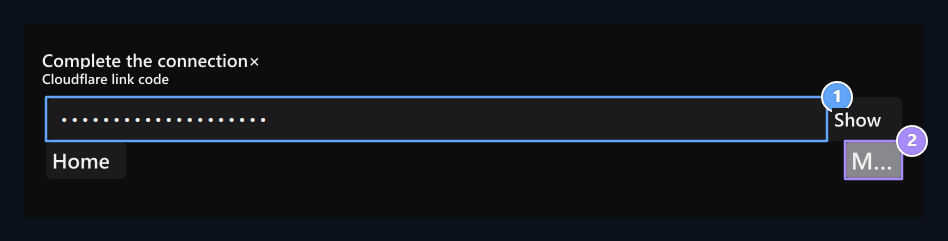
Check the permissions and access of tokens in Cloudflare. Copy the code created and return to Zonely. After you log in to your account, you need to enter the code panel. Connection code, Complete the Match

1. Connection code

Paste the API token you created in Cloudflare.

2. Complete the match

The domain name when the code is verified opens up the working area.
API token Connection Code glue and paste it into the field match Press the button. Code is shown hidden; you can check with the display button. Verify that the right domain name is opened on the top of the connection completion. If not found the domain, check the status of the token access and the linked account of the site domain name.

Read the overview

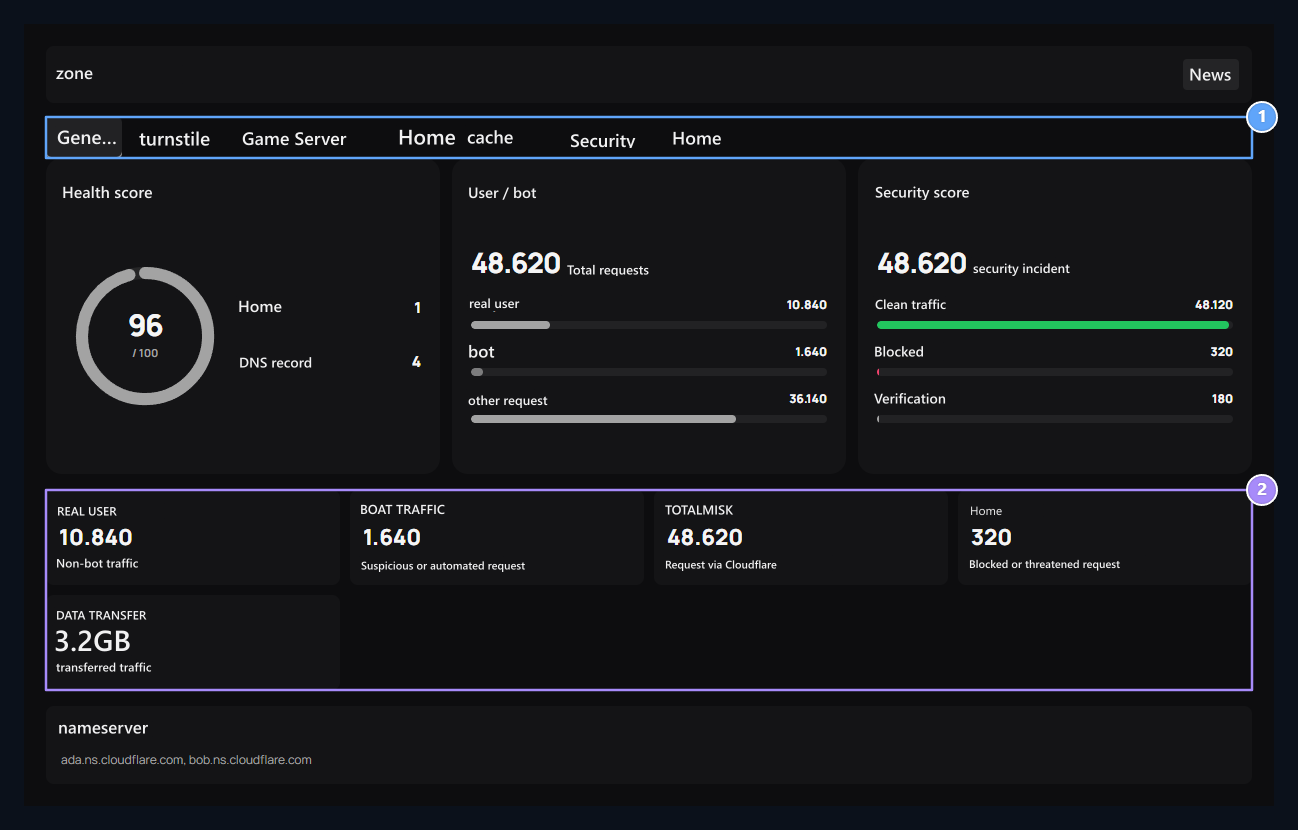
Tabs, Traffic summary

1. Tabs

Summary, Turnstile, Games, DNS, cache and security tools here.

2. Traffic summary

Read the user, bot, request, blocking and data transfer together.
General On the tab there is a health score, user/bot distribution, security score, requests, blocking and data transfer. Refresh Recurs the data of the linked account. Estimate the number of users individually with total request. The waiting information on the analytical card may indicate that it is not yet data received. Subsection nameserver indicates domain assigned name servers; you need to change your domain name in your company.

Enter turnstile switches

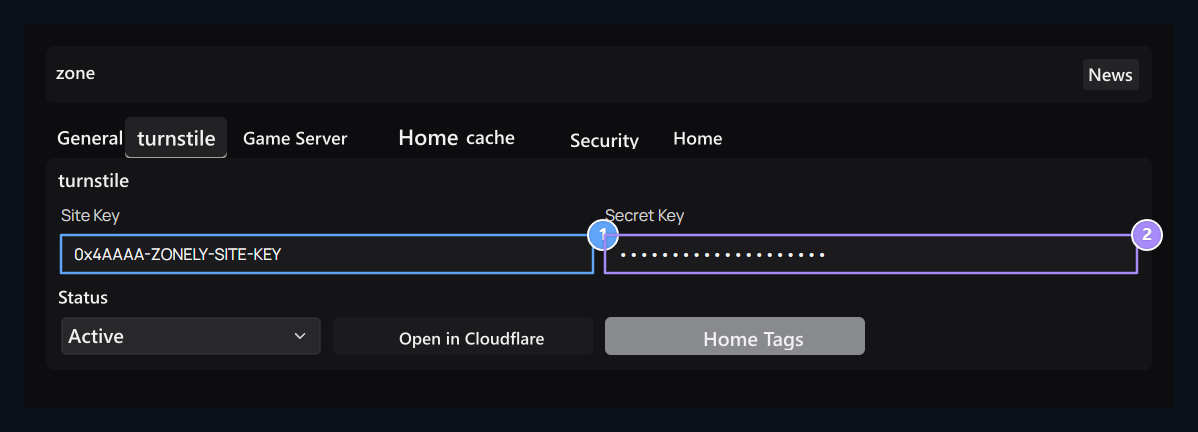
Site Key, Secret Key

1. Site Key

Enter the site key of your Cloudflare Turnstile app.

2. Secret Key

Enter the hidden key of the same application and activate the status.
turnstile Go to the tab Open in Cloudflare Open the management screen with the button. Check the domain name of the app you create for your site. The same application Site Key and Secret Key Enter the values in the panel, status Active and select Save Press the button. It cannot be filled back straight to the hidden key area previously saved. You can leave blank while maintaining the existing hidden key; update two keys together if you are going to the new app.

Play DNS draft

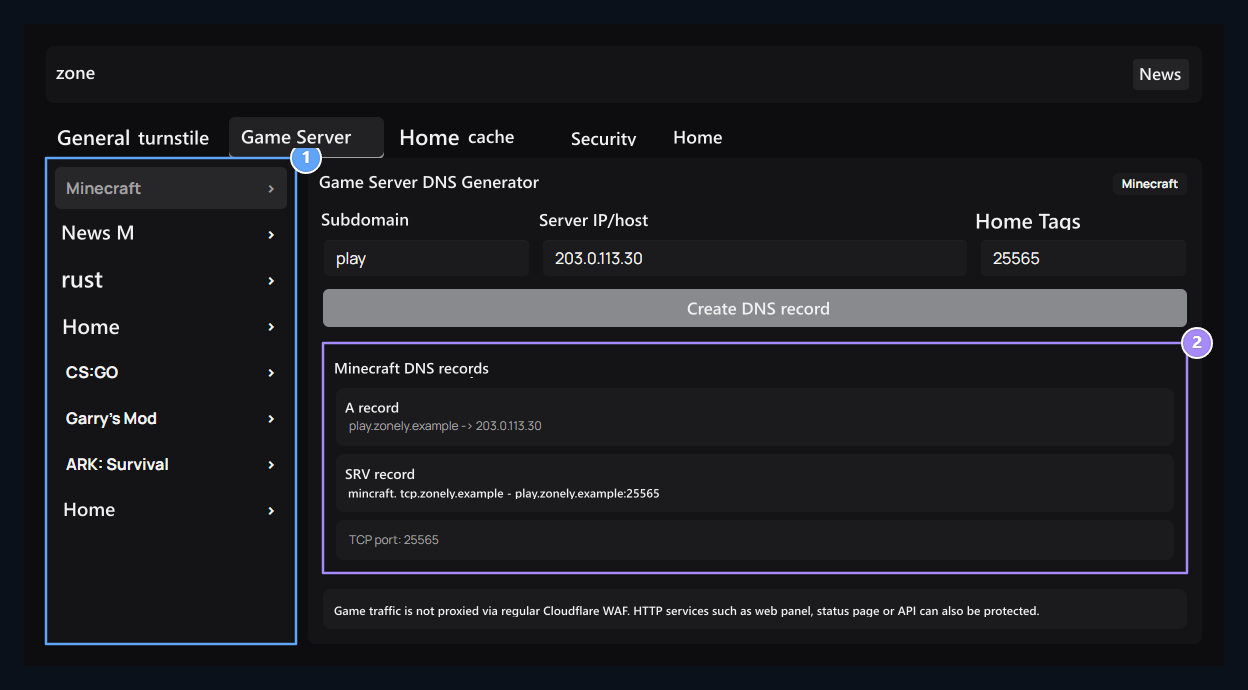
Select your game, see DNS tasla

1. Select your game

The ready option fills the service name, protocol and default port.

2. See DNS backup

As the server target and port input, the A and SRV draft is updated.
Game Server Select the game from left on the tab. Ready choice brings service, protocol and default port. Subdomains, Server IP and Port Fill the fields according to your own server. Check the draft on the right. Create DNS Registration The button creates the records prepared after confirmation. Compare the ready port with the real server port. The installation of its CNAME if you use Zonely game protection Firewall & WAF Follow the guide.

Manage DNS logs

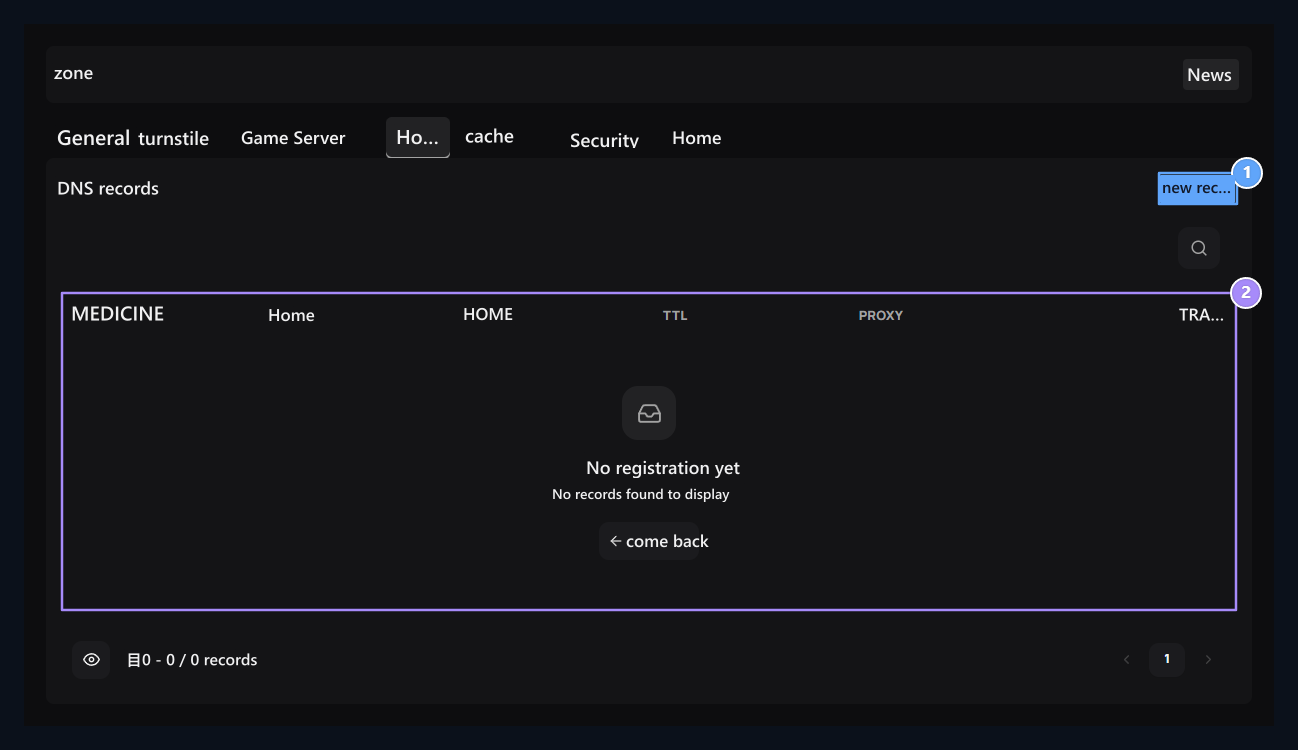
New DNS record, existing DNS records

1. New DNS record

Opens the window where appropriate areas are available.

2. Current DNS records

Manage the type, name, target, TTL and proxy status in this table.
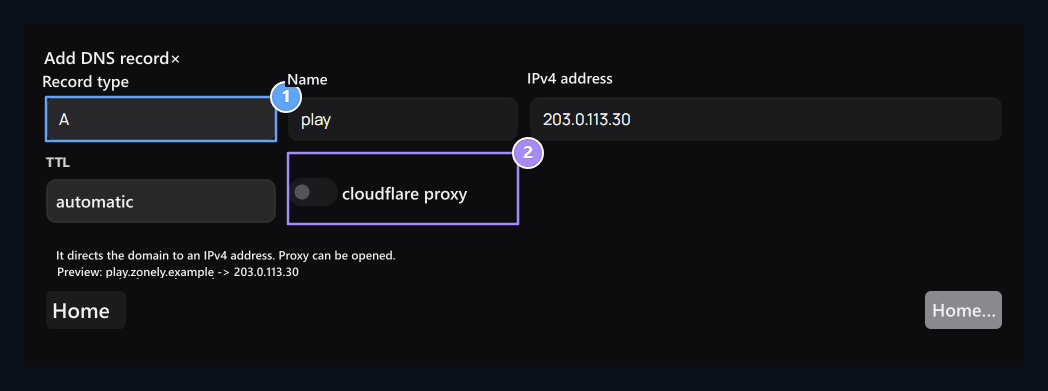
DNS Read the type, name, destination, TTL and proxy status on the tab. Edit registration forma loads; Delete request confirmation. New DNS Registration Open new form with the button. Registration type, Proxy choice

1. Registration type

Select A,AAA,CNAME, MX, TXT, SRV or CAA.

2. Proxy choice

The need for proxy of web and game logs is different.
For root area **@**For subfield www or play enter the name like. TTL and the types available Prox Select your preference. Compare your provider with the type and destination you want before you register.

SRV fields
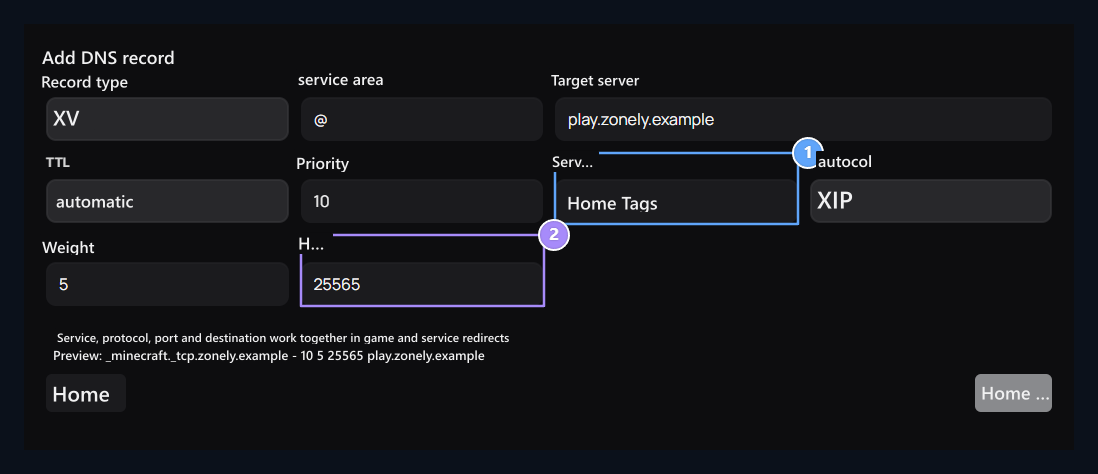
Service and protocol, Target port

1. Service and protocol

Use the _minecraft and TCP fields for Minecraft.

2. Target port

Enter the real port of the game with priority and weight.
Type SRV additional areas appear. Minecraft service for example _minecraft, protocol TCP, target play.zonely.example . Get port from your own gaming server; enter the priority and weight according to your installation. Save This information sends to Cloudflare.

Manage cache
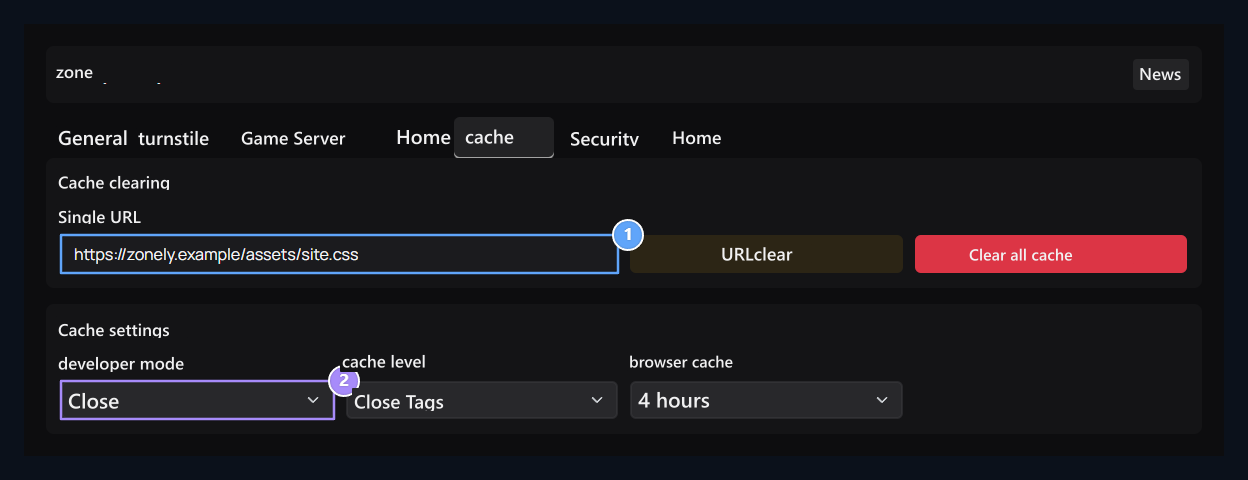
Single URL cleaning, Cache behavior

1. Single URL cleaning

Write the full address of the updated file and clear this URL.

2. Cache behavior

Set development mode, cache level and browser time.
cache Full address for single file on the tab URL cleaning press the corresponding cleaning button. Clear all cache asks for approval for the entire area. From the bottom section Development mode, Cache Level and Browser cache Select preferences. These choices are sent separately when they change; don’t wait for an additional batch record button. Cleaning processes work with their buttons.

Select security preferences

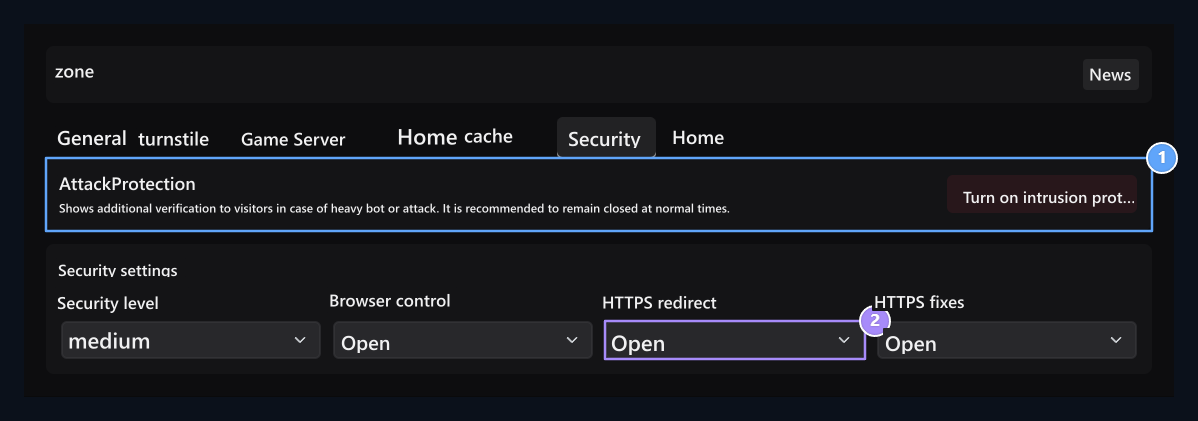
Attack protection, HTTPS preferences

1. Attack protection

Manage Under Attack status with this button.

2. HTTPS preferences

Set HTTPS redirect and automatic URL correction separately.
Security on the tab Attack protection Manages the button Under Attack preference. Panel security level when closed with this button medium takes value. Subsection Security level, Browser control, Always HTTPS and Automatic HTTPS correction options are available. It is applied when each selection changes. Check the HTTPS preferences with your existing certificate and routing installation.

Prepare GuardBan rules

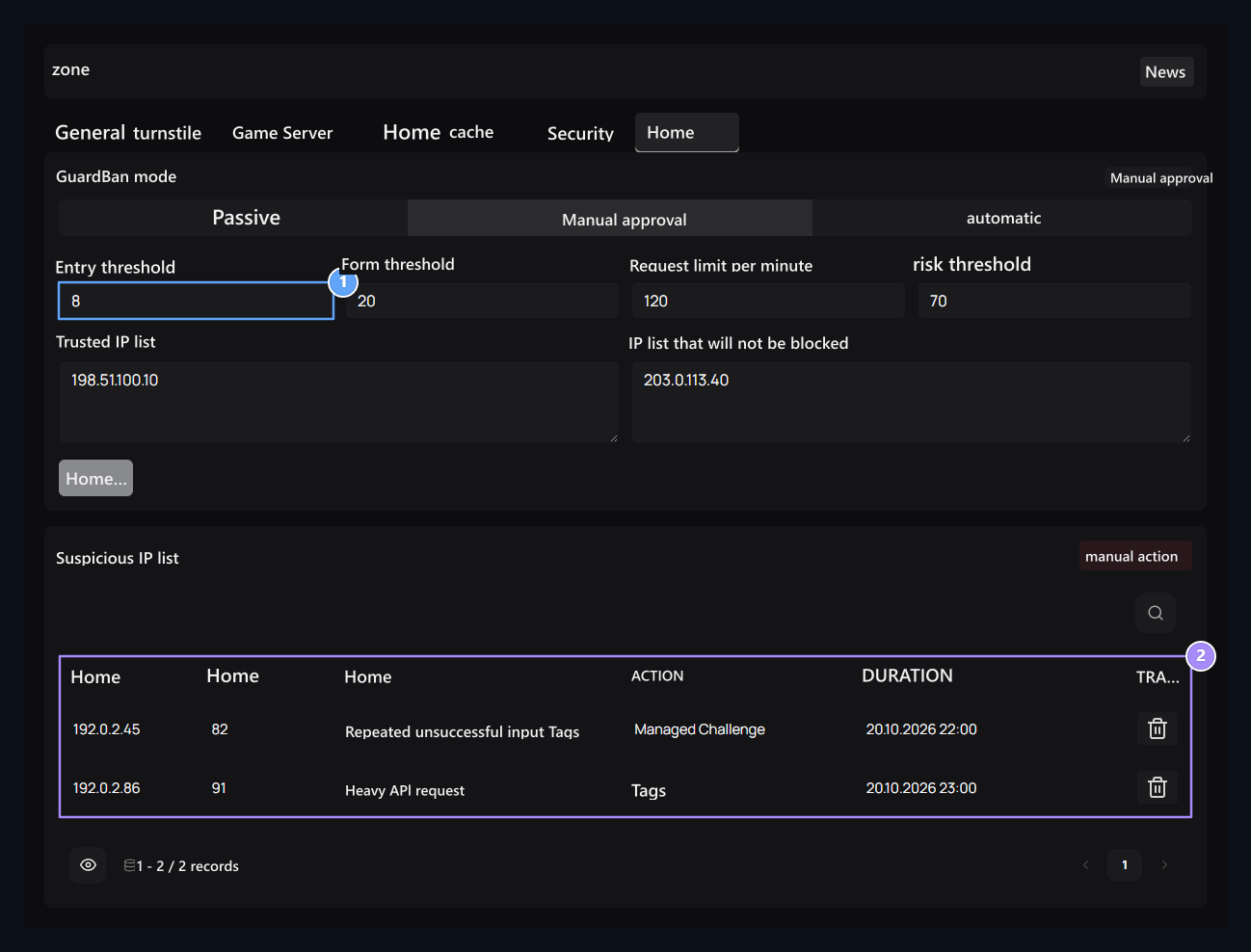
Detection thresholds, IP transaction list

1. Detection thresholds

Set unrequited input, form, API and risk threshold together.

2. IP trading list

Why, track the time of points, applied trading and finish.
GuardBan On the tab Passive, Suggestion or automatic Select the working format. Set unrequited input, information submission, API and risk thresholds. Trusted IP and Never Block Type the addresses line lines to lists. Map and list changes Save Send with. Mode buttons also send the values of that moment along with the selected mode. Monitor IP, points, cause, applied process and finish time from the bottom table; Remove removes the relevant application.

Manual IP operation

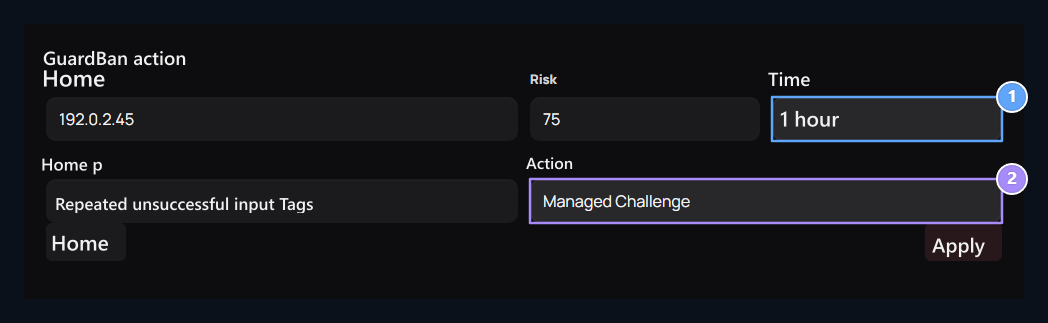
Time and description, Process to be applied

1. Time and description

Specify why IP is processed and time.

2. Process to be applied

Select one of the watch, verification, blocking or reliable IP options.
Manual Press the button. Fill the IP address, risk score, description and time. Just watch, Managed Challenge, Challenge, Temporary Block, Permanent Block or Trusted IP Select what is suitable for operations Apply Send with. Time options are 5 minutes, 15 minutes, 1 hour, 6 hours, 24 hours and Manual. Manage record on the list to remove persistent obstacles; do not rely on the choice of temporary time.