
 Home
 User Guide
 Developers
 Payment Gateways
 Integrations & Tools
 Site Usage
 Troubleshooting
Upload a visual
- Add Image Press the button.
- Image Name type a name that you will be familiar with the visual field.
- slug Check the short name in the field. You can use the value recommended from the header or change it yourself.
- Select file from the upload icon of the visual space.
- Review and review Upload Press the button.
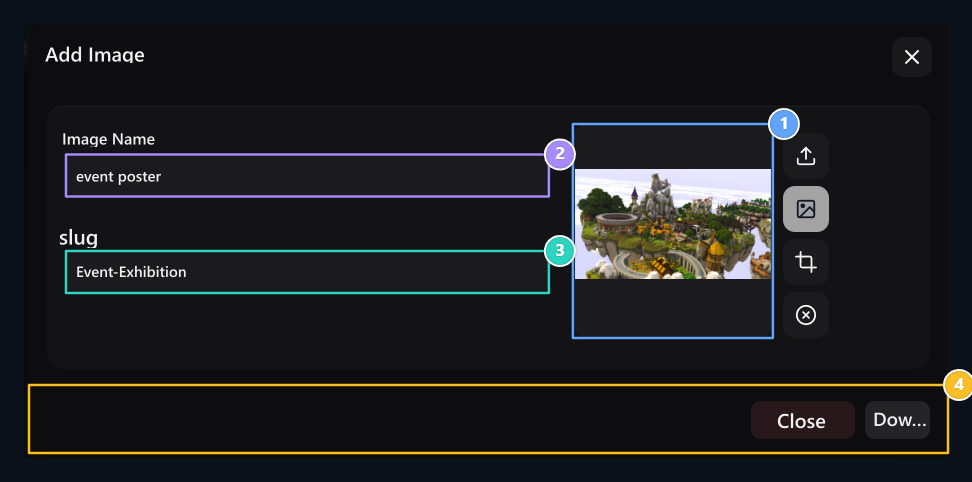
1. Select file
Select your file with up arrow; check preview.
2. Image Name
Type an opener ad that you can find the file easy.
3. Slug
The short format used in the link of the name; you can edit the automatic proposal.
4. Upload
Use the right bottom loading button when domains are ready.
Find File and link
Find a search area. File File name and size in column, Updated The date appears on the column. Small visual or Link Open the file by pressing the button on the column.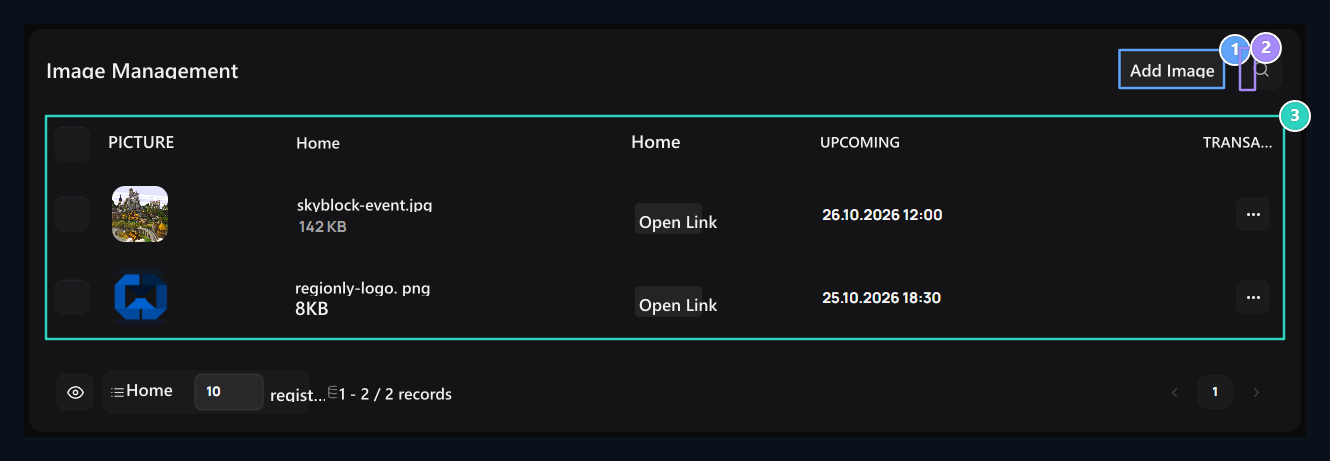
1. Add Picture
Upload new visual library here.
2. Search in library
Use search to find image registration.
3. File and link
The information and the address to be used in the uploaded file is listed here.