Page Creative visual identity open the part. The existing logo appears in this section. Edit By pressing the button, select visual and access the logo settings. Logo trimmer

1. Logo editor

Press Edit to select, crop or remove visual.

Select logo file

Visual tools on the window that opens File Select Use button or library Select a visual you have installed before. Check that the articles on the open and dark floor if you use a transparent background logo. Logo visual, Logo compatible logo
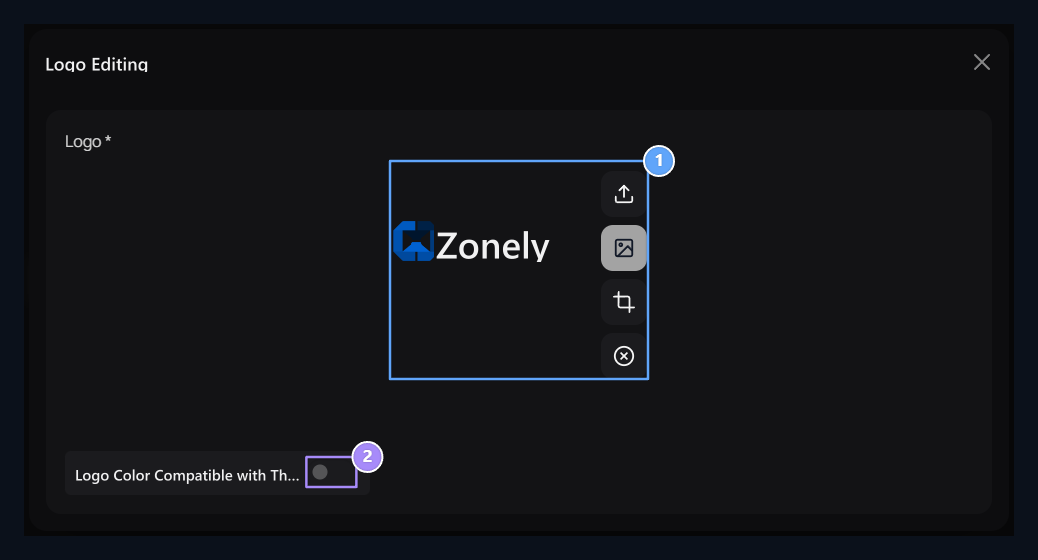
1. Logo visual

Edit visual with installation, library and crop tools.

2. The logo compatible to the theme

Manage logo color on open and dark look with this option.
Crop Remove unnecessary gaps around the logo with the tool. Make sure your chosen area is not cutting logo post and details on the edge. After completing the crop, see the result in preview. Open the refile or library selection to use another logo. Clearremoves the existing visual selection. Complete the overall registration process to apply the change on the logo on the site.

Set the logo color compatible to the theme

Logo Color Compatible With Theme Open the option and see the result in the open and dark look of the logo. Compare with the off view on a logo you want to use with their own colors. The height of the logo is not adjusted from this visual selector. To look bigger or small on the screen Animations → Logo Animations in the section Logo Height Use the field.

Save and separate other icons

Close the logo window, check the view on the top section and Save All Press the button. Logo on the browser tab favicon and social sharing card OG visual separate areas. You don’t fill these two images with the same file. For Favicon and share images SEO Guide open.