Settings → Timer open the screen. Set the process to run, time and layout again. To assign business to team members Quests Use the screen.

Follow plans

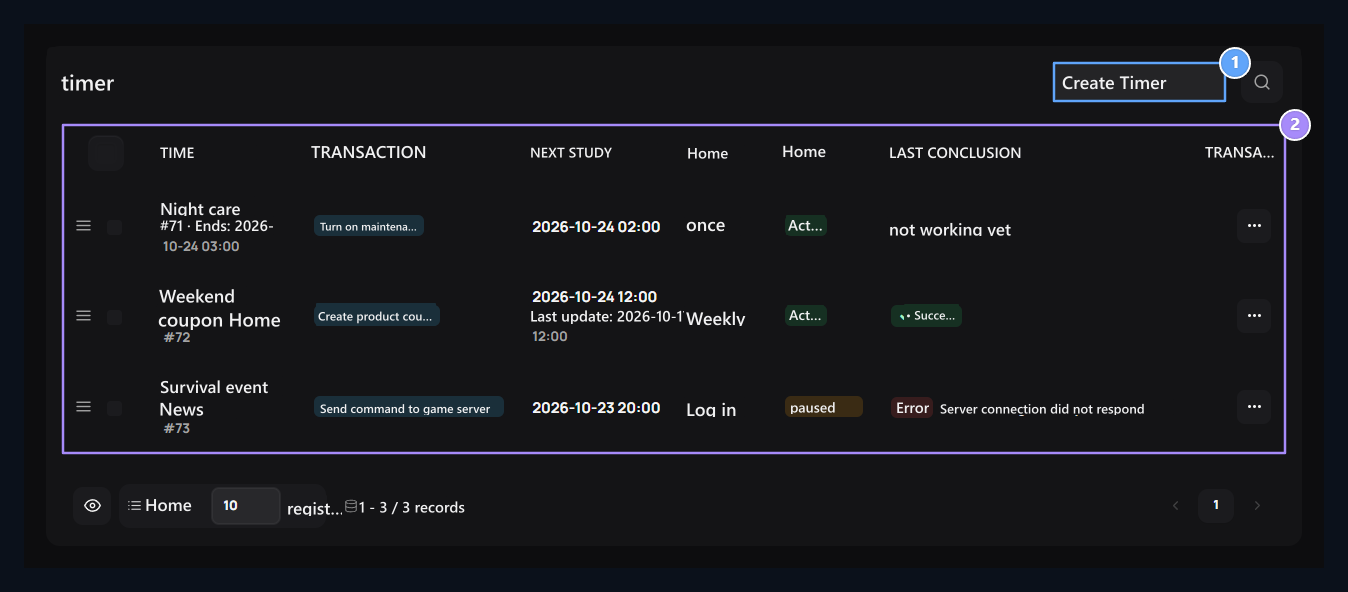
Create timer, Plan and end result

1. Create timer

Select action and fill in the areas of action.

2. Plan and final result

Follow the process, next work, repeat, status and final result in the same line.
Read the name, process, next working time, repeat, status and final result of the plan in the list. You can open, edit, pause or activate history from the line menu. Now runcreates process request without waiting for the time of the plan. Use after checking the previous result. Protects the pause record. The ranking with the tuft changes the only list layout; it does not determine the work priority or time.

Create a maintenance plan

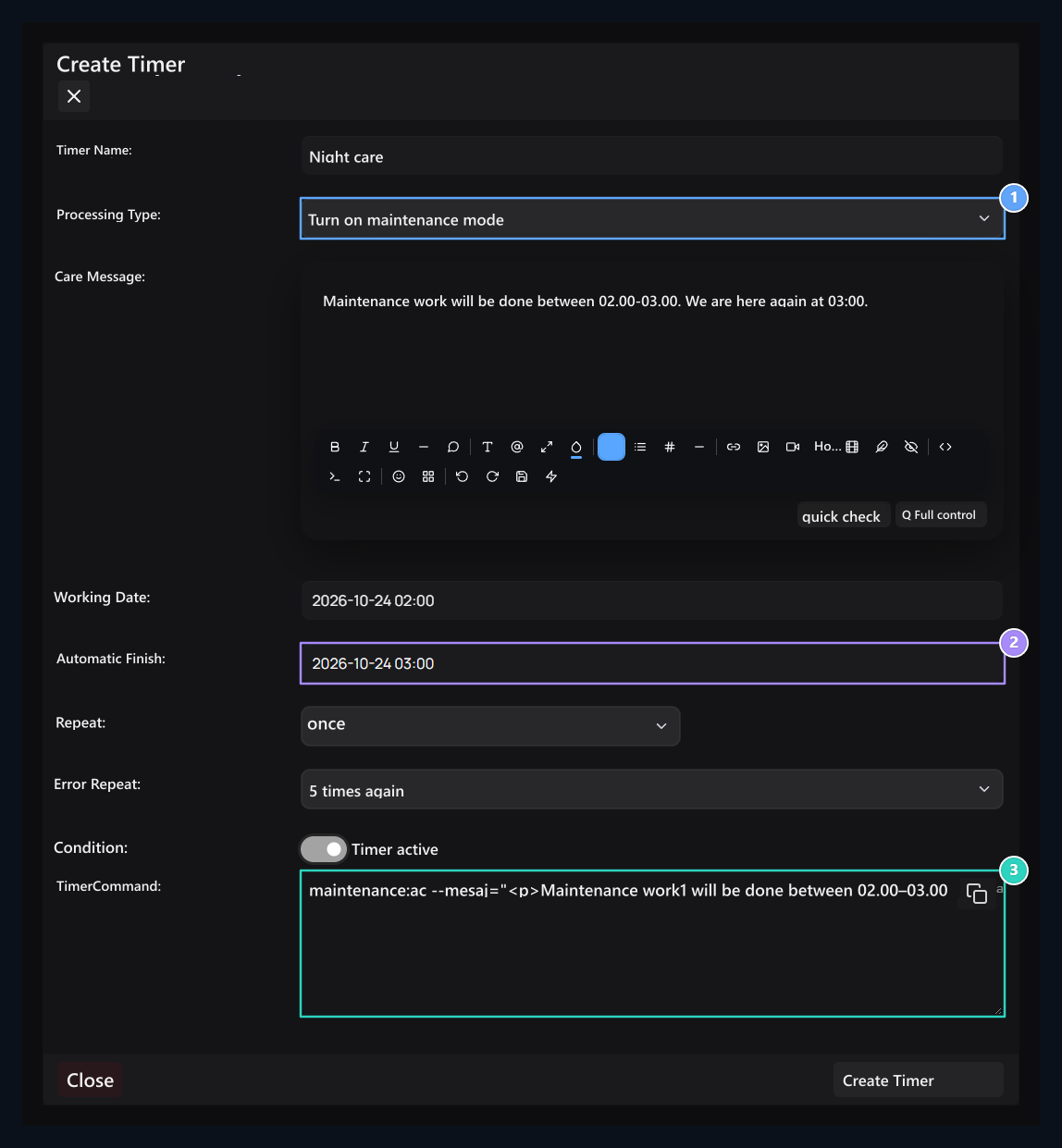
To do, Opening and finish, Formed command

1. Doing process

Maintenance message area appears when the maintenance mode is selected.

2. Opening and finish

Set the time to start care and end.

3. Formed script

The preferences in the form are reflected in the command preview.
  1. Create Timer Hit the button and give a name to the plan.
  2. Transaction Type from the area Turn on maintenance mode Select and prepare the maintenance message.
  3. Working Date Set a forward time to maintenance in the field.
  4. If you want to auto-off the maintenance Auto End Enter date.
  5. Repeat once, actively select the situation Create Timer Press the button.
Hours System Settings Check the time zone in the section. The automatic finish area appears in supported operations such as opening maintenance and announcement band.

Set the coupon and repeat layout

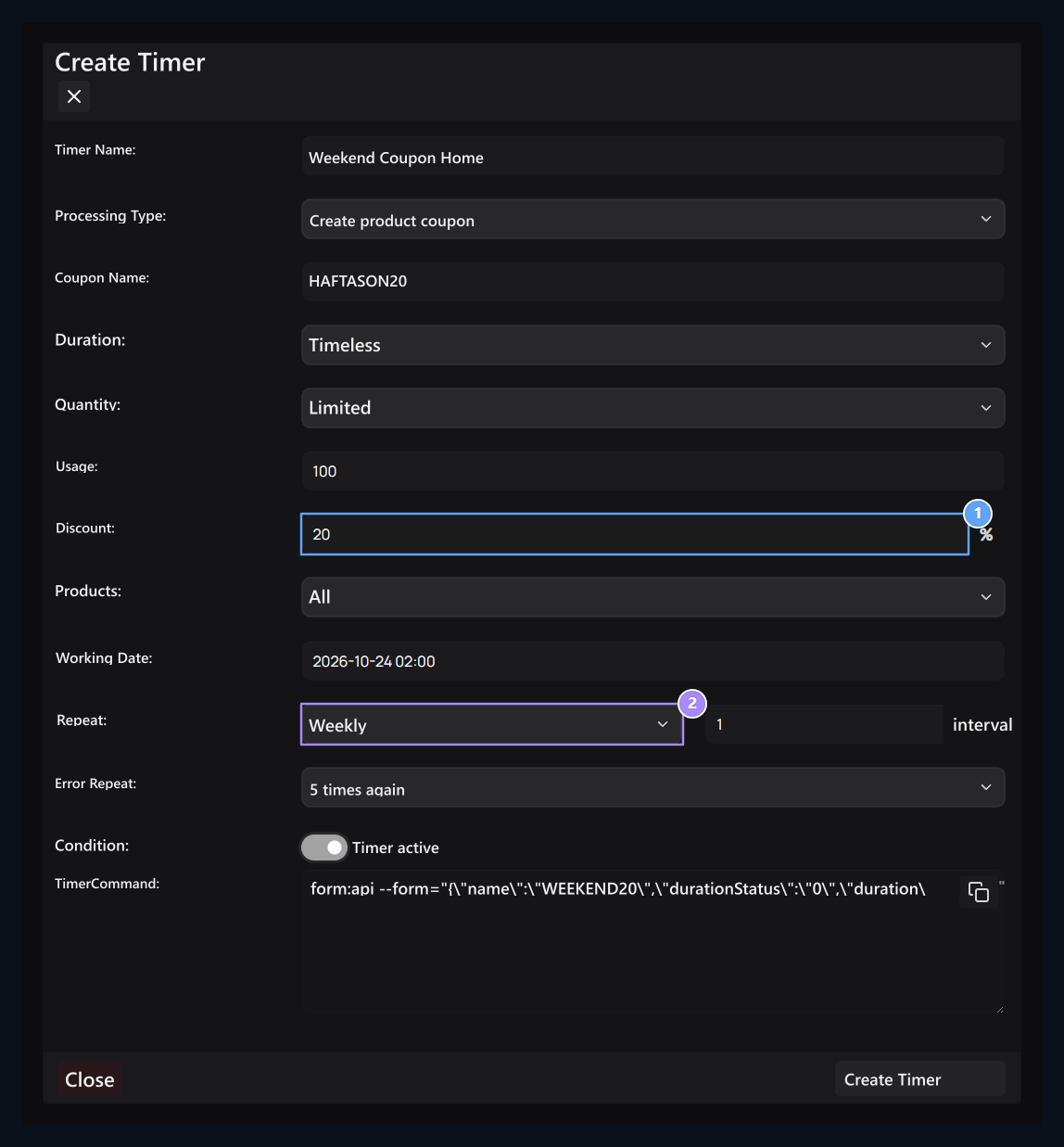
Coupon terms, Repeat and re-work

1. Coupon terms

Select the discount, quantity, time and product scope.

2. Repeat and re- trial

The number of unsuccessful trials with the working range is different preferences.
Create product coupon In the process, fill the coupon name, discount, use, time and product coverage. Set unlimited/non-continent and all/productive products preferences according to your requirement. againSelects which intervals of work will be re-planned. Fill the interval area, which opens on the clock, daily, weekly or monthly layout. Error RepeatThe re-test choice for unsuccessful trial. Evaluate the use of the same name in the repeated coupon plan in the next work.

Prepare server commands

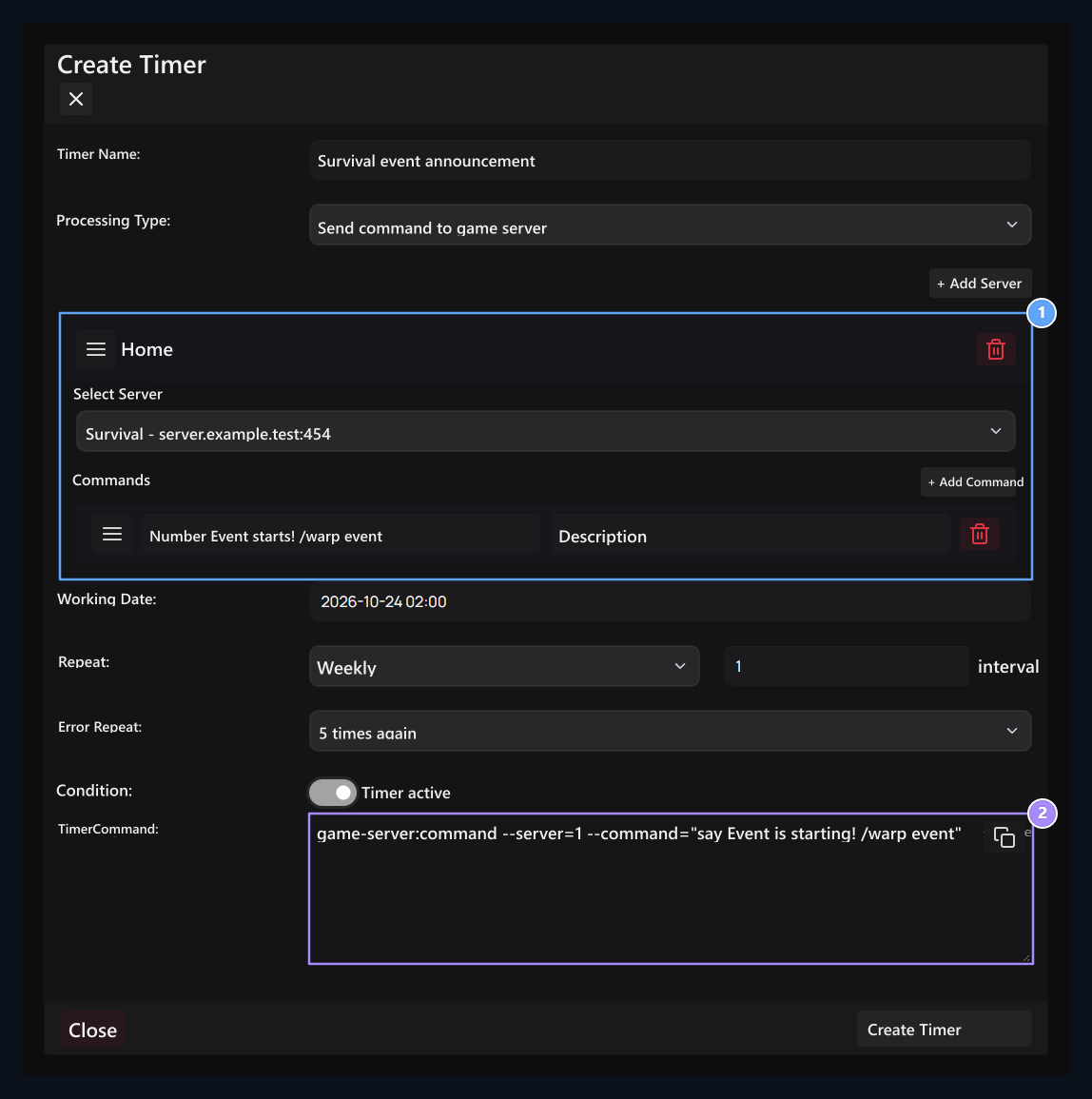
Server and command, Script preview

1. Server and command

Select the server; add the commands to work in order.

2. Command preview

Review the transaction and timing parameters without saving.
Send command to game server Open the option. Select the target server and add commands. You can sort multiple servers and commands with handles. Link Servers It is necessary to be ready on the screen. Timer CommandThe only read preview produced from the form. The copy button takes only text. Check your course, then create your plan and follow the last result from the list.

Other processes

The related areas are opened when you change the type of processing: After registering the plan Last results and view history. Check what the previous trial is doing before restarting the same process if there is connection error.