
 Home
 User Guide
 Developers
 Payment Gateways
 Integrations & Tools
 Site Usage
 Troubleshooting
Select File
Drag or click on the upload field of the file and select it from your computer. Use PDF, Word, text and XML formats shown on the screen. Maximum 4 files add; follow the active limit on the area for file size.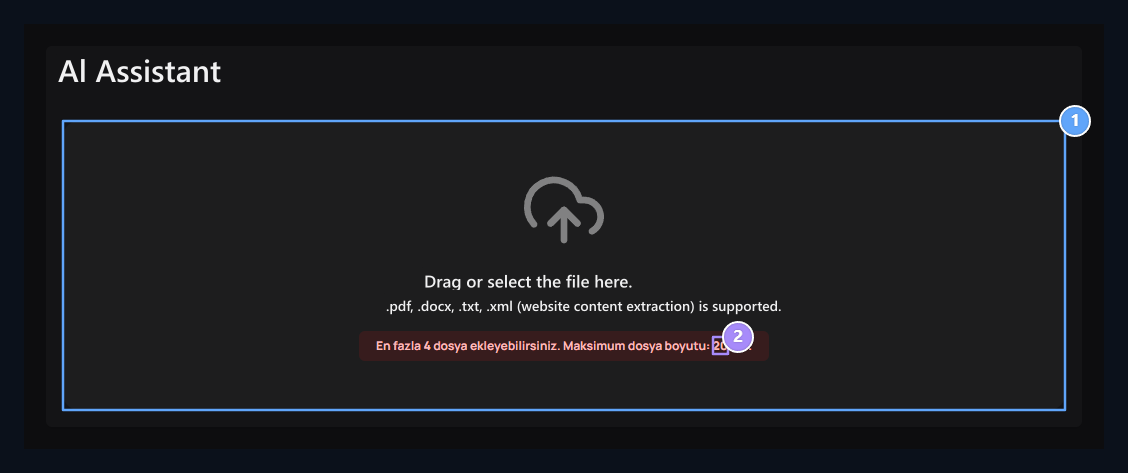
1. Upload file
Leave or select XML, PDF, Word or text file to this area.
2. Follow the limit shown
Maximum four files; the active limit on the file size screen is valid.
Work the site map
Contents of pages located on XML site map are processed separately. To try Download sample XML file and change the sample pages with your own accessible pages.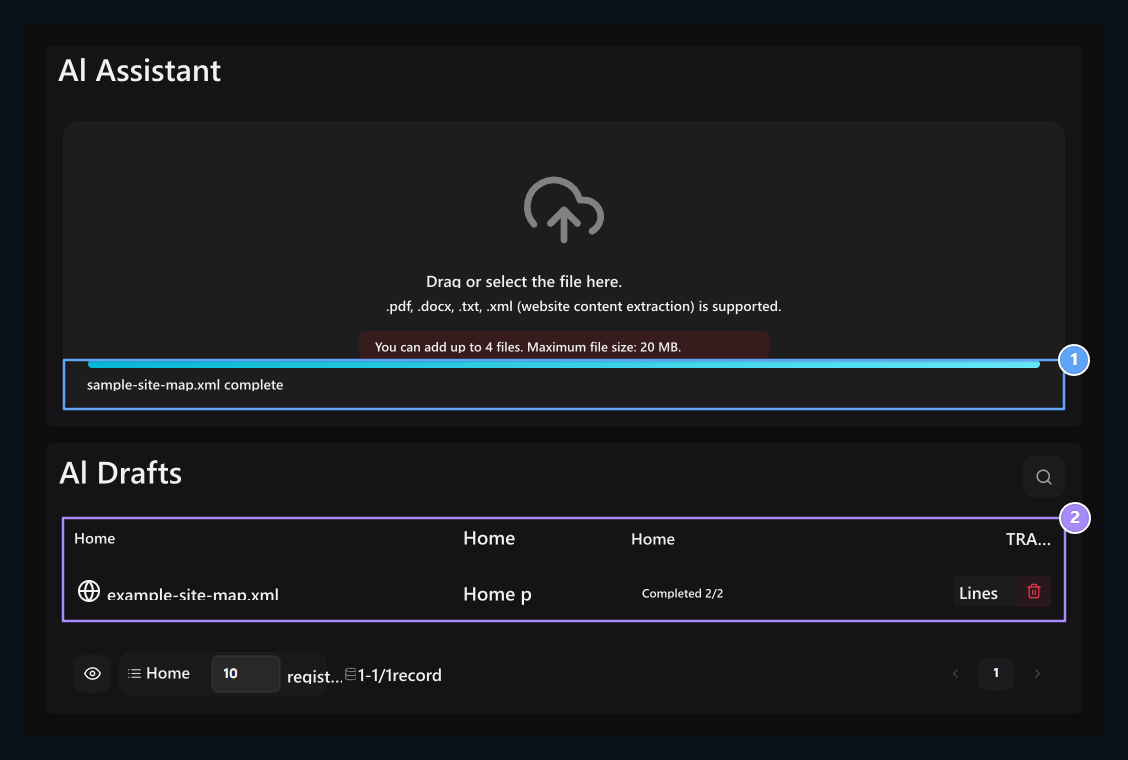
1. Loading progress
Follow the processing status of your uploaded source.
2. Processing status
Compare the number of pages completed on the site map with total number.
Open the extracted text
Use the content display process on the file line. The source page on the site map and the text received from that page is shown together.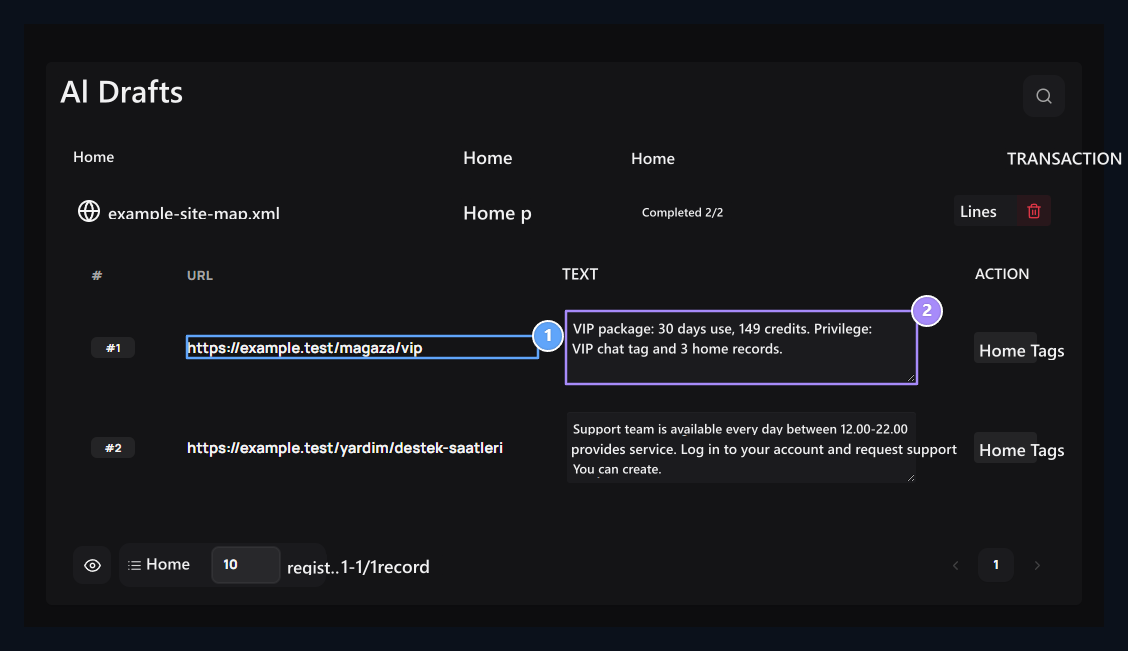
1. Page inside XML
The URL on the site map determines the source page.
2. Extracted content
Check the removed text; make the necessary corrections and save.
Prepare information for live support
Add product descriptions, delivery steps, server rules and answers to frequently asked questions. Live support AI can offer user-related information by using these sources. For example “How do I get the product I buy?” Provide expressly presence in the source text of delivery steps for the question. Update resources when price changes time or rules; rely on current information of live support responses. View Live Support guide →Use the information on your chat
Check the content of the text, which is derived from the file name. Make sure that if you will work with the duration, price or support hours of a product, this information is located in the text. Add the corresponding paragraph to your chat request when necessary.Zonely AI
Create new chat and text draft with the information you have prepared.