Settings → Database open the screen. Select the table you will work first; then General, Structure, Insert, Spare, Transactions and Records Go to the tabs.

Open the table

Size and density, open the table

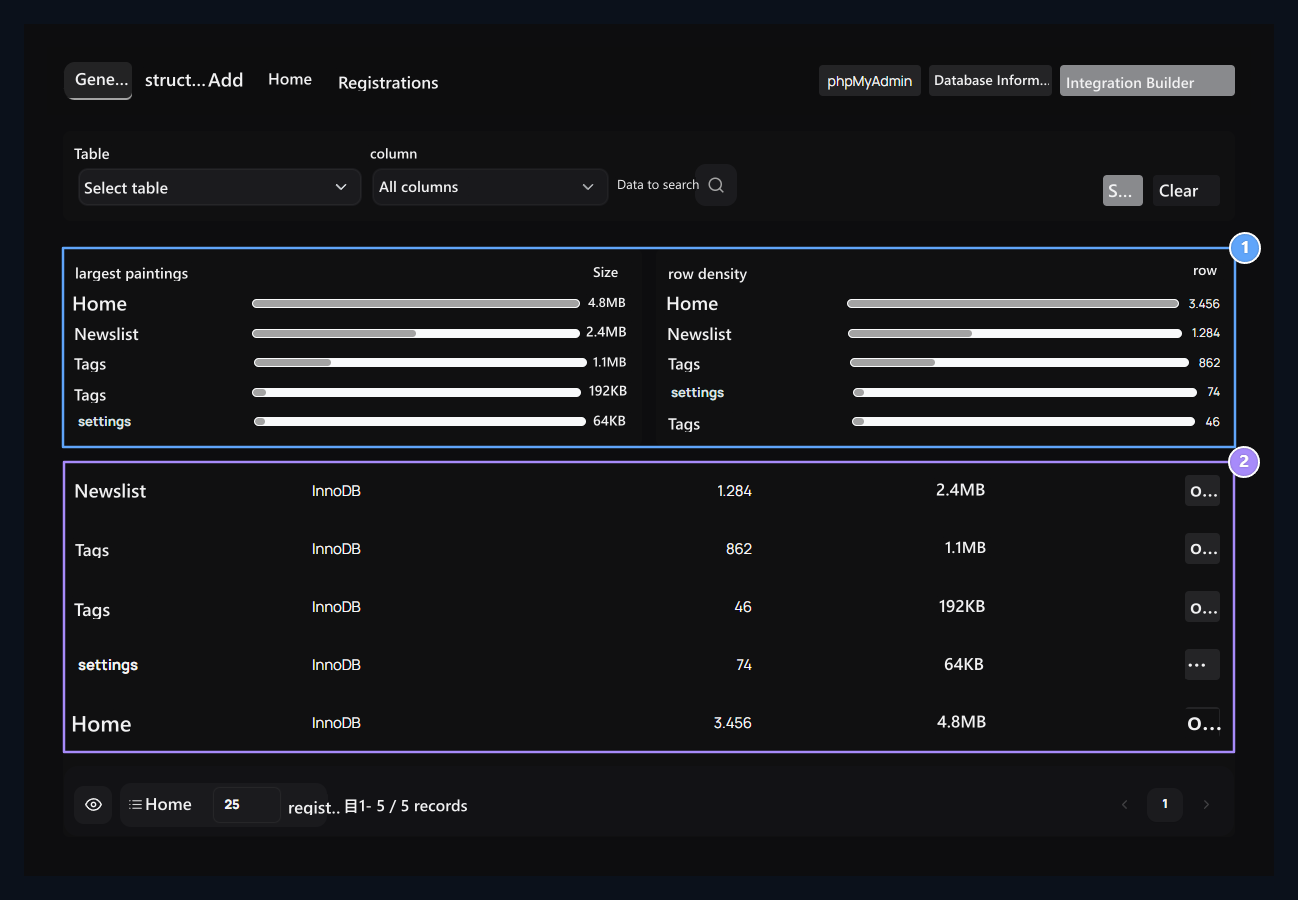
1. Size and density

Compare tables with the most space and the most rows.

2. Open the table

Log in with a Open button of a table.
Top largest paintings graph covered area, row density shows the number of records. Check the table name, motor, number of lines and size from the bottom list. open double click on the button or the line, switch to the table. Close displayed the area shows the selected table. historical tables from the list you can return to your openings before, Back to tables with all the list. Without table selection, the structure and insert tools are not available. Connection information, Server capacity

1. Connection information

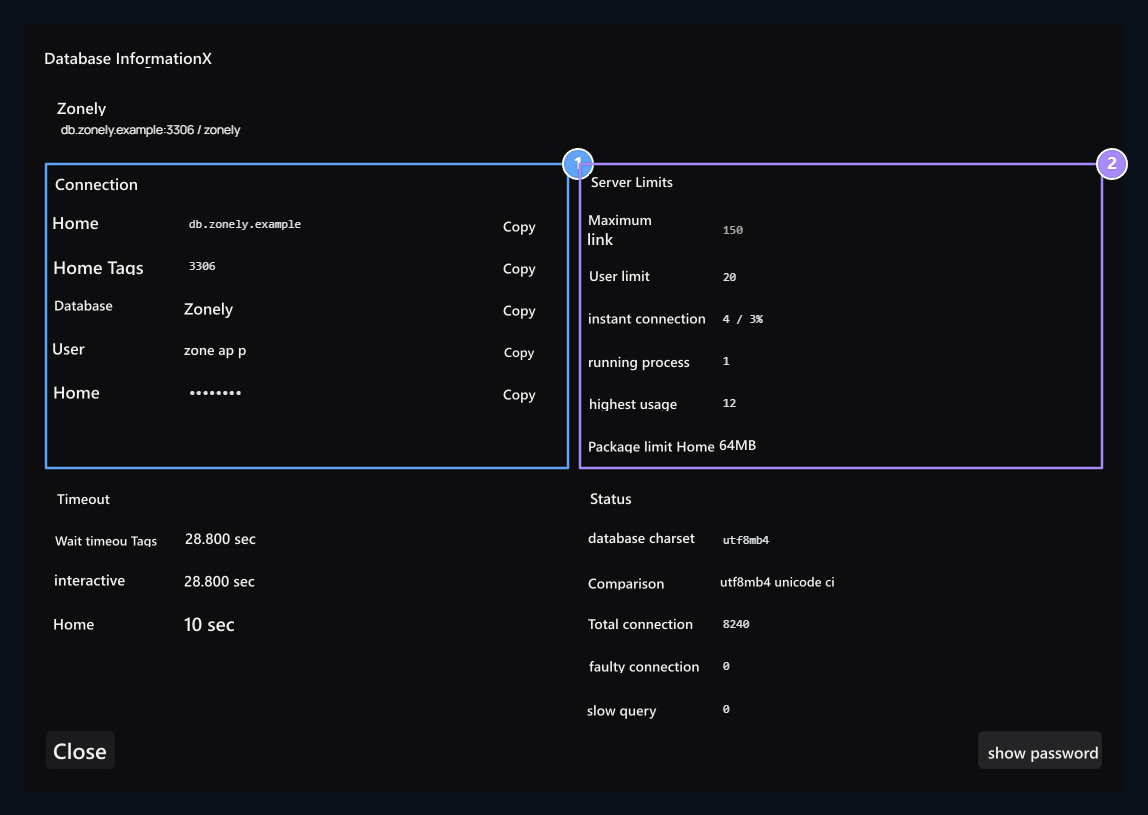
Get Host, port, database and user information here.

2. Server capacity

Monitor connection numbers and package limit in the same window.
Database Information Press the button. Host, Port, Database and User Get the values from the corresponding copy buttons. The password is shown with mask; you can change the visibility with the show button. The same window has connection limits, instant usage, package limit, timeout values and character set. These are the information of the available connection. When connecting with separate vehicles, it is necessary to access the database of the server it works by the vehicle. For access problem Database connection Use the guide. phpMyAdmin can open the input window from the button, Log in to phpMyAdmin you can get in the connection.

Create integration draft

Select the plugin, Pre-configured

1. Select the plugin

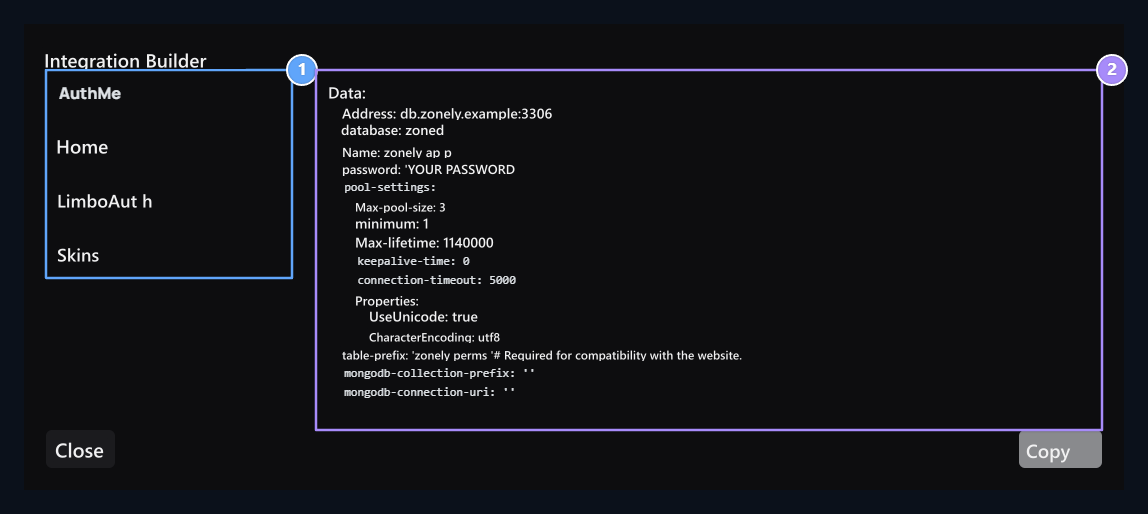
Open AuthMe, LuckPerms, LimboAuth or SkinsRestorer tasla.

2. Ready-to-configure

Copy the text that consists of link information and transfer the plugin into the setting file.
Integration Builder press the button and left AuthMe, LuckPerms, LimboAuth or SkinsRestorer Select. Formed text Copy Get with. Transfer the connection values into the setting file of the plugin by comparing the fields of the table prefix and the add-on version you use. Complete the installation with the relevant guide: AuthMe, LuckPerms, LimboAuth, SkinsRestorer. For nLogin, which is not available in the builder NLogin Follow the mappings on the guide.

Search and edit registration

Search in table, Cell and line editing

1. Search in table

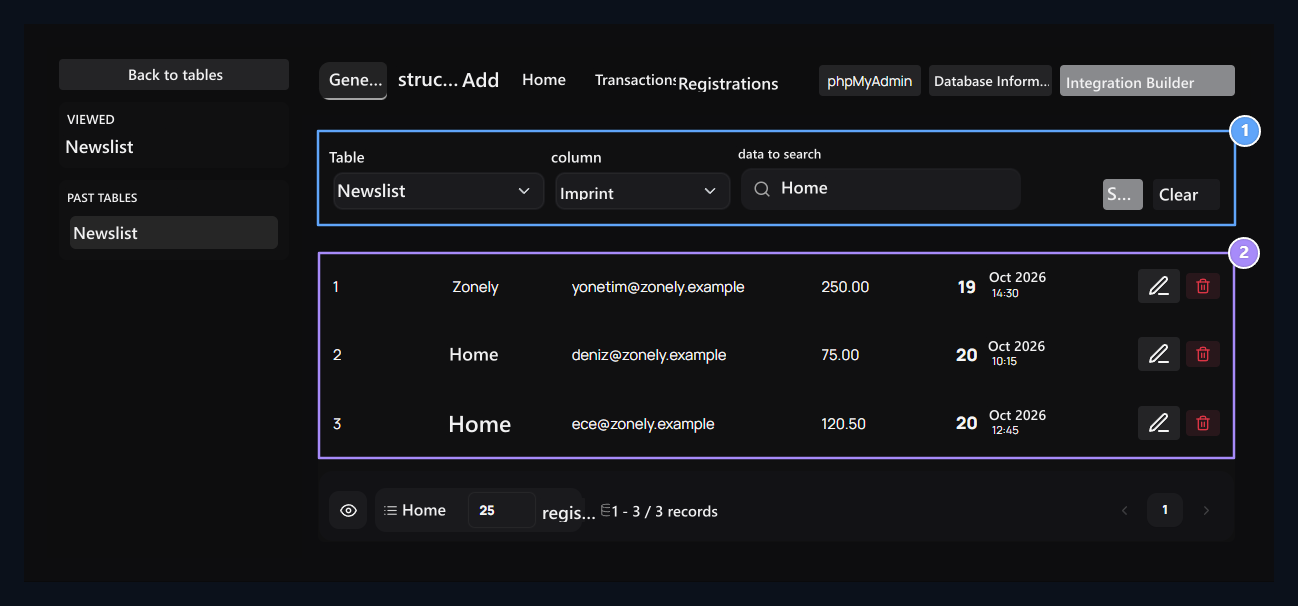
Select the table, column and the value to be searched and press Ara.

2. Cell and line arrangement

Click Edit for the cell for the single area; for the entire registration.
Table, column and Data to search fill and fill the fields Search Press the button. For example userslist table subname column Deniz Search for: All columnsmakes the search without limitation with one domain. Clearremoves search size. Click on the cell to change the single value. To open the areas of the line together Edit Use the button. Line arrangement and deletion options are presented in tables with primary key to defining registration.

Save cell change
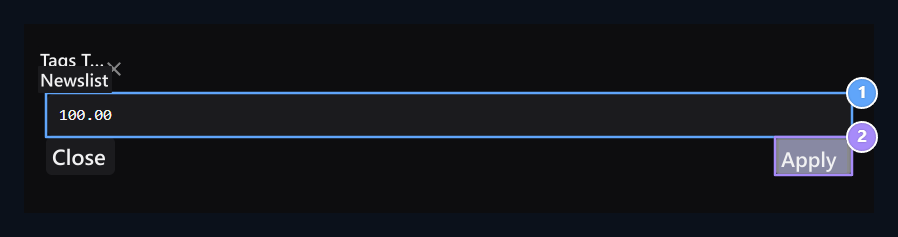
New value is taken to the taste first

1. New value

This window regulates the value of the selected column.

2. Firstly taken into the taste

It adds change to the list of those waiting to confirm the cell.
Check the column and table on the header, write new value and Apply Press the button. If the column supports NULL You can choose; blank text with NULL is different values. Closed areas to edit like primary key or dual data are only read. Waiting arrangements

1. Waiting arrangements

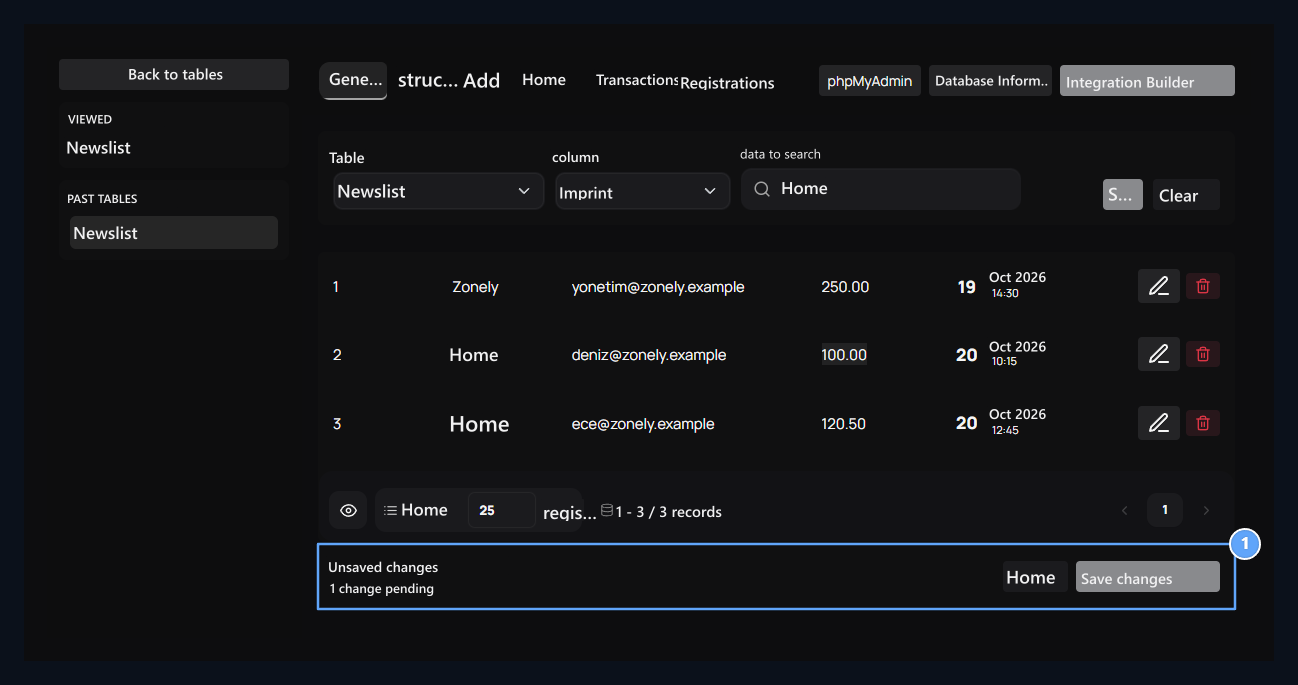
Authors to Save changes; Cancel draft changes.
Apply After the process, the changes are added to the bar. To write to the database Save Changes Press the button. Stupidremoves pending arrangements. So you can prepare multiple cells and save them together in the last step.

Read the structure tab

Column structure, Building SQL

1. Column structure

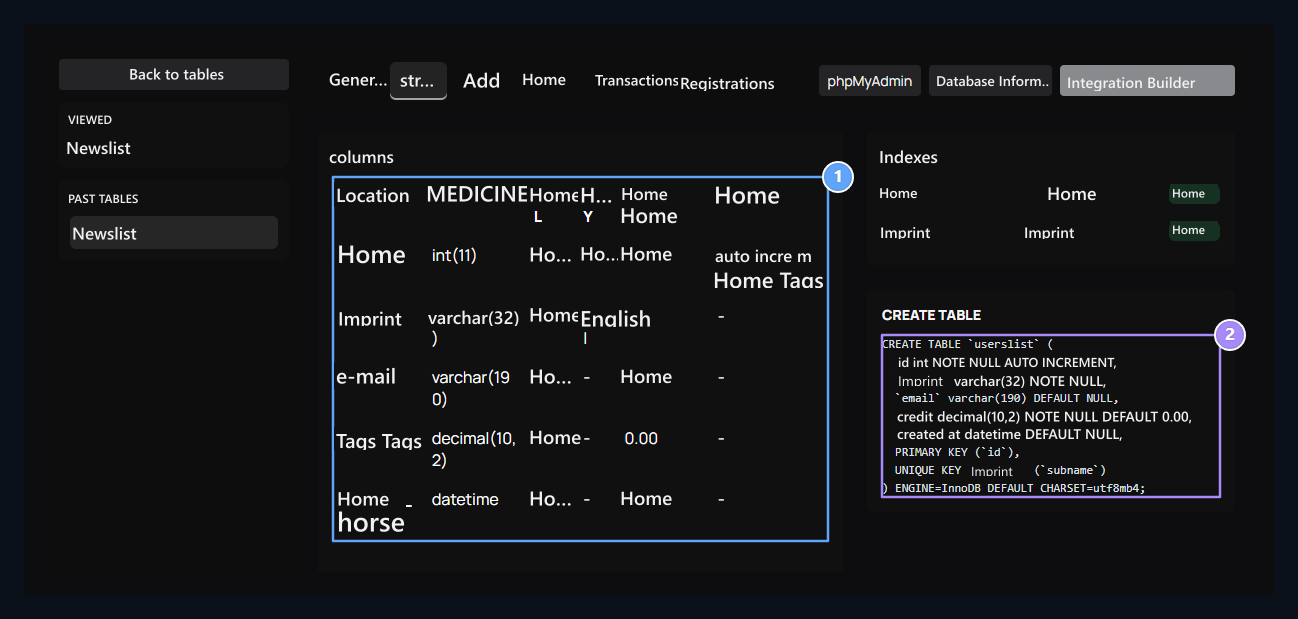
Type, Read the NULL, key, default value and AUTO information.

2. Creating SQL

Check the current CREATE TABLE definition of the table.
The column names, data types, NULL acceptance, switches and default values of the selected table are found here. Home primary switch, Home unique switch; auto_increment automatic indicates increased value. Indexes and CREATE TABLE View the definition. This text field shows the current structure of the table; the query run tool is not.

Add new line

Save new line, form according to columns

1. Save new line

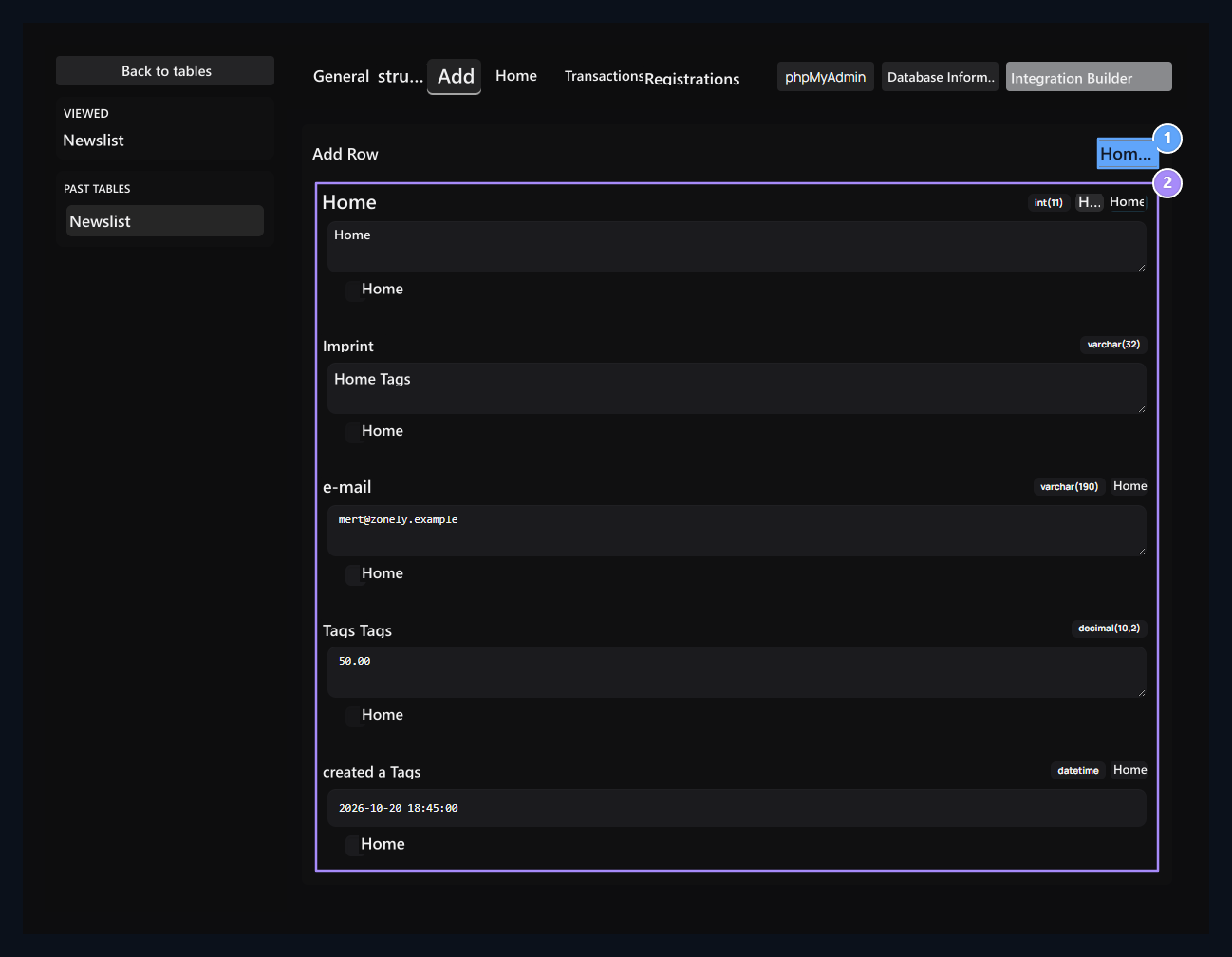
After checking the table and values, use Save.

2. Form according to columns

Leave the AUTO space empty; you can choose NULL in the appropriate columns.
Add Go to the tab. Fill in the fields in accordance with the information of the side. Automatic to be produced Home Leave the ID area empty; tick the option on the appropriate column you want to use NULL. Checking table and values Save Press the button.

Get backup and restore

Select tables, restore backup the backup

1. Select tables

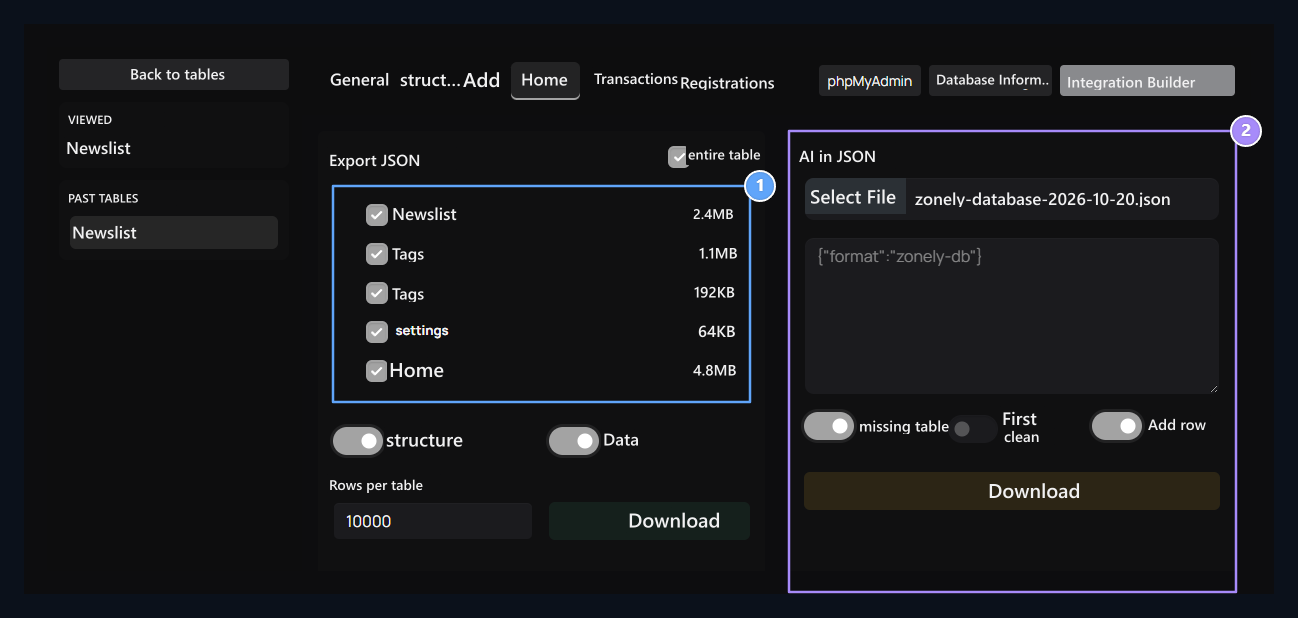
Export structure and data of selected tables as JSON.

2. Restore backup

Select Zonely JSON file or paste JSON content.
Spare tab Export JSON Check tables in the section. structuretable definition; Dataadds lines to the level. Keep Data option open if you want to get logs. Rows per table Check the limit. Default 10000 value does not allow all records to be received in large tables. Determine and identify the scope Download Get JSON file with. To restore Import JSON In the section select the file of Zonely backup or paste the JSON text. Upload Check the target and preferences in the submitted approval. Firstly removes the existing data; get your current backup before restore. Re-connecting the same data from cleaning can also lead to key conflicts.

Use table operations
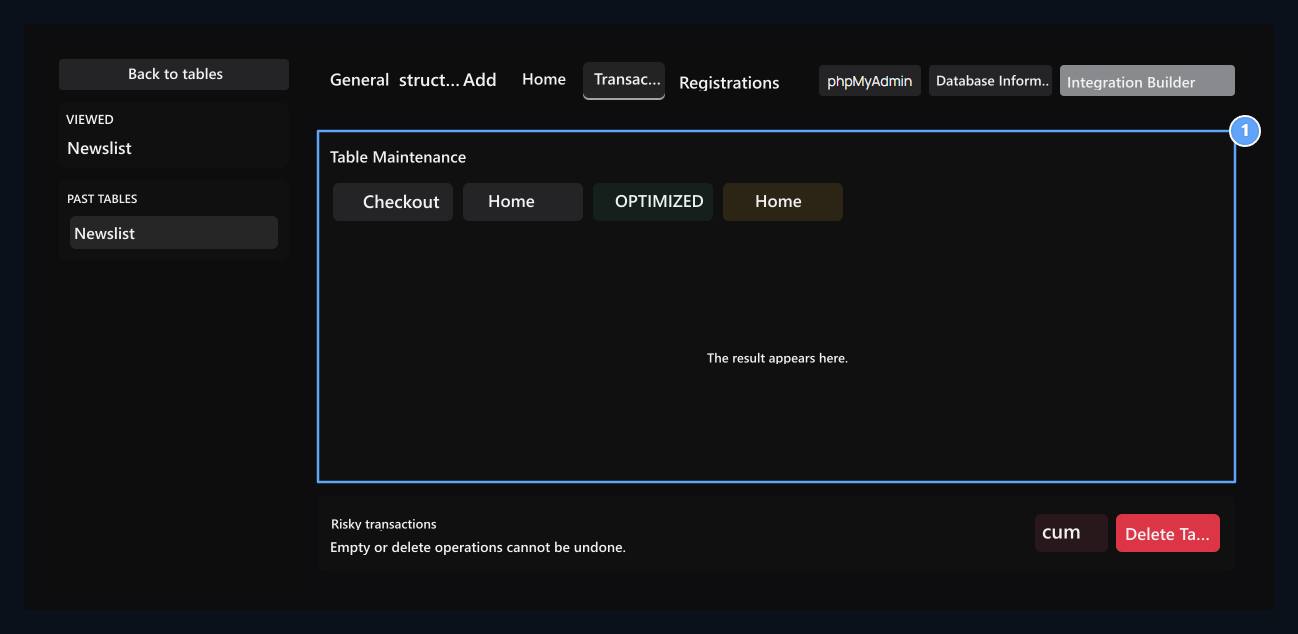
Maintenance and deletion

1. Maintenance and deletion

CHECK, ANALYZE, OPTIMIZE, and REPAIR are maintenance operations; truncating and deleting are separate operations.
Transactions The tab works on the selected table on the left. CHECK audit, ANALYZE statistics analysis, OPTIMIZED improvement, REPAIR if it is supported, it is necessary to repair in the engines. Read the result in the same section. cumremoves lines of the table. Delete Tableremoves the structure. Check your table name and backup in the approval of these processes.

View transaction registration

Follow the process back

1. Follow the process back

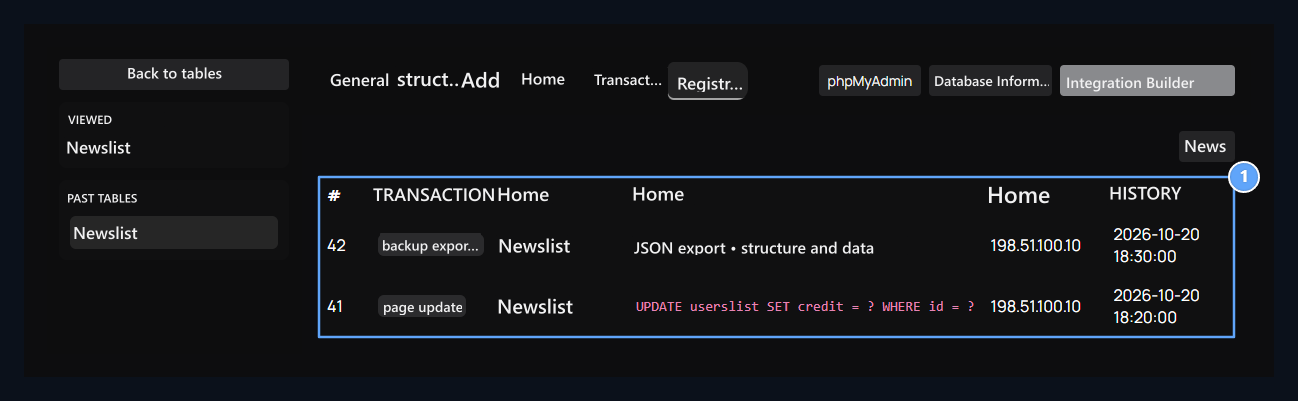
Read action, target table, SQL, IP and date areas together.
Records Read the action, target, SQL, IP and date information on the tab. Refresh Get the list again with it. Match the target table and time while researching a certain change. For other management records Pasts See guide.