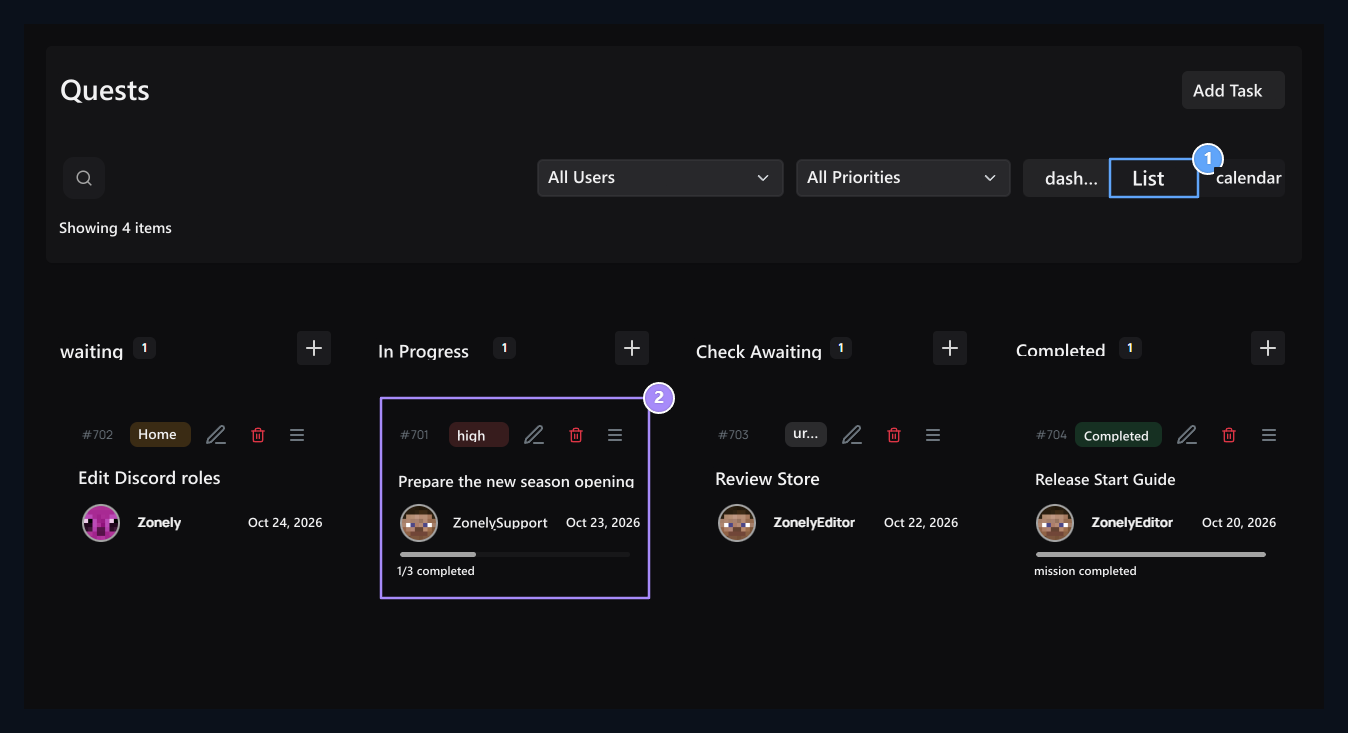
Quests open the screen. Team’s work through the same records Board, List and calendar Follow on the views.

Watch the status on the board

Three appearance, Board according to situation

1. Three appearance

You can open the same tasks as the Board, List and Calendar.

2. Board according to condition

Wait, Continue, Check and Keep the columns completed.
Waiting, Continues, Checks and Completed columns show the stages of work. The card changes the status of dragging to another column. By opening the card, you can edit header, responsible, description and details.

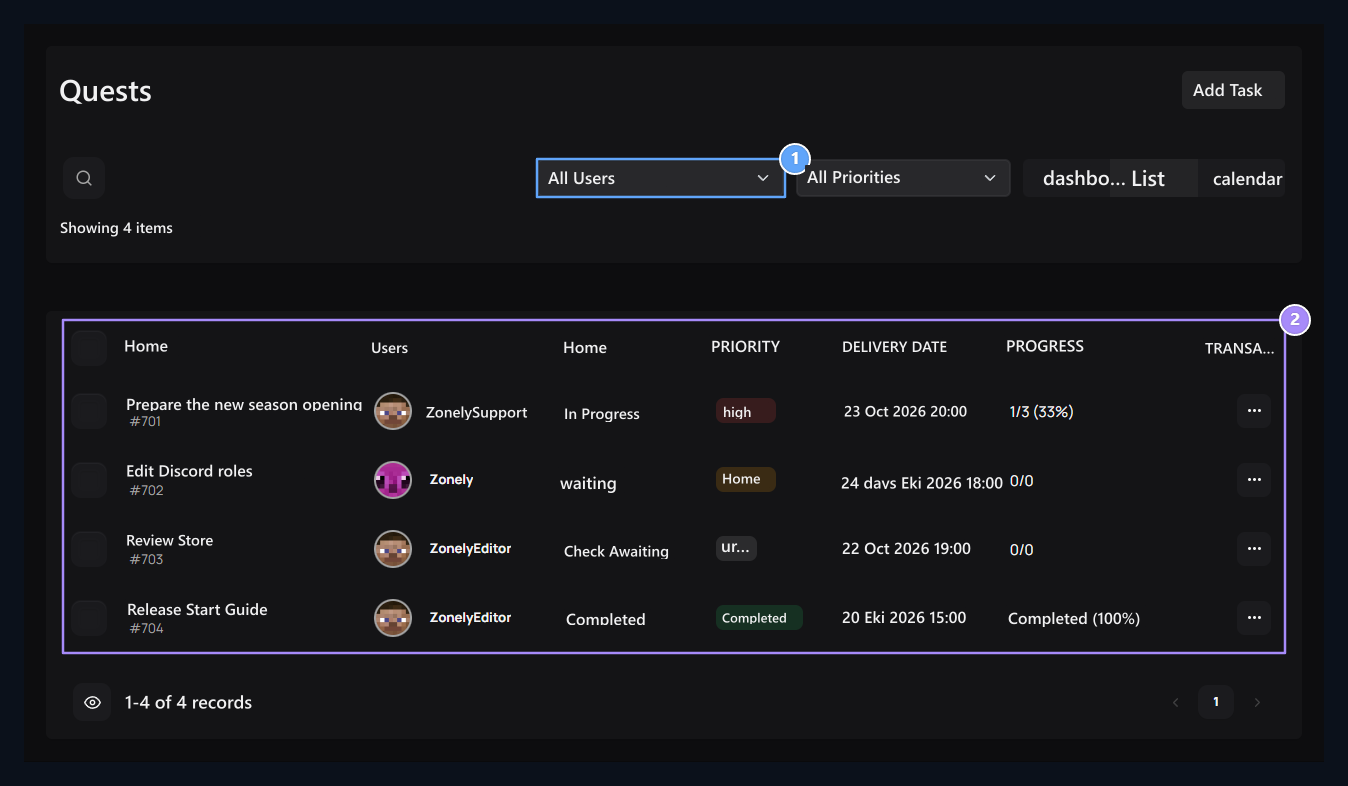
Filter list

Responsible and priority, List view

1. Responsible and priority

Delete the search with user and priority filters.

2. List view

Compare task, responsible, delivery date and status line line line.
Use search, user and priority filters together. List Compare task name, responsible, delivery date and status line in view. When you change the appearance, you will continue to work with the same tasks.

Follow the delivery from the calendar
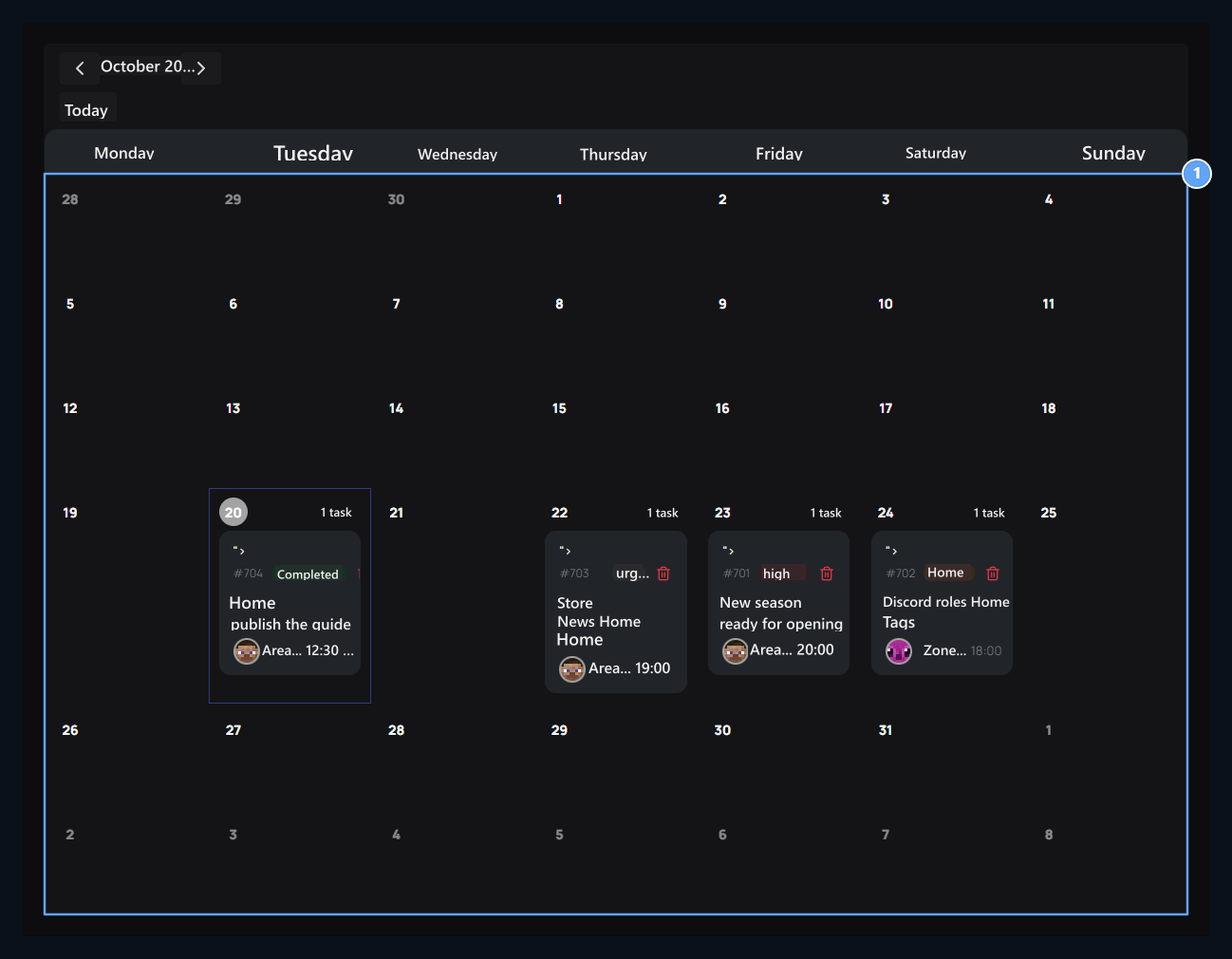
Delivery calendar

1. Delivery calendar

See the historical things in the relevant days; proceed with the moon buttons.
calendar Switch to view. The work with delivery date appears on the relevant days. Take a break with the moon arrows and open the task. Carrying on another day in the calendar, changing the delivery date of the task.

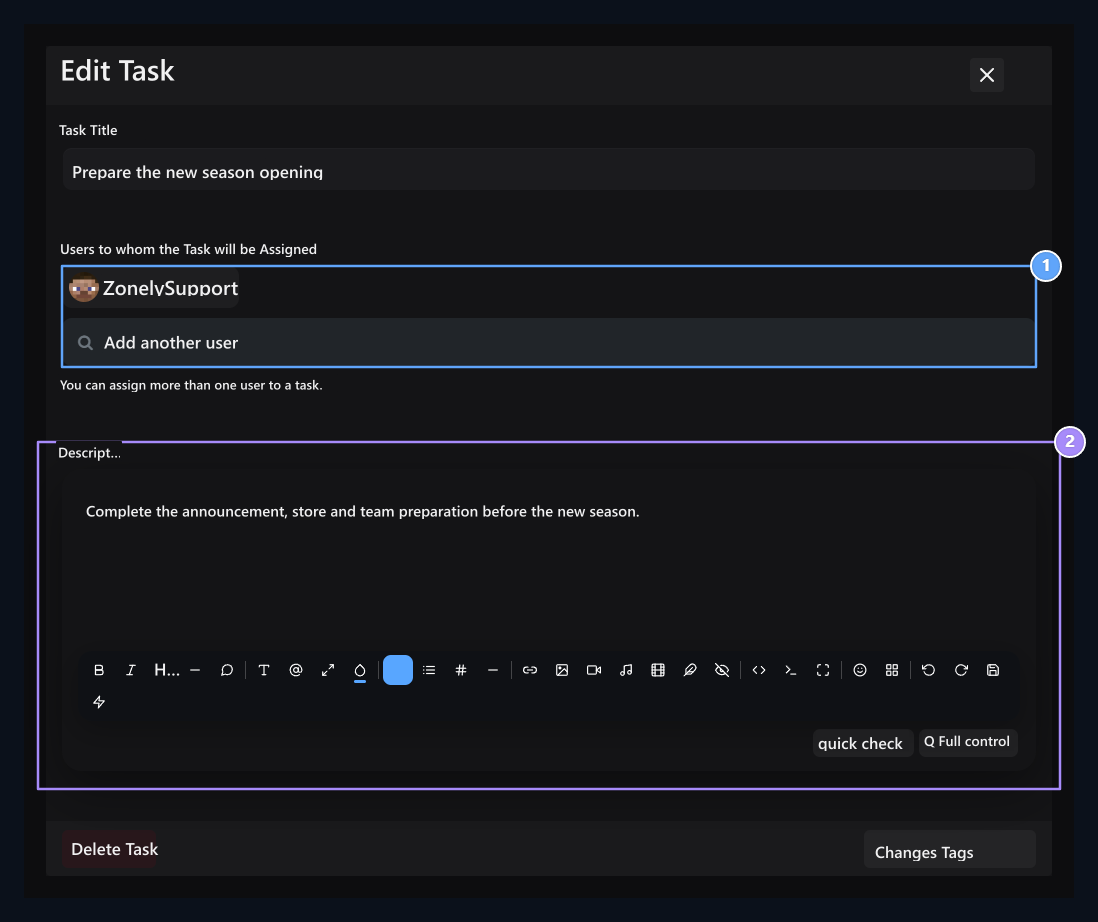
Create Task

Add the responsibilities, Job description

1. Add the obligations

Select one or multiple team members with user search.

2. Task description

Explain the expected result and the work to do.
Add Task Press the button. Type the header, search for the user in the responsible field and choose from the result. You can add multiple teams members. Specify the expected result in the description and the work to be delivered; type the condition that is completed instead of repeating the lone title.

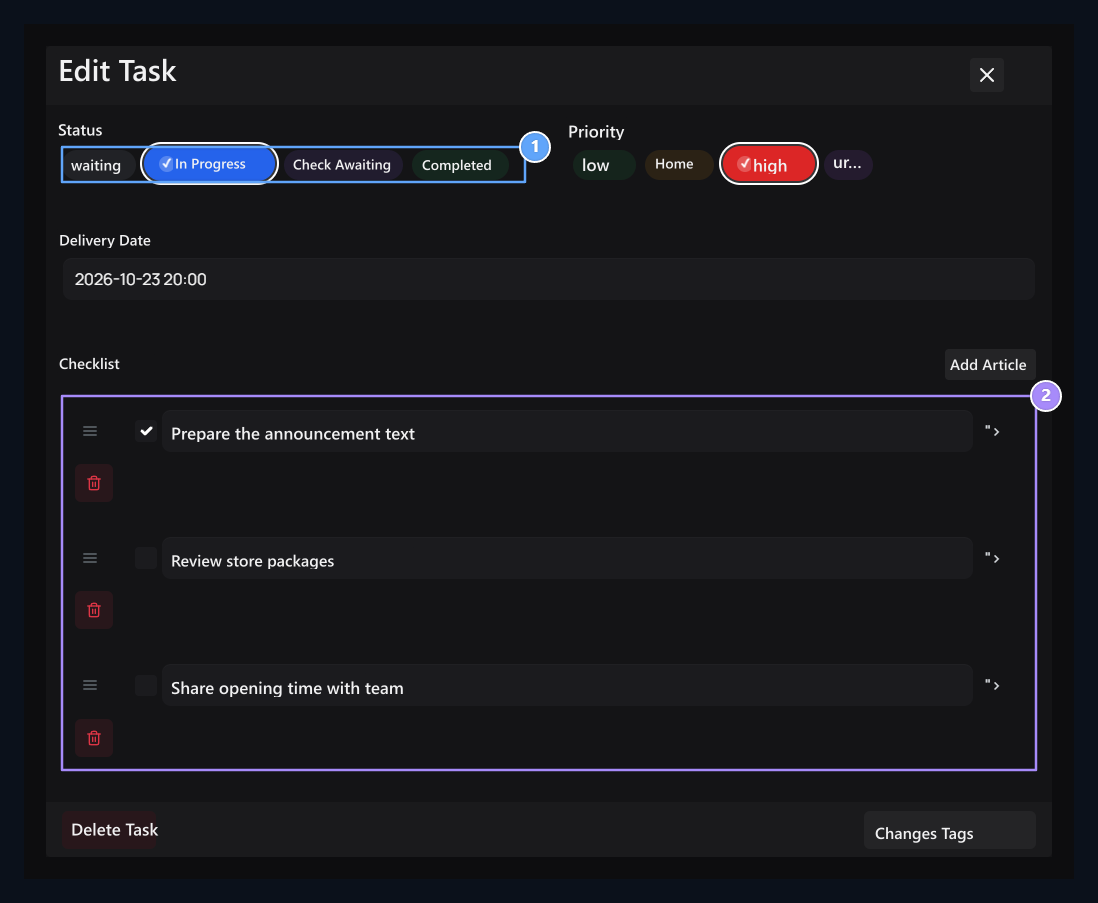
Determine status and subwork

Status and priority, Subwork

1. Condition and priority

Determine the stage of work and the degree of importance separately.

2. Subwork

Manage steps and complete status from the control list.
Select the status, priority and delivery date. Big job Sub-tasies Take small steps in the section. You can sort steps and mark endings. The progress when all subwork is completed reaches 100 percent. Store the new record or the task you organize with the recording button of the screen. Also if the team work needs to run automatic operation at certain time timer Use the guide.