
 Home
 User Guide
 Developers
 Payment Gateways
 Integrations & Tools
 Site Usage
 Troubleshooting
View partition, topic and responses
Management panel Discussions open the part. The default view shows messages under section and subsections, under topics. You can open sub-registrations from headers and narrow down.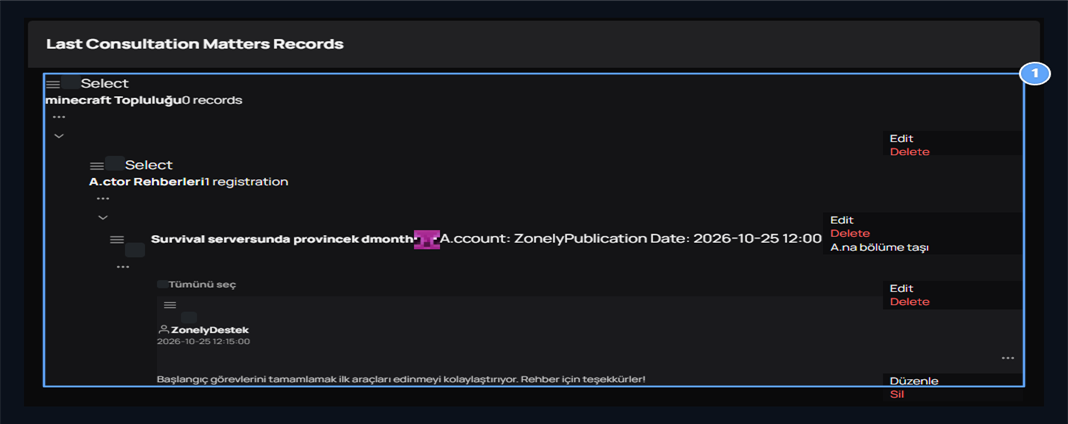
1. Part, topic and messages
Check out player guides and topic responses under Minecraft Community.
Create partition and subsection
Add Section Prepare the name, description and partition image on the screen. Main Category determines which upper header of the field partition will be found.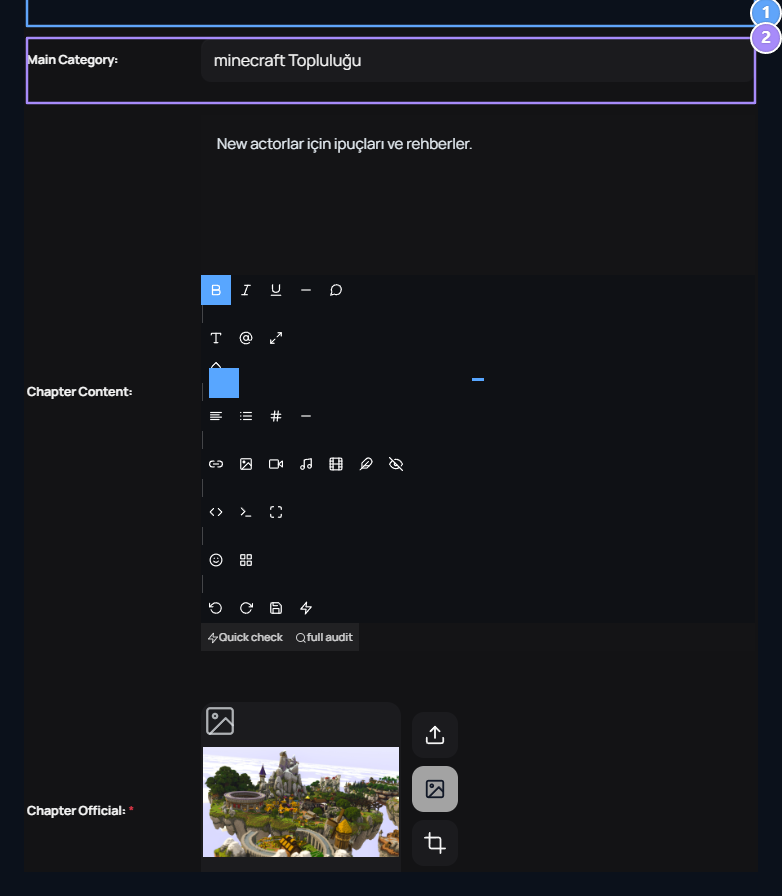
1. Part name
Type the name of the department.
2. Main Category
Select the upper part to create the bottom section.
Where do players open partitions?
Your user site /consultations See partitions on the page. The final shares with the section description, topic and message numbers are on the same screen. The relevant section is pressed on the name of the press. For example a new player Player Guides From The first day in the Survival server open the subject.How does the user form a topic?
The user who log into the account opens the topic creation button in the relevant section. Selects the department, write the title and contents of the subject; Create share with. Specify the topic of sharing on the header. Write the question you are looking for explanation, experience or response in the content. Before opening the topic, you can check whether there is a similar share in the corresponding section.Write a response to the topic
The main share and player responses appear together in the topic detail. The user who log in writes the response to the message field at the bottom Send with the same topic. In the example, a player shares that his initial tasks make it easier to get the first tools. Update the topic header does not change this response; subject and message records are taken separately on the management side.Suggestions
Make players share new ideas for your server and vote on recommendations.