
 Home
 User Guide
 Developers
 Payment Gateways
 Integrations & Tools
 Site Usage
 Troubleshooting
Support from the game with ZonelyCore
Minecraft server ZonelyCore You can manage the support system with the game. Cast can open support request from game; if the authorities are the requests that are opened from the site can view and manage from the game. The requests opened within the game are also in the management panel Live Support Follow the section. Thus, the player may ask help during the game, the authorized may also be interested in the request to proceed to the site. For installation ZonelyCore connection Complete and prepare the necessary settings and authorized permissions for the support feature of the plugin.Match support requests with your Discord channel
Support requests from your site Discord to the ticket channel on your server to transfer Zonely Discord Botu Use the link. The answers written through Discord of the authorities appear in the same interview on the site; the user can continue to talk through the site. The requests that are closed can be archived on the log channels you configure.
Support connection with Discord Botu
Connect your bot to your server; complete the channel and authorized role settings for support from the guide.
See requests and status
Default Select the view. Requests Store & Delivery or Account and Connection category is listed under headers. You can see the title, account, support status and post date of each request on the same card. The group from category header can be expanded by narrow and expand, you can open the interview by pressing the request header. General Support Demands / Customer Support Demands Go to the list on selection; find the records that are waiting for response with the status filter.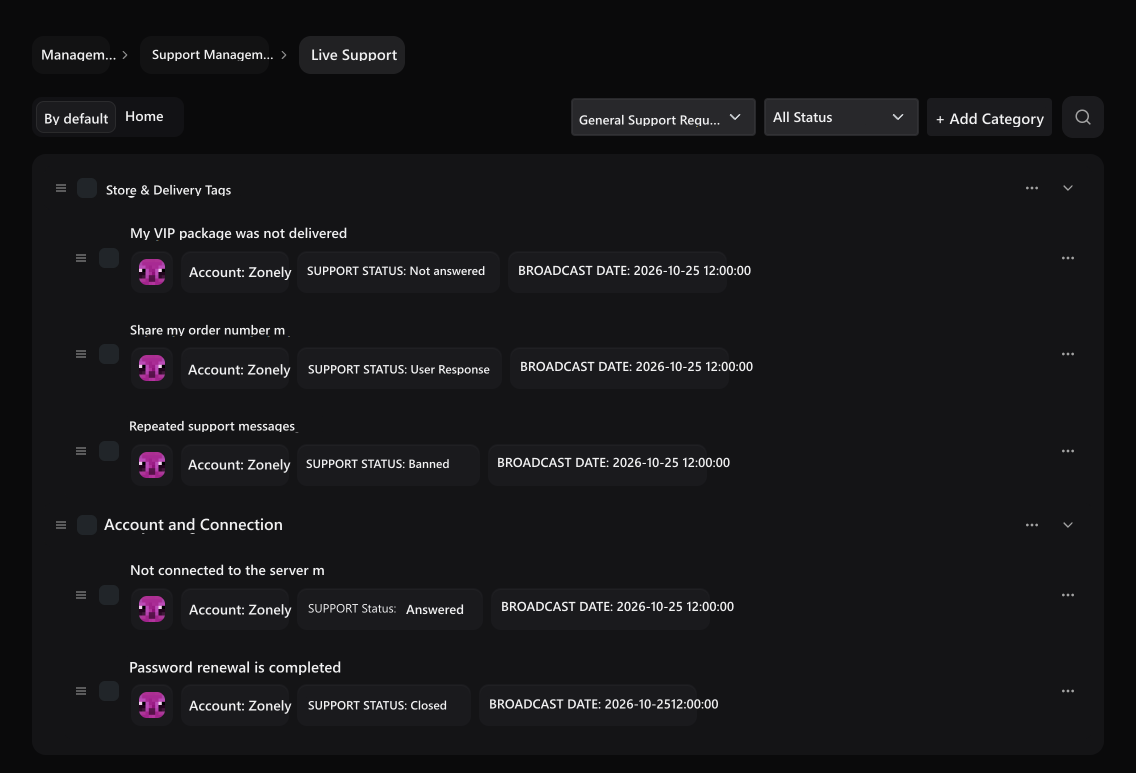
Default view
View requests under category headers; open the interview by pressing the head.
Request Information
See the account, the support status and the date of publication together under the request.
Sample delivery question Not answered, link question Answered, order number shared interview User Response in case. All Situations selection removes status filter.
Open the interview and read the messages
In the category view, the request header, the normal list View Press the process. The category, history and status of the request on the top; the following messages are available.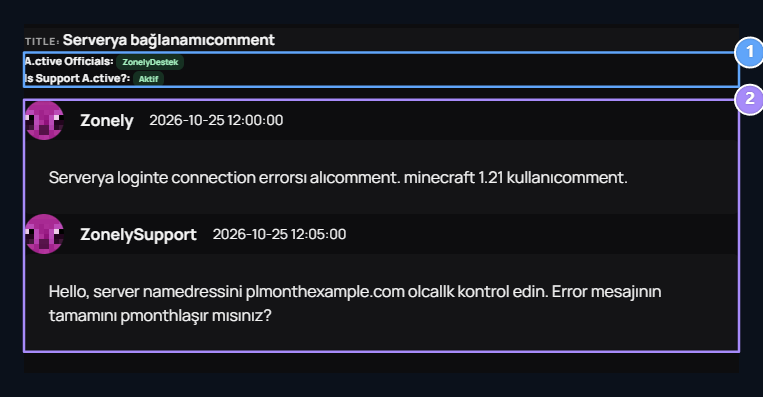
1. Activeness in the interview
Check the authorities and the activeness of the request owner in the same interview.
2. Message history
Read the user’s message and the authorized response together.
Prepare a response
Write your response to the message field. You can choose an answer You can edit the text ready from the list and according to the question. Send Messageadds response to the interview.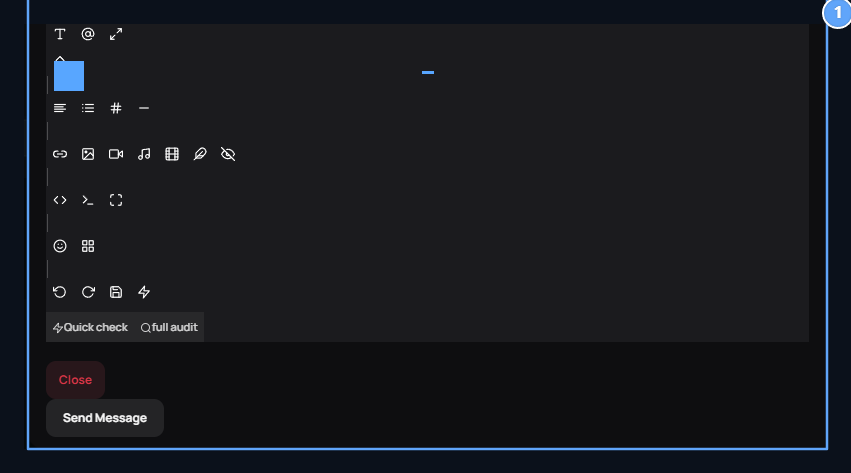
1. Prepare response
Select the ready answer or type your own response; Send message.
Support category and add ready-to-read
Add Category with Store & Delivery or Account and Connection prepare a category like. Name Publish Save with. Available categories in normal appearance Categories You can access the tab.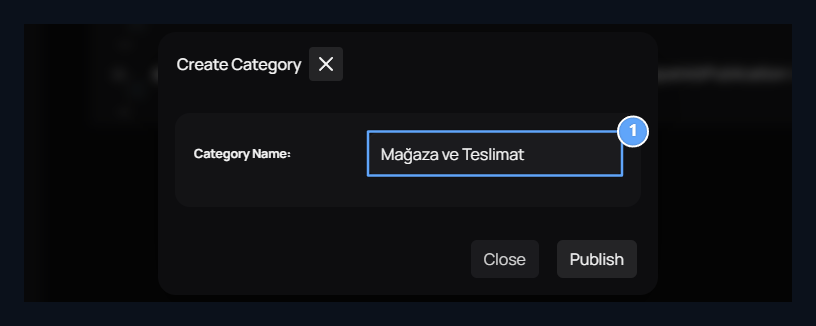
1. Category name
Make the user open the request in the correct header.
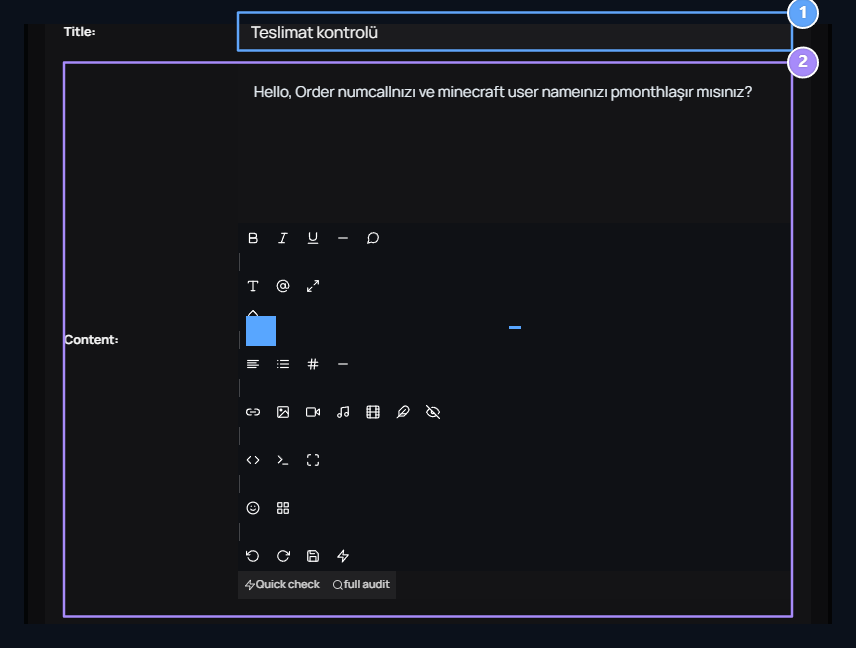
1. Ready-to-read header
Write the name you will be notified in the reply list.
2. Content
Prepare the response text for repeated questions.
Open visitor calls
Live support window in the corner of the site Visitor Support opens the plugin. The visitor question is through the same window and the response is followed by there. Activation steps and use of window Support Settings → Visitor Support in the section.How does the user open the request for support?
Login to the user account and log in to your site Support opens the part. Follows your own demands and status here; Create a Support Request button opens new form.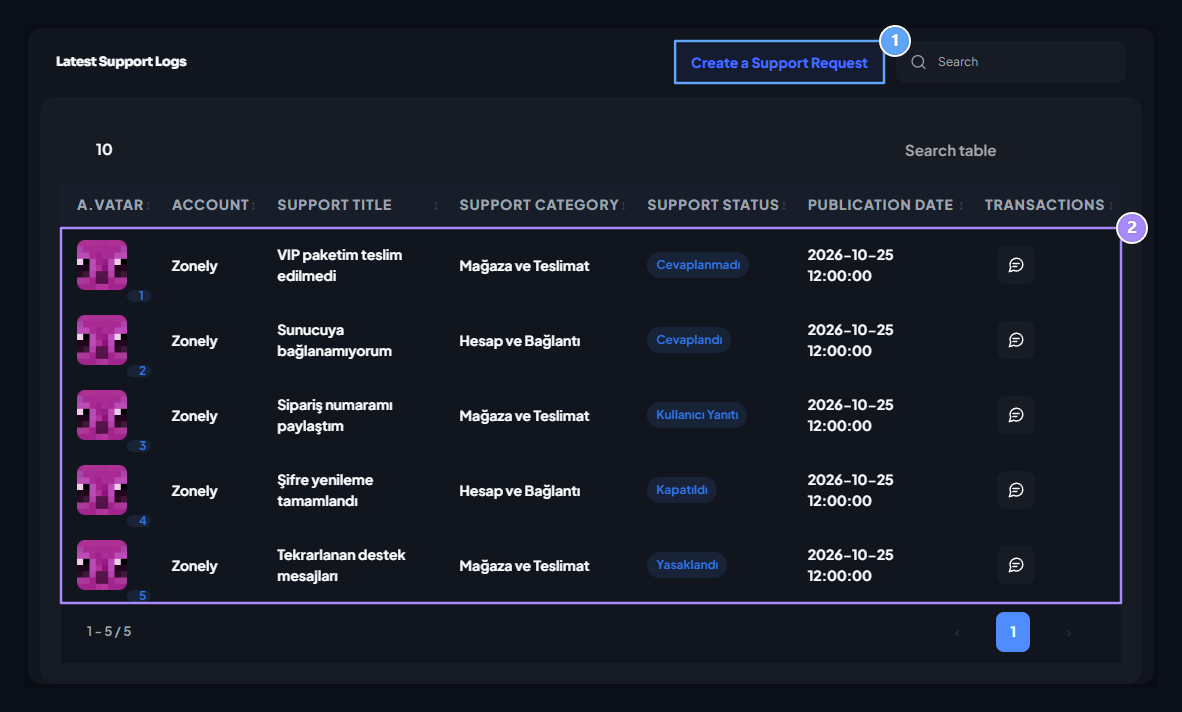
1. Create Support Request
Open the new request form.
2. Your requests
Follow the category, status and date of your own requests.
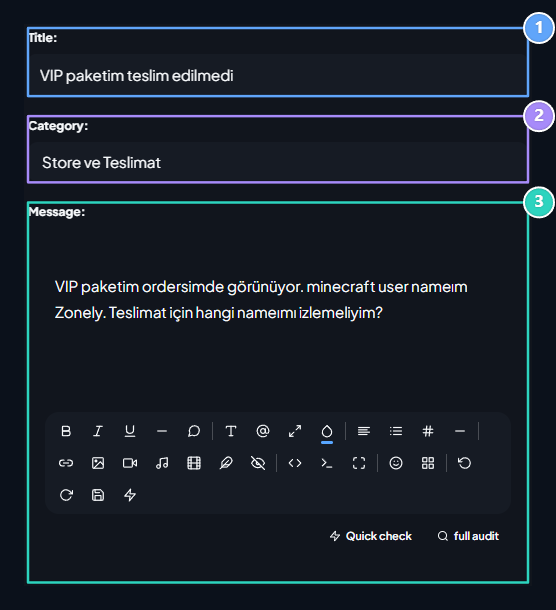
1. Title
Specify the problem with a short and understandable header.
2. Category
Select the support category for your question.
3. Message
Type the required details such as order number, username and error text.
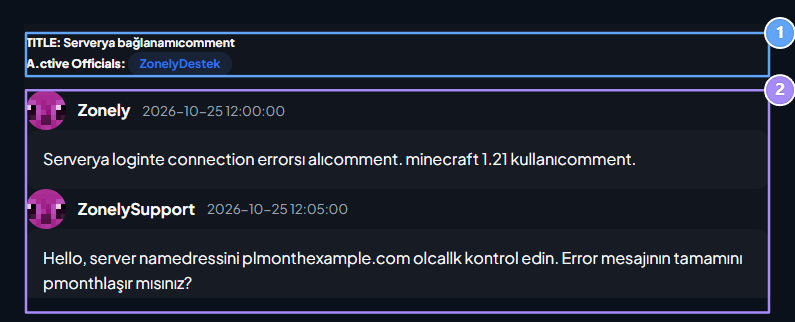
1. Subject of the request
See the title of the request you open and the active authorities in the interview.
2. Interview
Read the competent response and proceed through the same request.
Support Settings
Set the active request limit, message template and email notification.
Discord Bot
Prepare server, role and channel settings for the Discord support system.