
 Home
 User Guide
 Developers
 Payment Gateways
 Integrations & Tools
 Site Usage
 Troubleshooting
Open server registration
Add Server Press the button. To change a link available three points → Edit Use the way. If you are preparing a similar record Copy You can use the option.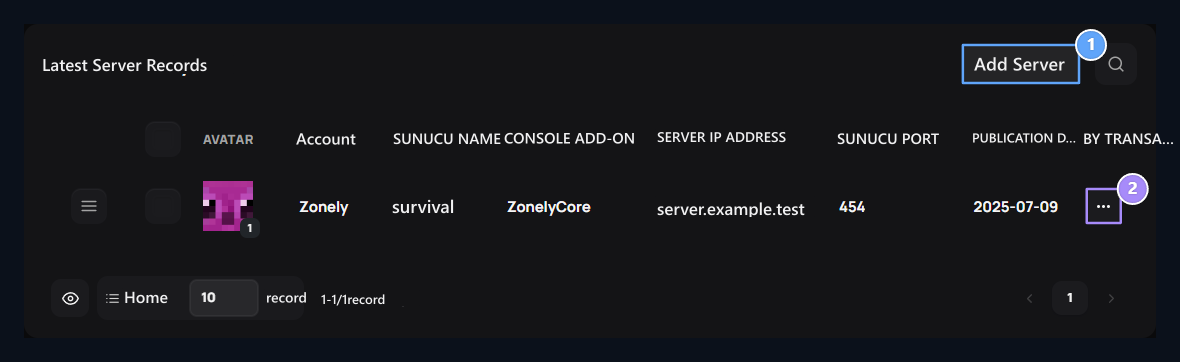
1. Add server group
Add the server group to list the contacts.
2. Available server
Reach options with Layout or Copy from three point menus.

1. Server name
Type a name that you will easily recognize the target server.
2. Plugin type
Select the tool you have installed on the game server. The following links vary accordingly.
Enter the link information
- ZonelyCore
- WebSender
- FiveM
- Rust
- RCON
Minecraft server ZonelyCore Complete installation. Server IP Address address of the game server in the field, Plugin Port in the field configuration socket-port Type value.


1. The address of the game server
Type the game server IP or domain name that the panel can access.
2. ZonelyCore port
Enter the socket-port value in config.yml.

1. Token → web-token
Type the same value in the web-token area in ZonelyCore setting file.
Hytale connection
Hytale connection
ZonelyCoreHytale If you are using socket_enabled Open the option. Panel port socket_port, token socket_token match with.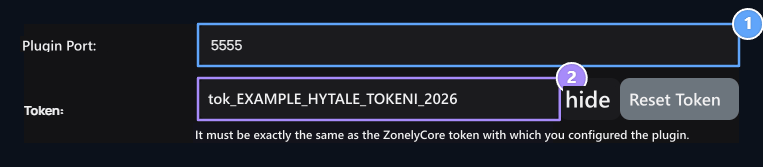
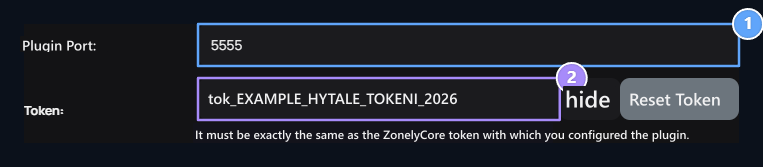
1. Hytale → socket_port
Enter the socket_port value in the Hytale config.yml file.
2. Hytale → socket_token
Match the token value with socket_token on the file and socket_enabled: true set.
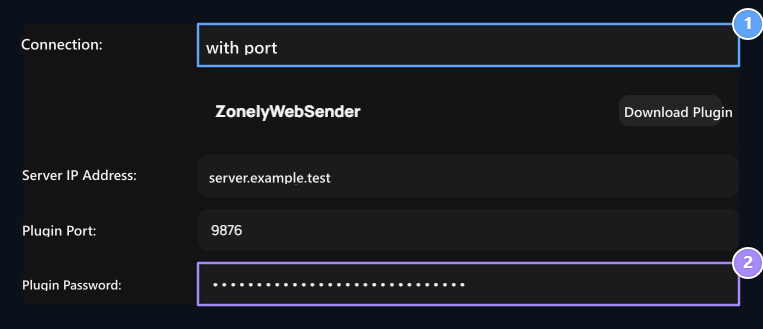
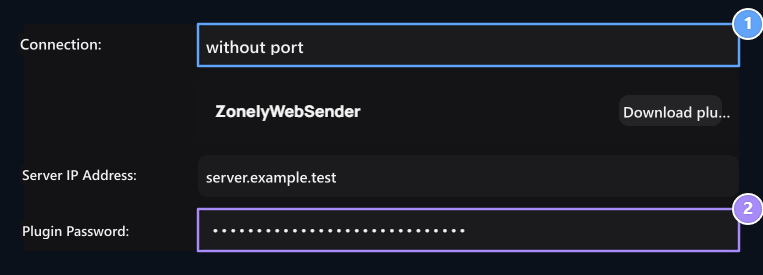
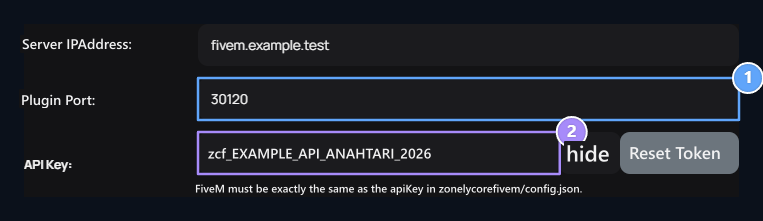
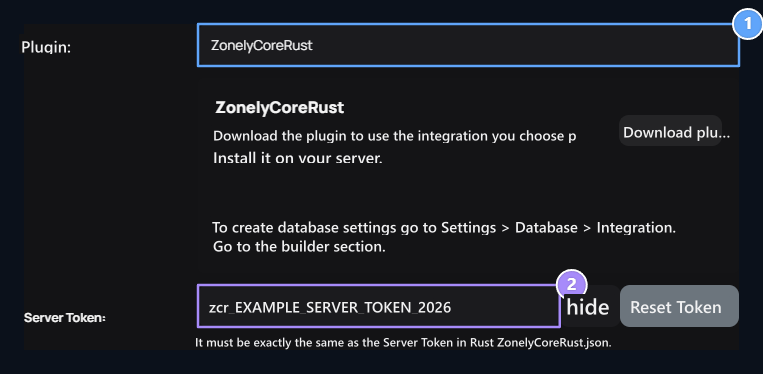
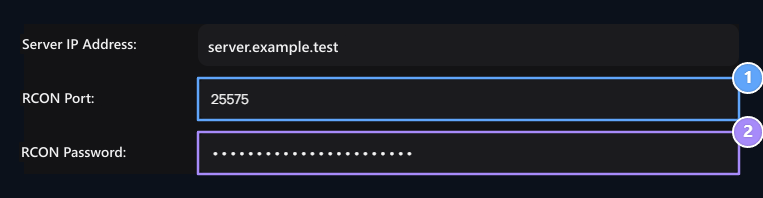
Check and save connection
Check Plugin Link Press the button. Registration after the connection is installed Publish or Update Save with.
1. Test the connection
Check the Plugin Connection button. Read the result notification when the click icon is finished.
2. Release
Save the right information. After you have created the first record in Portsuz WebSender, test again from Editle.
Change the information of the current server
Change the information of the current server
three points → Edit open the way. Type changing link information to the configuration of the game server, re-check and save the connection.

1. Test the record again
Update the file of the plugin when changing IP, port or key. Repeat the connection from the Edit screen.