
 Home
 User Guide
 Developers
 Payment Gateways
 Integrations & Tools
 Site Usage
 Troubleshooting
Add delivery commands
- Add Server Press button and Select Server Select the target server from the list.
- Add Command type the command to be run with. Specify what the description is doing in short.
- Sort by dragging multiple commands from the handles. Add a new server partition if the transaction is done on another server.
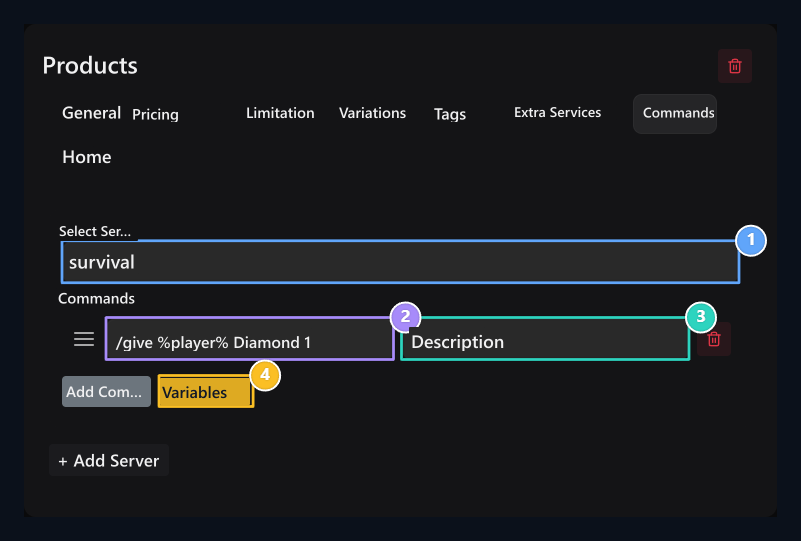
1. Server
Select the server that the command will work.
2. Command
Use %player% for player name.
3. Description
Write the process that the command does in short.
4. Variables
View the supported variable.
Use player name in command
**%player%**The product is replaced by the player who purchased the product during delivery. For example, in Minecraft server gives the following command player a diamond:Show variable help
Show variable help
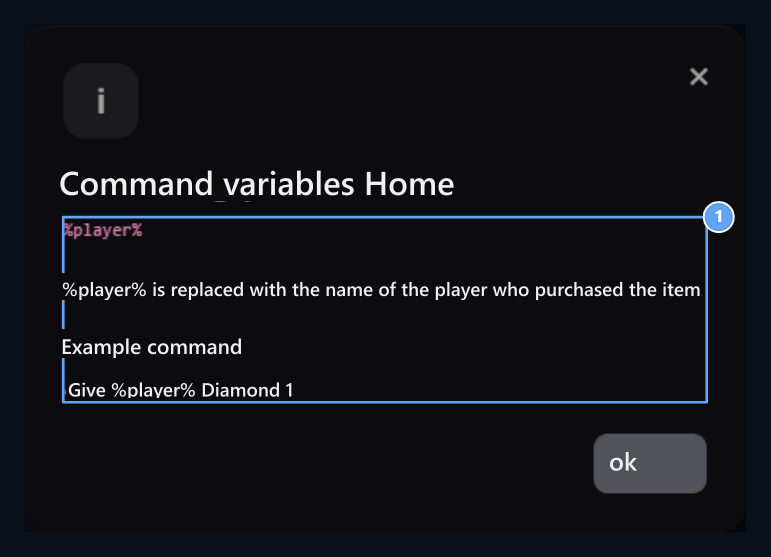
1. Player variable
%player% are replaced by the name of the purchased player.
In-game menu view
To show products in the in-game menu ZonelyCore installation complete. Next GUI on the tab Show in Game Open the option. See menu Title, Description and to be used as Minecraft goods Ä°kon fill in the fields. If you are using a special source package, you will be sure to use the goods Model Number You can also enter the value.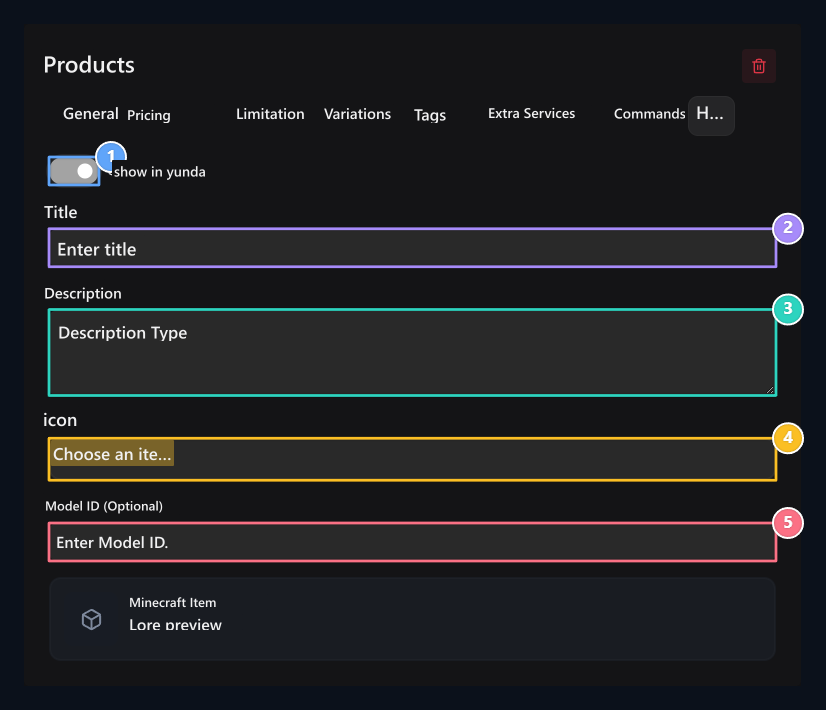
1. Show game
List the product in the in-game menu.
2. Title
Type the name that will appear in the menu.
3. Description
Enter the description of the item.
4. Icon
Select the item to be used in the menu.
5. Model ID
Enter the value if you are using special model.