
 Home
 User Guide
 Developers
 Payment Gateways
 Integrations & Tools
 Site Usage
 Troubleshooting
Add product cards
Products → Add Products open the way, select category and Normal product Use the type. Home Add product Add other cards by pressing the button. Fill the name, visual, price and delivery settings of each one. When you add the second product card Comparison Chart opens. Column headers track product names and prices on cards.Fill out the features
- Add Feature Press the button and type the name of the line.
- Enter the value of that feature in the column of each product. For Coin acquisition 2x, 3x, 4x you can use values like.
- If the property requires additional information Add Description type short description with.
- For new line **+**For the feature you don’t use trash box Use the button.
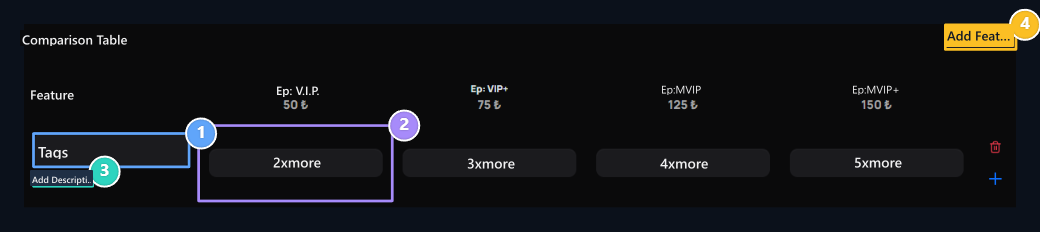
1. Feature name
Type the feature to be compared.
2. Product values
Enter the value of each member in its own column.
3. Description
Add a brief description for the feature if necessary.
4. New feature
Add a new line of features to the table.
View on your theme
Product page Feature Comparison Memberships are listed side by side. Compare customer prices and rights View passes to the member that he wants with the button.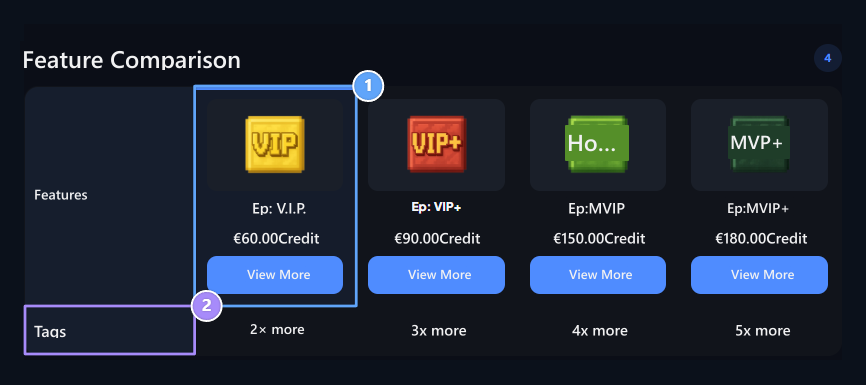
1. Membership selection
Compare memberships with prices.
2. Specifications
Check out the rights provided by each membership by side.