
 Home
 User Guide
 Developers
 Payment Gateways
 Integrations & Tools
 Site Usage
 Troubleshooting
Type the name and description of the field
Add Field Press the button. Name type short header to show the user in the field. Description Tell you how you expect a reply in the field.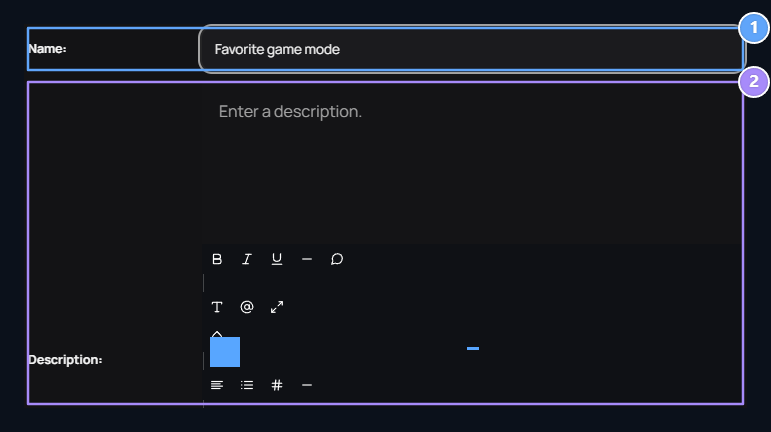
1. Name
Type the header of the field to be asked in the registration.
2. Description
Explain how you expect a reply from the user.
Select the answer type
Genre in the field Text and Number options are available. Select what is suitable for the answer you will get.Text field
Textallows the user to answer with free post. Use game mode for short promotional or similar written answers.
1. Text
Select the domain that will answer the user with free post.
Number Area
Numberused to get numerical response. For example Weekly gaming time You may want to use the header and write the answer in hours in the description.
1. Issue
Use this type in areas where digital response will be received.
Identify visibility and necessity
Two switches under the form individually adjust.
1. Is the public open?
Set the open visibility of the space to everyone.
2. Is it mandatory?
Keep the answer required during registration.
For example, you can close the public visibility while keeping a space mandatory. Determine both options according to the purpose of the field.
Save space and check recording screen
Under Screen Publish Create space with the button. Then the site Sign Up open the screen. Check the header, description, text or number type of the field and the condition of necessity.View of the user’s record screen
User Sign Up When you open the page, the fields you add are included with the standard account information. Your favorite game mode text, Weekly gaming time filled with numbers. Title Starindicates that the area is mandatory.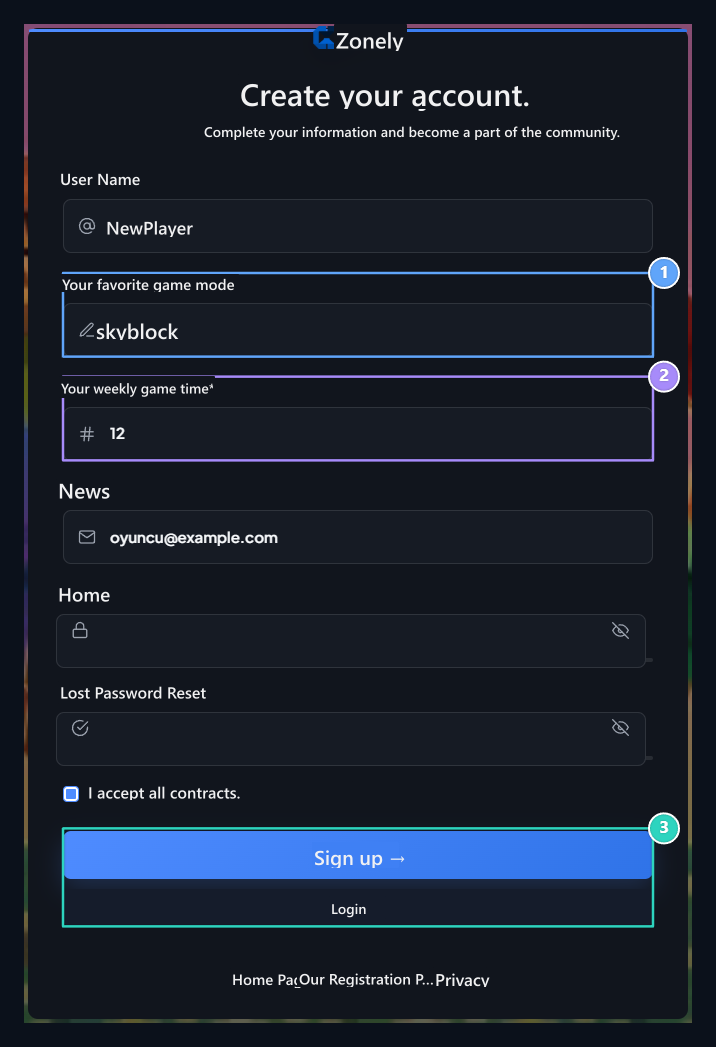
1. Text field
Domain name and description appear in the registration form; user writes the game mode.
2. Number area
Weekly gaming time is filled as number; the stars specify the mandatory space.
3. Sign up and Login
The new user form sends with Sign-up; the existing user opens the Login link.