Firewall & WAF open the screen. View the traffic summary; web and Game Server Edit the privacy of the visitor from the bottom section.

View Traffic

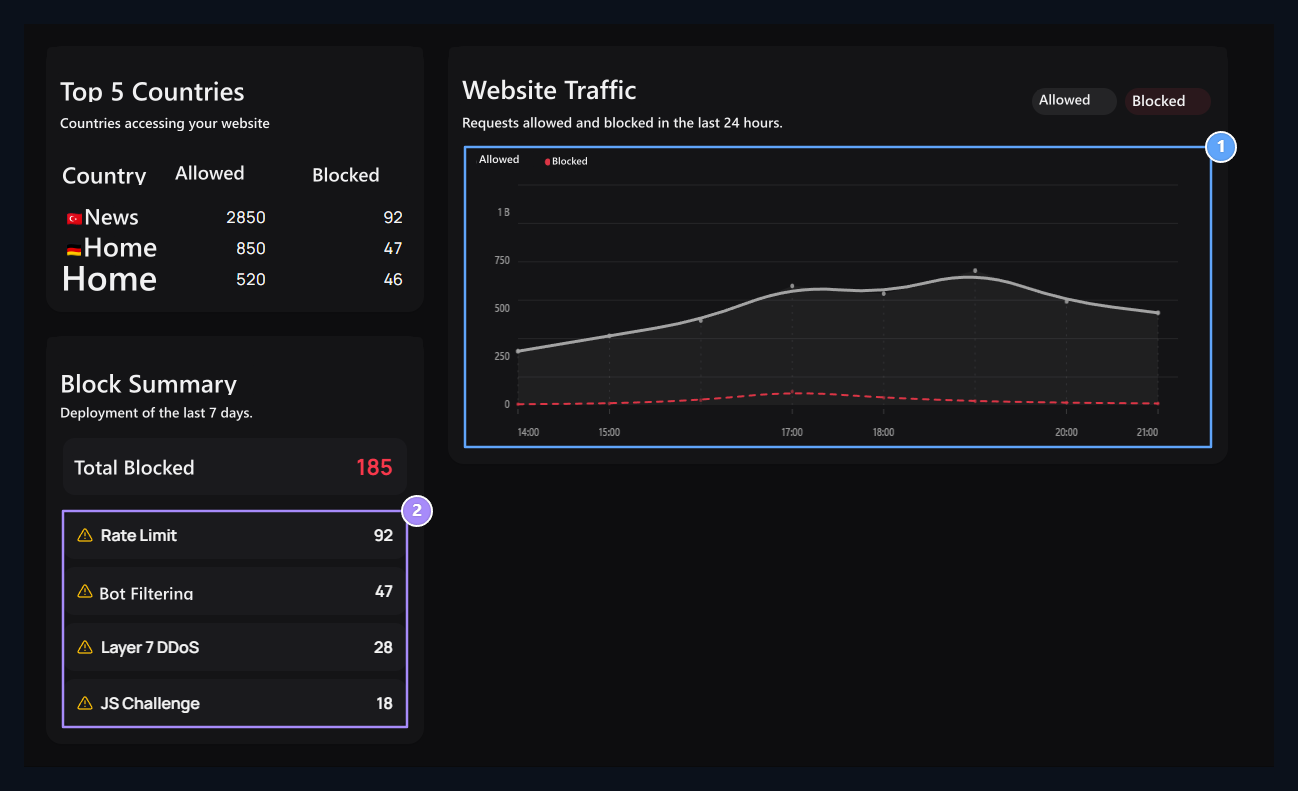
Allowed and blocked, Blocking reasons

1. Allowed and blocked

Compare how traffic changes by hours.

2. Blocking causes

Read the total with what control stops.
Website Traffic Shows the requests allowed and blocked in the last 24 hours. Blocking summary The last 7 days will give the distribution of the result. Read the charts and the country table together by taking into account the periods. The number of requests is not the same as the number of visitors. For example, if speed limit blocks are increasing, the user learns the process and time it is worn and examine the traffic in that range. Follow the active information of the game server separately from the web traffic.

Set web protections

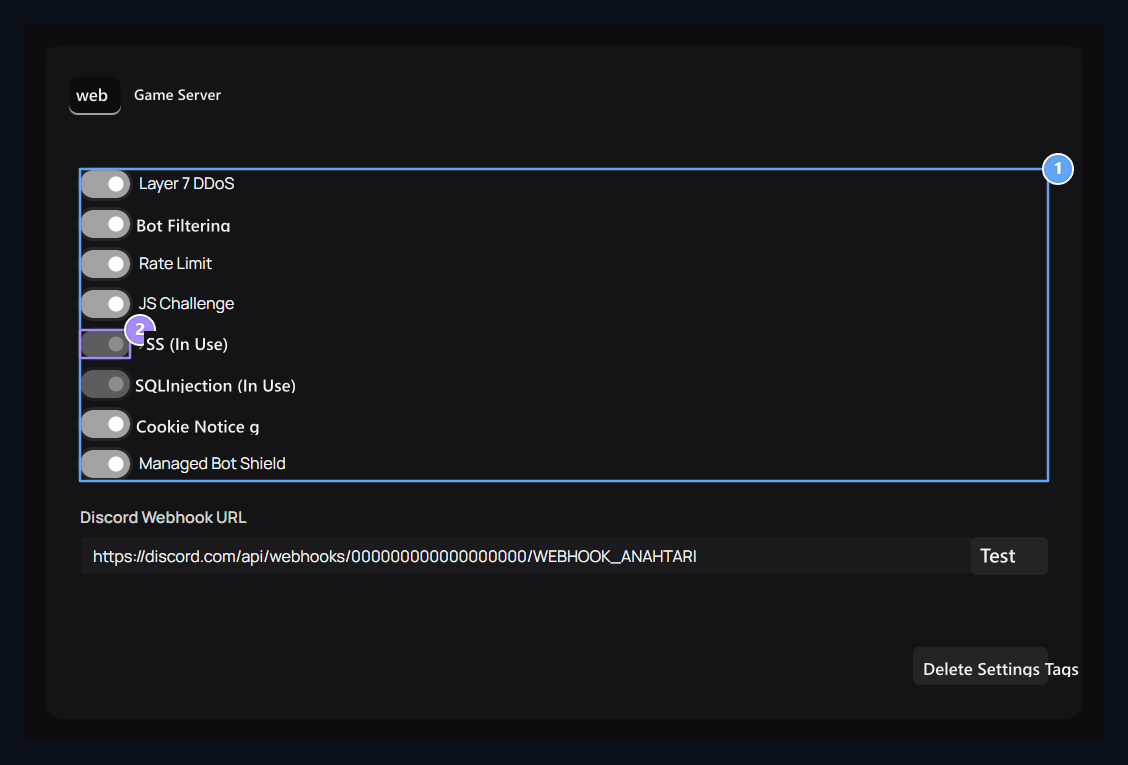
Web protections, Core controls

1. Web protections

Manage Layer 7, bot, speed limit and JS verification here.

2. Core controls

XSS and SQL Injection panel appear in use and locked.
Options and under the card Save Settings Press the button. XSS and SQL Injection, In use locked as shown. Cookie Poisoning and Managed Bot Shield The headers are also available in the same list; there is no separate rules or IP exception form for these titles on this screen.

Connect Discord notification
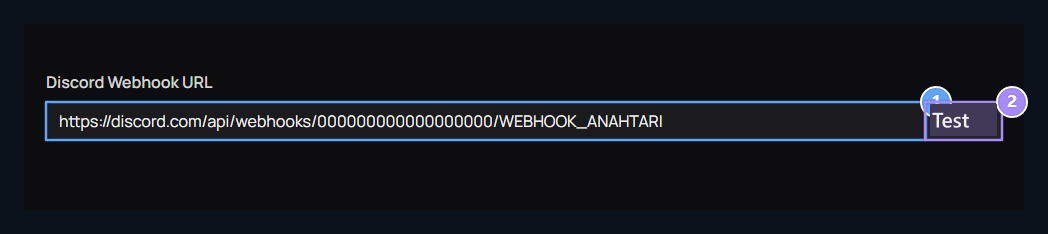
Notification channel, Connection trial

1. Notification channel

Enter your own Discord channel’s webhook address.

2. Connection trial

Test Meat sends a notification to webhook.
Webhook of the relevant Discord channel Discord Webhook URL enter the field. Test The button sends a real trial notification to the channel. Checking and controlling the message reach Save Settings Keep the connection with.

Add game server

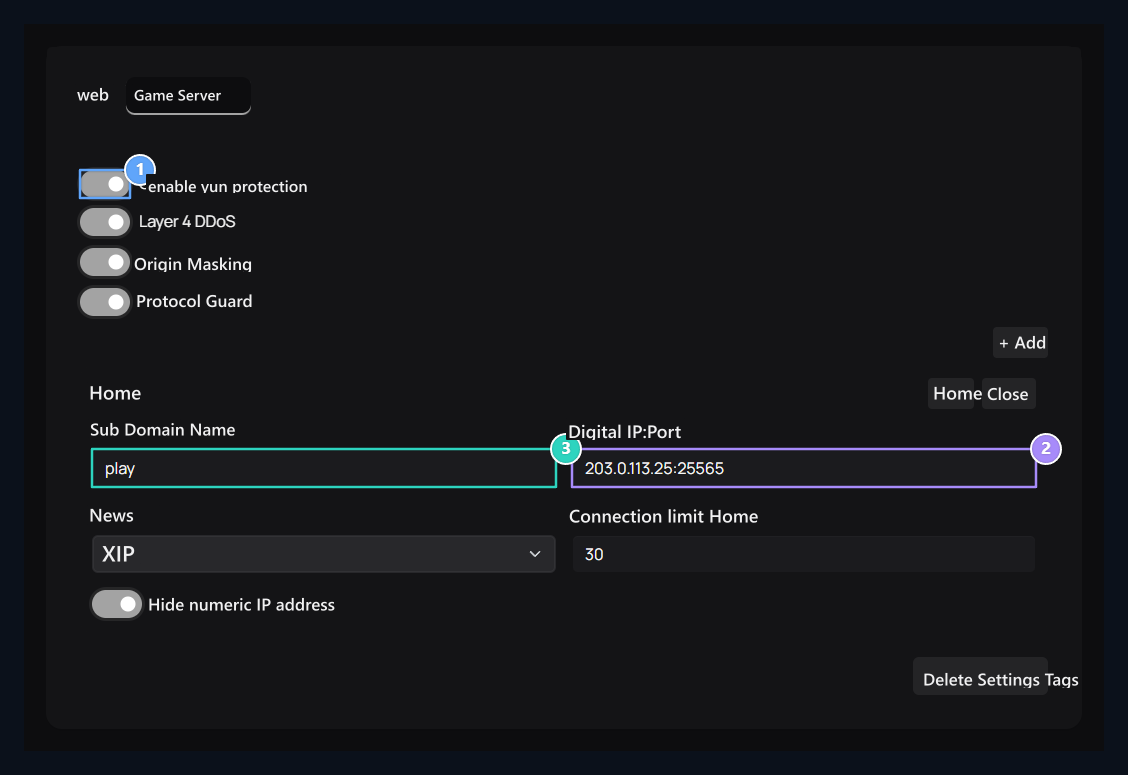
Open game protection, Real server address, User's address

1. Open game protection

Activate the protection on the Game Server tab.

2. Real server address

Type numerical IP and port that the game works.

3. User's address

Match play subdomain with CNAME record on DNS installation.
Game Server Go to the tab, Enable game protection Open and open the option Add Press the button. Prepare multiple games addresses in separate records. Remove removes the corresponding record. Choices Save Settings Apply with.

MOTD and connection error
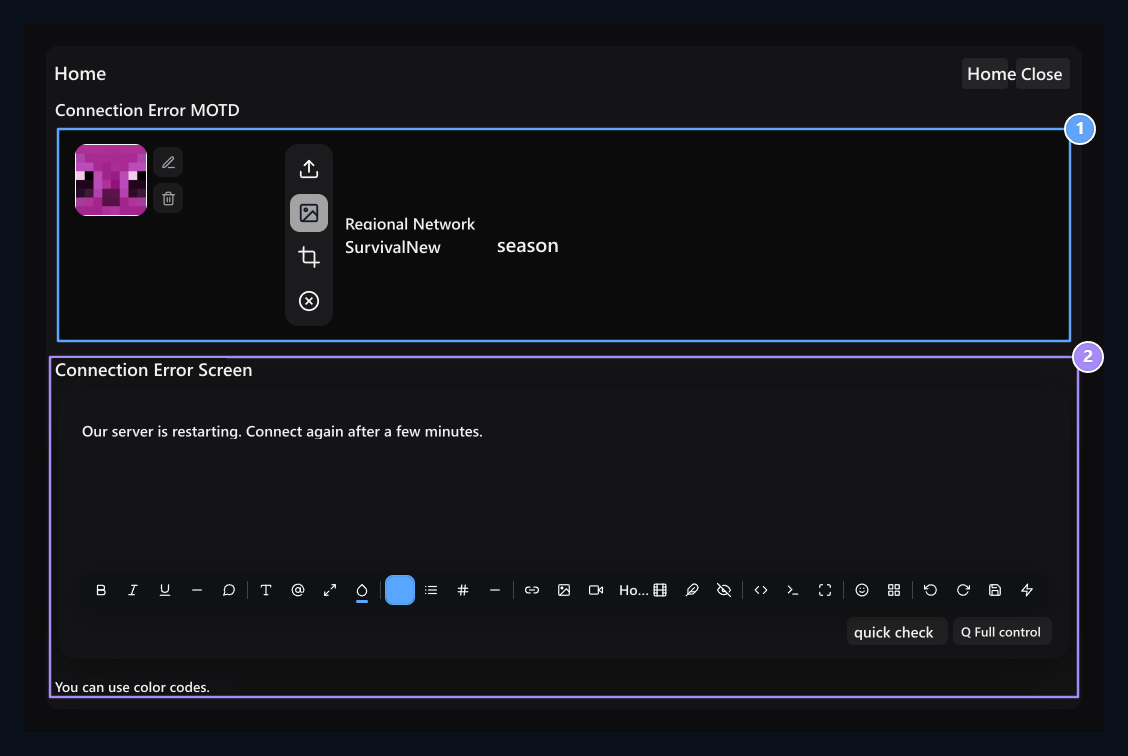
Server list view, Connection error message

1. Server list view

Edit two MOTD lines and server icon.

2. Connection error message

If the server is unable to access, type the description to show.
Two to appear on the server list MOTD type the line and select the icon. Check the color or format codes in preview. Connection Error Screen Enter the description to show when the server is not reached; for example, specify how unexpected it should be during restart.

Get DNS information

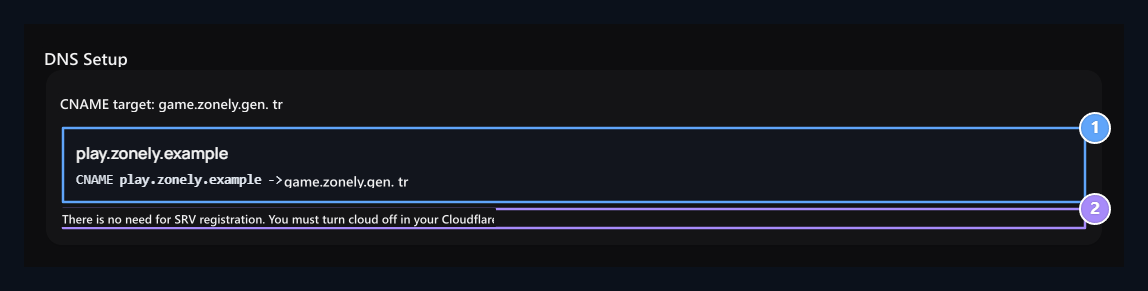
CNAME registration, DNS note

1. CNAME registration

Refer to the CNAME target specified by the subfield name you will use.

2. DNS note

SRV does not need. If you are using Cloudflare, close the cloud and select DNS only.
Game record DNS Press the button. Create the subfield and CNAME target in your DNS provider. Sample play Registration game.zonely.gen.tr orientation to the target; use the value shown on the screen for your own record. No SRV required in this gaming protection connection according to the installation note of the panel; if you are using Cloudflare DNS only selected. The actual gaming server stays in the target area on the IP and port panel. DNS window shows information; you need to add to your registration provider. For Detail Domain Name and DNS See guide.

Prepare the validation view
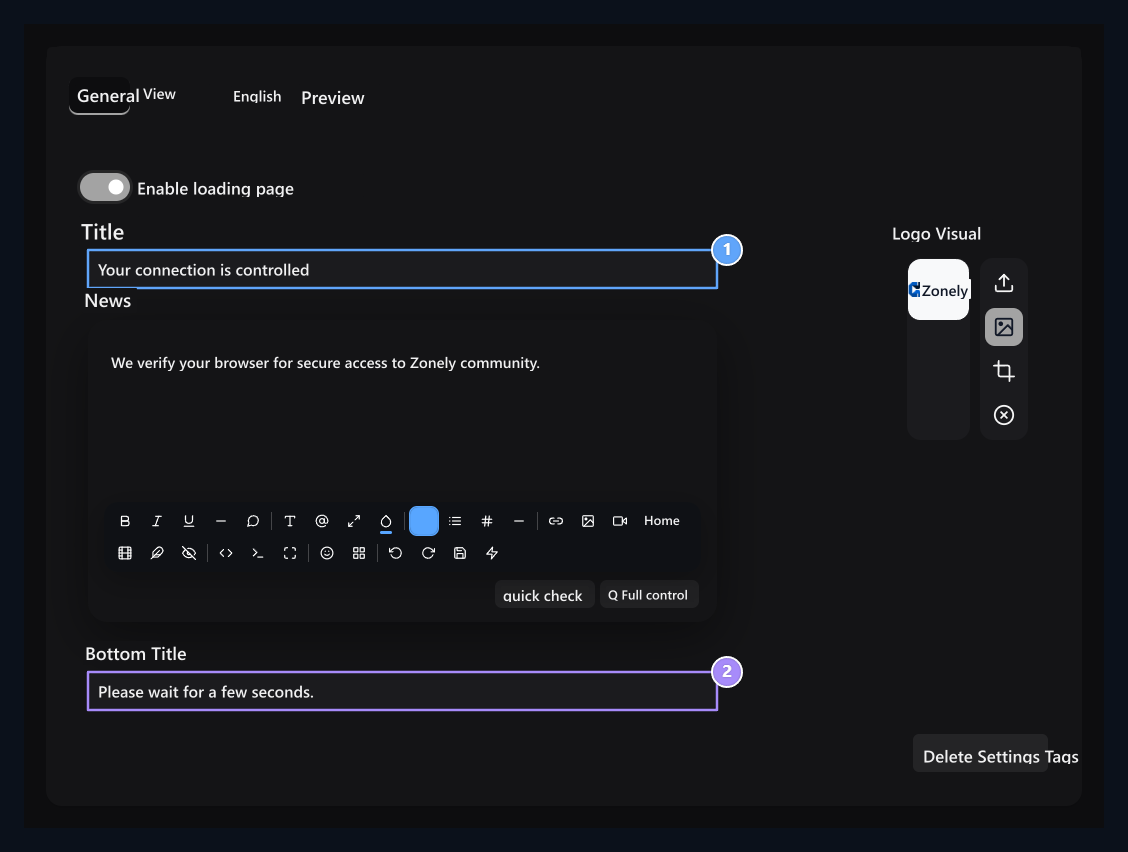
Verification header, Message and subhead

1. Verification header

Tell the visitor to check the link.

2. Message and subhead

Explain the waiting process with text short and understandable.
Verification card General On the tab Enable loading page Open the option. Edit header, message, subhead and logo. Tell the visitor with a short text that the connection is checked and waited.

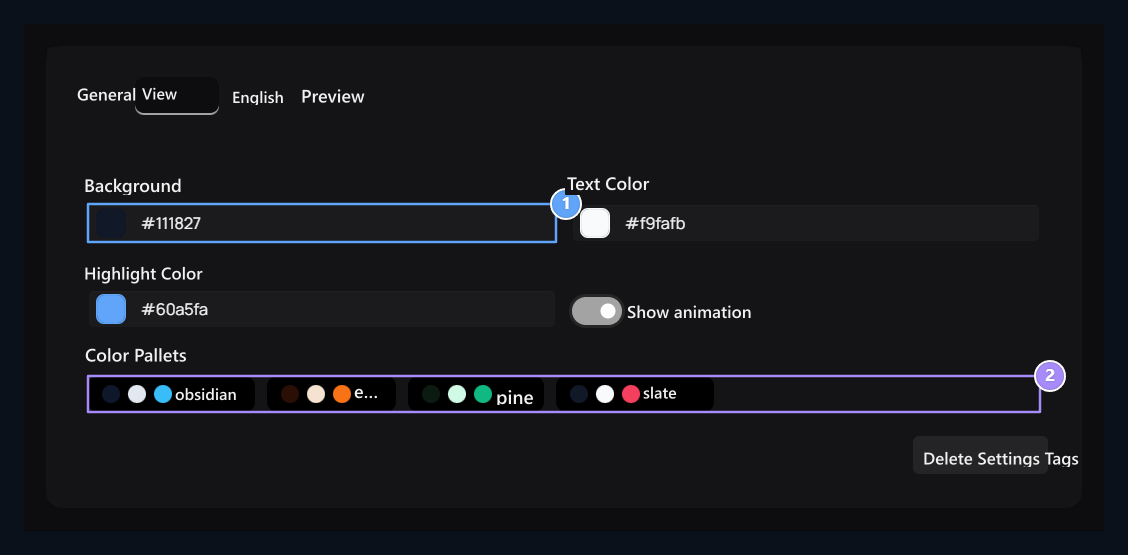
Colors and animation

Readable colors, Ready pallets

1. Readable colors

Select background, text and highlight color together.

2. Ready pallets

You can start with a ready-made pallet and adapt colors.
View Select background, text and highlight colors from the tab. You can start with the ready pallet and change the colors. Show animation Select option according to your requirement and check the text reads comfortable on background.

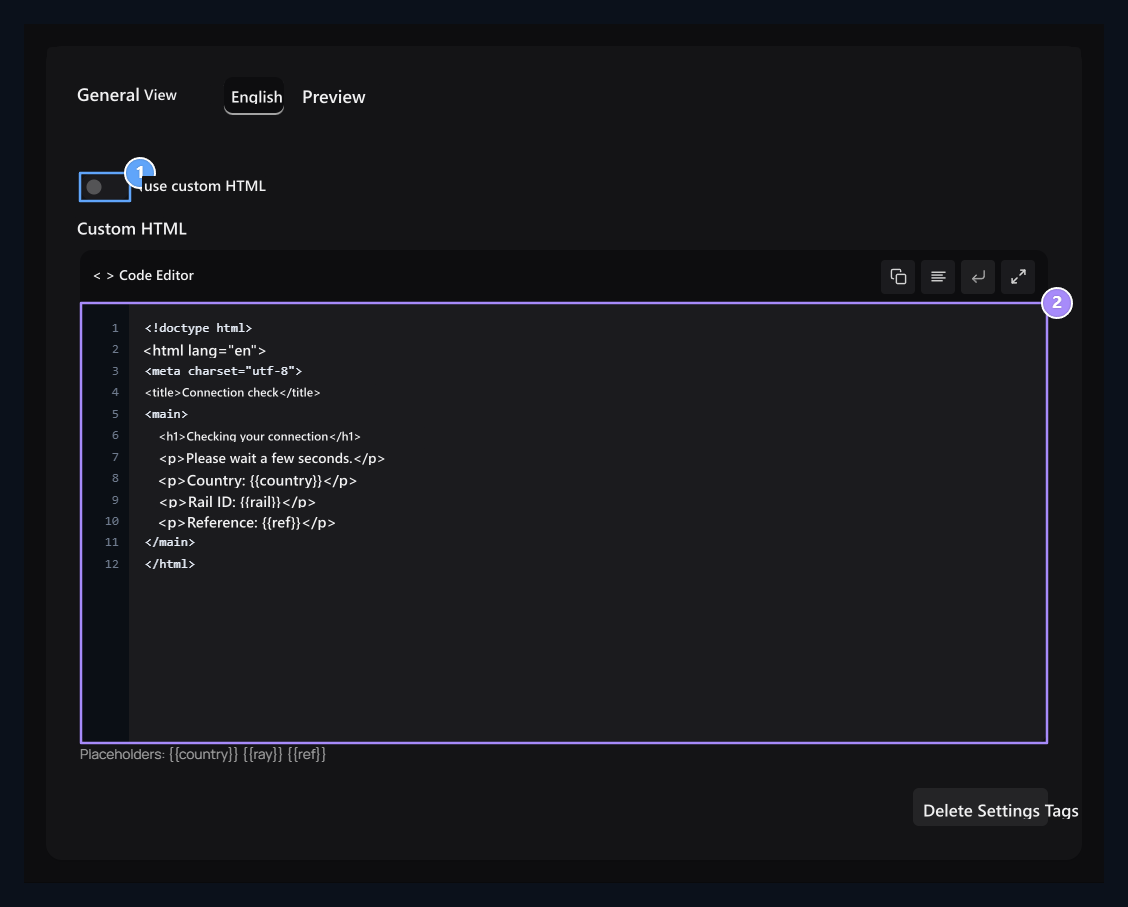
Custom HTML

Special design choice, Dynamic fields

1. Special design choice

Open this option if you will use your own HTML page.

2. Dynamic fields

protect country, rail and ref floor holders in your special design.
HTML On the tab Use custom HTML Open the option and enter your own design. If you will use standard view, leave the option off. Protect the country, Ray and reference placeholders shown in the panel where information will be written:
Standard view Preview on the trackable tab. When custom HTML is selected, panel preview shows information about it instead of running HTML.

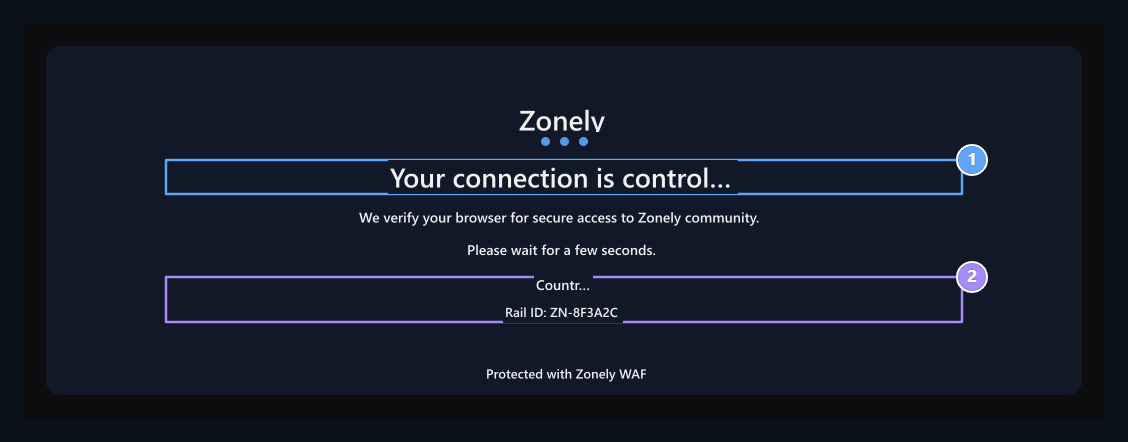
Check the visitor screen

Display, Country and Ray ID

1. Display the visitor sees

Title, logo and description are presented with your choice of view.

2. Country and Ray ID

Match this information with request record while reviewing an access problem.
The header, logo and description that you prepare when you need browser verification are shown. If the user informs the problem of access, the message on the screen, the time and the Rail ID Get information. Match them with traffic records. About text, appearance and protection preferences Save Settings Store with buttons. For general maintenance message System SettingsFor Cloudflare connection Cloudflarefor application movements Pasts Use the guide.