
 Home
 User Guide
 Developers
 Payment Gateways
 Integrations & Tools
 Site Usage
 Troubleshooting
Find the theme you will use
Close All, Game, Digital, SMM Panel, AdminCP and Other Select one of the categories. Search type theme name, description or maker in the field. Check the name, version and the process you can use on the card.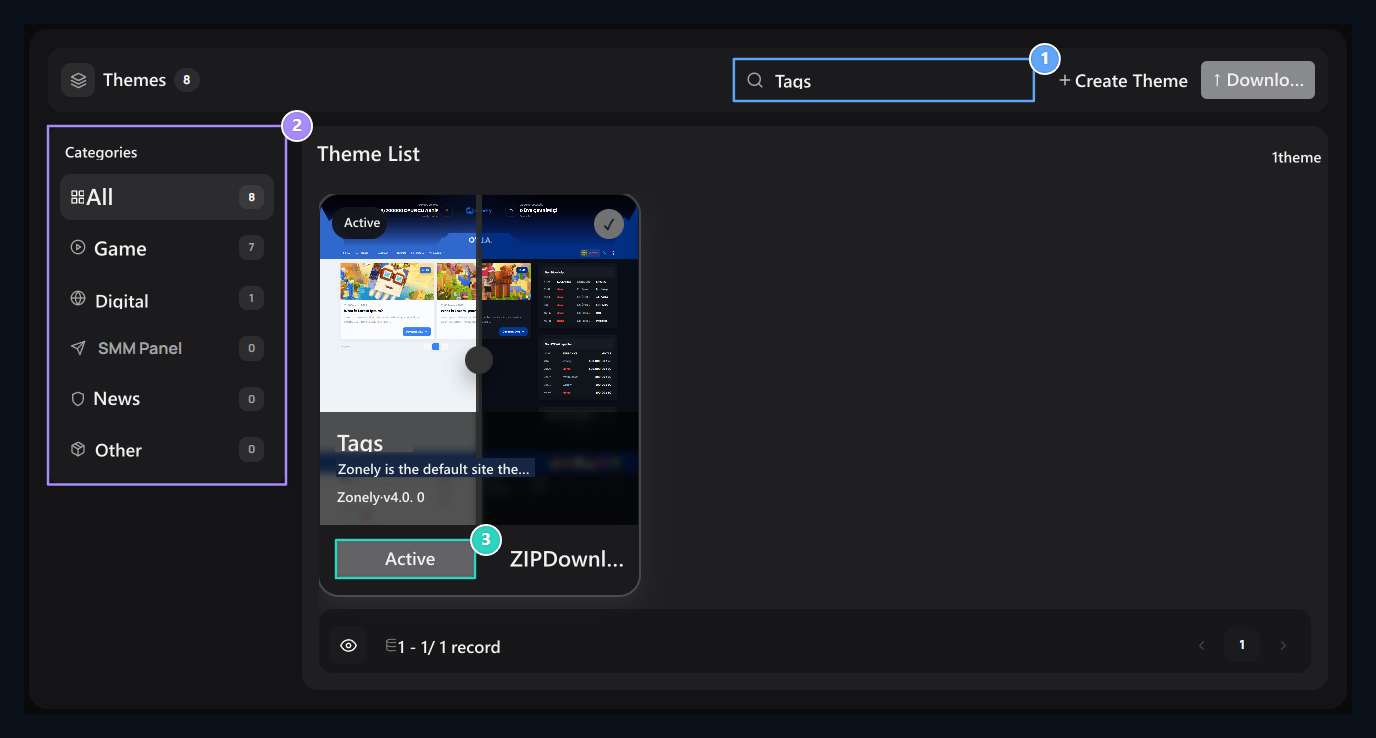
1. Search
Search for name, description or producer.
2. Categories
Unleassemble list according to the type of theme.
3. Active theme
The theme used is marked actively.
Compare open and dark view
Drag the handle on the visual of the card right or left. Open and dark previews are compared in the same area. This movement does not change the selection of the theme.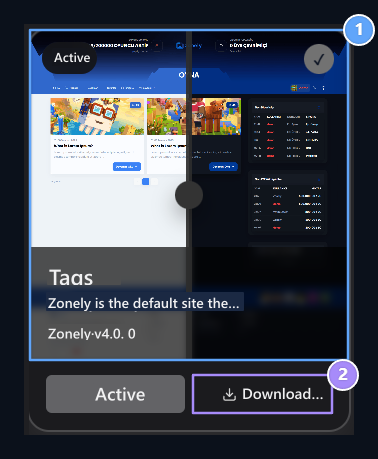
1. Open/dark preview
Compare by scrolling the slider in the middle.
2. Download ZIP
Download the allowed theme package.
Create new theme or install ZIP
Create Theme Press button, type the theme name and Create complete with. The new theme is prepared from the base. You can edit and activate it after you appear in the list.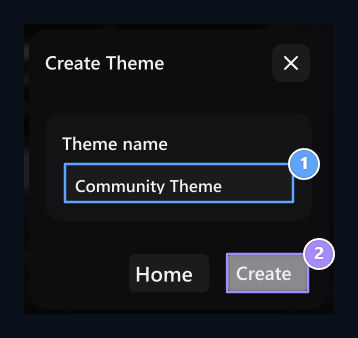
1. Theme name
Type the name of the new theme.
2. Create
Default-based creates new theme.
theme.json Select the theme ZIP file containing. At most 30 MB file is accepted; the file selection starts loading.
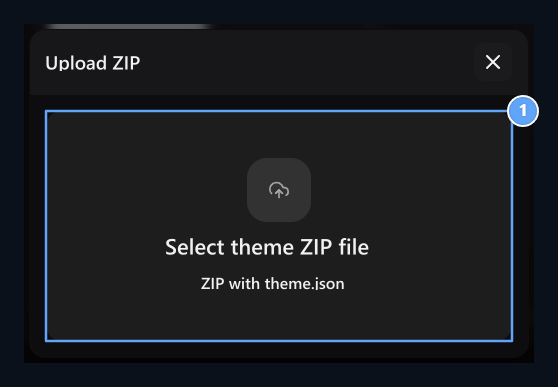
1. Theme ZIP file
Select the package with theme.json.
Edit the theme of you
Your own theme card Edit Open the option. Sales, Updates and Blocks is also managed from this card. In the theme published in the community Remove from BroadcastEnd community broadcasting.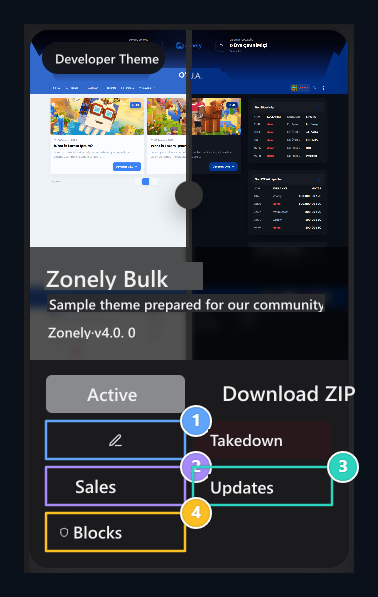
1. Developer Theme
Editing and distribution processes appear in the theme owner.
2. Sales and updates
Open the list of license, version and blocking.
3. Updates
Review the theme versions or prepare new version.
4. Blocking
Open usage events and unenforced obstacles.
Ad, producer, description and version
Theme name is the header of the card. Producer type developer or team name in the field. Description tell the purpose of the use of the theme; Version in the field1.1.0 Use a distinctive value like. Categories multiple selectables and determines groups to list the theme.
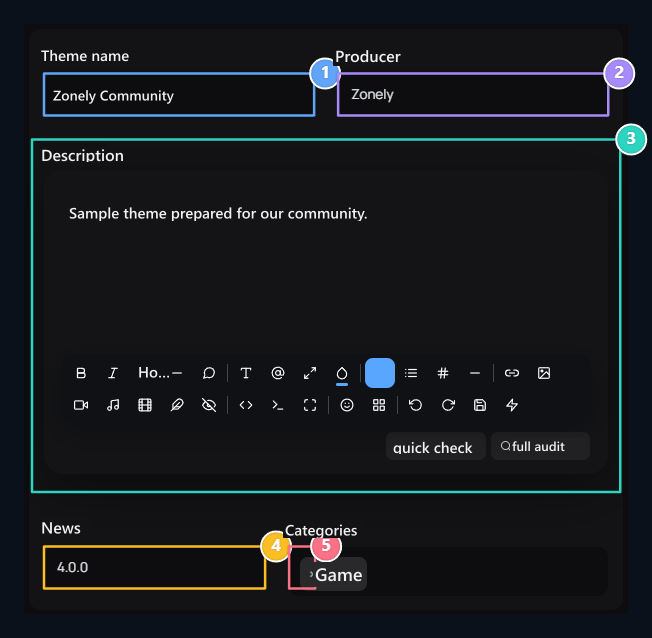
1. Theme information
Edit Ad, producer, description and version.
2. Producer
Write the developer or team name that will appear on the theme card.
3. Description
Tell the characteristics and purpose of use of the theme.
4. Version
Use a version that can be distinguished on each new publication.
5. Categories
Select the types to list the theme.
View support and previews
light and dark Open the support separately. The visual area of the active view opens. light visual for open, dark visual Select the dark theme screen for; check two previews after changing the file.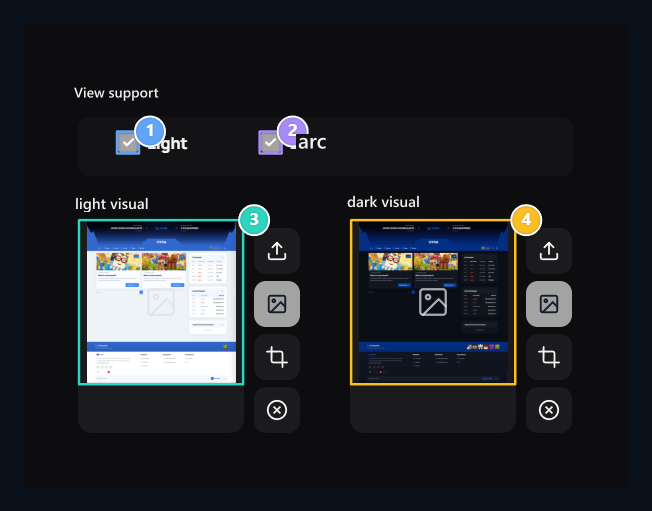
1. View support
Select the Light and Dark support separately.
2. Dark view support
Set the Dark view support stand out of open view.
3. Previews
Separate visual for open and dark appearance.
4. Dark preview
Select the visual of the dark view.
Publication and fee
open to everyoneThe choice of presenting the theme in the community. When Opened Free / Paid selection appears. Paid theme Price normal amount, Discounted price if you have a discount on the application.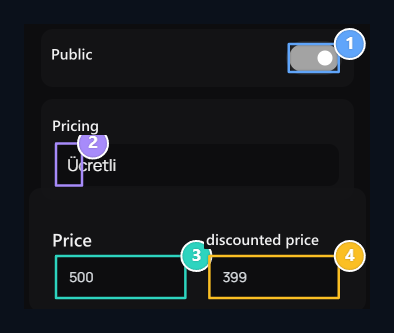
1. Open to everyone
The theme determines the appearance in the community.
2. Charge Type
Select free or paid use.
3. Pricing
normal price 500, discount price 399.
4. Discounted price
Enter the discounted sales amount if available.
Distribution and protection
Code minification and license trace distribution preferences. encryption When it comes to JavaScript and CSS-protected installer options appear. Encryption scope Select all CSS/JS files or files that are replaced by the only developer.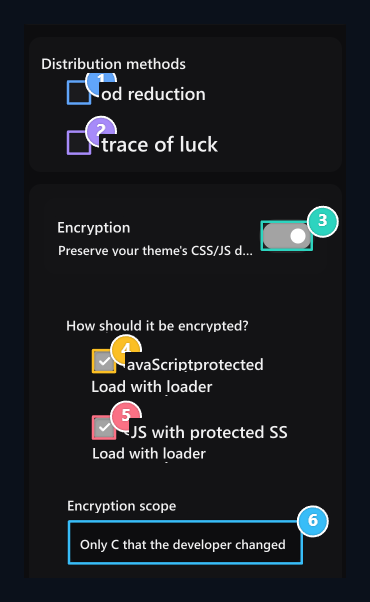
1. Code minification
Choose whether code is minified in the distribution.
2. License mark
Select the protections to be used in distribution.
3. Encryption
JS/CCC loader and scope options.
4. JavaScript protection
JavaScript files are the option to deploy with the protected installer.
5. CSS protection
Uploads style files with JavaScript installer protected.
6. Protection scope
Select all CSS/JS or files that are changed by just developer.
License and support
License duration entered the day; 0means untime use. Support on the floor Support address type full link to the field. portable licenseThe choice of the license to be moved to another domain. All the edits window Save Apply with button.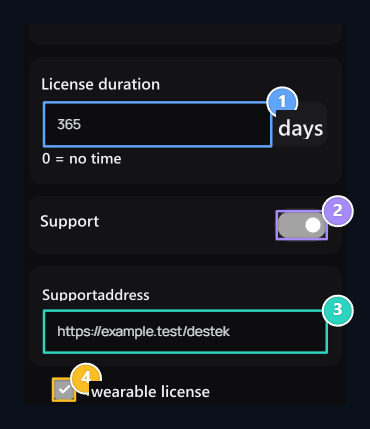
1. License time
0 value is for your period license.
2. Support
Determine whether the support connection is used.
3. Support address
Type the connection when the support is open.
4. Portable license
The domain name determines the transport permission.
License on behalf of a domain
In the theme card Sales open the part. Licenses are listed with domain name, start, finish, status and transportation information.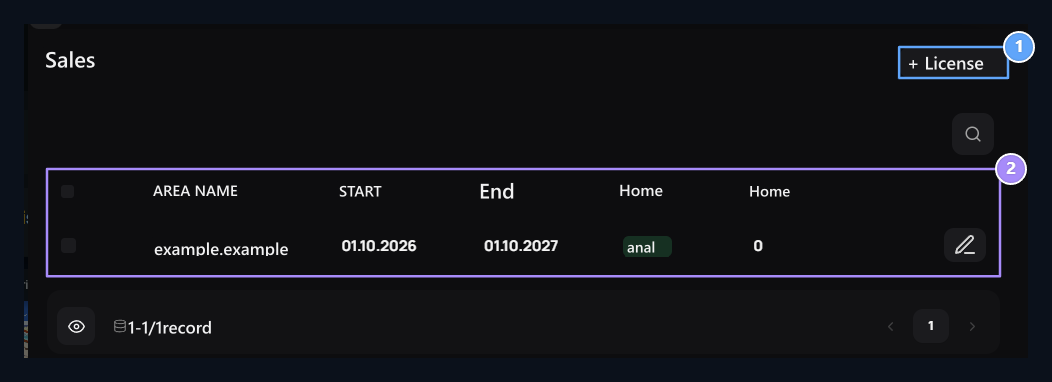
1. License
It opens the form of license identification on behalf of a domain.
2. Licenses
Check domain name, start, finish and status.
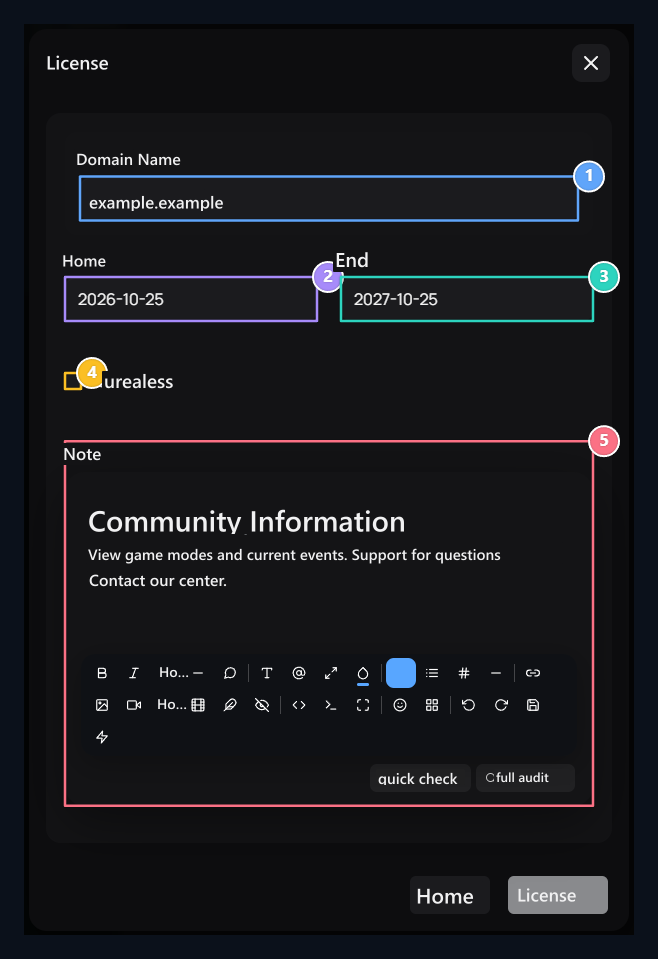
1. Domain name
The domain name to be used by the license.
2. Start
Select the date to start the license.
3. Finish
Select the date of the period license will be finished.
4. No Time
Selecting the durationless usage instead of the date of finish.
5. Note
Add your description to the license registration.
Release the theme update
Card Updates Check the release, header, source and release date in the section. Publish button opens new version form.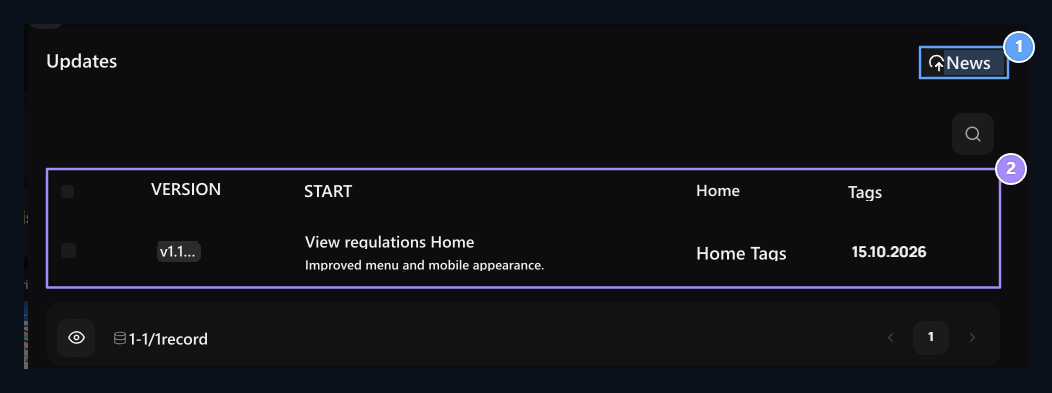
1. Release
The theme owner’s release form.
2. Updates
View version and release information.
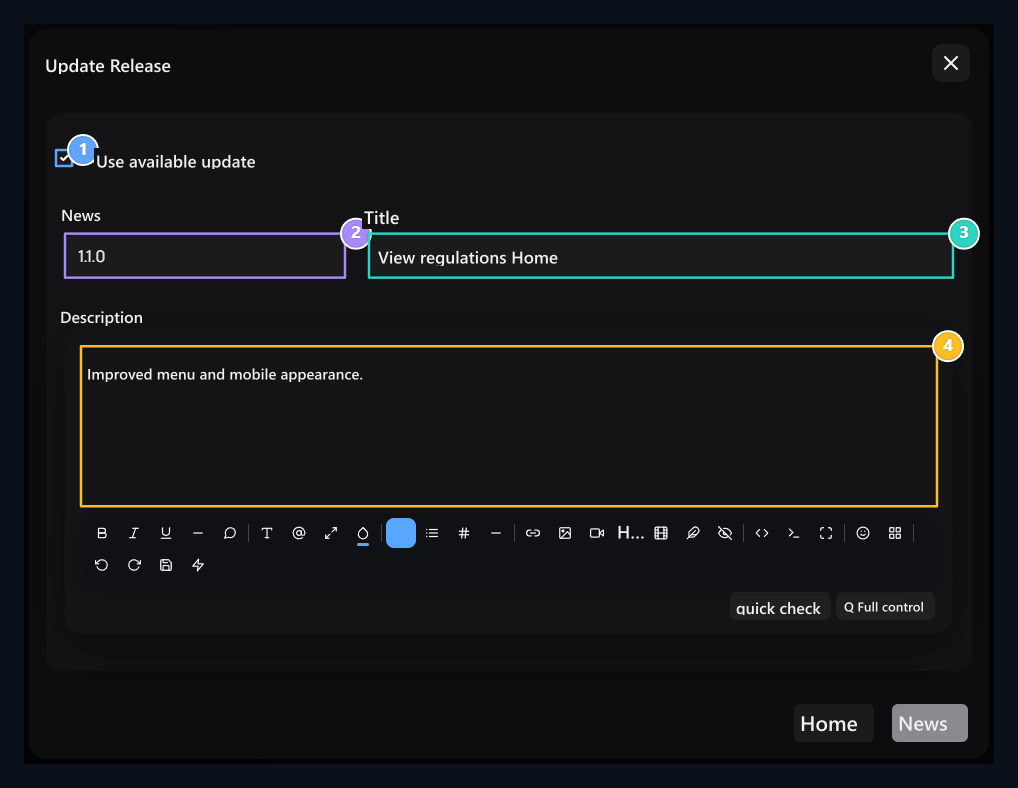
1. Use current update
If closed, ZIP and JSON fields are opened.
2. Version and header
Fill out the information that distinguishes the update.
3. Update header
Type the forward change of the version.
4. Version note
Explain changes and installation steps if you have.
View and blocks
Blocks The domain name/IP above the section contains event, detail and date records. Home Banned AccountsThe barriers applied separately.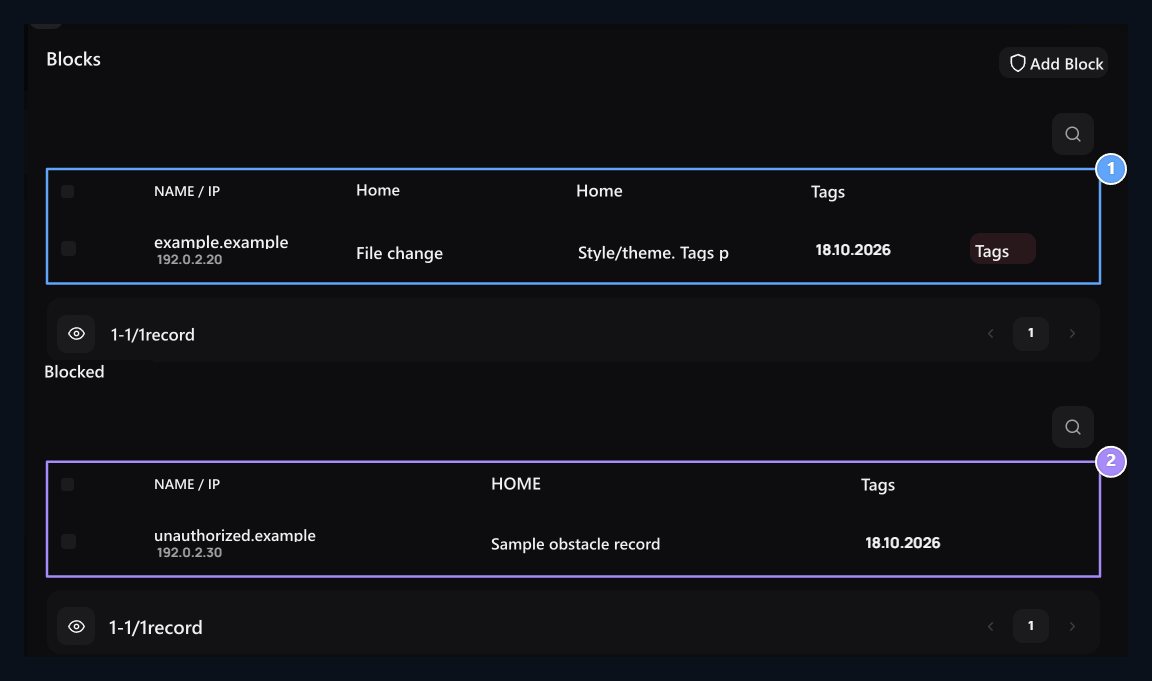
1. Integrity records
Domain name, IP and change detail.
2. Barriers
Available obstacles are listed separately.
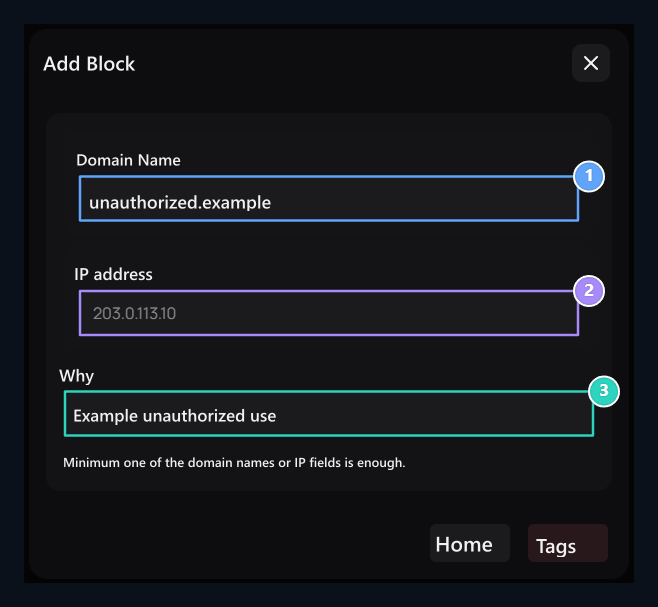
1. Domain name or IP
You need at least one target information.
2. IP address
Enter the IP address to be blocked with it or instead of the domain name.
3. Why
Type the block’s ground.