
 Home
 User Guide
 Developers
 Payment Gateways
 Integrations & Tools
 Site Usage
 Troubleshooting
Prepare a visual and text
Add Popup Press the button. Popup Image Select file from the upload icon in the field or open the library from the image icon. Visual is mandatory. Check the important details in the preview remain in the cadraj.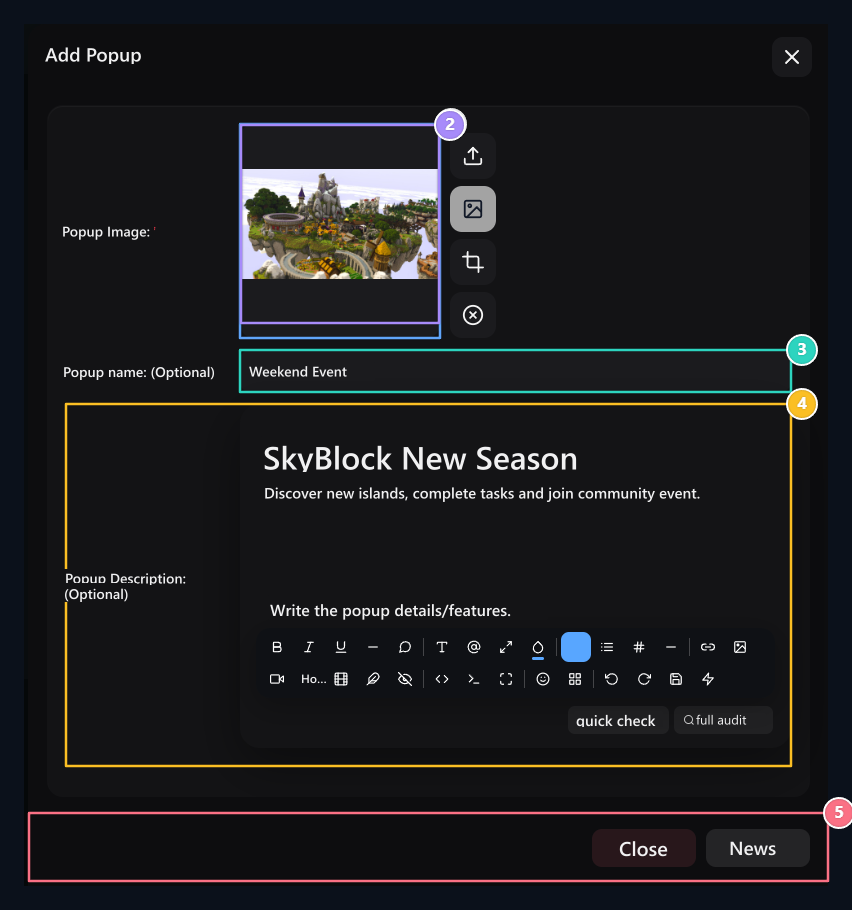
1. Announcement visual
Upload up arrow or select from the library from the image icon.
2. Visual preview
Check the cadance to be used after selecting the file.
3. Title
Brief announcement header to show on the pop-up window.
4. Content
The text is formatted; then save it with the insert button at the bottom.
5. Complete Form
Removes from close form; creates button recording on the right.
Change the current announcement
Sign up and log in list Transactions → Edit Open the option. Change the visual, header or description and complete the editing screen with the registration button. Copyis for preparing a new record with similar content; check new headers and links.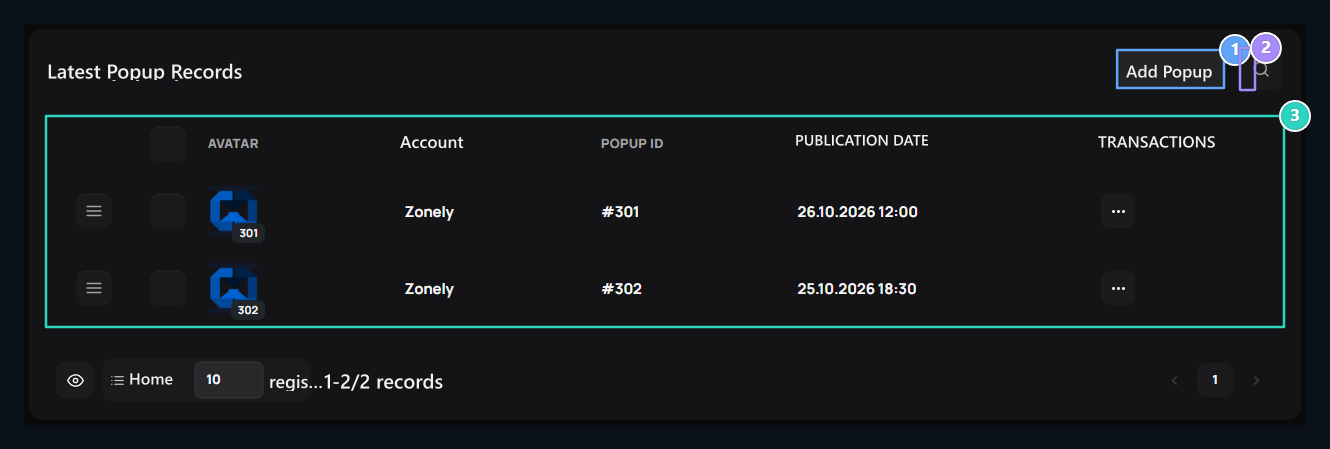
1. Add Popup
This button on the top right opens the new drop-down announcement form.
2. Search for registration
Disconnect existing pop-ups from this area.
3. Announcement list
The account, Popup ID and date of publication appears here.