
 Home
 User Guide
 Developers
 Payment Gateways
 Integrations & Tools
 Site Usage
 Troubleshooting
View the list of goals
Add Target opens new recording screen. Follow the status and values of the existing target from the list. Change registration in the process menu of the line to change Edit Use option.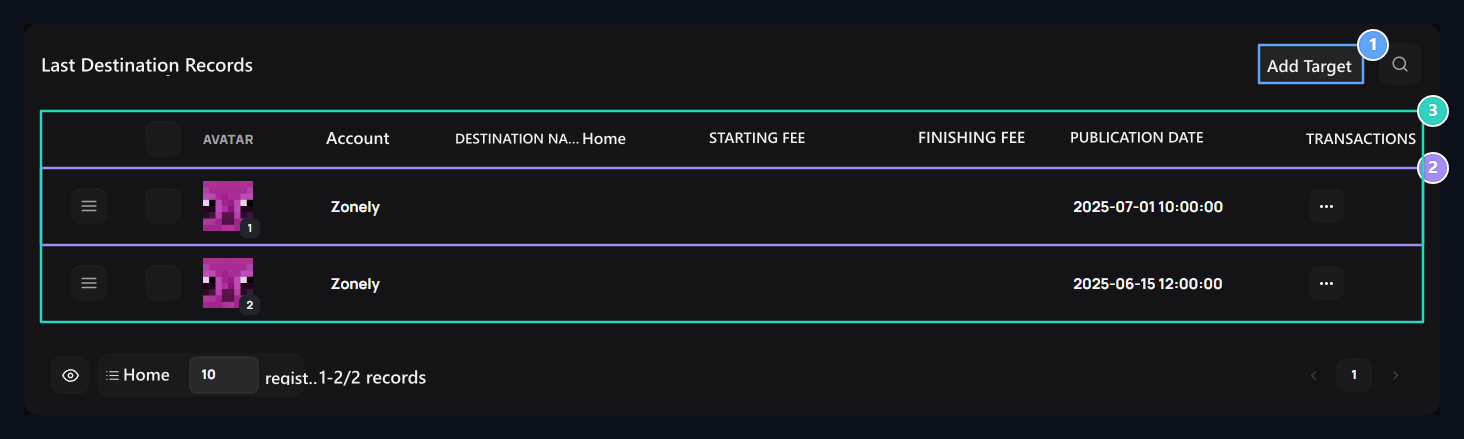
1. Add to Target
Prepare the header and amount of the new target.
2. Registration line
Access editing options by opening the trading menu of the existing target.
3. Target list
Check records and values shown in the list.
Prepare headers and values
Title type the name of the target in the field. Description Tell the purpose of the target and the planned innovation when it is completed. Set the goal to be reached with the current value to understand users’ progress.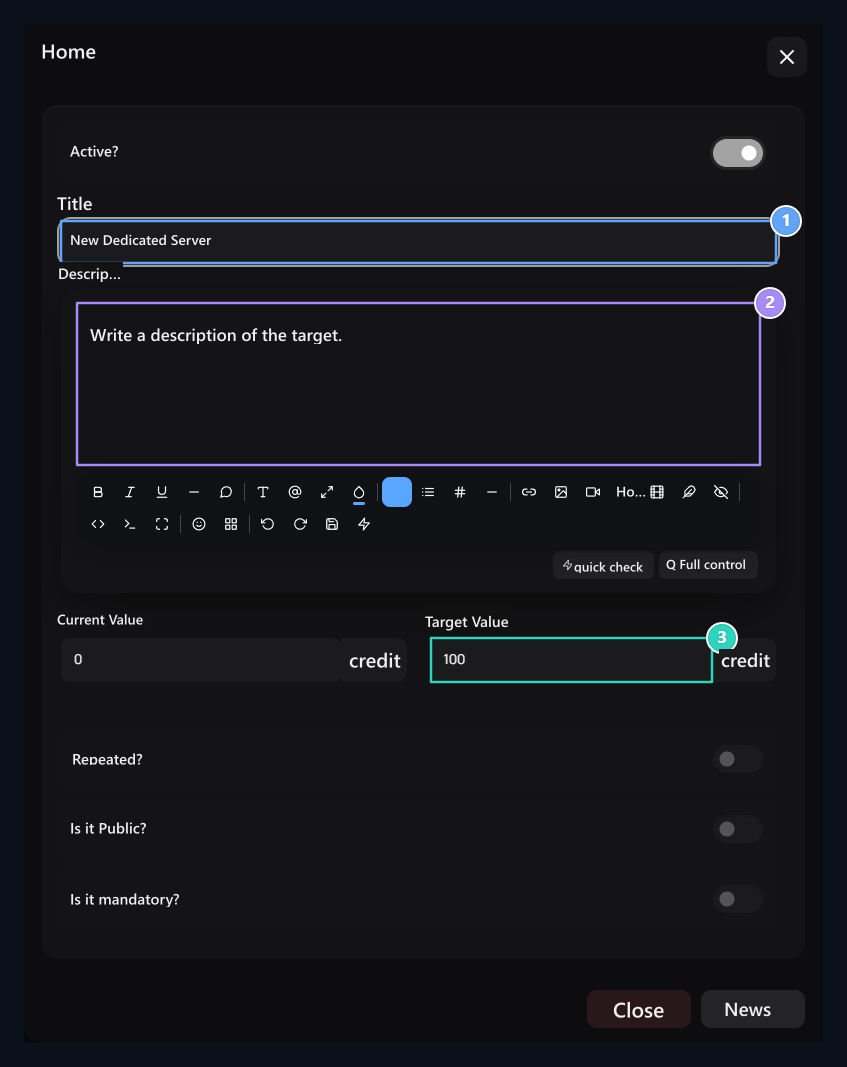
1. Title
Type the target name users will see.
2. Description
Tell the purpose of the target to the community and the planned innovation.
3. Target Value
Select the total amount you want to reach.
Visual Available Value 0, Target Value 100 Credits prepared. Enter the values of your own target with the same unit. Under Screen Is it repeatable?, Is It Open To Everyone? and Is it mandatory? Select preferences according to the use of the target.
Review and review of the areas Publish Press the button. Use the same record and registration button for change.
Check user view
The target area header in the store combines the current and target amount, progress indicator. Check your selection and ranking of the recording shown if you have multiple goals.
1. Collected and Target Balance
Total credit targeted and the amount of support made up to the moment.
2. Progress Level
Dynamic percentage dial that instantly displays the target rate of collected support.
3. Campaign Title
Information of the community target that meets users in the store.
Check user view
- Is the activeness, header and description of the target correct?
- Is the value available and the target value shown in the same unit?
- Do progress in the store match the record on the panel?
- Have you registered the change if you have changed the list queue?
Store settings
Prepare the general settings of the store.
Seasons
Match game statistics and prepare season.