
 Home
 User Guide
 Developers
 Payment Gateways
 Integrations & Tools
 Site Usage
 Troubleshooting
Add a widget
Add Widget Press the button. Title type the name the visitor will see in the field. Widget Type Select content to show from the list.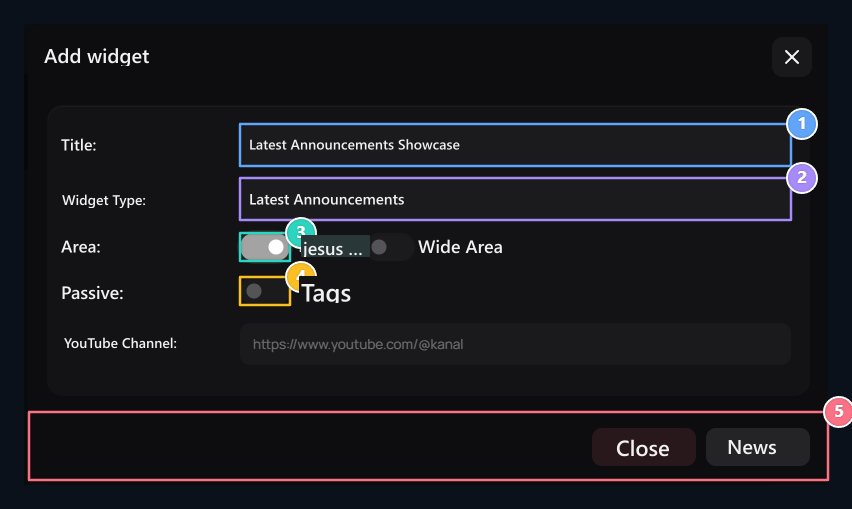
1. Widget header
The header text on the page that will be placed on the block.
2. Widget type
Latest Announcements, Credit Uploaders, Statistics or Select Private Area.
3. Area width
Select the Short Area (dar column) or Wide Area (full line).
4. Passive status
If the component is marked, the component remains hidden on the homepage.
5. Release Registration
Use the Play button to finish and publish areas.
Select which type you will use
- Latest Announcements: Shows the announcements you have published.
- Last Registrations, Last Orders: Shows relevant user and order records.
- Latest Credit Loads, Most Credit Installs: Offers credit information based on the nearby or total loading.
- Frequently Asked Questions, Last Customer Reviews, Our Team: Uses prepared content and community areas.
- Statistics, Active: Offers site data with respect.
- Header Product Search, User Search: Adds the relevant search space.
- YouTube, X: Shows the content of your selected social account.
- Private Area: Uses your own HTML content.
Add YouTube or X account
Type YouTube and channel field Home type channel ID or channel address starting with. Check the videos of the right channel after the registration is released.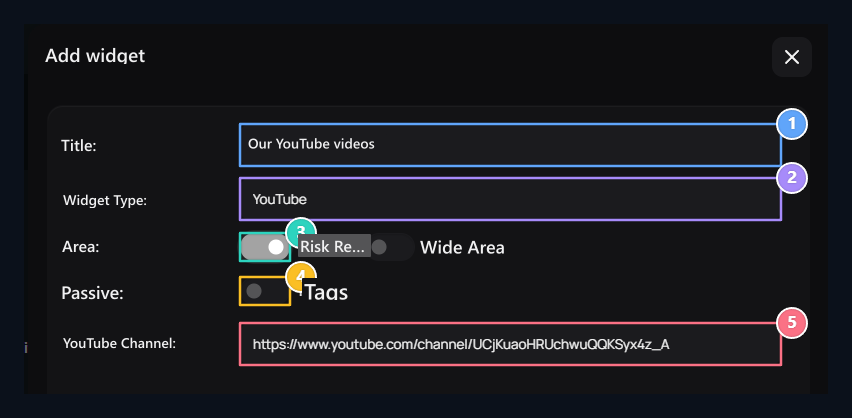
1. Title
Type the header of the video space on the home page.
2. YouTube type
Select type to show channel videos.
3. Area
Select short or wide settlement.
4. Passiveity
Open the passiveness if you want to hide the content.
5. Channel
Enter the channel ID or channel connection.
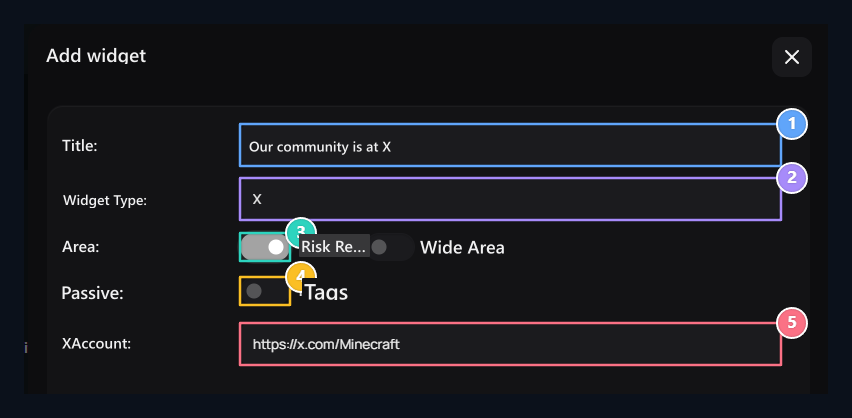
1. Title
Set the title of the social account area.
2. X type
Select the corresponding type for X profile flow.
3. Placement
Set the layout of the flow.
4. Visibility
Registration can be displayed when it is closed passive.
5. Account
Enter the username or address of the user account open to everyone.
Use Private Area for Your Own Content
Type Private Area Select. Type your content with header, description or link to the pop-up HTML field. For example, you can prepare the event with a header, short text and participation link.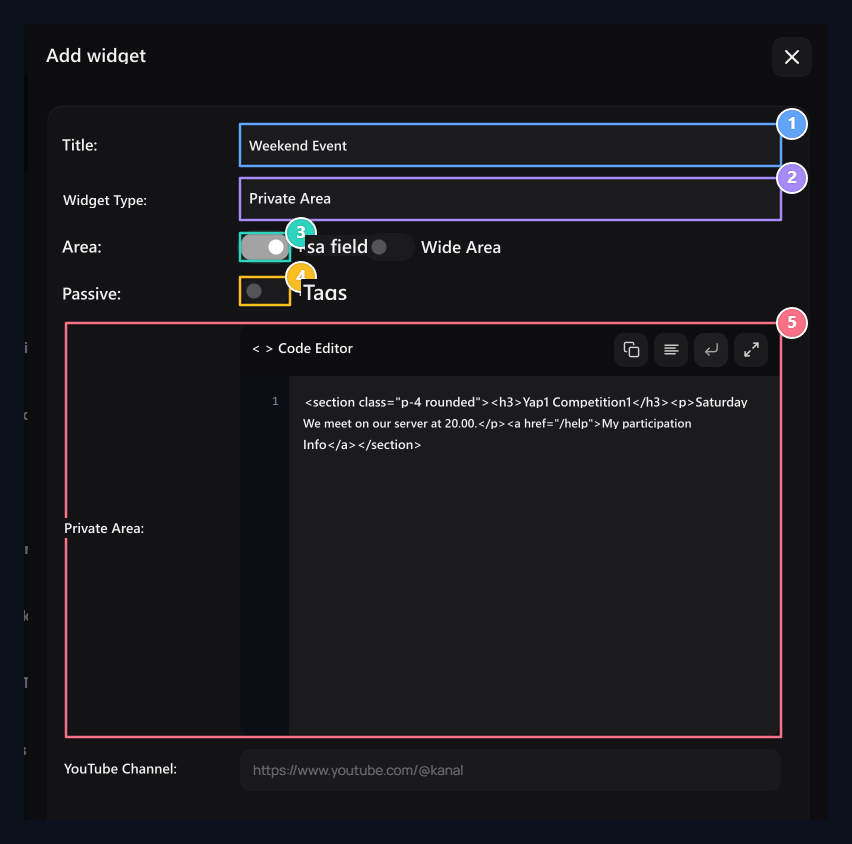
1. Title
Type the name of the private area.
2. Private Area
Select this type for your own HTML content.
3. Area
Set short or wide settlement.
4. Passive
Specify the preference to hiding content.
5. HTML content
Prepare header, description and link in the code field.
Edit and sort from list
The list contains header, type and status information. Find a search area; Transactions → Edit open the header, type, layout or passive adjustment with. Complete changes with the registration button on the editing screen.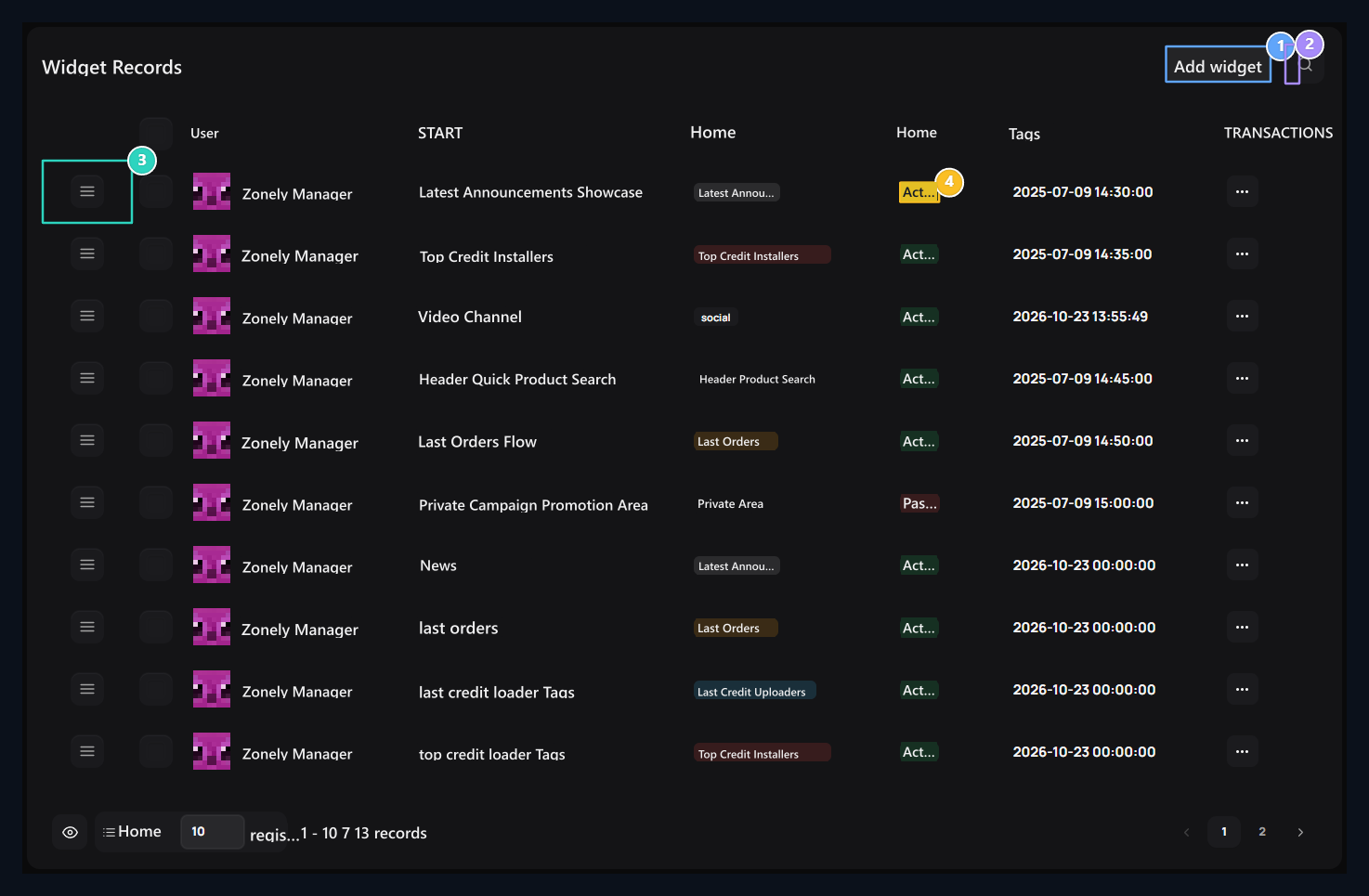
1. Add widget
Adds a new content or system display component to the home page.
2. Quick search
Filter components in the list according to the header or type.
3. Ranking arrester
Edit vertical display queue on the home page by dragging.
4. Active/ Passive status
The component will indicate that it will not be shown instantly on the site.
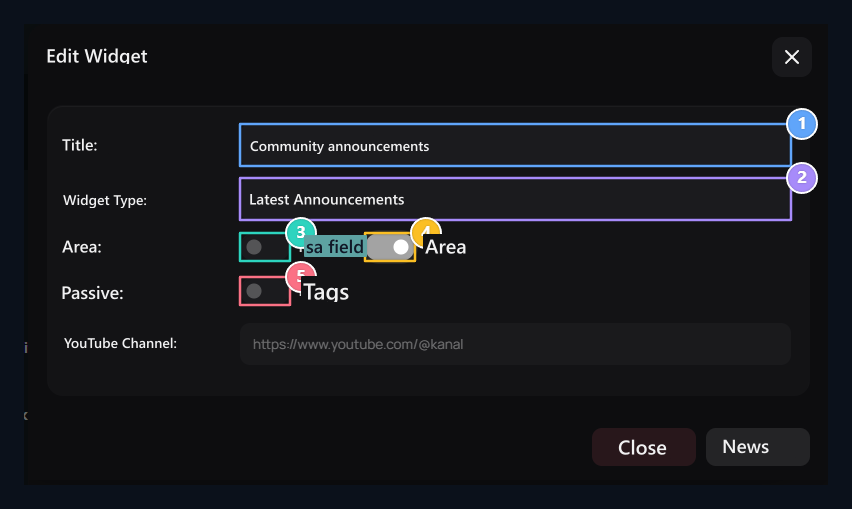
1. Title
Change the current header.
2. Type
Select the site information to show.
3. Short field
Select narrow column settlement.
4. Wide area
Select full line layout.
5. Passive
Open to hide registration.