
 Home
 User Guide
 Developers
 Payment Gateways
 Integrations & Tools
 Site Usage
 Troubleshooting
Connect the server
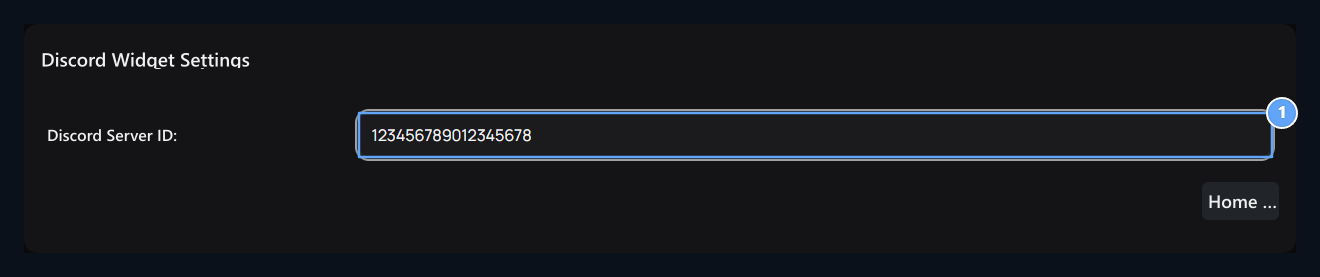
1. Discord Server ID
The numerical ID of the Discord server to show in the widget.
Edit the settlement
View → Widgets → Add Widget open the way. Discord or Social Media → Discord Select type. Fill and save header, server ID, height and narrow/wide space preference. When you create separate Discord widget, its layout is used. The automatic Discord area is not shown when you get this registration passive. Position and view steps Widgets is in the guide.Check out the view
Check the home page and the right server and the layout you choose. Before the empty space, check the server’s widget preference, recorded ID and status of the private widget. Also to connect bot to server or peer user roles Discord Bot Use the guide.Enable Widget in your Discord server settings using an account with permission to manage it. Then save the server ID in Zonely. If the widget is disabled, its content may remain unavailable even with the correct server ID.