Addons On screen friends Activate the record. User account menu my friends opens the friendship panel with the connection.

In-game friendship with ZonelyCore

Friends system Compatible with ZonelyCore. When you connect your Minecraft server to the site, you can use the friendship feature with the in-game system, track the online status provided and the server with your friend from the site. ZonelyCore installation Complete and activate the related friendship feature on the server.

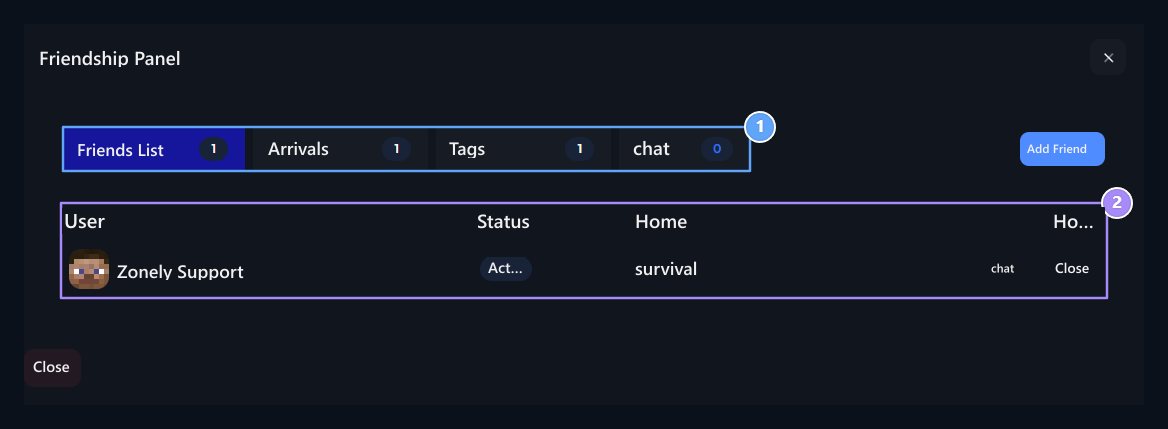
Open a list of friends

Tabs, Friends

1. Tabs

List, incoming and outgoing requests chat with.

2. Friends

Online status and server information will appear together.
Friends List The user name, status and server information appears on the tab. chat opens speech with selected person; Remove starts the removal process of friendship. Add Friend Press the button, search for the user and select the result and send the request. Friendship is set when accepted by the request. Check that Minecraft account is paired on the installation that wants game ID.

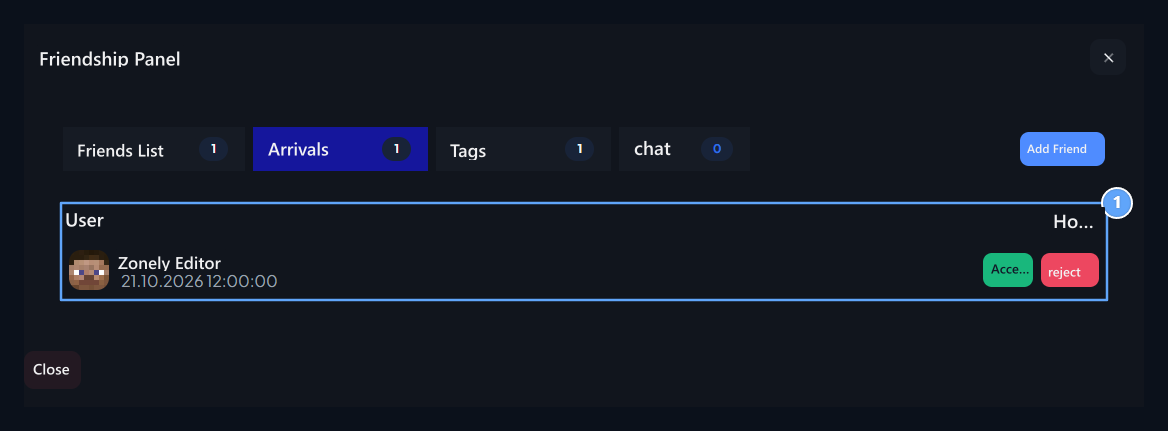
Reply your incoming request

Incoming Requests

1. Incoming Requests

It is responded to one of the accepted and Reddet options.
Incoming Requests Read the sender and date on the tab. acceptance or friendliness with Reject back the request with. Tab counter shows the waiting requests.

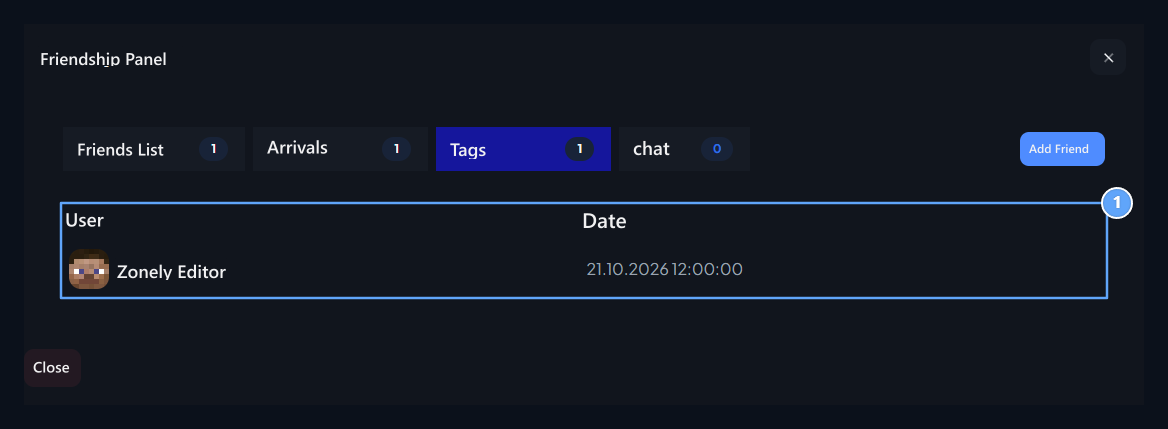
Follow the requests sent

Outgoing Requests

1. Giden Wishes

Requests that are sent to the opposite party.
Outgoing RequestsLists the requests you send and respond to. The accounts here may not be added to your friend list yet; wait for the corresponding person’s response.

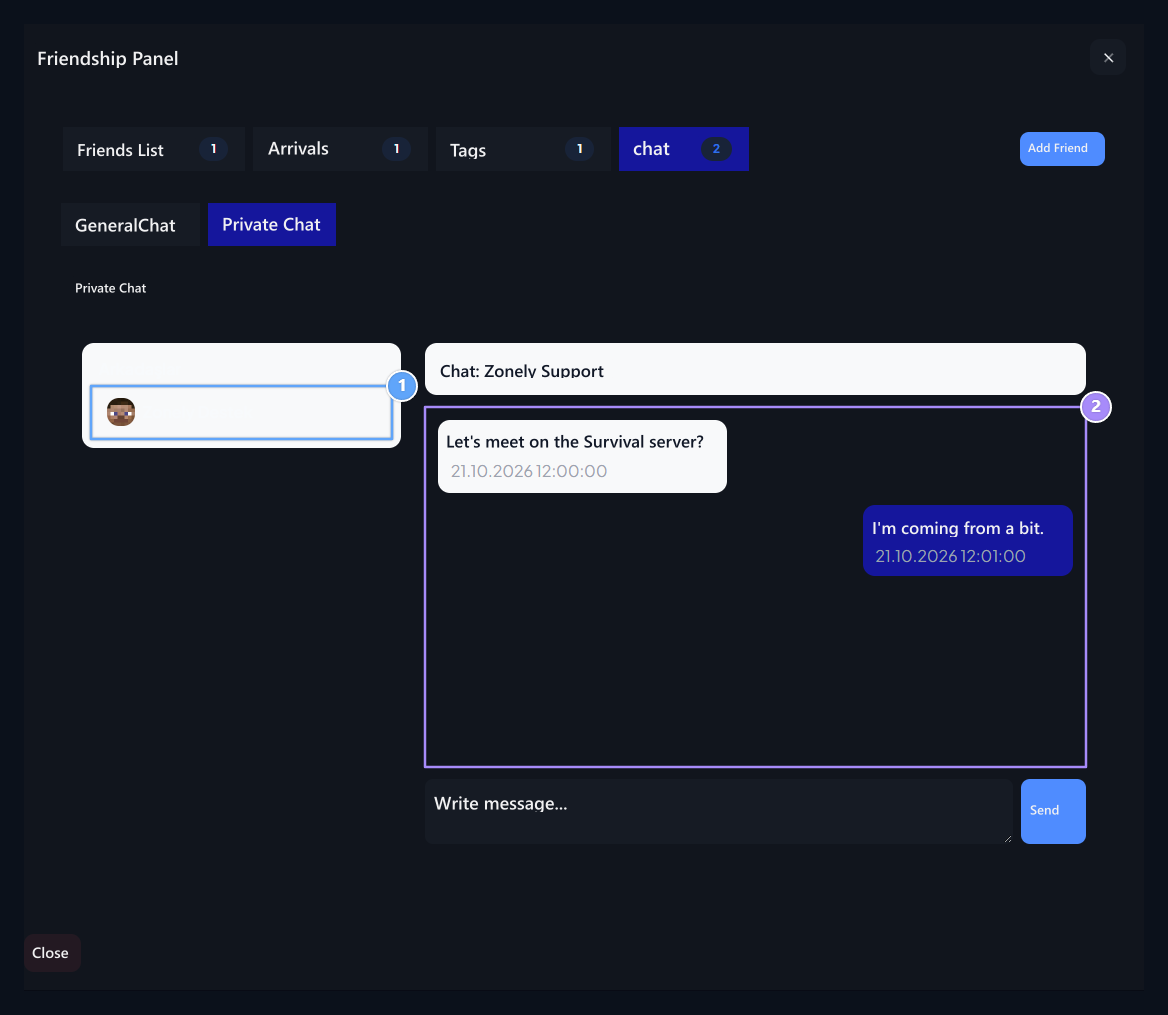
Open private conversation

Friend selection, Private chat

1. Friend selection

Select your left friend for private conversation.

2. Private chat

Send your message to selected conversation.
Chat → Private Chat Select your friend from left to the part. Check the name of the right person on the top; write the message to the bottom area Send Press the button. For common message field General Chat Use the part.