
Management panel → Support Management → Settings Edit the general preferences of the support system from the section. Categories, ready answers and interviews Live Support managed from the section.

Set the active demand limit

Unlimited A numerical active demand limit is not applied for the user while open. Close this selection to use the limit Maximum Number of Active Support fill in the area. Active demand limit

1. Active demand limit

Type the number of requests that can be kept open simultaneously when it is unlimited.
Sample 3 selected. This is the limit of the active support demands that a user can keep open simultaneously; there is no total demand or number of messages that have been submitted in the past. You may want to write additional information about the same question from the user to the current interview.

Prepare message template

Support Message Template Edit the text to be used when preparing support message in the field. **%message%**the content of the message; **%username%**represent user name. Support message template, Email notification
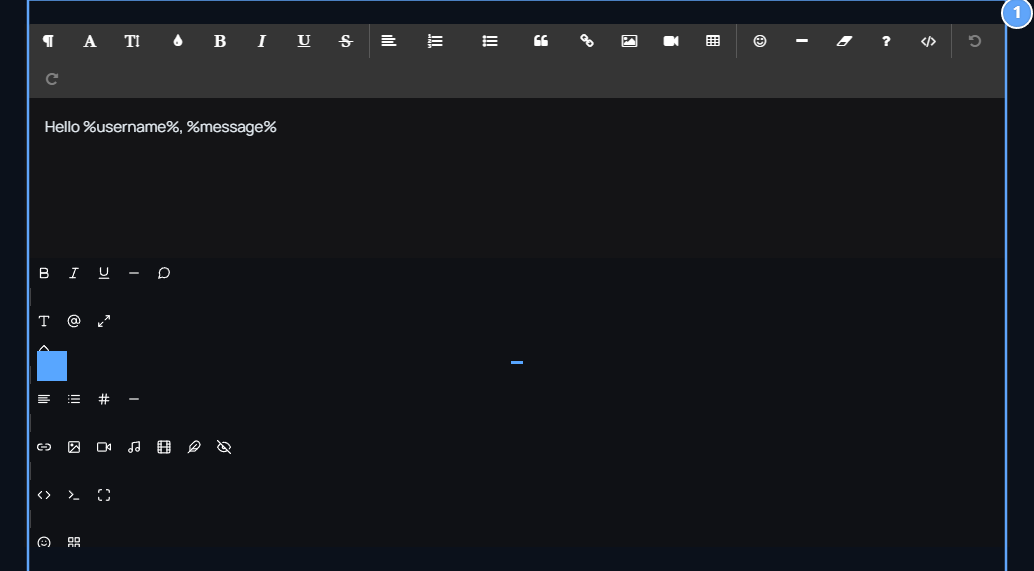
1. Support message template

Use %username% and %message% variables; %message should be in text.

2. Email notification

Open or close support mail notification.
For example Hello %username%, %message% You can use the template. %message% Protect variable in text and change the spell of variables. Prepare the appearance of text with formatting tools in the editor.

Activate Visitor Support

Addons On screen Visitor Support Find the record. If not the board View → Cookie Activate it with. Board registration Uploaded on the tab Options You can manage it from the menu. Options

1. Options

Manage the installation of the board plugin from this menu.
This plugin opens the live support window on the corner on the site. You can send the question to the visitor account without logging in here. You don’t need to enter a new connection switch or separate service account.

How does the visitor start interview?
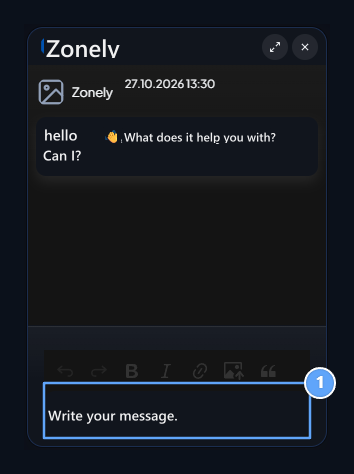
Message area

1. Message area

Guest question writes this interview field.
  1. The visitor will print on the live support icon on the site.
  2. Writer of the message field; Enter sends with.
  3. Reading the official response in the same window and maintaining the interview here.
The enlargement icon on the top changes the size of the window. Close chat icon closes the window alone; the request is not the same as the closing process. Check the status of the Visitor Support plugin and the support icon on your theme before window does not appear. Interview and response steps on the competent side Live Support is in the guide.

Set email notification

Support Mail Notification switch support opens or closes email notification. For the operation of the delivery Email Settings The mail link in the section must be prepared correctly. When you complete preferences Save Press the button. Users will open their requests from their support lists and follow responses; the opposite of these settings on the user screen Live Support guide You can review it.