
 Home
 User Guide
 Developers
 Payment Gateways
 Integrations & Tools
 Site Usage
 Troubleshooting
Create meeting room
Create Meeting Press the button. Enter the meeting name, optional start date and maximum number of participants. Complete registration with the creation button.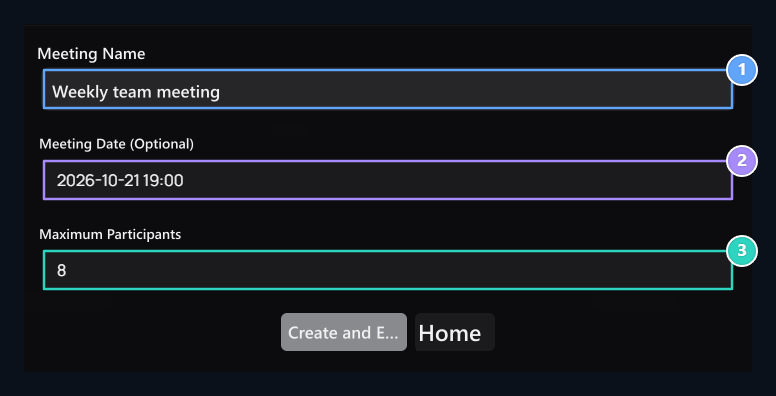
1. Meeting Name
Name you can recognize the room in the list.
2. Meeting Date (Optional)
Select the start date you want.
3. Maximum Participant
Participating capacity of this meeting.
Join Room
Check the name, status and date of the meeting in the list. Join Press the button; review and continue the room name in the drop-down confirmation.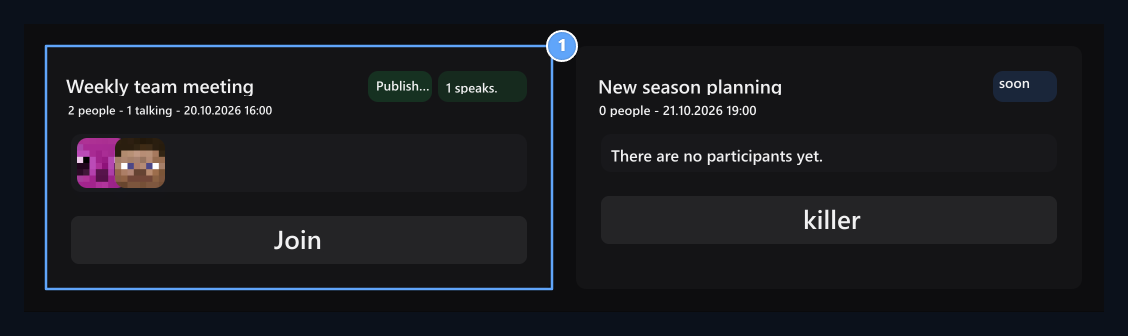
1. Participation in room
Press the Part button to enter the meeting room.
Manage interview
You can open and close the microphone and camera from the buttons on the top. Screen Select the tab, window or screen to be shared with the button.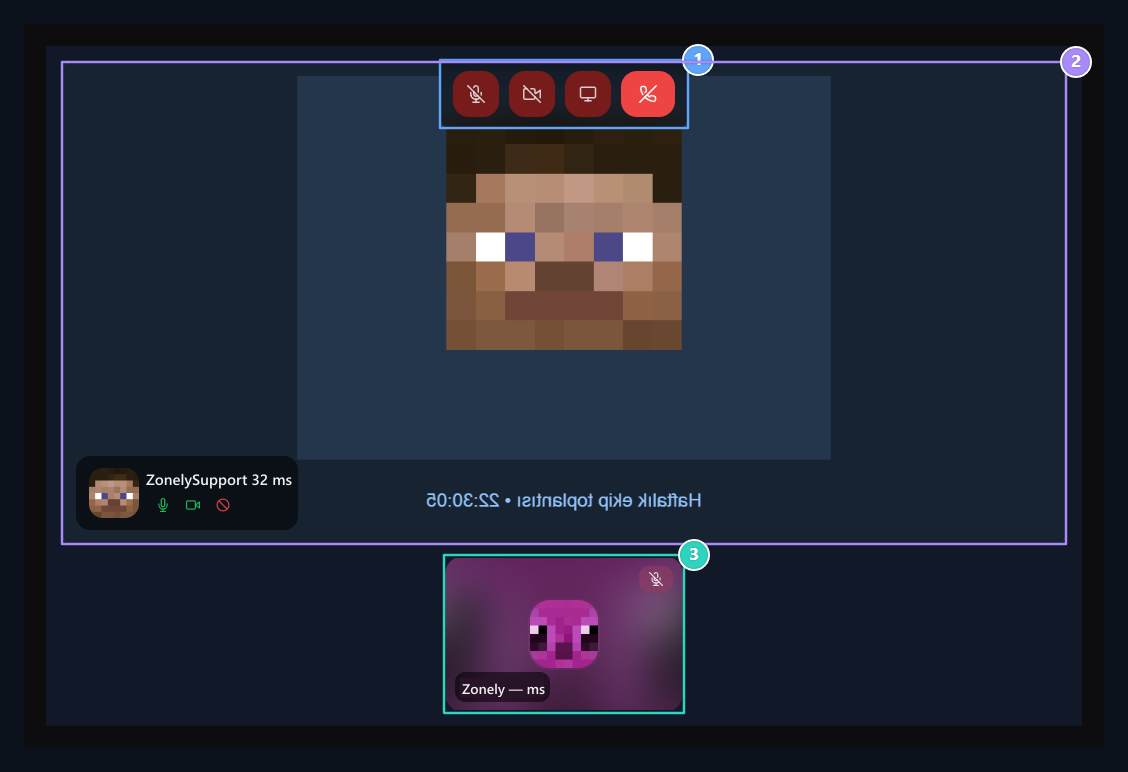
1. Interview controls
Microphone, camera, display sharing and separation buttons are on top.
2. Video meeting
Follow participants and shared images in the meeting.
3. Participants
You can change the main image by selecting the other participant.
You can change the main image by selecting one of the participants at the bottom. The camera can be displayed when it is closed. Use the call button or browser’s sharing stop tool to finish sharing.
View registrations
Formed interview records Records listed in the section. Download the part you need by checking the date and size information. Registration availability depends on the browser and the audio/image resources in the interview; keep the required file visible in the list.Sound or not display
Sound or not display
Check the microphone and camera permissions for this site of the browser. Make sure the correct device is selected and no other application is using the device. Check the connection status of the room.