
 Home
 User Guide
 Developers
 Payment Gateways
 Integrations & Tools
 Site Usage
 Troubleshooting
Reports from the site and from the game
Users via site can also send reports. For example, chat message Report They can report the message related to the authorities by opening the process and specifying the grounds. Minecraft server ZonelyCore If you are using the game reports sent in the game are transferred to the management panel via the link with the site. Thus, the notifications from the site and the game Reports Follow the section. First ZonelyCore connection complete and activate the report system of the plugin.Follow the status of reports
The list contains reporters, reported, reasons, status and date areas. Wait The registrations wait for review. The approved or rejected reports are listed together with decisions.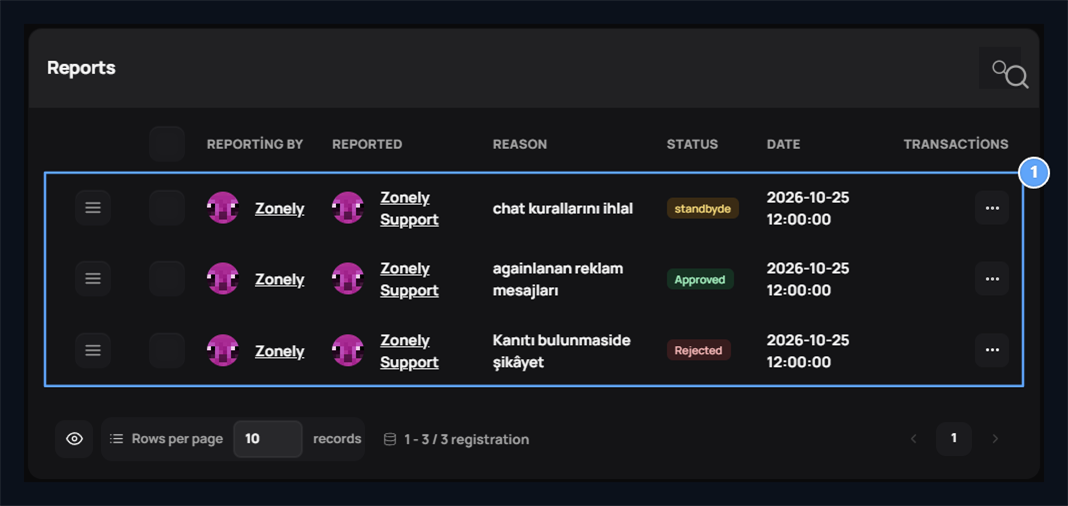
1. Report status
In the waiting, review approved and rejected reports.
See the required and player records
Check the ground and account information in the report detail. Event summary shows the player’s latest server and world knowledge, location, chat and command numbers if there is registration.
1. Report ground
Check the account that was reported and reported.
2. Registration tabs
Go between the latest chats, commands, evidences and moderation history.
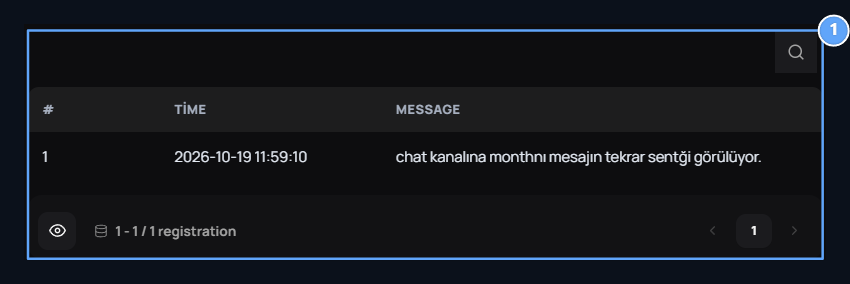
1. Chat evidence
Compare the message connected to the report with line number and time.
ZonelyCore and live preview
In in-game reports from ZonelyCore connection, you can also check the recorded player events. Live preview/rear preview allows you to review the recorded movements of the event when the area is ready for the game record and viewer connected to the report. Check the context of the report by reviewing chat, script, server and location information. For preview, the report on the ZonelyCore side and the re-register settings are open, the corresponding registration must arrive on the site. You can review the current chat evidence and moderation history in reports that are not registered.Save the decision with the ground
Decide open the button. Confirm or Reject Select and write the ground that explains the result of the review. Saves the approval button decision of the window; Stupid You can leave it with the process.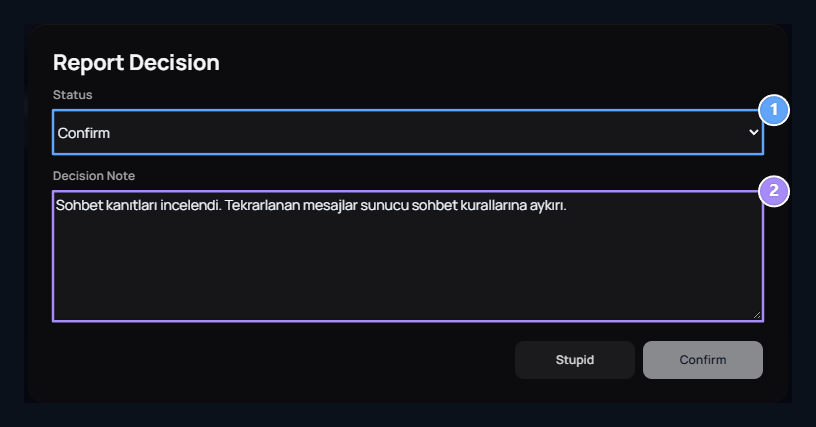
1. Decision
Select Confirm or Reddet.
2. No requirement
Write a decision note that explains the review result.
Apply also when necessary to penny
Punish The button opens the penalty form for the reported player. You will determine the method to be applied here and the time. Confirming the report does not apply a certain ban or susturma fine per single.
Prepare ZonelyCore connection
Connect your Minecraft server to the site; let the in-game reports and player logs access the management panel.
Penalties
Check out banqueting, susting and warning methods, times and records.