
 Home
 User Guide
 Developers
 Payment Gateways
 Integrations & Tools
 Site Usage
 Troubleshooting
Find your order
Check the user, product, amount and status. Timely products renewal You can see the finish information from the column.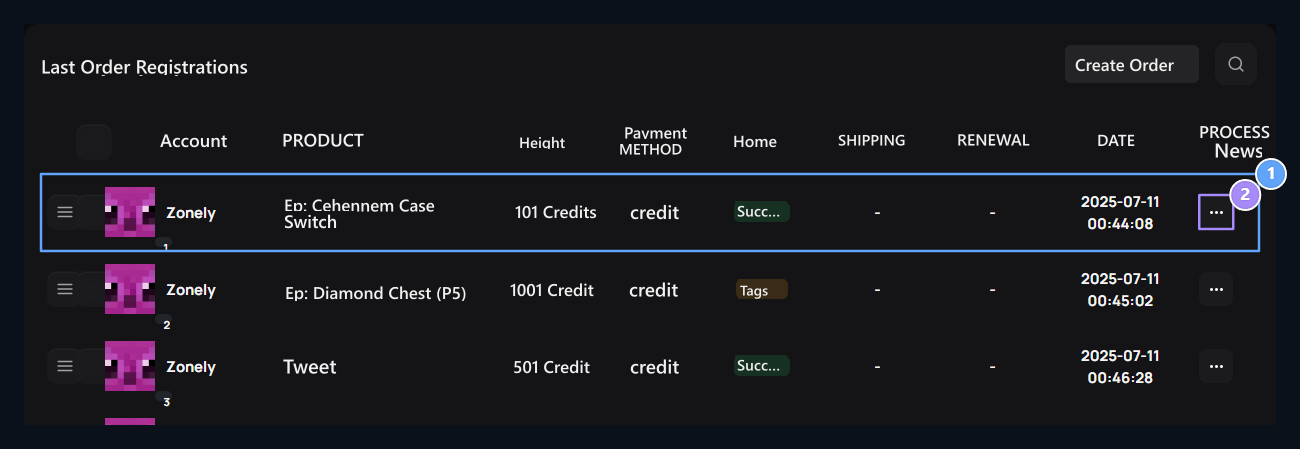
1. Order registration
Compare account, product, amount, payment method, status and date in the same line.
2. Three point menu
Open the viewing and management processes of this order here.
View order detail
View open products and payment summary with. Total Paid last amount, Credit Usage indicates the amount used from site balance. The discount will be listed if the tax and bonus information is available in the order.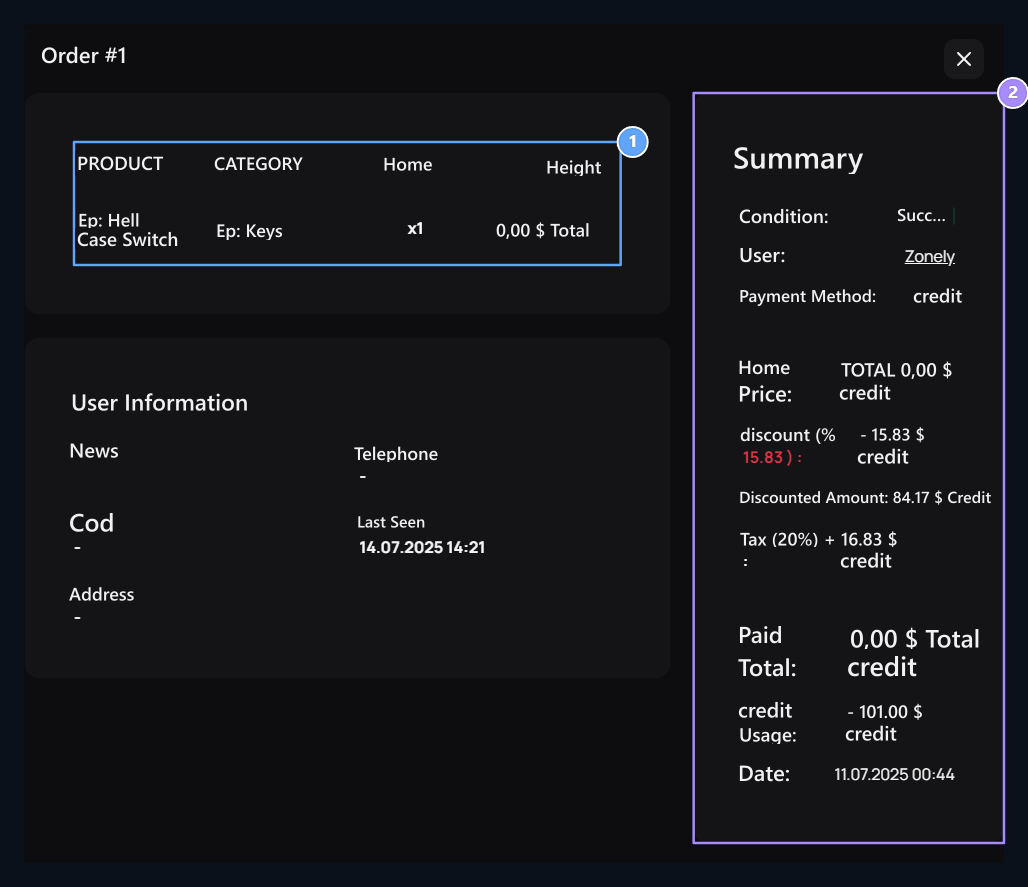
1. Product and account
Check the purchased product, category and user information here.
2. Payment summary
The normal price is located on the total right side of the total amount of discounts, taxes and paid if there is a discount.
Price and discount casting
Price and discount casting
Compare the normal price, the charged discounts, taxes and the paid sum here. Check out the net cost if the bonus is credited. To reach the registration of the deposit Payments Open the page.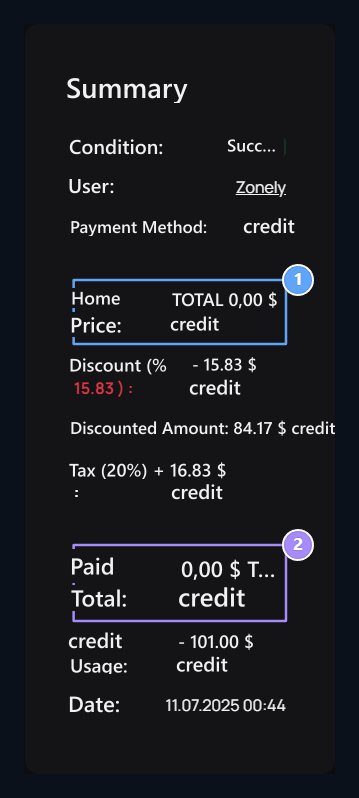
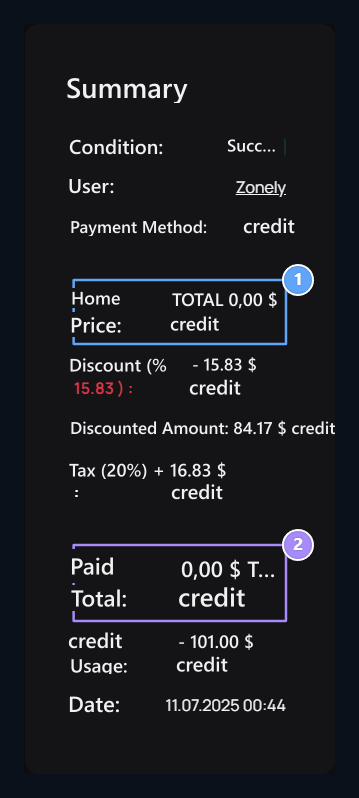
1. Price casting
Examine the normal price, discount and tax together. The lines appear if there is a corresponding amount.
2. Paid total
The last amount. Credit Use shows the amount that is reduced from the balance in the same shopping.
User information and selections of purchase
User information and selections of purchase
Check the user’s contact details and responses they provide during the order. Selected variants, additional services and files uploaded if Purchasing Choices in the section.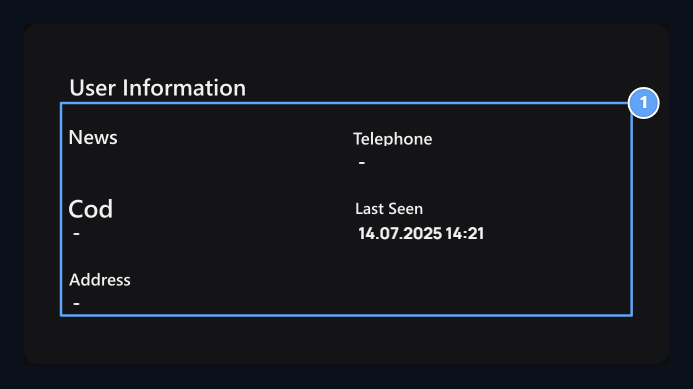
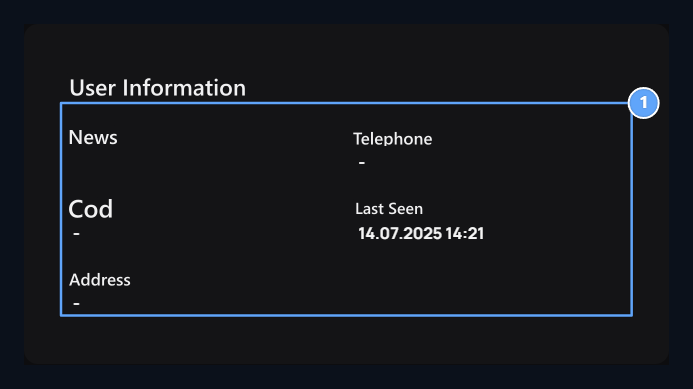
1. User information
Email, phone, T.C. Check your ID, last and address information from this section.
Manage order
Related registration three points open the menu. The process that can be used varies according to the condition of the order.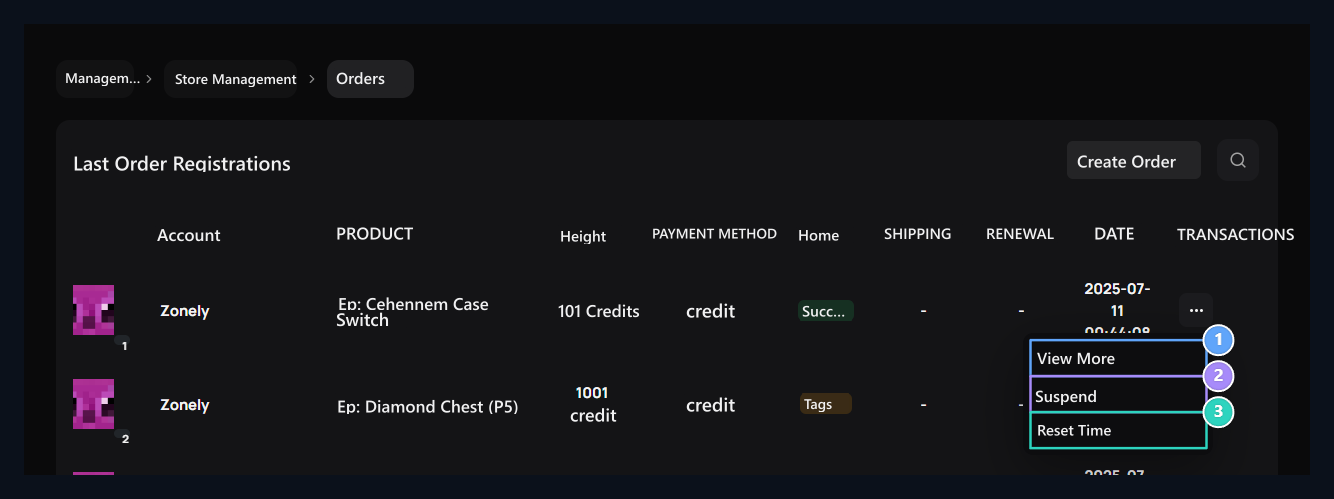
1. View
Open the product, user and payment details of the order.
2. Get Hanger
Starts the hanger process for the relevant order. Remove Hanger in the record on the hanger appears.
3. Reset Time
The time management process of the order opens. Check the correct product and account before processing.
Give user product
Create Order Press the button. Select the user, select the given product and type the quantity. Check the unit price and total amount.
1. Create Order
Use this button to give the user product and prepare a new order record.
Product and Unit Price
Product and Unit Price
The unit price is filled when you select the product. Edit the price if required; check the line sum after the amount is entered.

1. Select product
Select the product, the unit price is vividly questioned and filled. Wait for short time when loading the price.
2. Quantity and line sum
The amount of this line and the overall total recalculated.
Multiple products
Multiple products
Add open new line with. Set the product and quantity on each line; remove the line you will not use.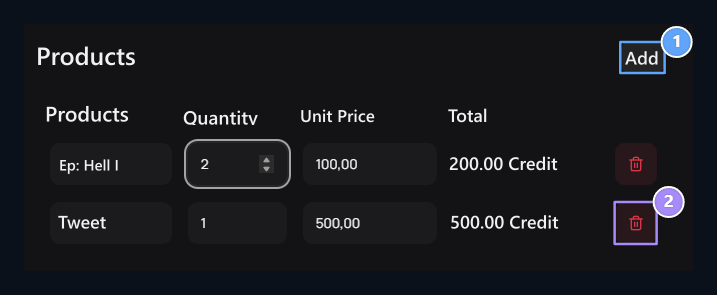
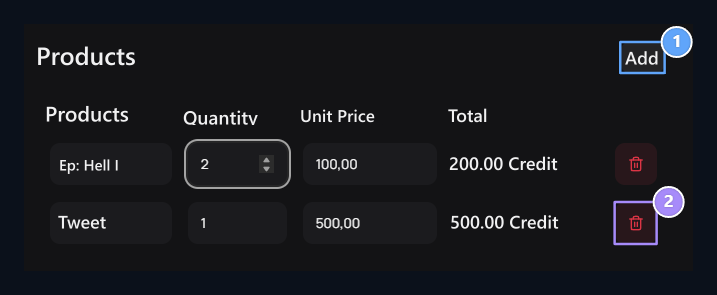
1. Multiple products
Open new line with insert. Each line determines the product and quantity separately; the amounts are collected together.
2. Remove line
The product you add is removed with this icon. Total automatic decreases; less product line remains.
User, total and status
User, total and status
Check the last amount if you have changed the total manually. Status to build the selection Create Press the button.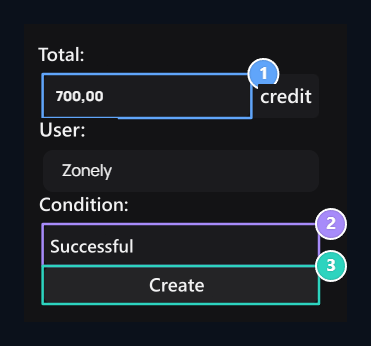
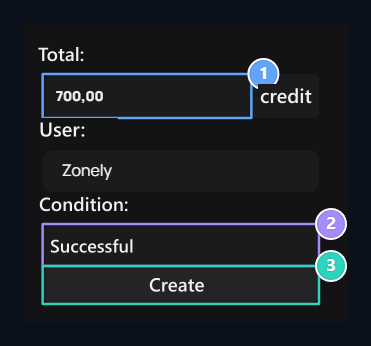
1. Overall total
The total of all product lines. If you change manually, it is used to replace the automatic sum.
2. User and status
Select the right user. Determine successful or Failed status according to the process conclusion.
3. Create
Save the order after checking the products, user and total.