
 Home
 User Guide
 Developers
 Payment Gateways
 Integrations & Tools
 Site Usage
 Troubleshooting
Set the name and fee of the Chest
General → Daily Chest Name type the name that users will see in the field. The information box in this section shows that the user may open 24 hours per user.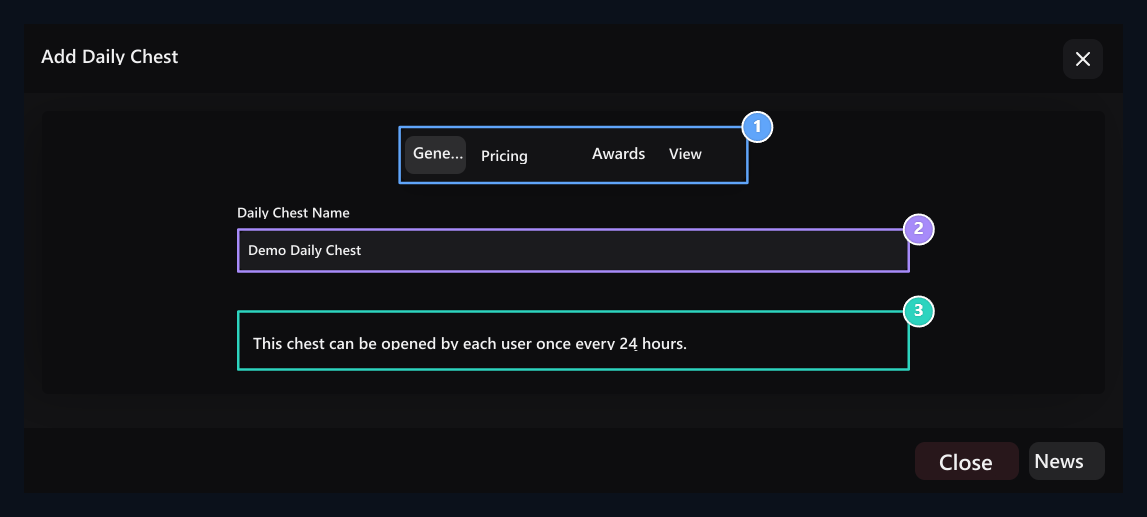
1. Four tabs
Complete the pricing, rewards and View options.
2. Daily case name
Appears in the user card and landing window.
3. 24 hours
The wait rule is applied per user; there is no separate time space.
Prepare the prize pool
Awards → Add Prize Create a line for each possible result with the button. Select the type of reward and related fields and Win Rate Fill the value.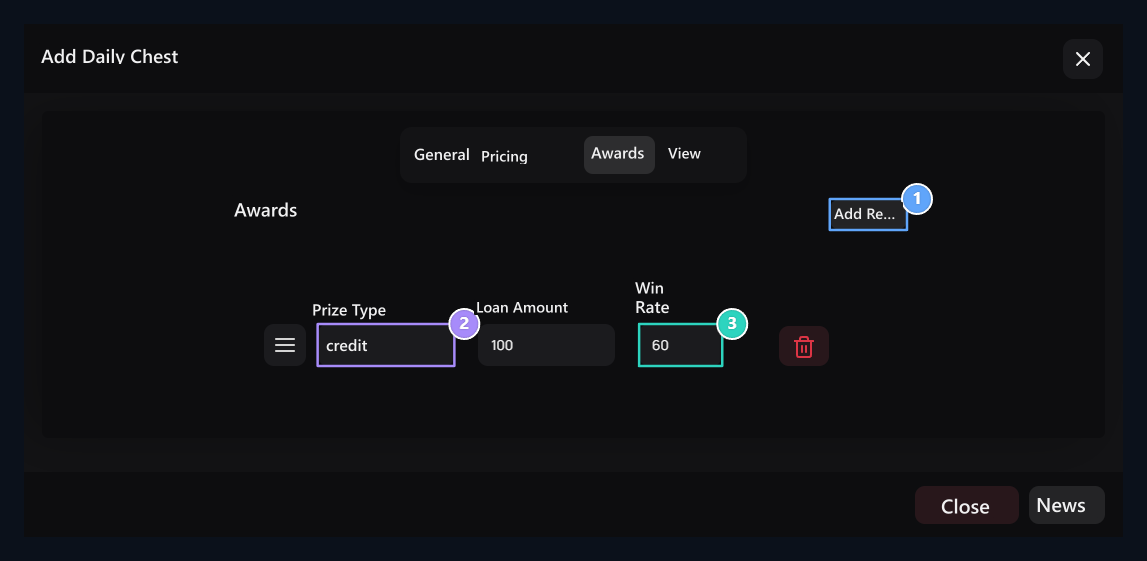
1. Award pool
Add new lines for multiple results.
2. Award type
Select credit, product or command and fill in the relevant fields.
3. Win rate
By determining the rate of this prize, every opening does not need to give the same prize.
Command type Add Server Select the link with and prepare the command lines. You can sort the rewards from their grips, you can get a line with the lifting button. Check rates with the full pool.
Show the last opening and history
View Two keys on the tab edit the information to show the user.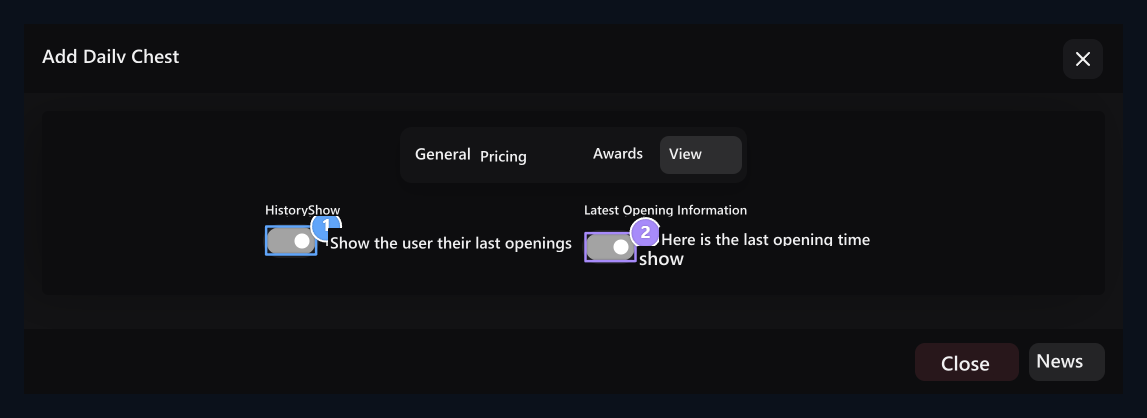
1. Show the past
Shows the end opening results to the user.
2. Last landing information
Shows the last opening time on the card.
- Show History: Lists the previous opening results.
- Last Opening Information: Shows the time of last use on the card.
How does the user find what it?
The name, fee and suitability of the card on the user page are shown. Ready; Opening; waitingindicates that the duration of the use is not filled.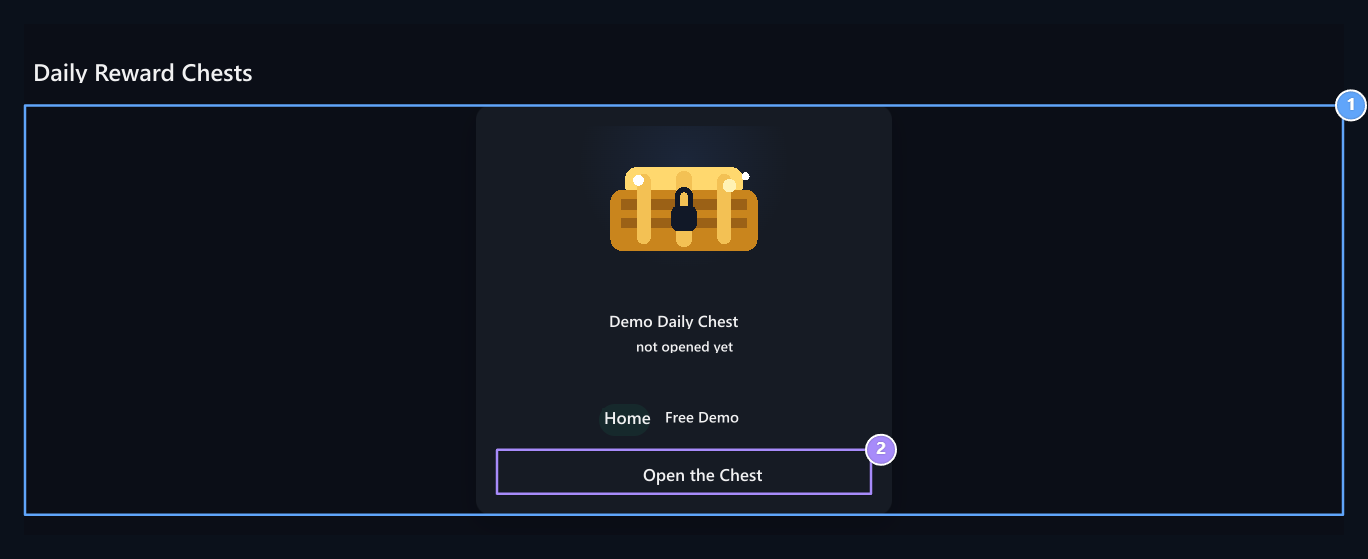
1. Daily case
Check the ready/existing status, fee and last opening information.
2. Open Chest
Go to the Detail window.
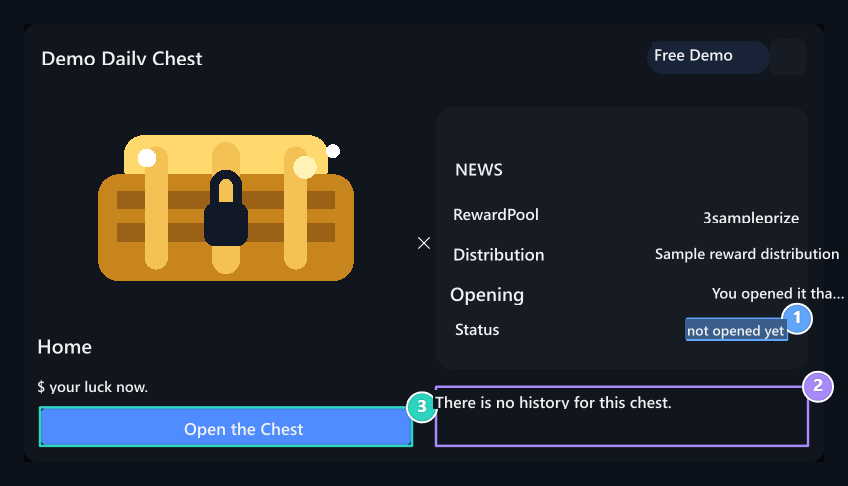
1. Last opening
Follow the last usage and waiting status from this area.
2. Past results
The previous openings are shown here if open in the management.
3. Start Opening
Use the daily right with this button if ready.
Use the daily right
1
Check availability
Login to your account. Make sure you have enough credit if you are paid for your cash.
2
Start Opening
In Detail window Open the Chest Wait for the animation to print the button and finish it.
3
View the latest
Check the reward notification, history record and reuse information.
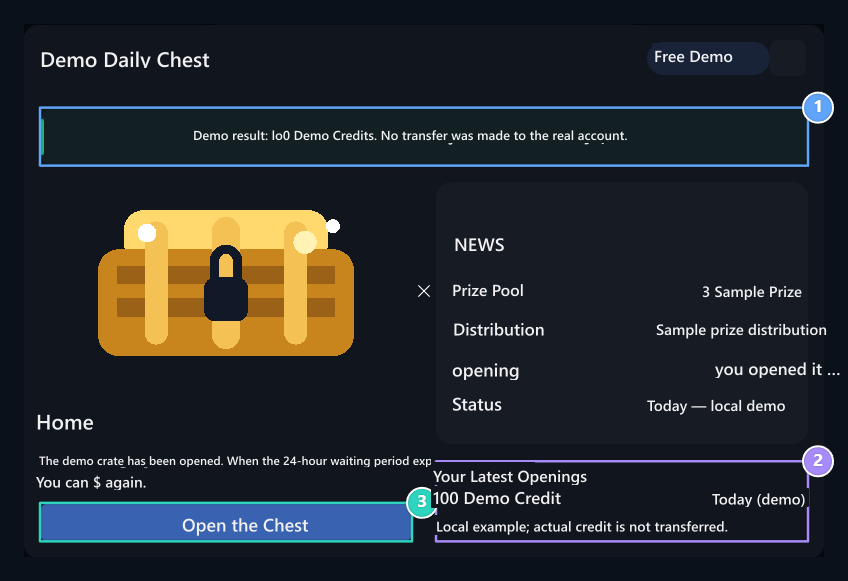
1. Conclusion and waiting
Check the opening result and the standby status for reuse.
2. New history record
If the history is open, the opening result is listed here.
3. Second opening off
The same user cannot reopen without expired for 24 hours.
24 saatlik bekleme son açılışa göre uygulanır. Gece yarısının gelmesi tek başına yeni hak vermez. Ayrıntı penceresini açmak da günlük hakkı kullanmaz.
safes
Check the Case guide to determine the opening time yourself again.