
 Home
 User Guide
 Developers
 Payment Gateways
 Integrations & Tools
 Site Usage
 Troubleshooting
View questions
The list includes the header, selection type, option count, active status and date of updating. Add Question Prepare new questions with.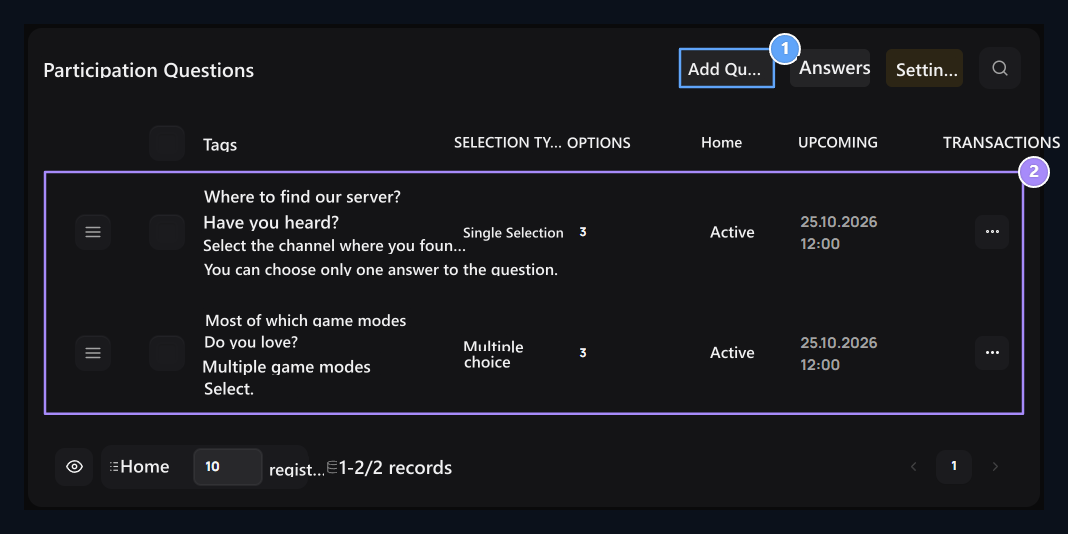
1. Add questions
Prepare a new question to be asked after registration.
2. Question and choice type
Check the question headers, mono- or multiple selection and active status.
Determine the header and selection type of the problem
Add Question → Q On the tab Question Title fill in the area. Brief Description Tell the user how to respond to the user in the field.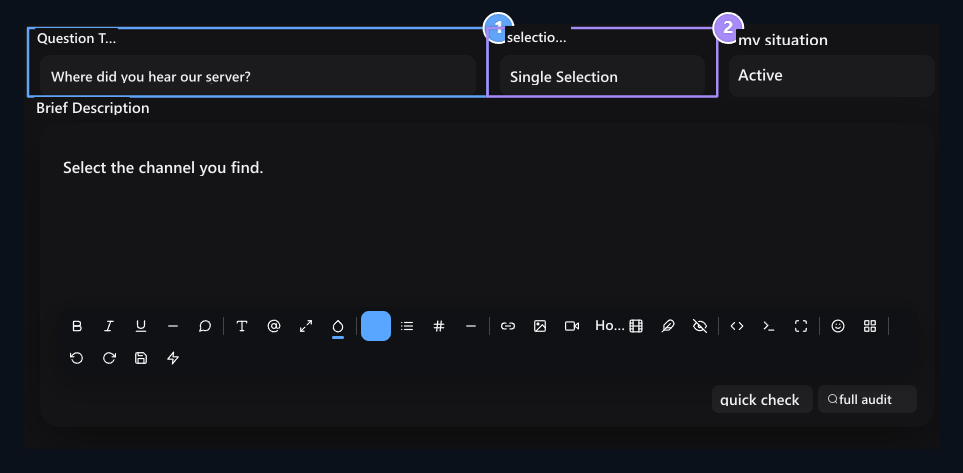
1. Question Title
Type the question that the user will respond.
2. Selection Type
Use Single Selection or Multiple Choice.
Prepare response cards
Options Go to the tab. Your first card Title type in response to the field; for new answers Add Use the button.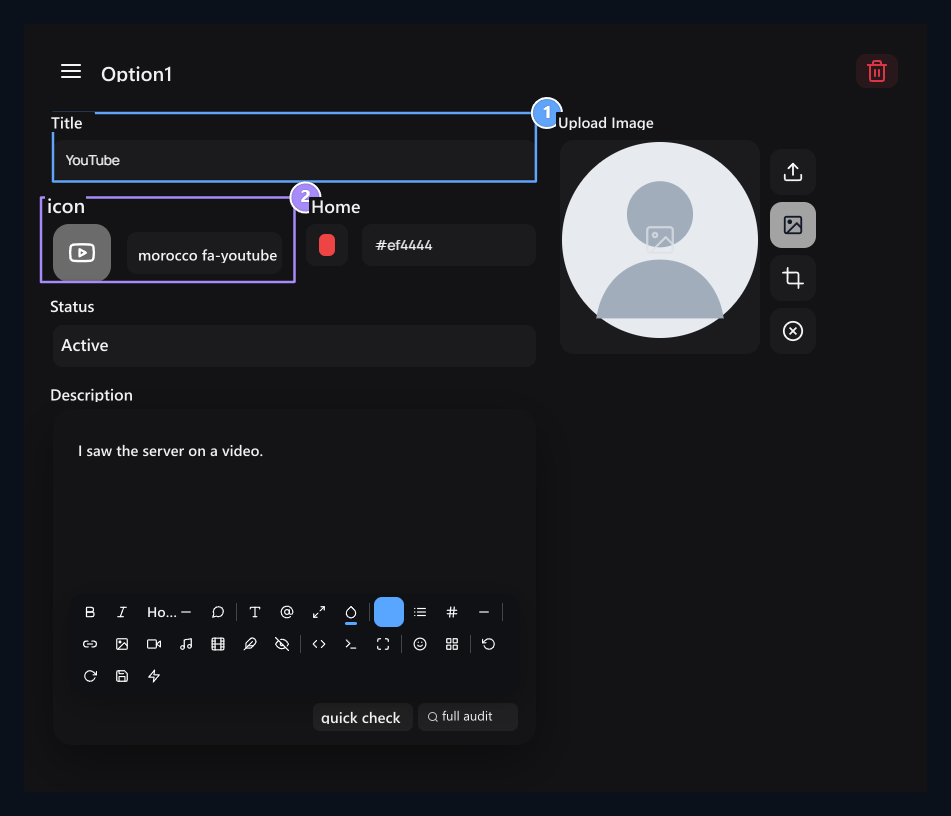
1. Title
Type the response to the user’s choice.
2. Icon and color
Set the icon and highlight color of the response card.
Activate the post-register flow
List of questions Settings button Engagement Flow Settings opens the screen.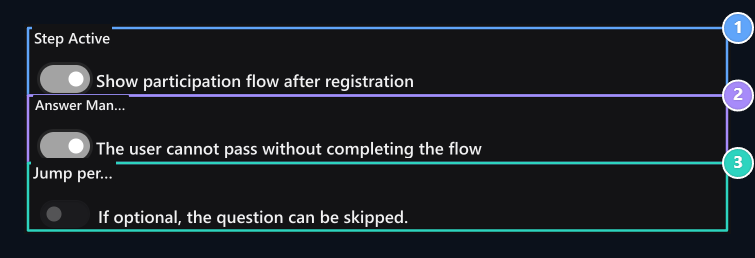
Step 1. Active
Show post-register participation questions.
2. Response Required
To ensure the flow is completed.
3. Jumping Permit
Allow the request to pass the question on the optional flow.
Type greetings and completion texts
Opening Title and Opening StatementThe input texts of the question window. For example Enjoy Zonely Minecraft! Meet the player with the header and explain the purpose of questions in short.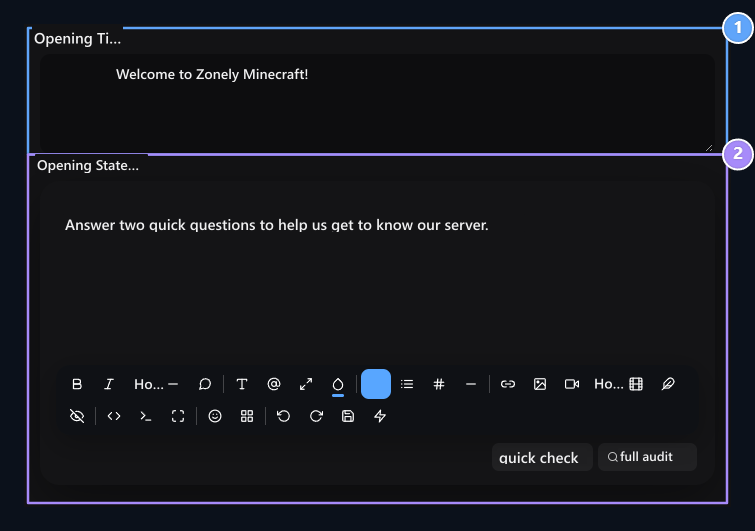
1. Opening Title
Set the header that meets the player to your server.
2. Opening Description
Briefly explain why the questions are asked.
Add server rules
Rules Active Add rules approval to the last step by opening the option. Rules Topic and Rules Title areas are known for this screen.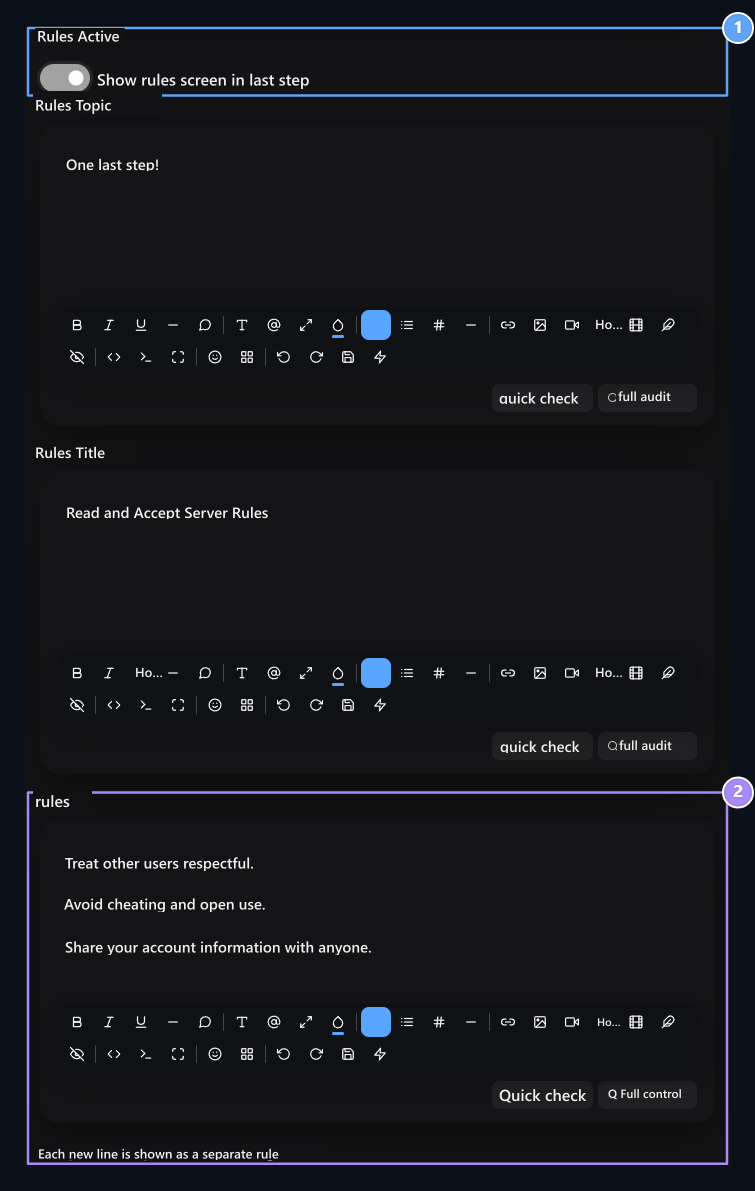
1. Rules Active
Add the step of the rule approval to the end of the flow.
2. Rules
Write a separate server rule to each line.
Select the participation credit
Participation Credit Award Type the amount of credit to account that will be completed in the field. Award in Sample 10 Credit as determined. If you are not going to be rewarded 0 Use.
1. Participation Credit Award
Set the credit amount to be accounted to complete the flow.
How do I respond to user questions?
After the player registration, click on the response card in the opened attendance window. Single Choice Another card in question changes the previous choice. It shows how much the step information on the top is.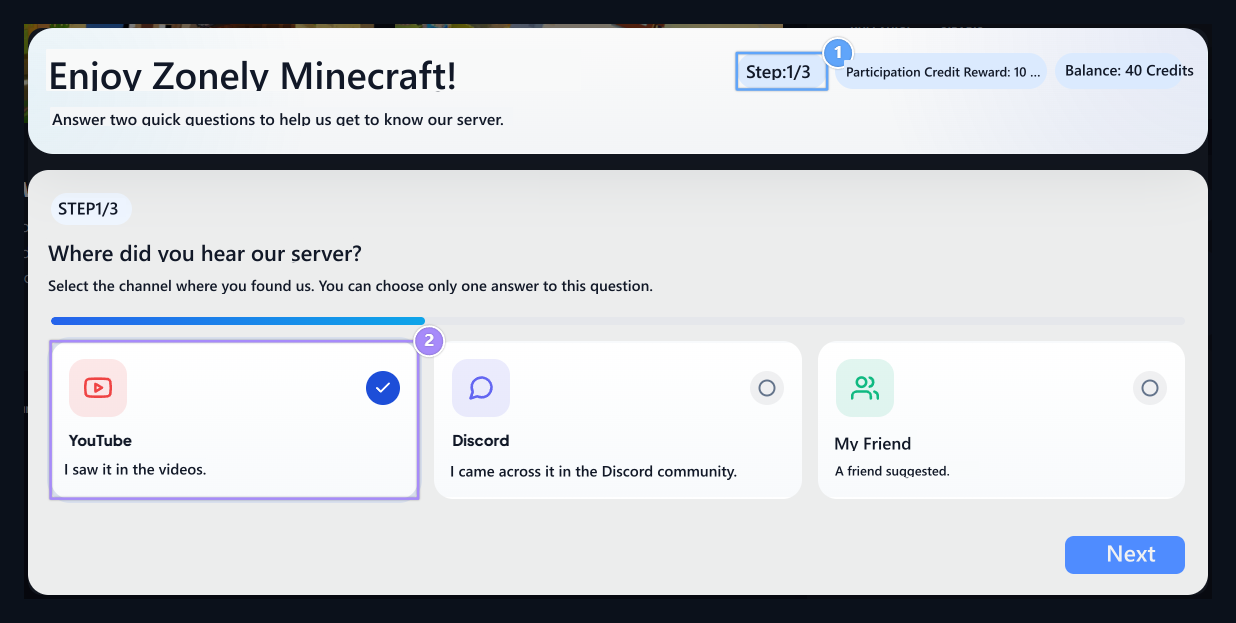
Step 1. Information
Two questions and rules create three steps in this example.
2. Single response
Only one card is selected in one choice.
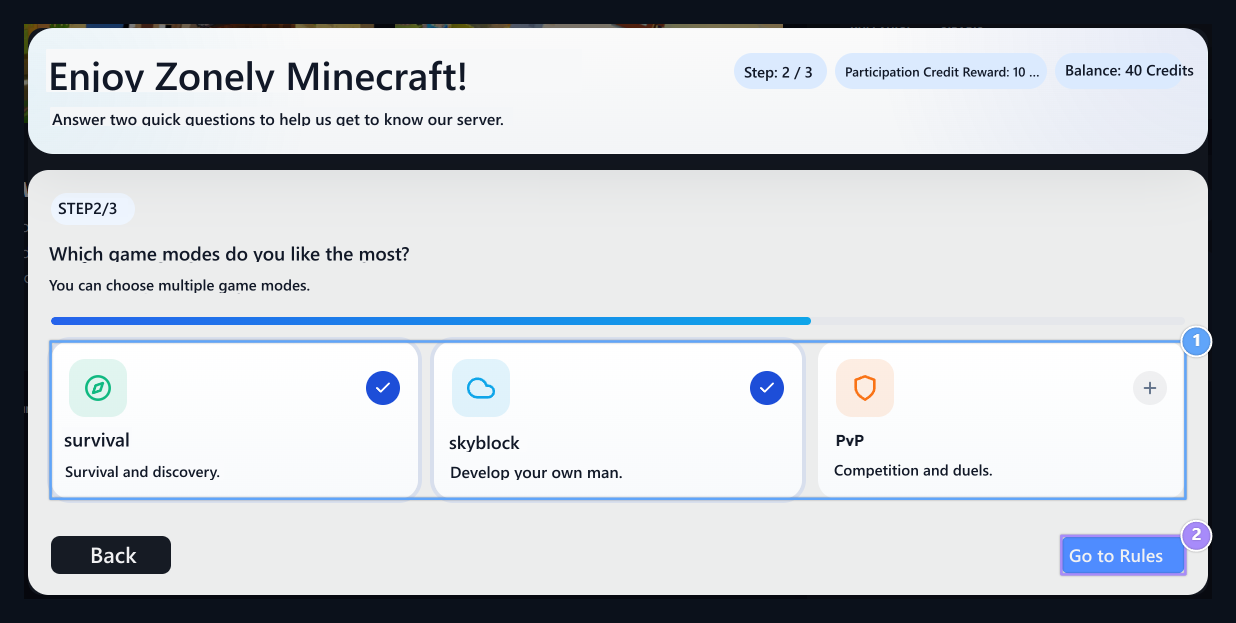
1. Multiple response
Survival and SkyBlock can be selected together.
2. Pass to Rules
Check responses and open the rules approval step.
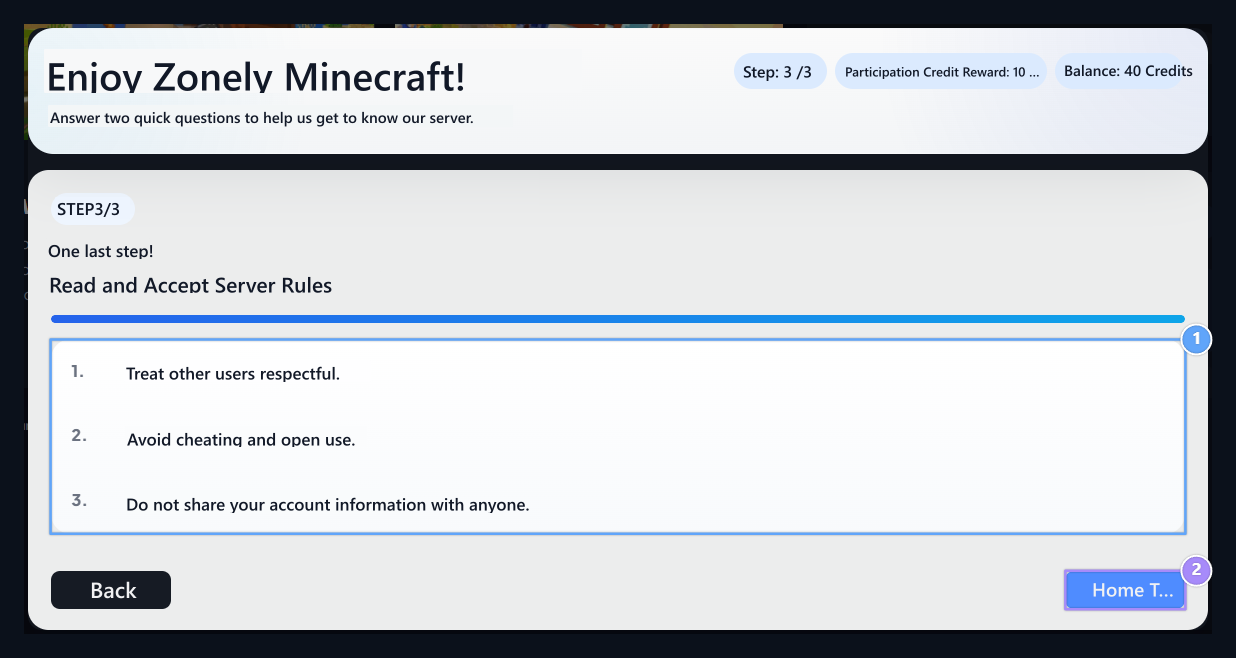
1. Server rules
Read the rules on the last step.
2. Save
Send responses and rules acceptance together.
View user responses
Management list Replies open the button. You can see the user name, response summary, details, complete status, reward amount and date together.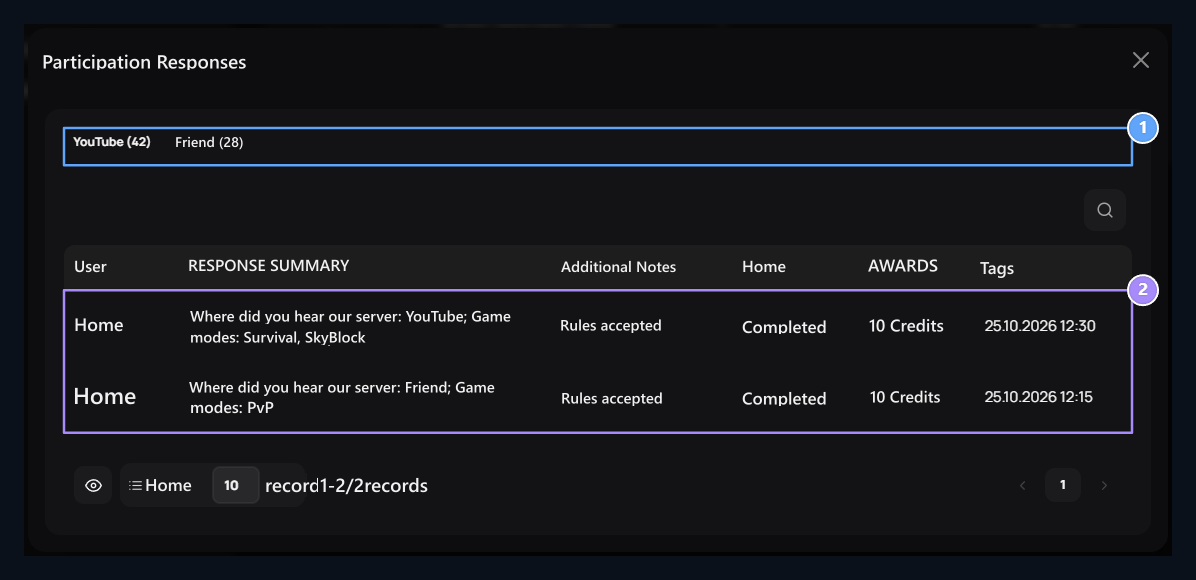
1. Reply summary
See how many times the options are selected.
2. User responses
Review responses, completion status, reward and date.

Surveys
After registration, prepare surveys to bring questions to the entire community and show votes results.