
 Home
 User Guide
 Developers
 Payment Gateways
 Integrations & Tools
 Site Usage
 Troubleshooting
What can you do on the chat?
Specify the date range, the corresponding user or product and the output you want to see in your request. For example after receiving sales data “Compare your first week” you can continue to speak the same.
Start new chat
New Chat Press the button. Select the model you will use and type your request in the message field. Send The message you transmit with and the response will appear in the field of speech.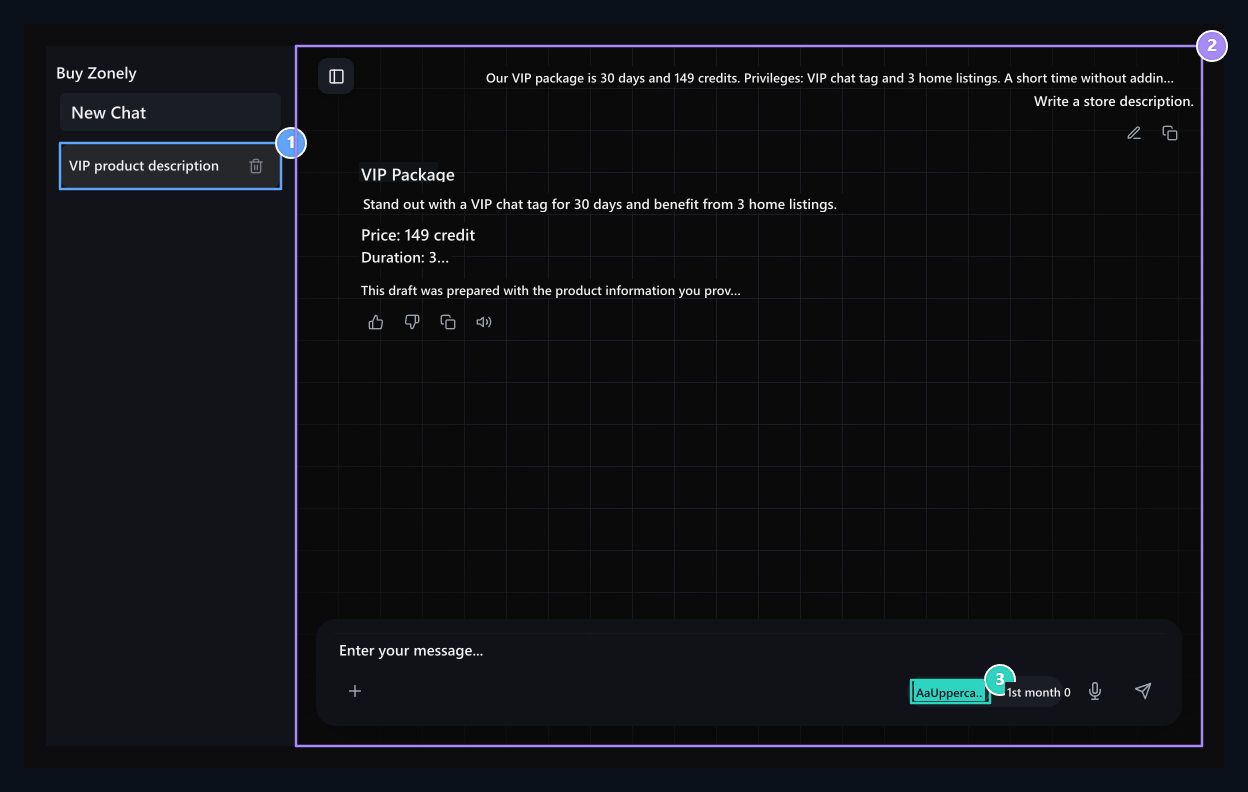
1. Chats
Open New Chat for a new task; choose the current conversation from the list.
2. Review the reply
Compare the price, time and other information you provide in your request.
3. Model selection
Select the model you will use from Veronica1.5 or Betty1.0 button.
Select Model
Select the appropriate model for the job you want to do from the bottom section:- Veronica 1.5: Used for chat and agent operations. Understanding the purpose of the message, data review, content preparation or executes the start flow of a supported process.
- Betty 1.0: Used for visual production. Write the topic of the visual you want to prepare, colors and style to your message.
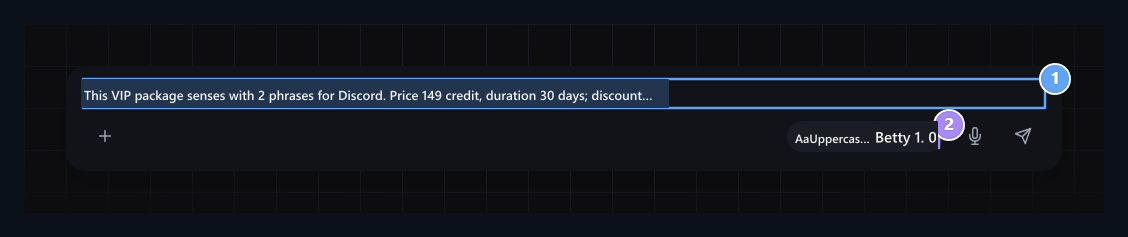
1. Optional open type
Specify the channel, length and information to be used.
2. Selected model
Select the model you will use and press the Send button.
Create products and content
To create new products, the product name, category, price, time and description specify. Complete the same conversation if missing information is asked. Check the registration generated as a result of the process; continue editing from the relevant product screen when necessary.Add a product called “VIP Plus” to VIP category. Price 149 credit, get time 30 days. The description indicates that there is VIP chat tag and 3 home records.
Add the necessary information to your request
Type the information where to use the text, length and to be protected. Specify the price, time and privileges directly when preparing product description:Our VIP package is 30 days and 149 credit. Privileges: VIP chat tag and 3 home records. Write a brief store description with this information.If you want to prepare Discord announcement, add the usage place in the same speech and the format you want:
Convert it to a two sentence announcement for Discord. You stay the same for the price and time.
Interpret data, ask for table and chart
AI can convert results into a meaningful summary by reviewing sales, user, support and traffic data accessible. “Do table according to the days”, “Show map with graphics” or “Open the three most increasing products” Edit the output with the ongoing messages as you need. You don’t need to write the same information from each message as the conversation stream is protected. Follow the details of the same topic from the chat available; open new chat for a different task.AI in live support
The AI model on the live support side is updated with v2. User questions are used in the support flow to understand and prepare faster, relevant responses to the topic. For the management of support requests Live Support guide Check out.Edit and use output
Compare the price, date and other information in response with your own registration. If necessary Write shorter, Use a more resmî language or Convert to three items Send a message to the next time. Get text using copy tool under response. Transfer the output you need to store in your own document or related content field.assistant
Prepare information from document and site content.