Notifications open the screen. Prepare in-site announcement to users and follow the notifications released before.

View registrations

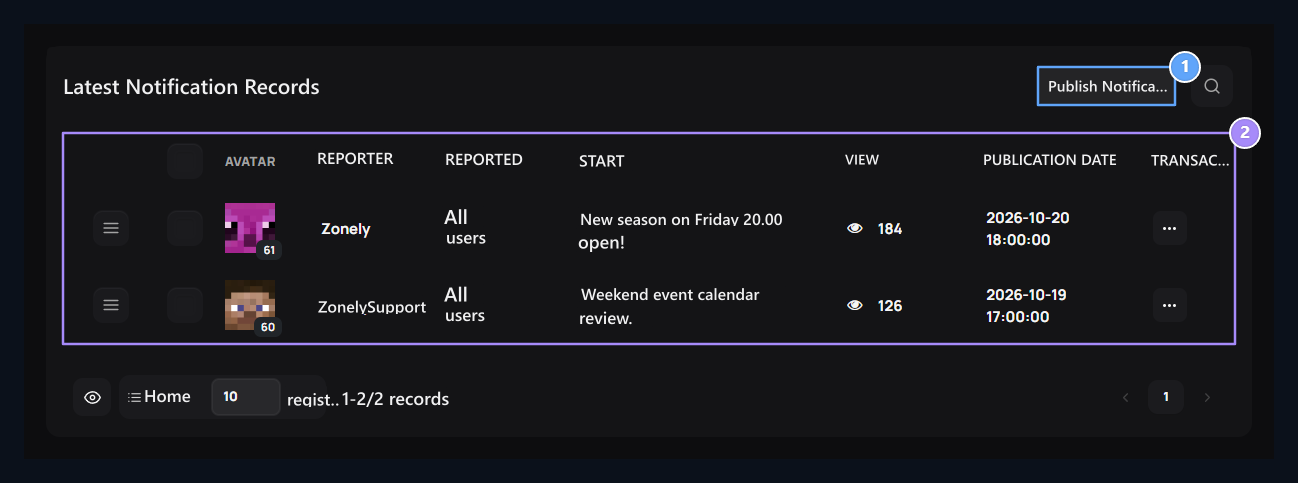
Published Notice, Notification history

1. Release Notice

Open text, link and visual fields.

2. Notification history

Report, reported, title, image and date together.
Table Reporting, Abstract, Title, Views and date information is available. Find a record with the search. Line Transactions Open the editing or copy option from the menu. You can delete bulk with selection boxes. Store the layout with the visible registration button after ranking with the tutamatch. Evaluate the information from the notification record related to the display.

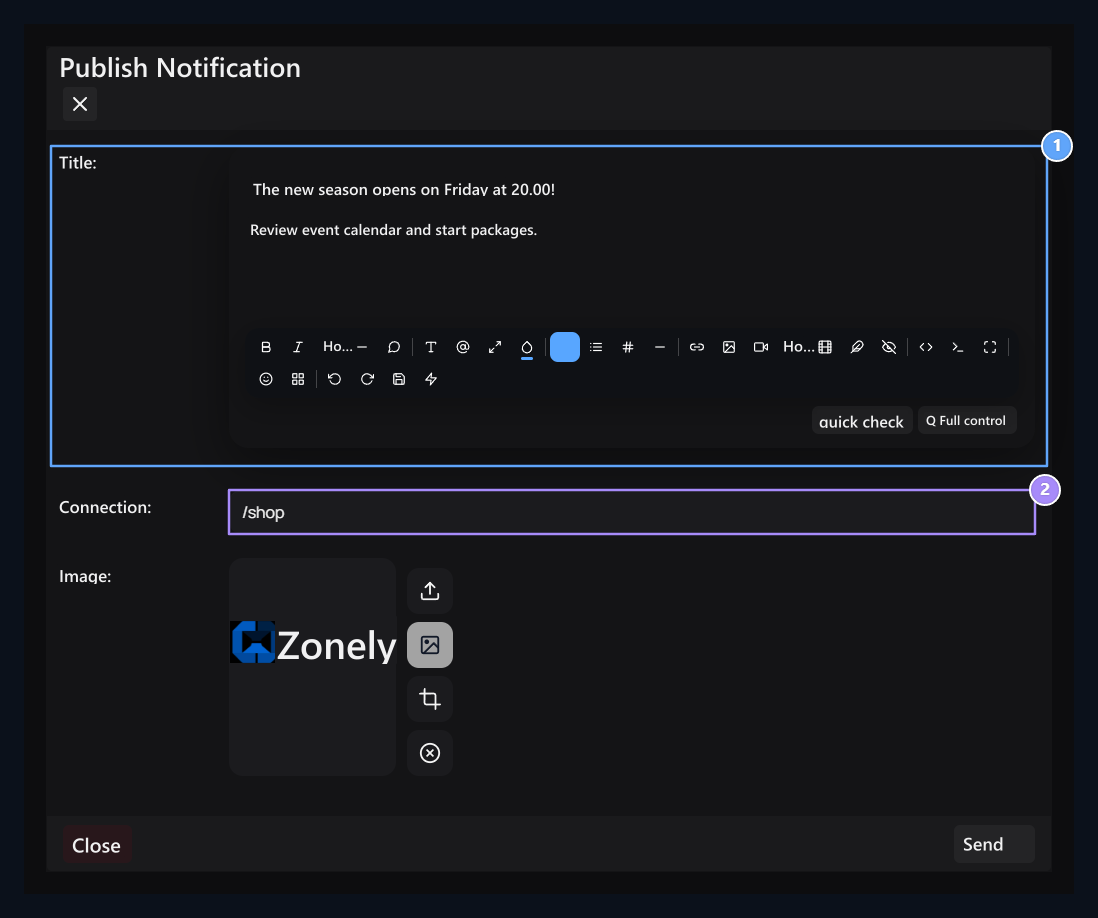
Prepare Notification

Notification text, Related page

1. Notification text

Write the event short and open; you can format it from the editor.

2. Related page

Enter the address that the user will reach from the notice.
Publish Notification Press the button. Text to editor and post important information in the first sentence. Link enter the opener page from the user’s notice; add visuals if necessary. For example, you can announce that the new season starts and link to the corresponding season page. There is no separate user selection in the form of creation; do not comment the abstract column in the list as a private shipping area. Checking and checking text, link and visual Send Press the button. This button will publish notification. For further submission timer Use in-site notification process in the section.