
 Home
 User Guide
 Developers
 Payment Gateways
 Integrations & Tools
 Site Usage
 Troubleshooting
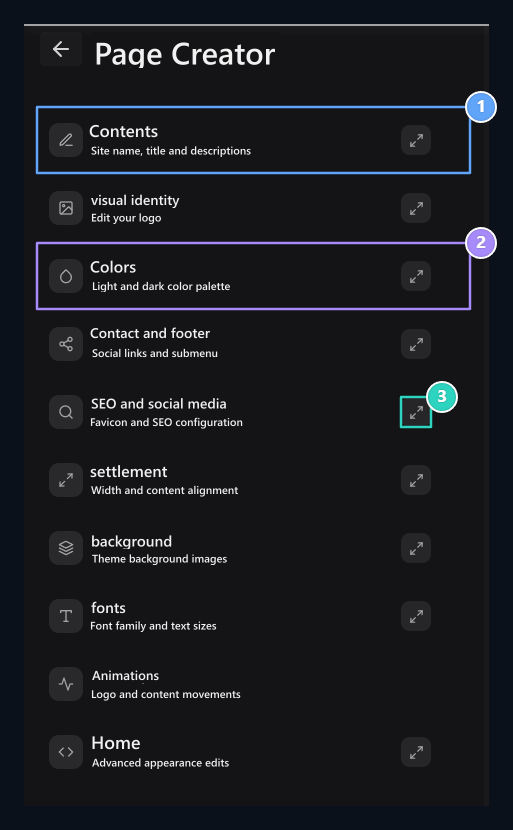
1. Site content
Brand name and site texts are arranged in the Content section.
2. Visual settings
Prepare the look of the page with colors, layout and background.
3. Edit in wide area
The enlarge button details on the next section open in large window.
Open a section
Click on the head you want to edit in the left list. The areas are opened under that section. Next to the head magnification iconopens the partition in a wide window. You can use this appearance when editing multiple areas such as content, color or font. After changing the areas, turn off the window and preview the site. Close up a partition window, does not mean saving changes.First edit
- Content Type team name, site header, server address and descriptions in the section.
- visual identity Select your logo from the section.
- Colors, settlement and fonts Prepare the basic view with.
- Edit backgrounds, menus and animations if required.
- From the bottom bar to examine and lower Save All Press the button.
Save changes
When you change in the general site settings, the record bar appears on the bottom. Save Allsaves the settings you are ready. UndoThe overall settings that are not recorded will return to previous values.
1. Save All
Use to save your site settings you are prepared.
2. Get back
Return to start values from unsaved regulations.
Select the area you want to edit
Content
Site name, header, server address, short description and About us.
Logo
Logo selection, visual library, crop and match the theme.
Colors
Light and dark appearance, main colors, palette and status colors.
settlement
Content width, narrow home page and horizontal alignment.
background
Background visuals of open and dark appearance with the upper part.
fonts
Body and header fonts, text sizes.
Animations
Logo layers, card entries, hover and installation appearance.
Navbar and Footer
Add menu, grouping, ranking and social accounts.
SEO and social media
Search headers, favicon, share images and tab settings.
Additional CSS
Complete the appearance with your own style rules.