
 Home
 User Guide
 Developers
 Payment Gateways
 Integrations & Tools
 Site Usage
 Troubleshooting
Adjust logo height and movement
Logo Animation switch open and closes movement. Logo Height (px) field 32–300 Set the size of the logo on the screen by entering a value between. To change the visual file Logo Go to the section.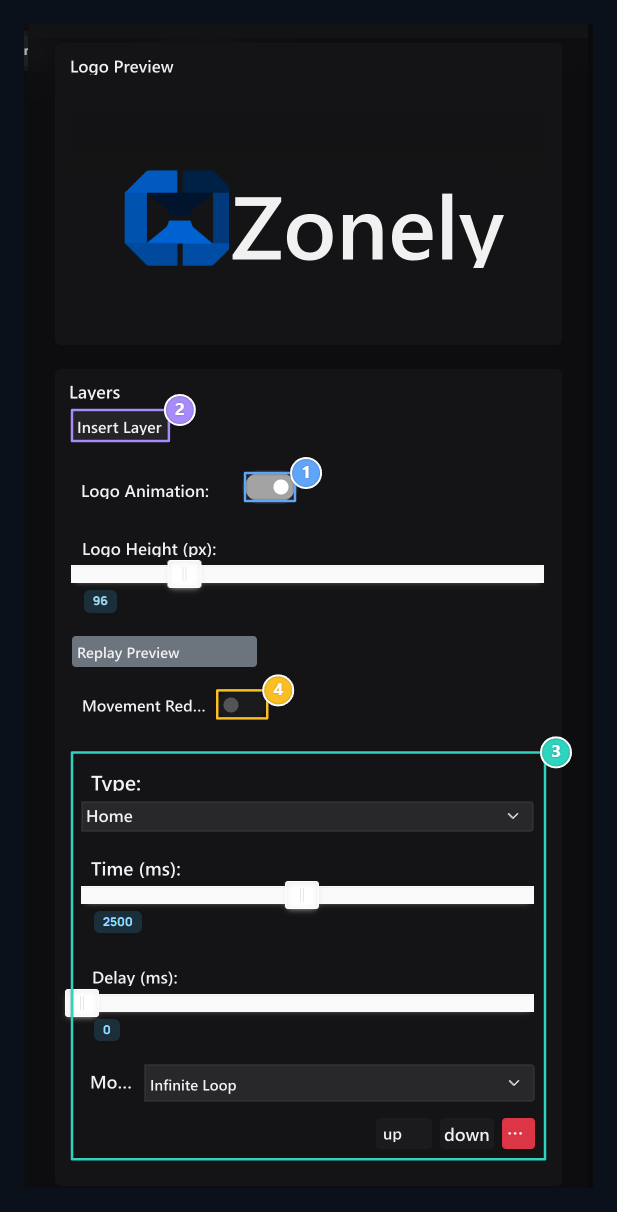
1. Logo animation
Open the movement of the logo and adjust the height separately.
2. Layer Insert
You can use a different motion and working mode in each layer.
3. Layer settings
Select type, time, delay and mode. Change ranking with up/Down.
4. Reduce movement
Use reduced motion adjustment for a quieter look.
Prepare the input animation of cards
Content Animations window Animations open the key. Detailed areas appear.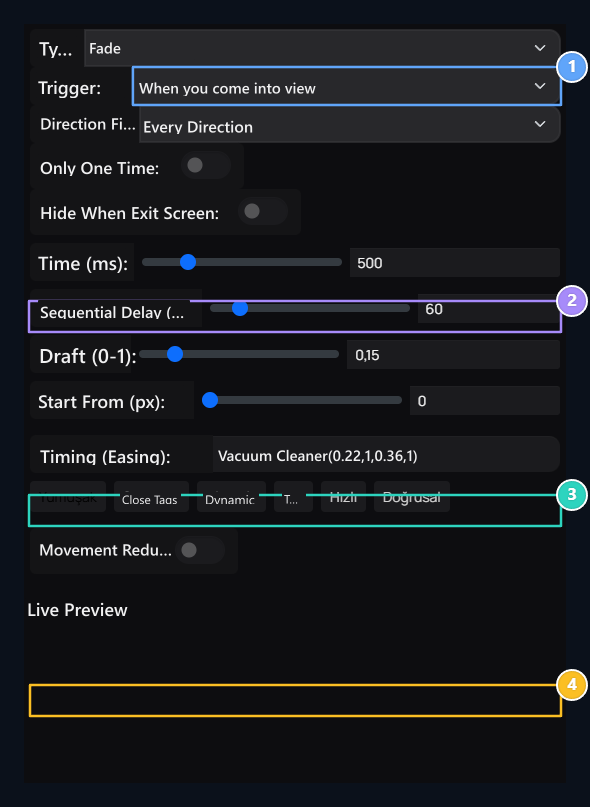
1. Trigger
The move page starts to load or enter the card visible area.
2. Time and sorting
The length of movement is; wait between rows delay cards.
3. Visibility threshold
Value from 0–1 determines the rate of cards that should appear.
4. Motion curve
Select one of the ready curves or edit easing value.
- Direction Filter: It is the working condition when scrolling down or sliding up in any direction.
- Just Once: The movement limits with one play.
- Hide when exiting screen: Determines the behavior of the card out of the visible area. Check again with your playlist.
- Duration: The length of the movement is; 100–2000 ms set between.
- Inline Delay: For the time between the background of cards; 0–500 ms range.
- Tags: How much card should be seen; 0–1 A rate is entered. 0,15means about 15 percent.
- Start From: Start Distance 0–400 px settings between.
Select the effect of coming on cards
About Bride option opens hover effect. Remove, Shadow or Slope Select one of the types. Hover Close Check the option together.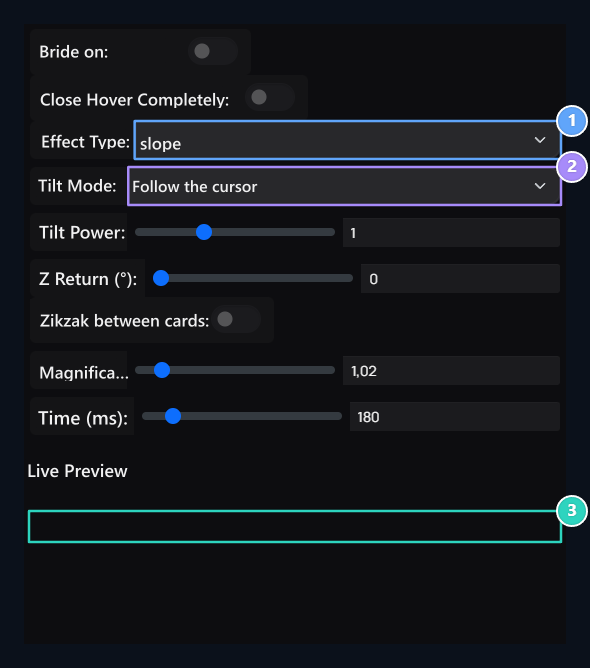
1. The effect of coming on
Select one of the Remove, Shadow or Tilt view.
2. Tilt behaviour
Use cursor Tracking or Fixed Angle mode.
3. Scale and time
Set the growth and movement time of the card separately.
Set scaffold loader
Scaffold LoaderThe content is the place holders that appear when preparing. In Pictures and Texts Select which content is used with their selections.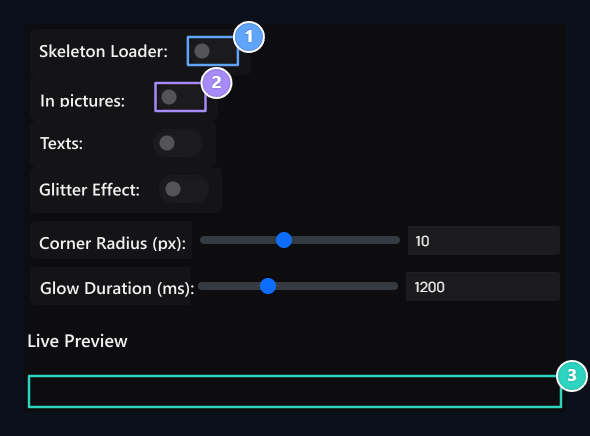
1. Scaffold loader
Open and close the ground grips shown when the content is prepared.
2. Visual and text
Select which contents of ground holders are used.
3. Shimmer view
Set the corner radius and the duration of the spark.