
 Home
 User Guide
 Developers
 Payment Gateways
 Integrations & Tools
 Site Usage
 Troubleshooting
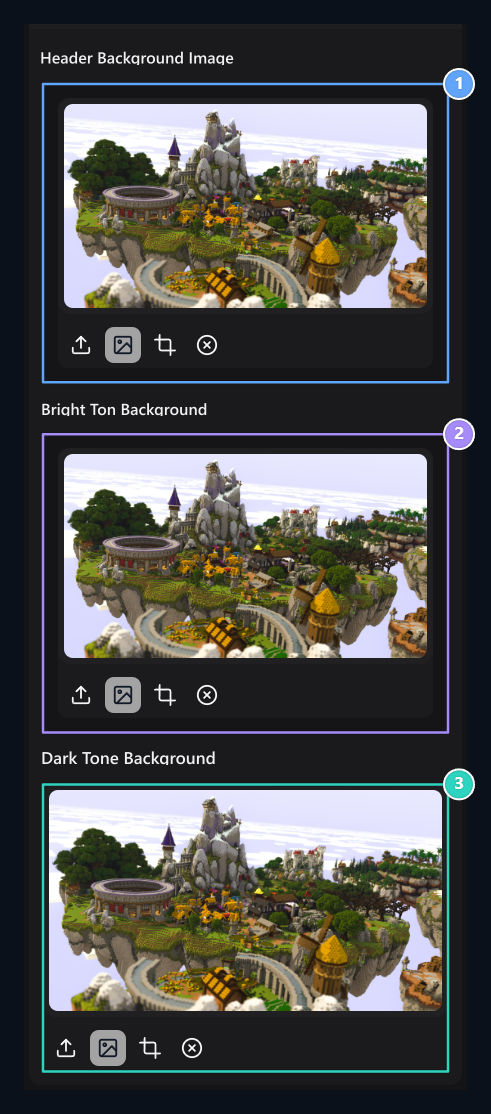
1. Header background
Change the visual in the top of the page here.
2. Bright background
Select a separate visual for open view.
3. Dark background
Edit the visual of the dark view independently.
Select which area you can change
Header Background Imagevisuals used in the upper part of the site. Bright Tone Background open view, Dark Tone Background the background visual of the dark view. You do not want to choose a picture from the other two areas. For example, you can use a darker visual in the lighter, darker look.Add or modify the visual
- Related Area File Select Press the button or library Select a visual.
- If necessary Crop Set the section to be used with the tool.
- Check the logo, menu and text on your visual.
- Checking and dark appearance separately Save All complete with.