
 Home
 User Guide
 Developers
 Payment Gateways
 Integrations & Tools
 Site Usage
 Troubleshooting
Prepare product information
Select the developer; Product Name, Product Slogan and Product Summary Information fill in the fields. Add visual. Details Tell the features, installation and conditions of use of the product in the field.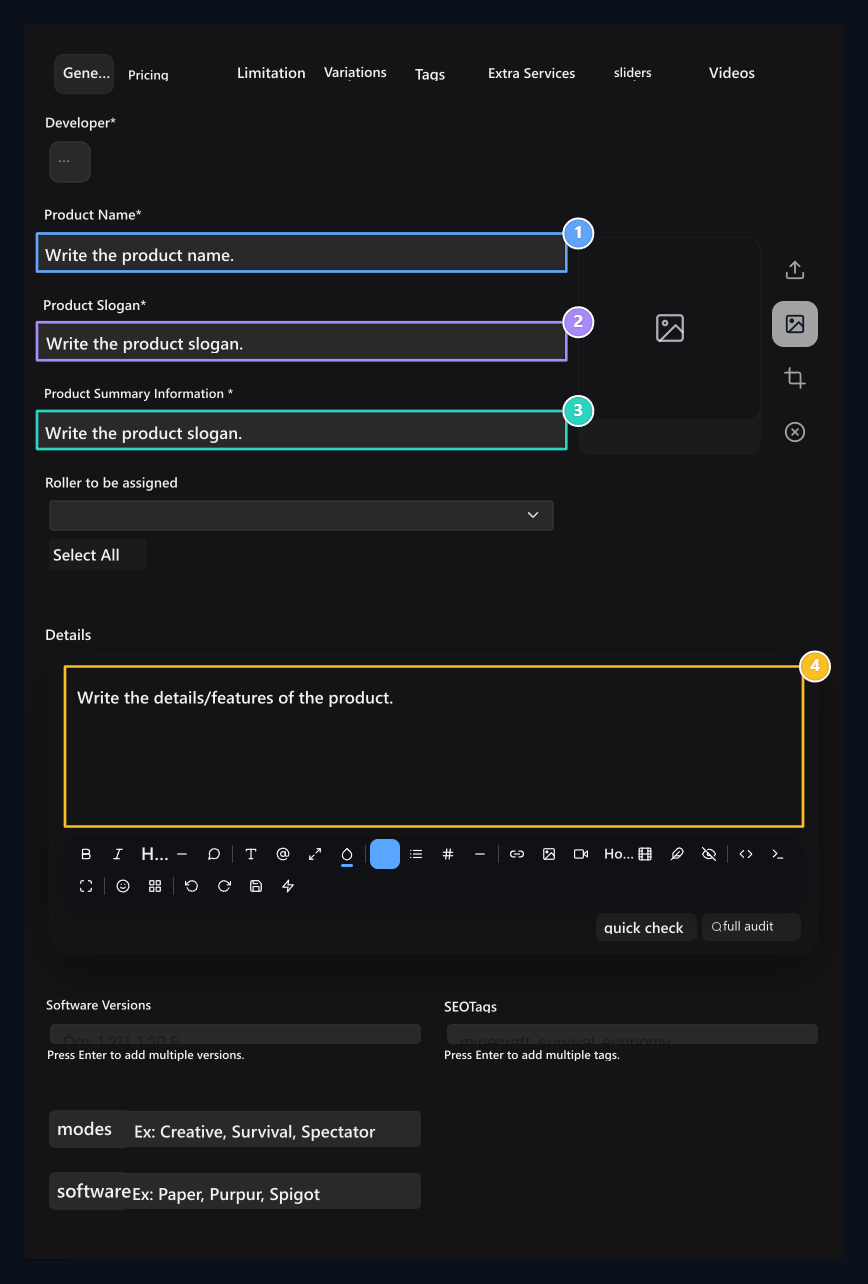
1. Product name
Type the name of the content in the store.
2. Slogan
Introduce the product with a short sentence.
3. Summary information
Briefly explain the scope of the product.
4. Details
Tell the features, installation and use.
Free or paid
- Free
- Paid
Pricing On the tab Free Select. Product Download URL Type the link of the content to be downloaded in the field.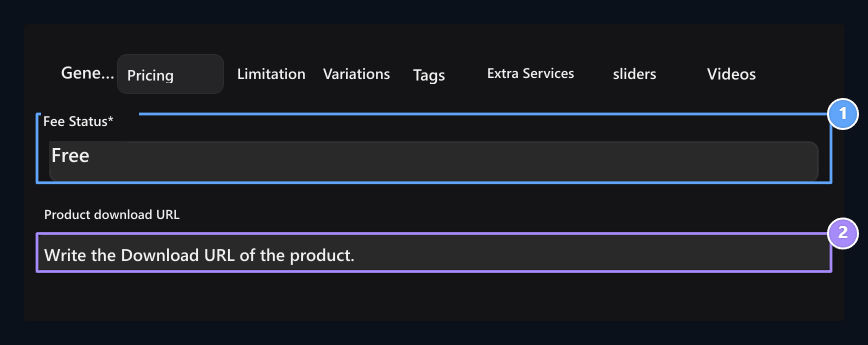
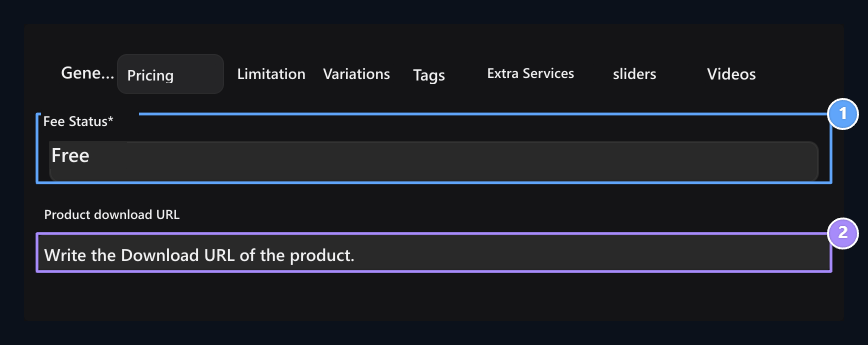
1. Free sale
Use free option.
2. Download connection
Type the content address to be downloaded.
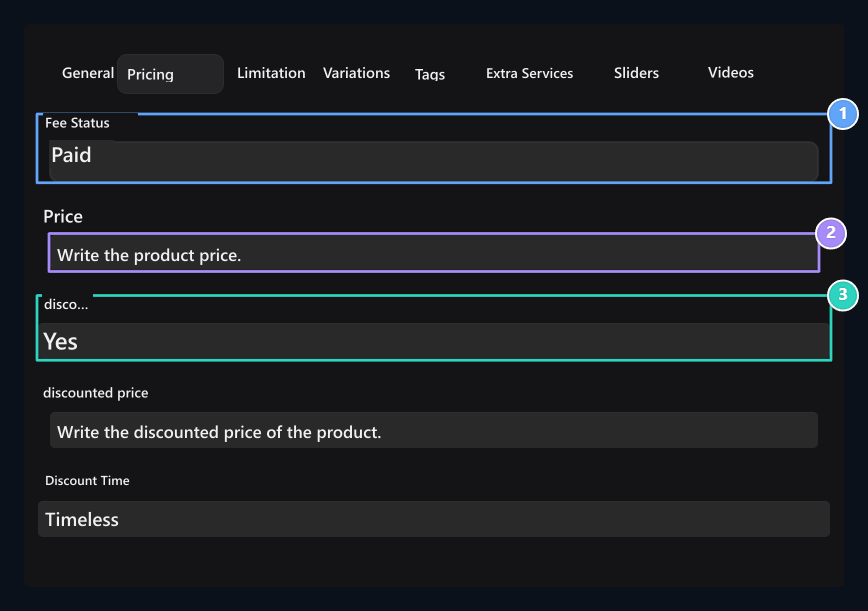
Set the stock limit
Limitation On the tab Unlimited by selecting you can sell without limit. None specifies the product is not in stock. Limited for stock Yes and select Quantity fill in the area.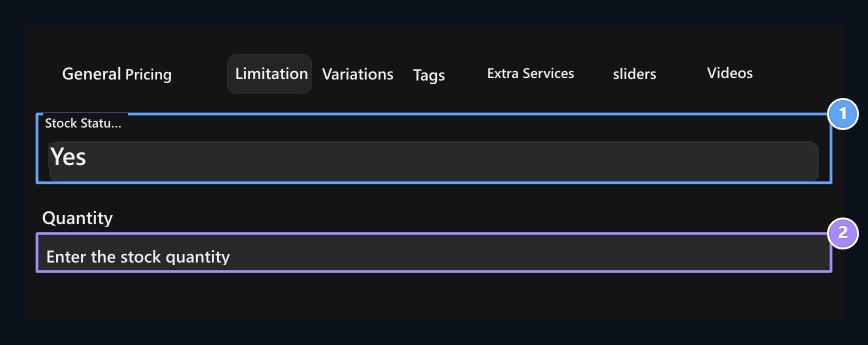
1. Stock status
Unlimited, No or Var.
2. Quantity
Enter the sales score when you choose.
Add visual and video
Promotional images
Promotional images
Sliders Add images from the diagnosis of the product on the installation area.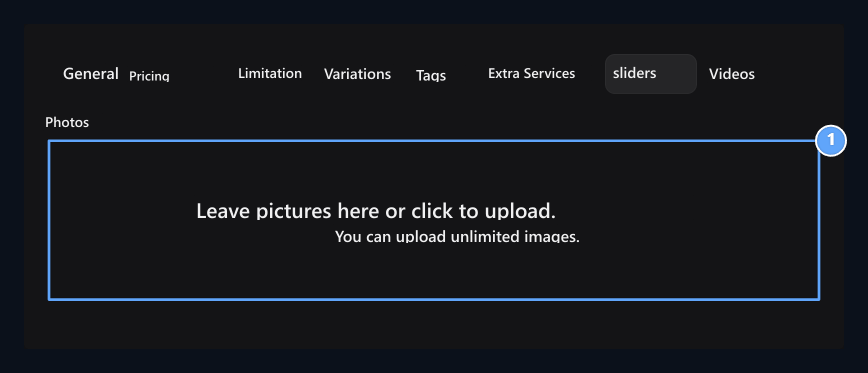
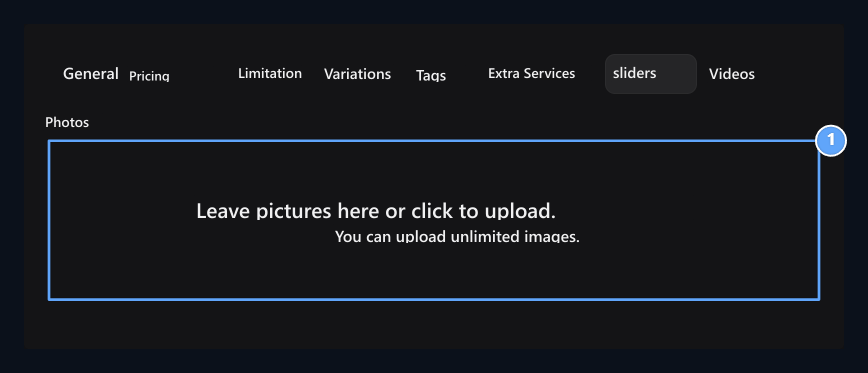
1. Promotional images
Upload images from the product diagnosis.
Promotional videos
Promotional videos
Videos In the YouTube tab and type the URL of the cover image. Add lines for new video; remove the line you don’t use.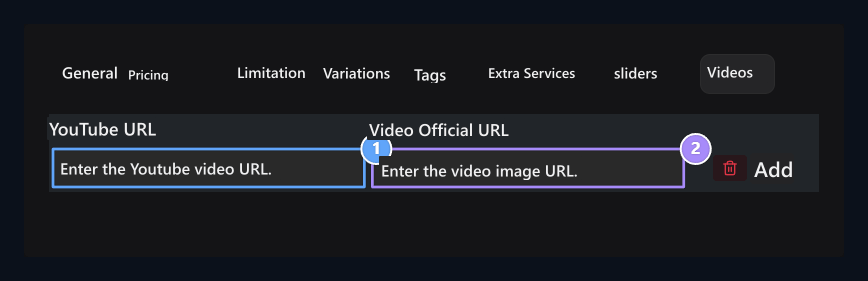
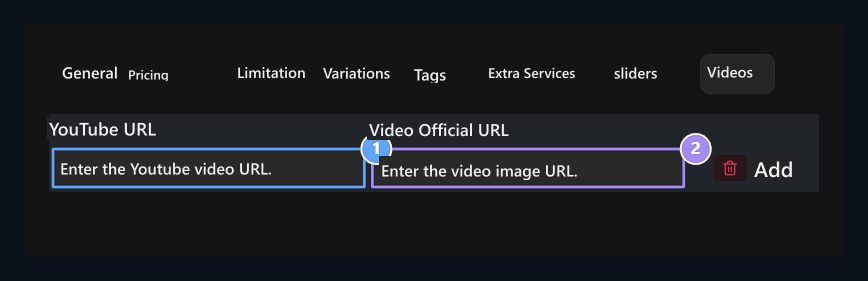
1. YouTube connection
Write the address of the promotional video.
2. Cover visual
Add the cover visual address of the video.
Upload the file after registering the product
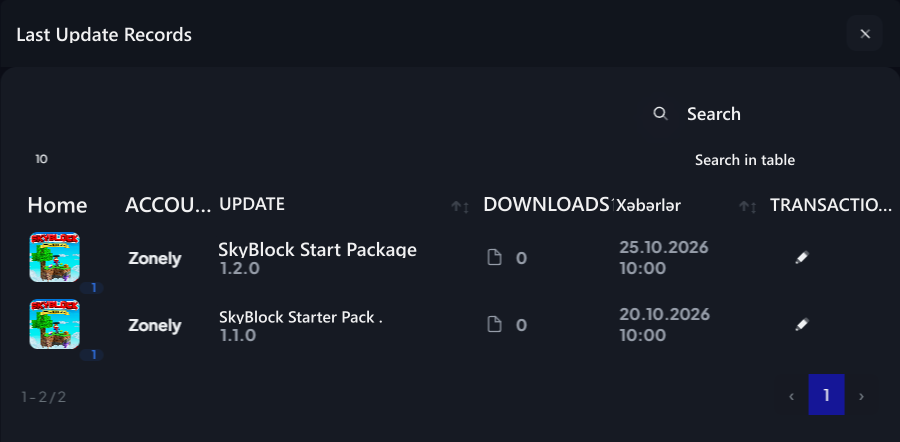
To add the file to be downloaded after release the product Updates to the guide . Update Select digital product you create on the screen, type version name and changes, upload your file and publish the update. You can add new versions to the same product.How to download the user file?
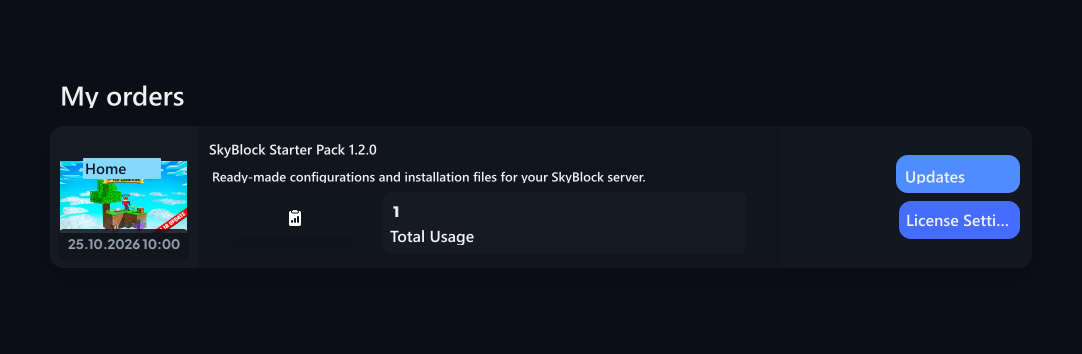
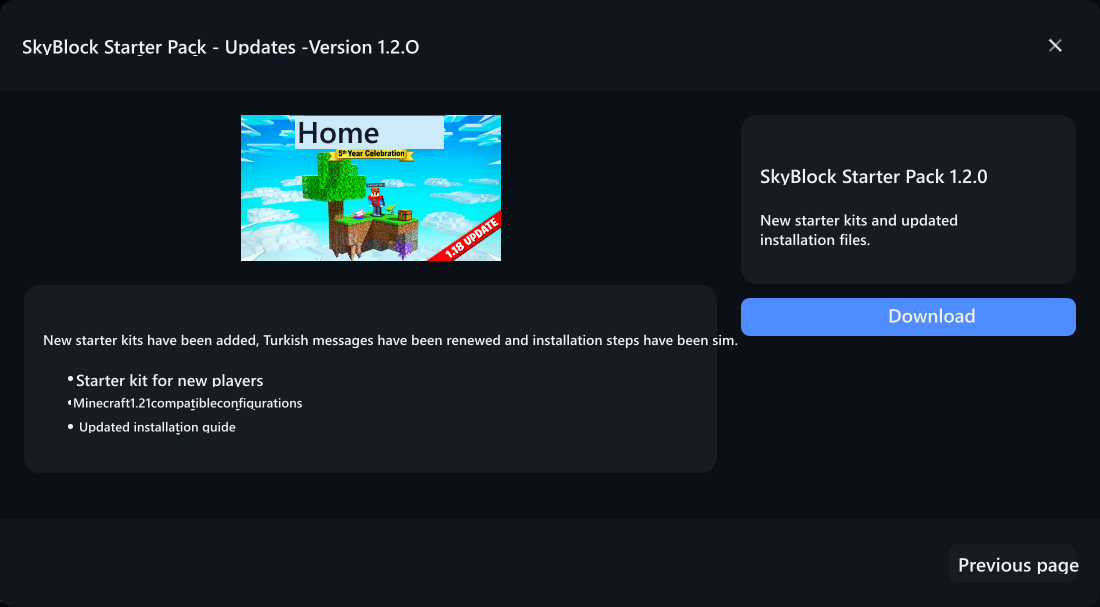
User, Profile → My orders Finds digital product with the section. Product card Updates opens versions from the button; select the desired version and Download print the button. For access to the file, it is necessary to have the right to download the product.- Product in My Orders
- Updates
- Version & Download
- License Settings
Add references to your digital products
Servers and communities using your digital product or service References You can promote names, addresses and logos in the section.
References
View the steps of adding server or community reference, selecting logo and updating information.